

These upload options are currently in beta and may not yet be available to all stores.
Placing a UNFI Order on VoriOS
Build your UNFI order in VoriOS like any other order. Since UNFI doesn’t accept orders directly from Vori, checkout ends with an Order Partially Complete alert instead of a normal confirmation.
- Add yourself as an order contact during checkout to receive a copy of the order file by email.
- Tap Confirm Order. Vori emails you a CSV file and upload instructions.
Upload to MyUNFI
- Download the CSV file attached to the email from Vori.
- Go to myunfi.com and sign in with your MyUNFI credentials.
-
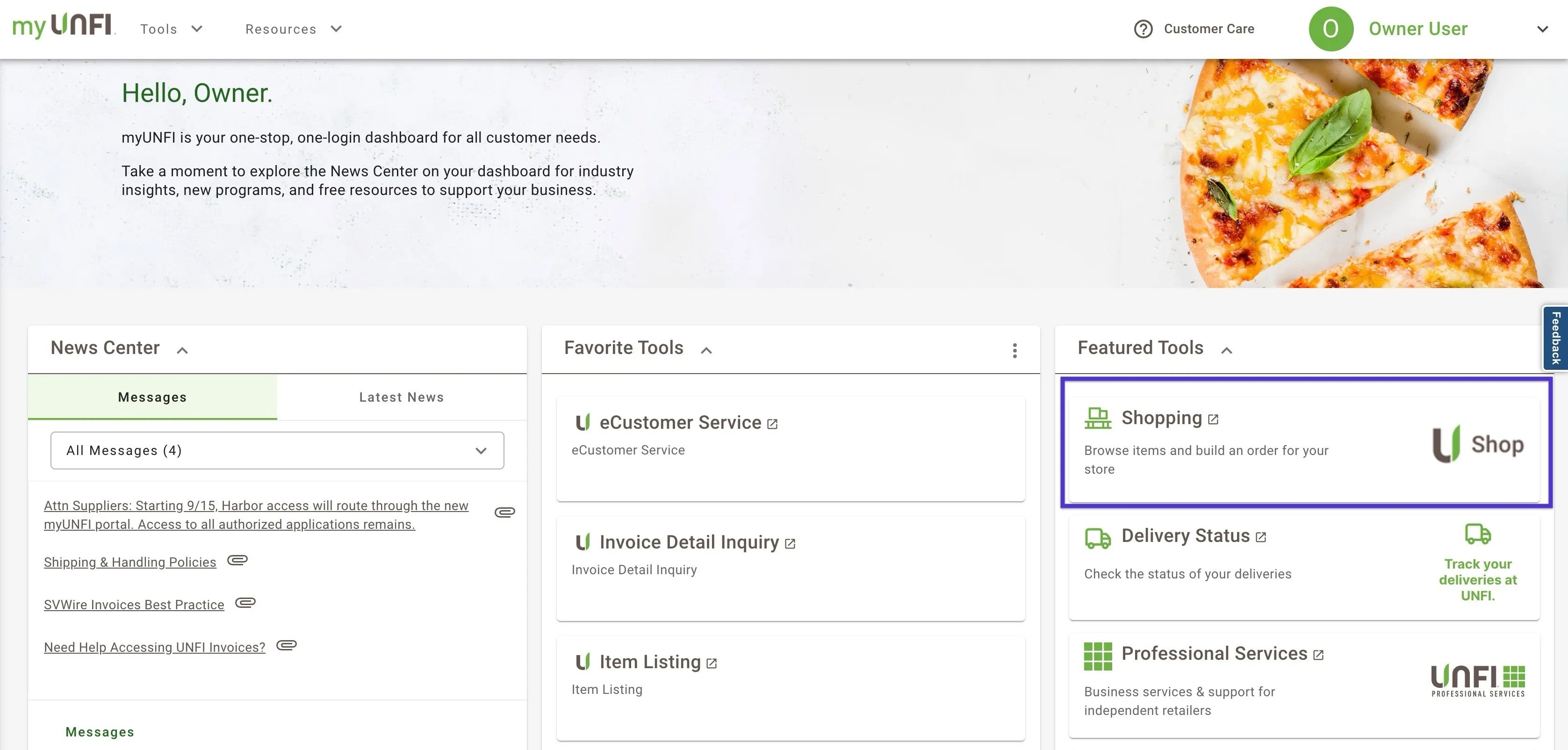
From the homepage, click Shopping.
-
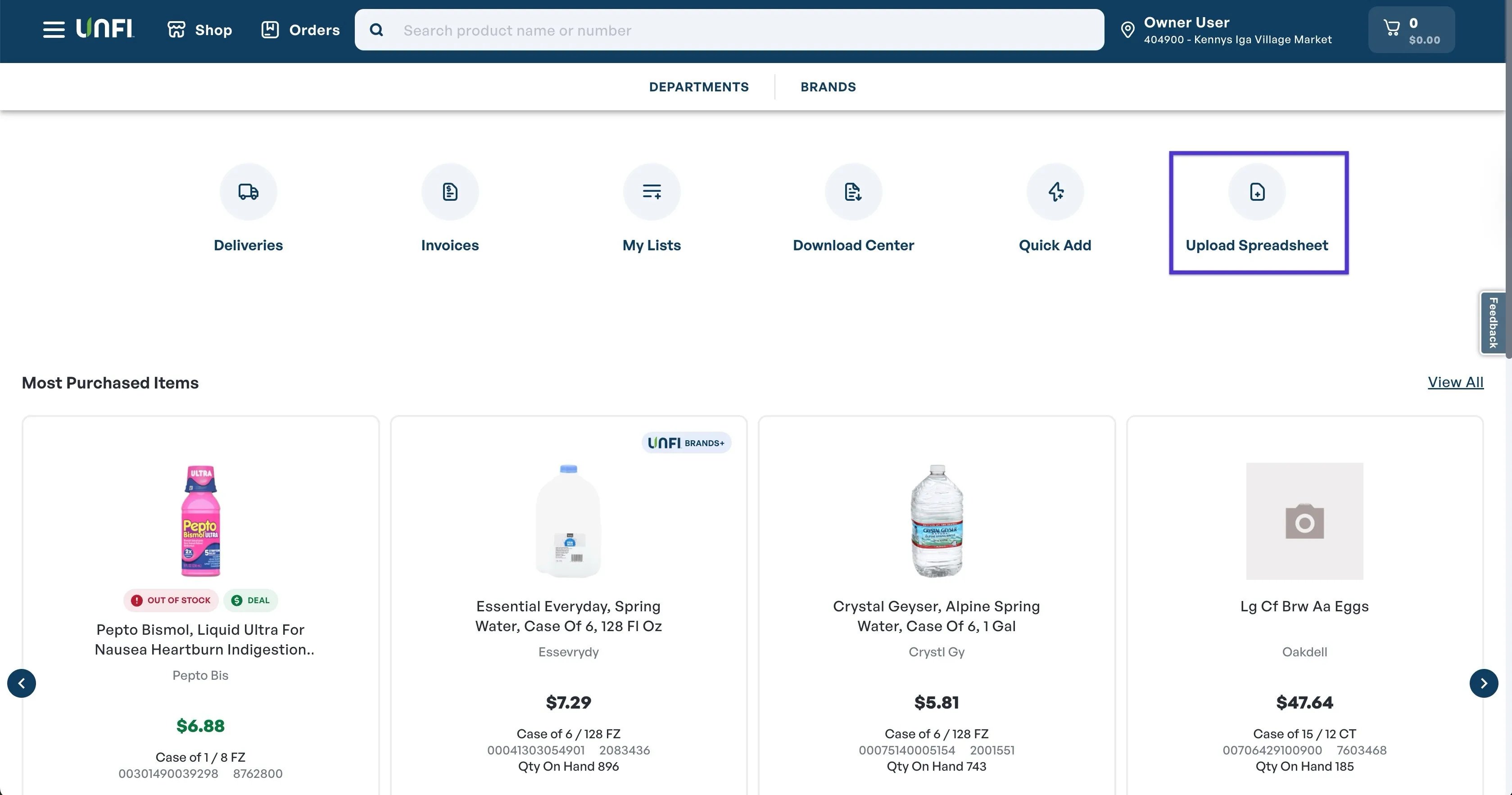
Click Upload Spreadsheet.
-
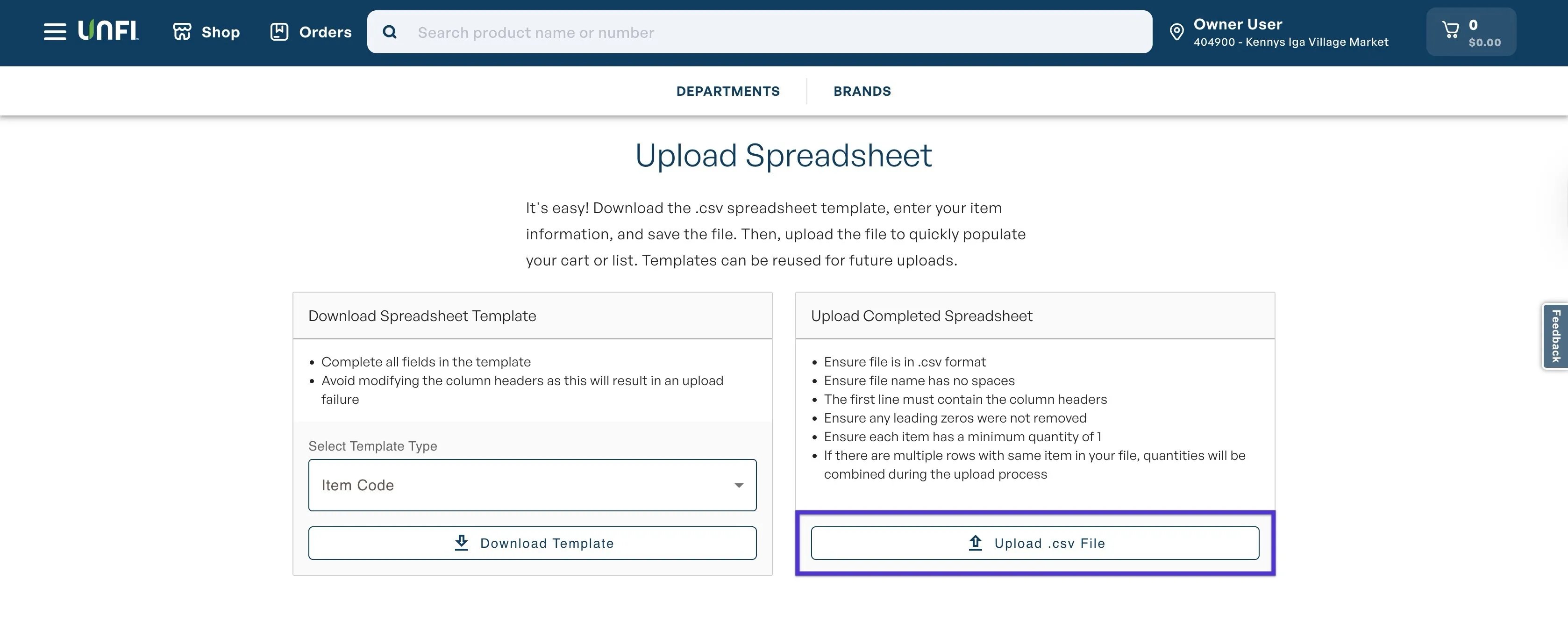
Click Upload CSV, select the file you downloaded, then click Upload.csv to import it.
- Review the imported order for alerts or flags, like out-of-stock or promotional items. If everything looks correct, proceed with your normal UNFI checkout process.
Upload to KeHE
KeHE orders can also be uploaded via an EDI integration. You can choose whether to turn on the EDI integration for ordering, or upload the purchase order manually.
- Download the CSV file attached to the email from Vori.
- Log in to your store’s KeHE Connect account.
- From the dashboard, select Create New Order, then choose File Upload.
- Select the CSV file you downloaded and enter an order name (for example, KeHE 10/10). The order uploads and displays as Drafted.
- Click the order to open it, then review for alerts or flags, like out-of-stock, discontinued items, or quantity mismatches.
- If everything looks correct, submit the order through your normal KeHE checkout process.