

Before You Begin
Before starting your upload, ensure your store meets these requirements:- File Format: Your product list must be saved as a .CSV file.
- Vendor Setup: The vendor must already be registered to your store in Vori.
- Scope: This tool is designed for updating basic product information (e.g., names, barcodes, and pack sizes).
This tool does not currently support uploading vendor costs.
Prepare Your Upload File
To ensure a successful upload, your CSV file should include the following information:Upload and Map Your Data
Once your file is ready, you can upload it directly into the Vendor Products section.- Navigate to Inventory & Supply Chain on the left-hand menu in Back Office and select Vendor Products.
- Click Upload in the top right corner.
-
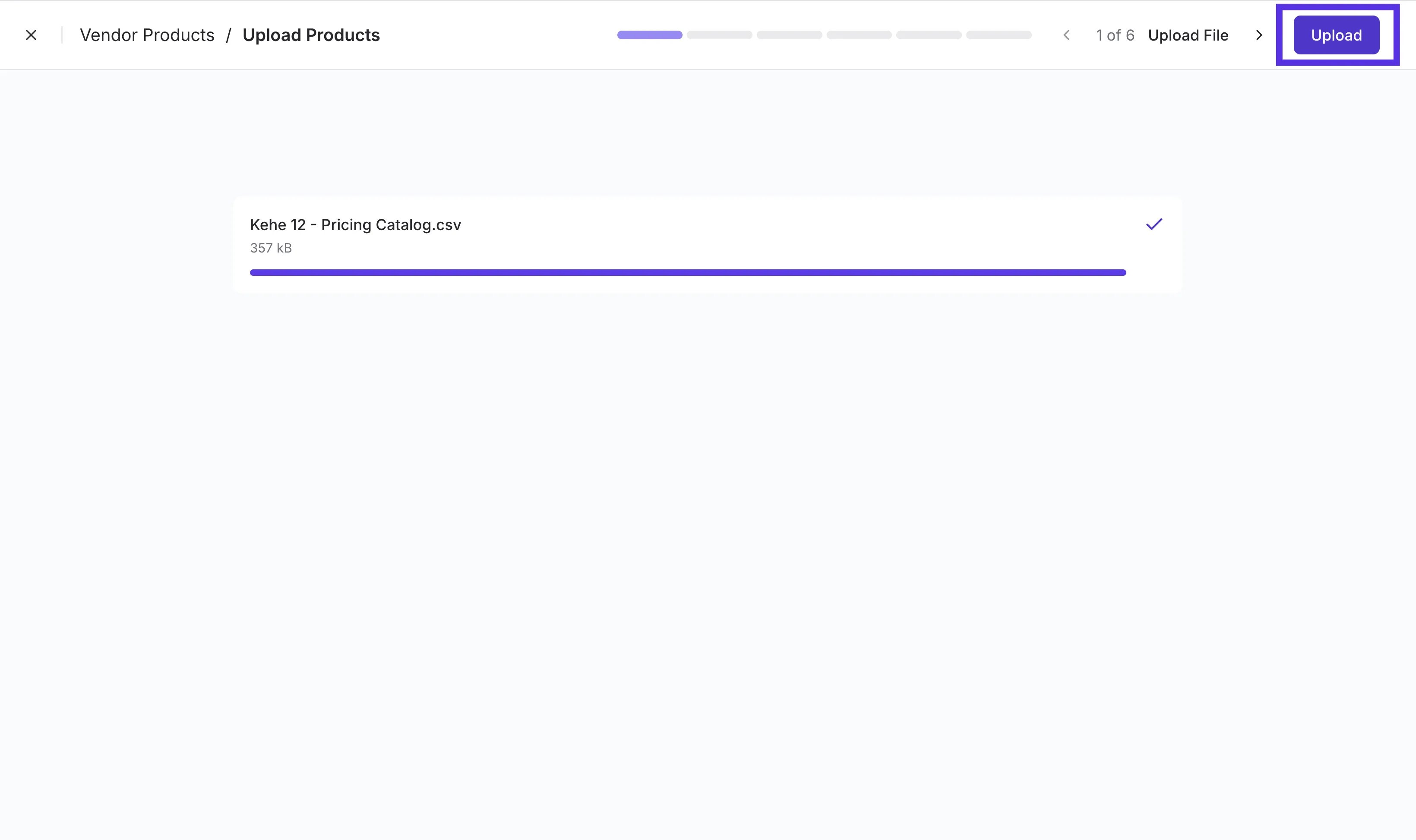
Drag and drop your CSV file into the upload area, or click Select File to browse your computer, then click Upload.
-
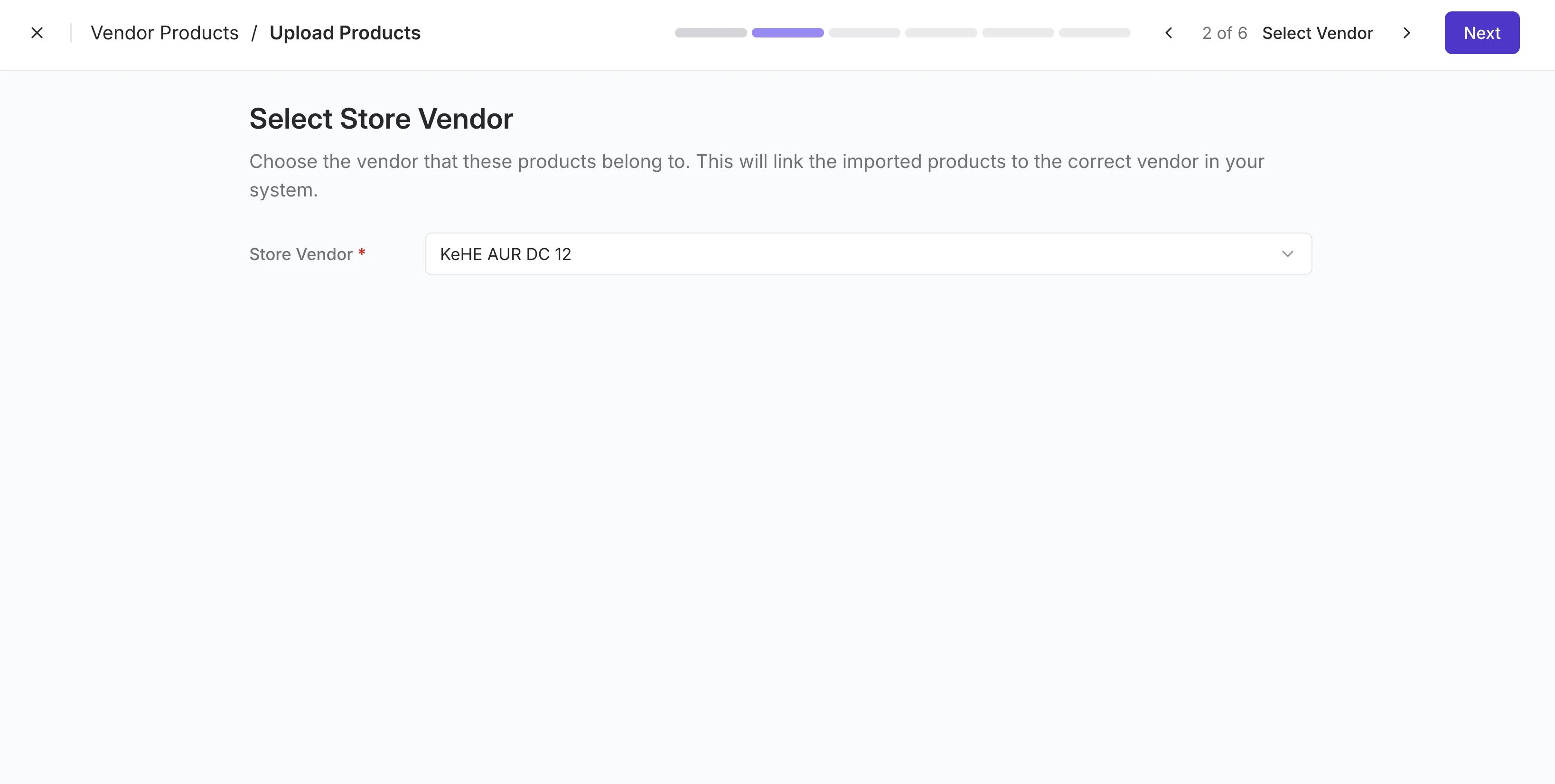
Select Store Vendor: Choose the vendor these products belong to from the dropdown menu and click Next.
-
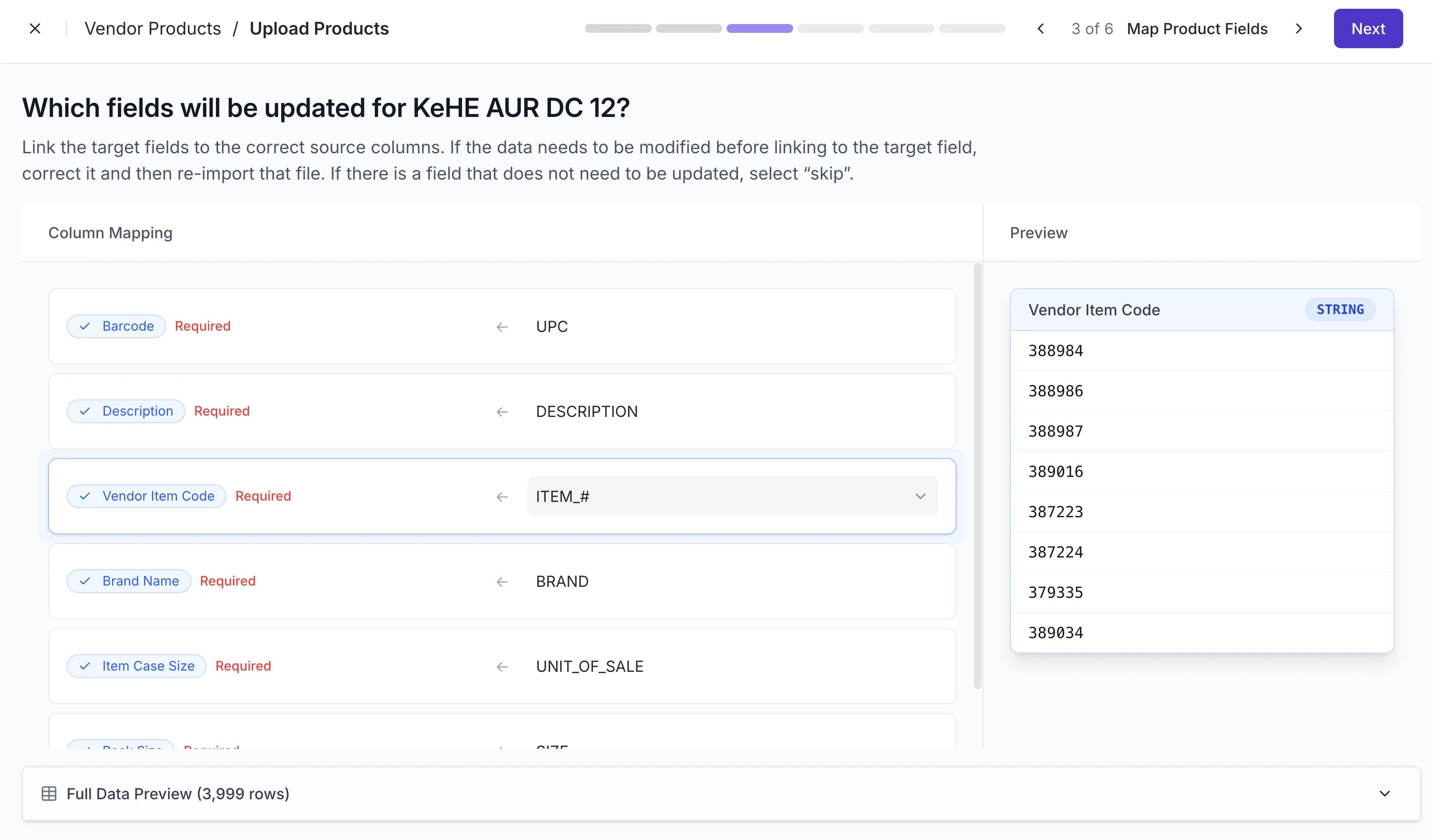
Map your columns: Vori will attempt to auto-match your file headers to the required fields.
-
Confirm that fields (Barcode, Description, Item Code, etc.) are correctly mapped to the appropriate columns in your file.
- Columns can be skipped — click the dropdown box and then Skip this column.
- Click Next to proceed to the review screen.
Review and Commit Changes
The review step helps you catch mistakes before they impact your catalog.-
Review Linked Data: Vori performs a “soft validation” to check for errors.
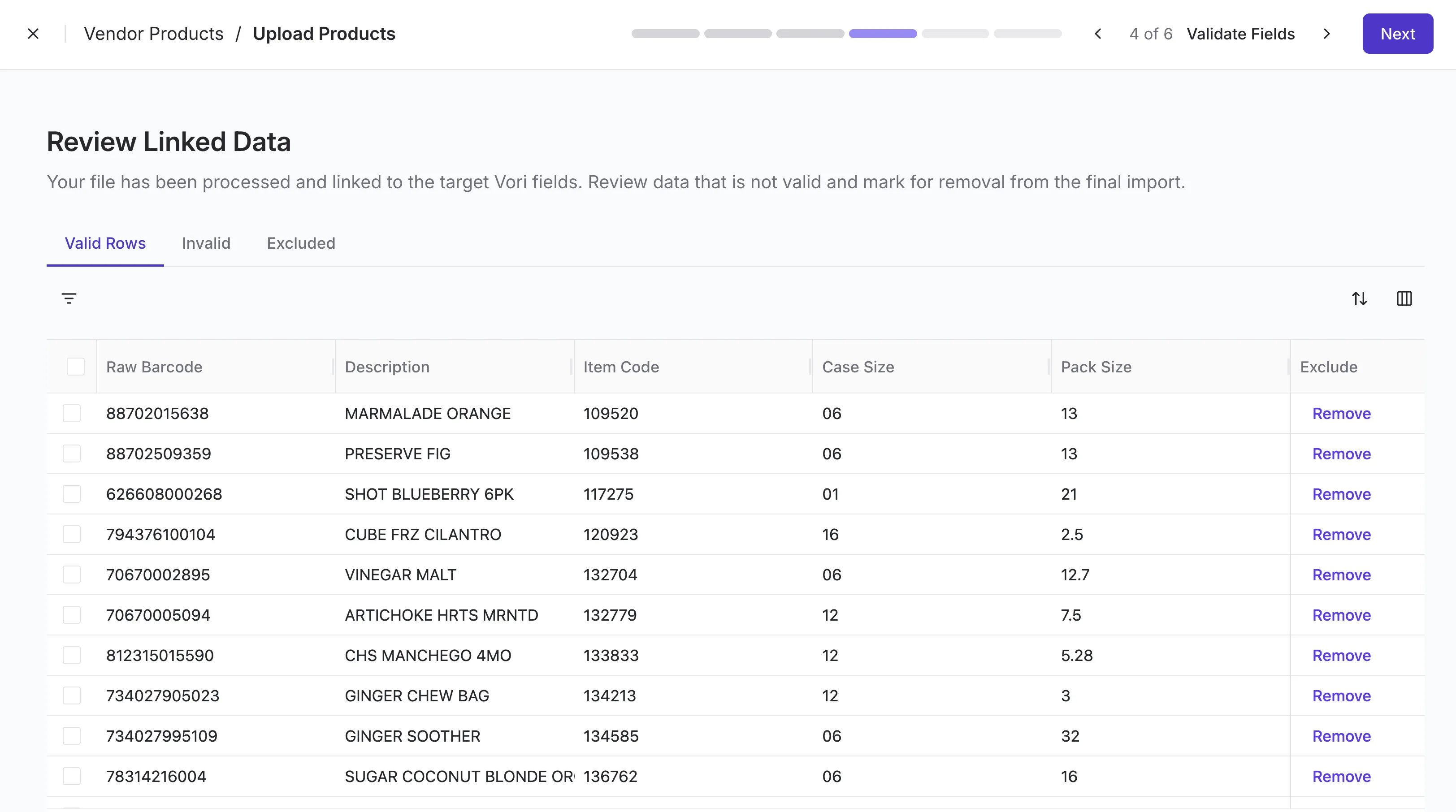
- Valid Rows: These items are ready for a successful upload.
-
- Update: These items already exist in your system and will be updated with the new information.
-
Unmatched: These items are not yet linked to a product in your store. You can click Link Product to manually pair them.
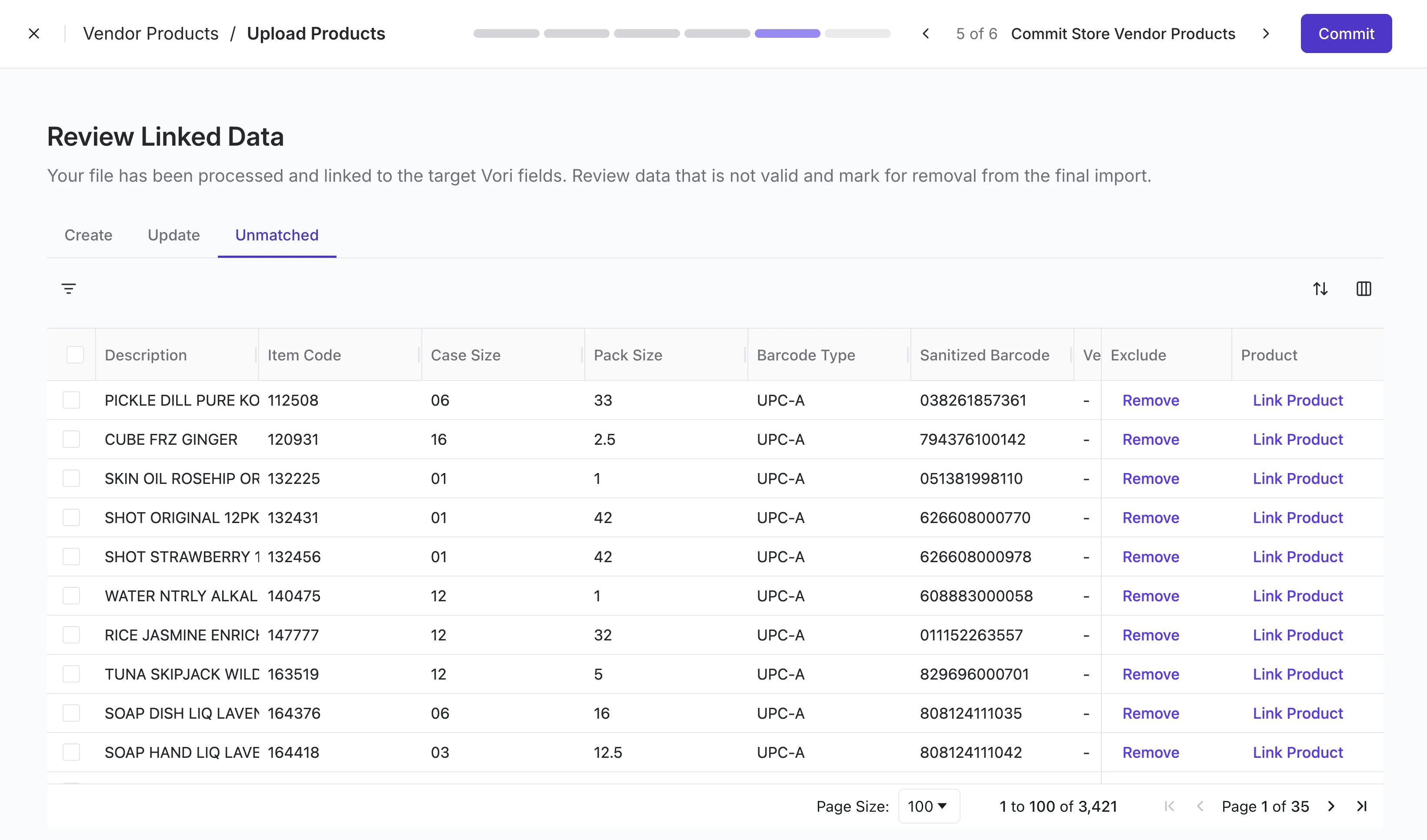
- Remove Errors: If you see rows you do not wish to import, click Remove on the far right of that row.
- Click Commit to finish the process and update your vendor products.
Troubleshooting
Why is my row marked as “Invalid”?- Missing Required Fields: Every product requires a Barcode, Description, and Vendor Item Code. If these are missing, Vori will skip that row.
- Duplicate Data: If your file contains the same Vendor Item Code for multiple different barcodes, the system may flag it for review.
- Vendor costs cannot be updated via this CSV upload tool at this time. These must be managed through the standard cost change workflow.