

Before You Begin
Before uploading, make sure your file meets these standards. This keeps your import smooth and error-free.- File Format: Must be saved as a .CSV.
Prepare Your Import File
To ensure a successful import, your CSV file must be formatted correctly with the specific required information.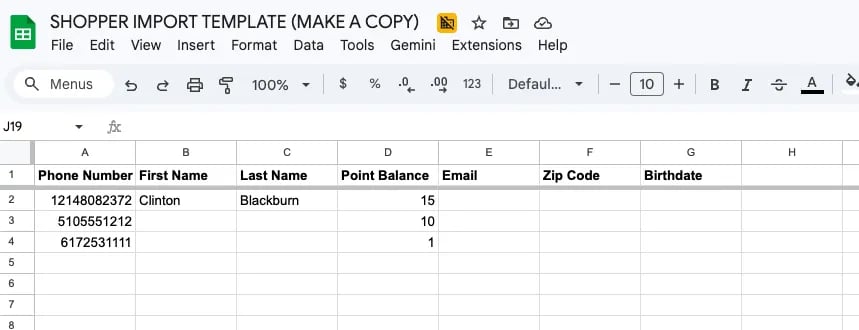
Upload and Map Your Data
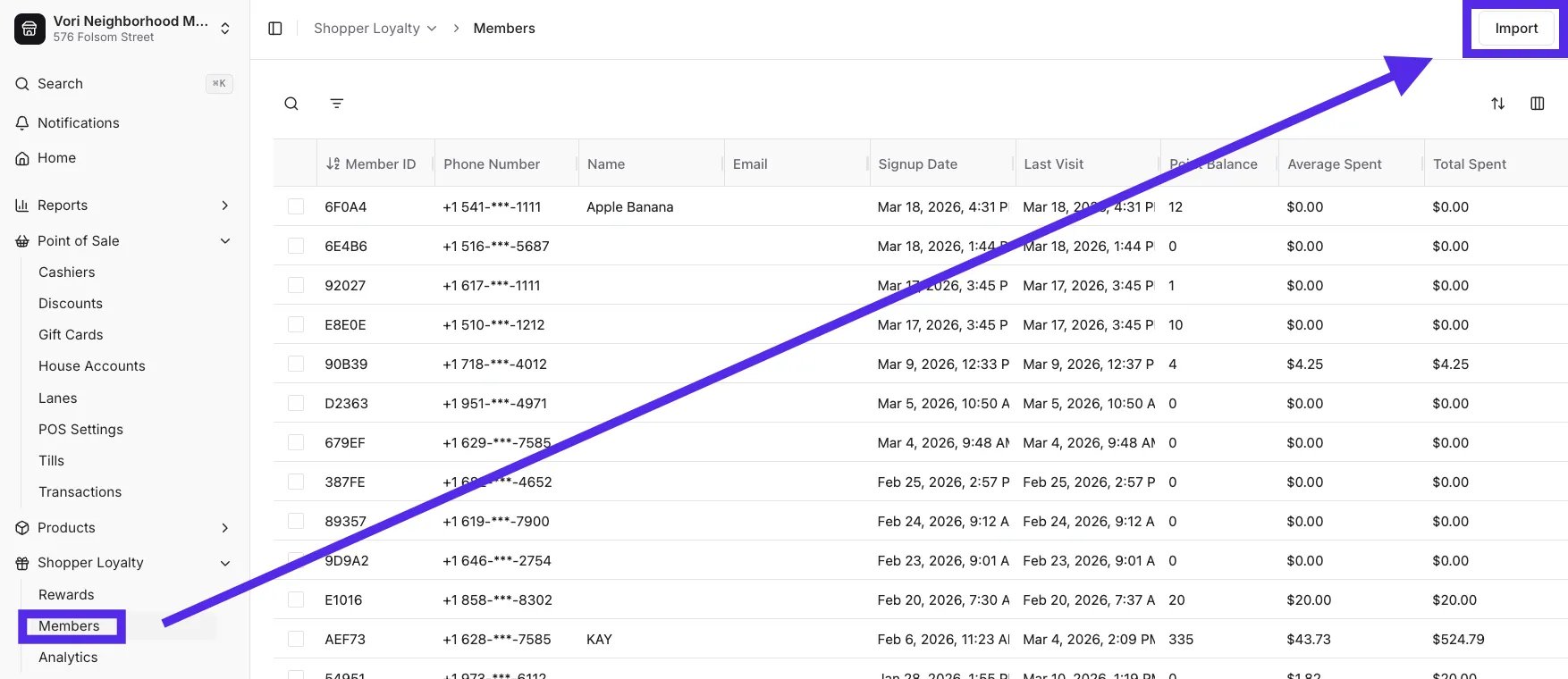
Once your file is ready, you can upload it directly into the Member section.- Navigate to the Members section under Shopper Loyalty in Back Office.
-
Click Import in the top right corner.
- Drag and drop your CSV file into the upload area, or click Select File to browse your computer, then click Upload.
- Map your columns: Vori will attempt to auto-match your file headers to the required fields.
-
Review the mappings and manually select the correct Vori field for any unmatched columns.
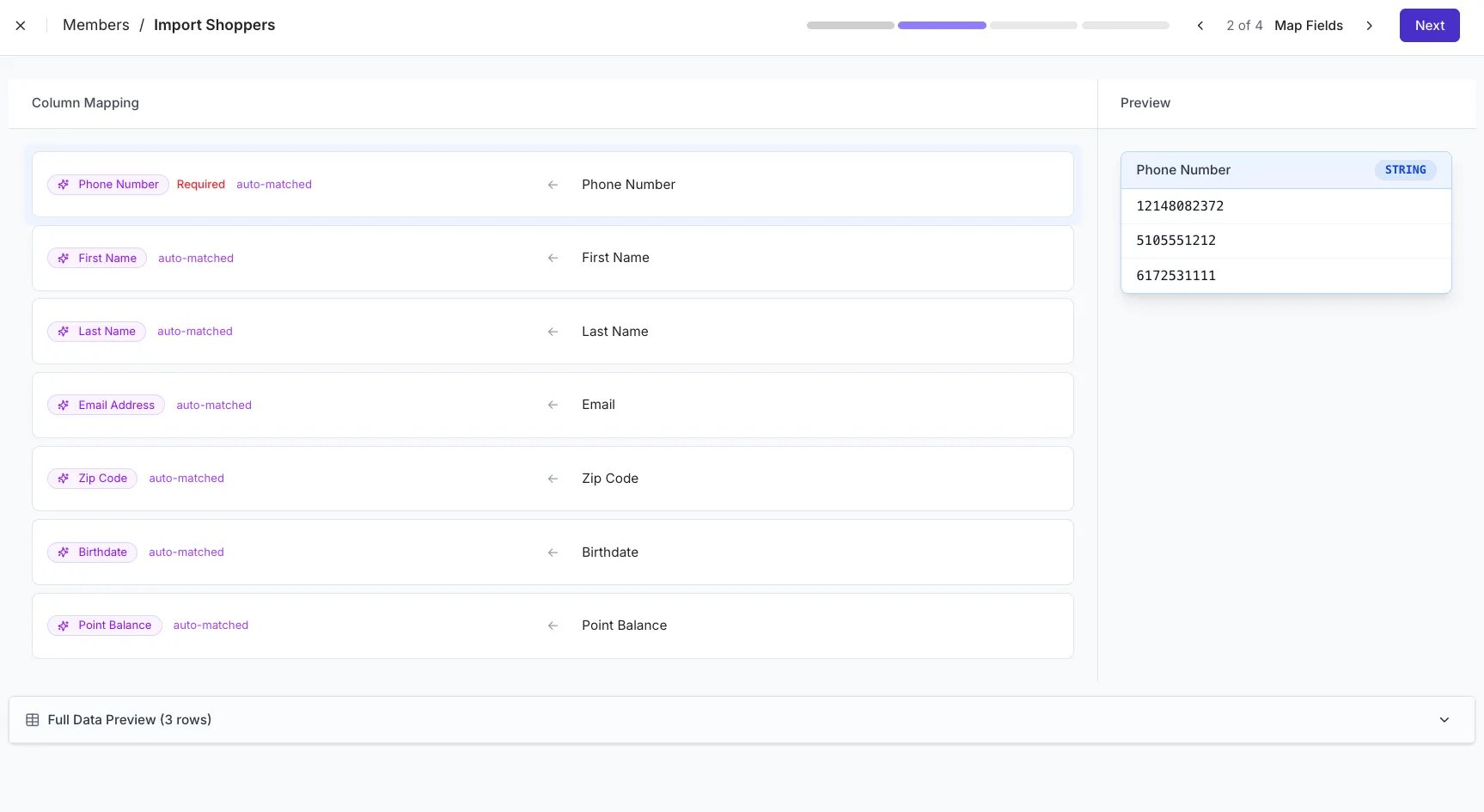
- Click Next.
Review and Commit Changes
-
Review the Review Linked Data screen to see a preview of the members being added.
- In Import: These rows are valid and ready for successful upload.
- Invalid: These rows contain errors (such as missing names or duplicate numbers) and will not be imported.
-
Check the Invalid tab to identify rows that Vori cannot process. Common issues include:
- Duplicate Data: The phone number already exists in your Vori account.
-
Formatting Errors: Phone numbers containing letters or incorrect characters.
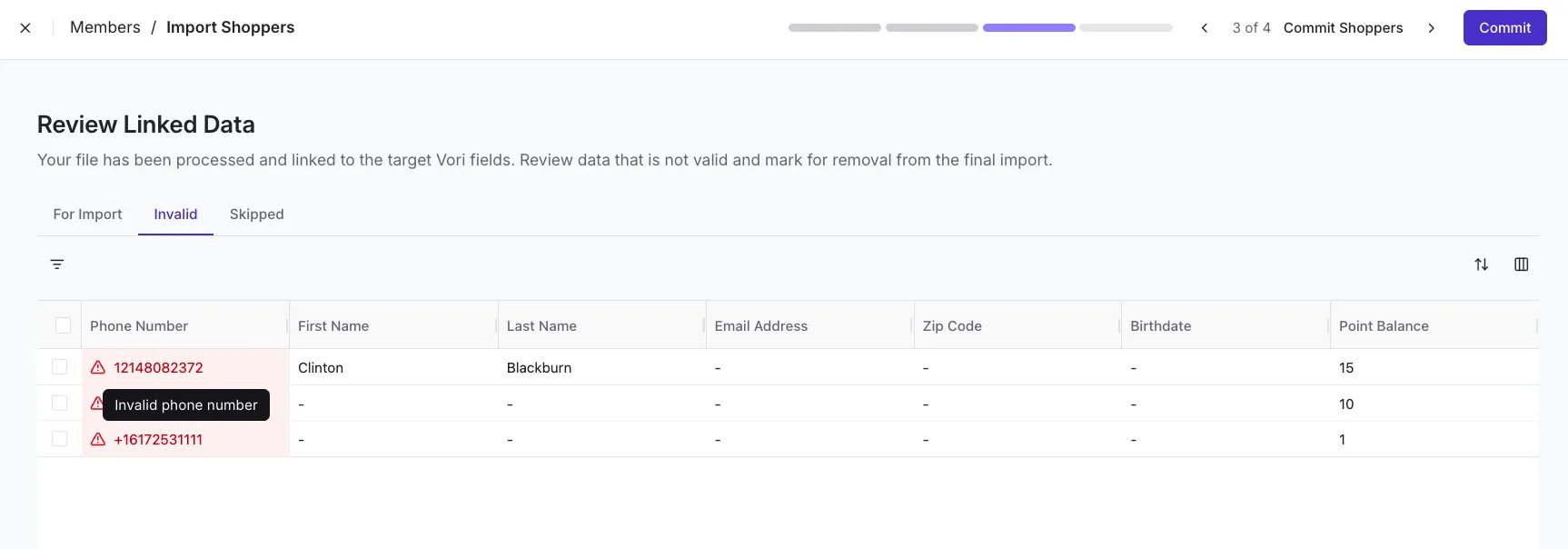
- Once you have verified the data, click Commit.
Troubleshooting
- Points not appearing immediately? Try refreshing your browser or re-sorting the Member list by “Signup Date” to see the most recent additions.
-
Missing Transactions: Imported points appear as a single manual adjustment transaction in the member’s point history.

- Invalid Phone Numbers: Ensure all phone numbers consist only of digits. Any letters or special symbols may cause the row to fail.