Learn how to import a promotion file to upload hundreds of promotional prices, start dates, and eligible products in a single step.
Managing store-wide promotions shouldn’t eat up your day. With Vori, you can import a promotion file to upload hundreds of sale prices, start dates, and eligible products in one go. That means consistent pricing across your stores without the busywork.Vori supports two import paths:
CSV — for promotions you build yourself from the Vori template.
SIL (.txt) — for vendor-provided promotional SIL files from UNFI, AWG, and URM weekly TPRs/ADs. Download the SIL file from your vendor portal and import it directly into Vori — no formatting required in most cases. For edge cases where minor edits may be needed, see the troubleshooting notes below.
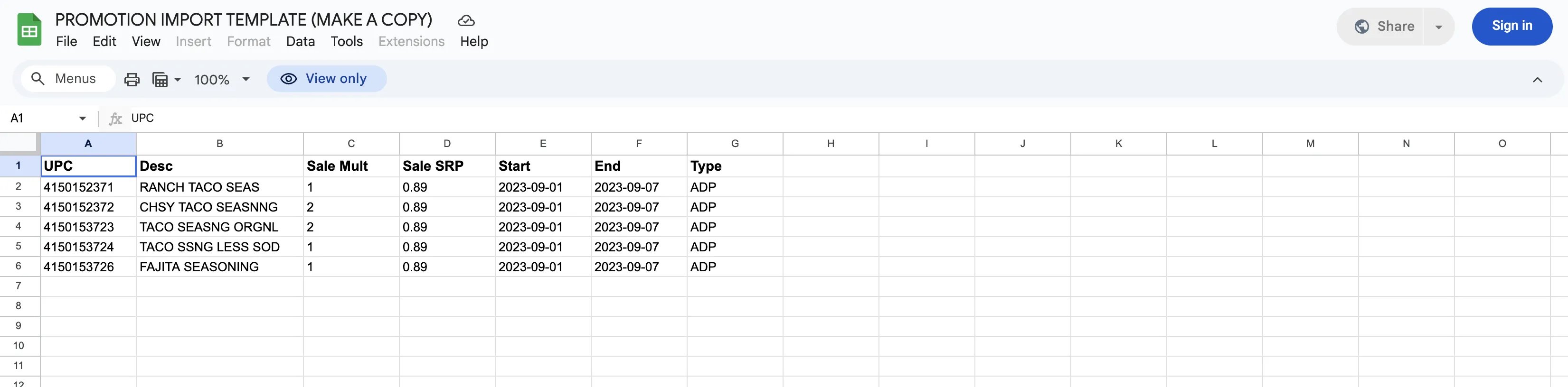
Headers should match the Vori template exactly for auto-matching. Use this guide:
Column
Description
Format / Notes
UPC
Product barcode
Required; cannot be blank
Desc
Product name
For reference
Sale Mult
Promotion quantity
Use “1” for single items, “2” for a 2-for-$4 deal
Sale SRP
Promotional price
Required; cannot be 0
Start
Promotion start date
YYYY-MM-DD (e.g., 2026-03-01). Must be the same on every row
End
Promotion end date
YYYY-MM-DD (e.g., 2026-03-07). Must be the same on every row
Type
Promotion type code
Enter ADP for all promotions
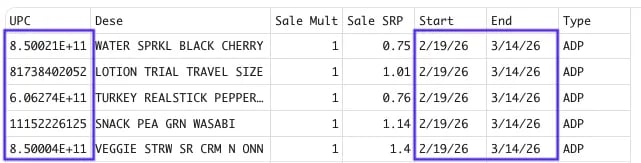
Use one date range per file. Each import can only handle one start date and one end date. If your promotions run on different dates, split them into separate files, one for each date range, and import each file on its own.For example, if some items are on sale March 1–7 and others March 8–14, create two files: one for the March 1–7 items and one for the March 8–14 items.
Open the Promotion Import Template in Google Sheets, select File > Make a copy, and enter your data there to ensure the headers stay perfect.
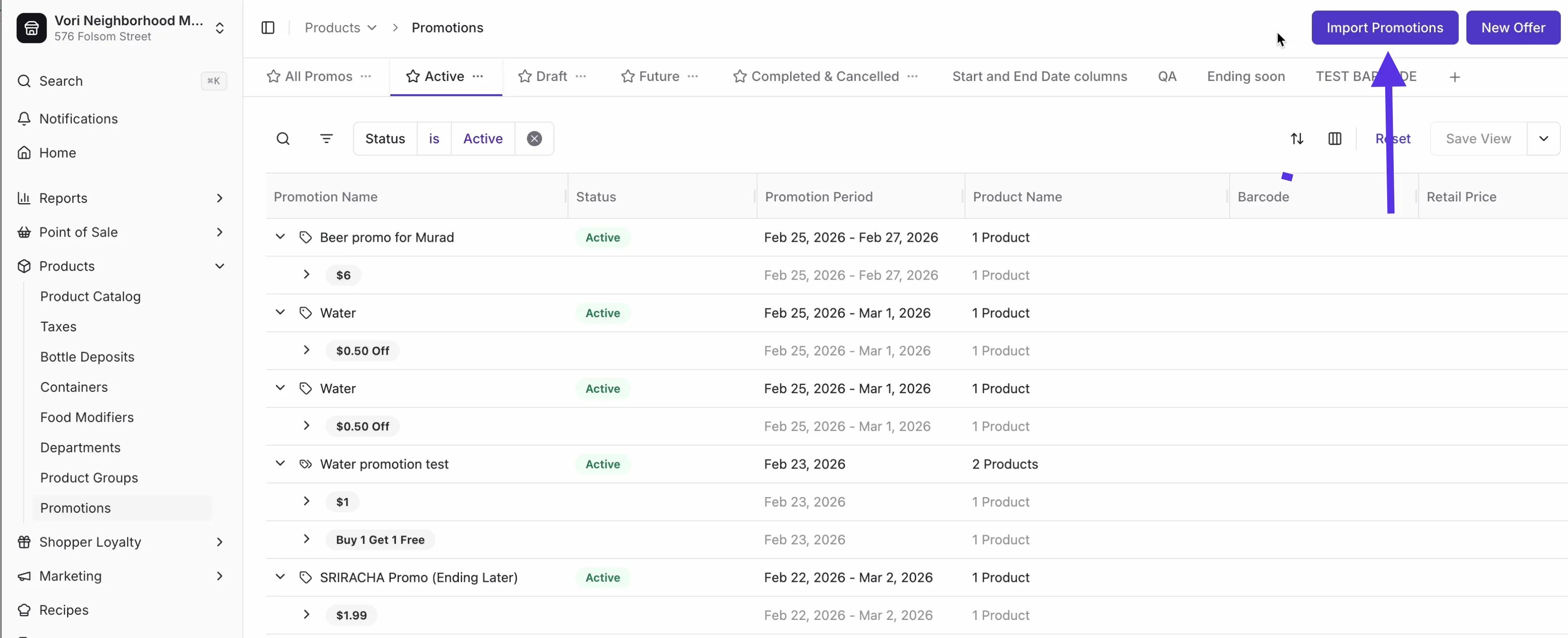
In Back Office, go to Products and select Promotions in the left-hand navigation.
Click Import File (top-right).
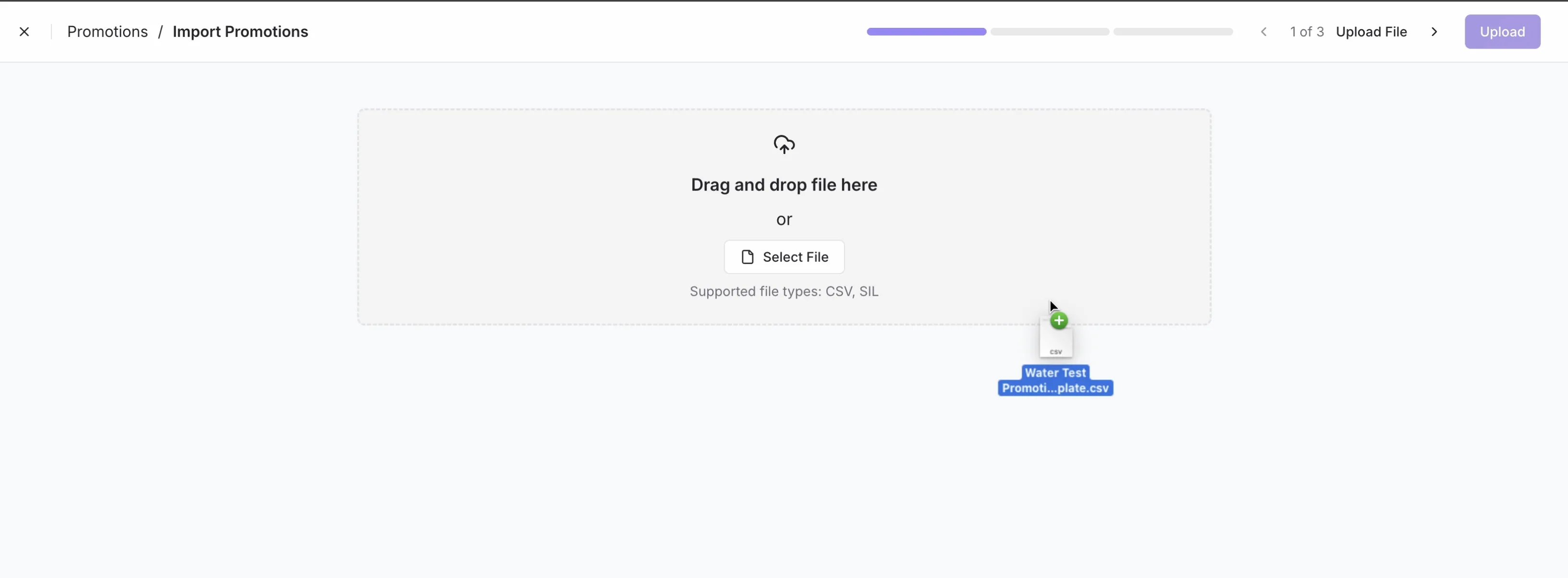
Drag & drop your CSV or select it from your computer.
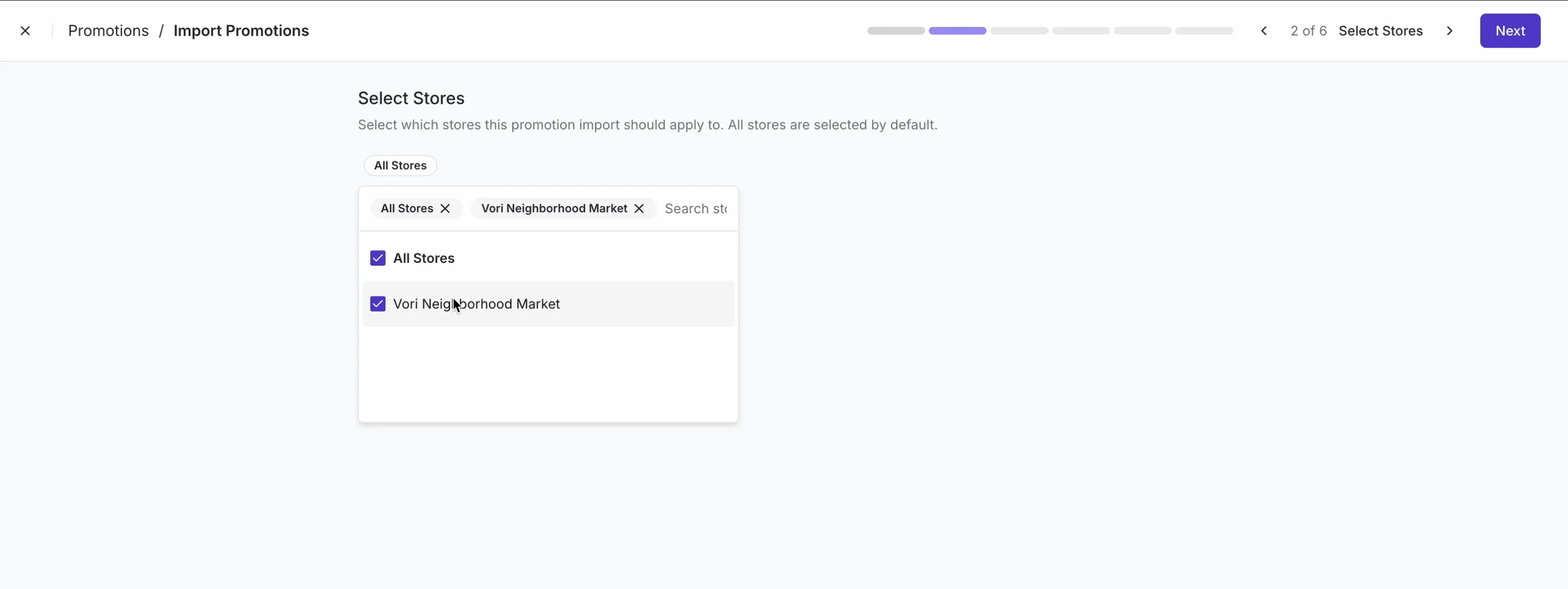
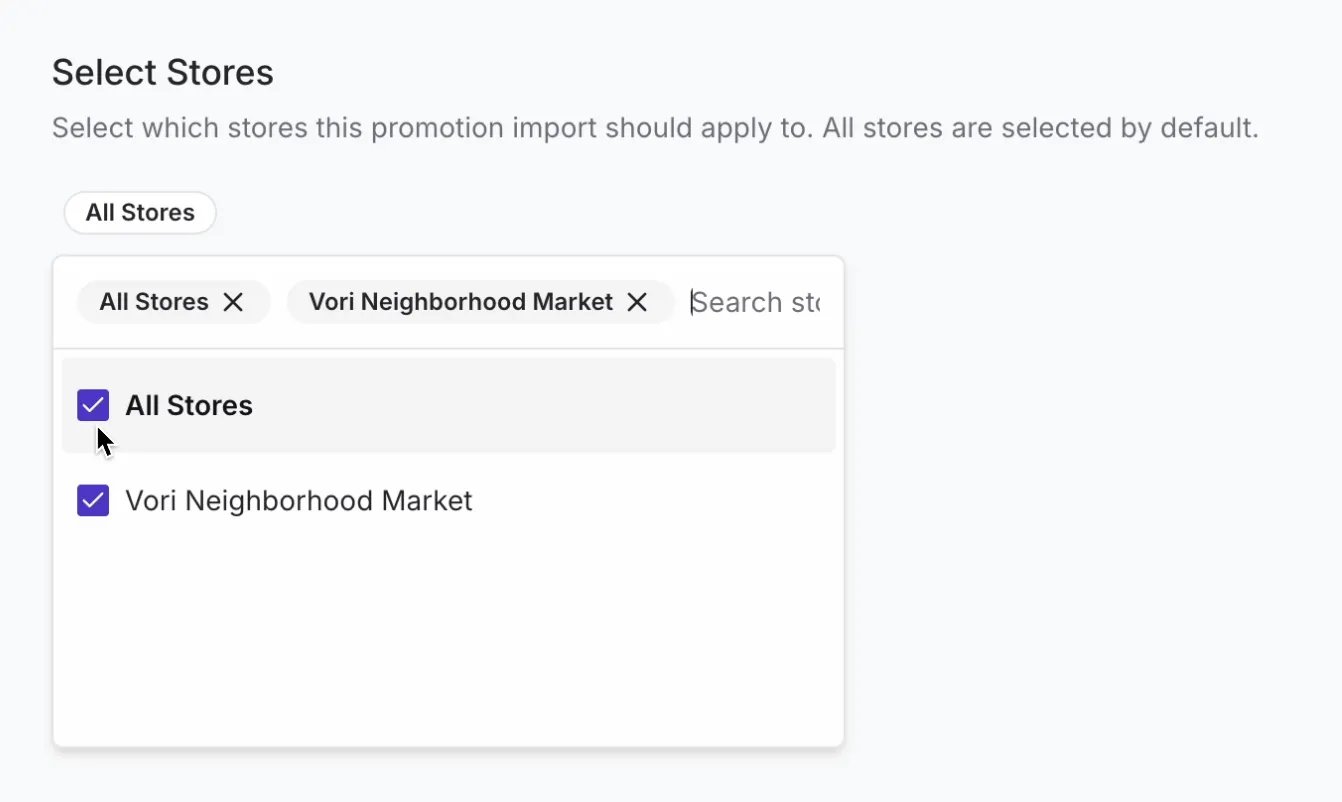
Select Stores: Choose the stores where these promotions should apply (default: All Stores).
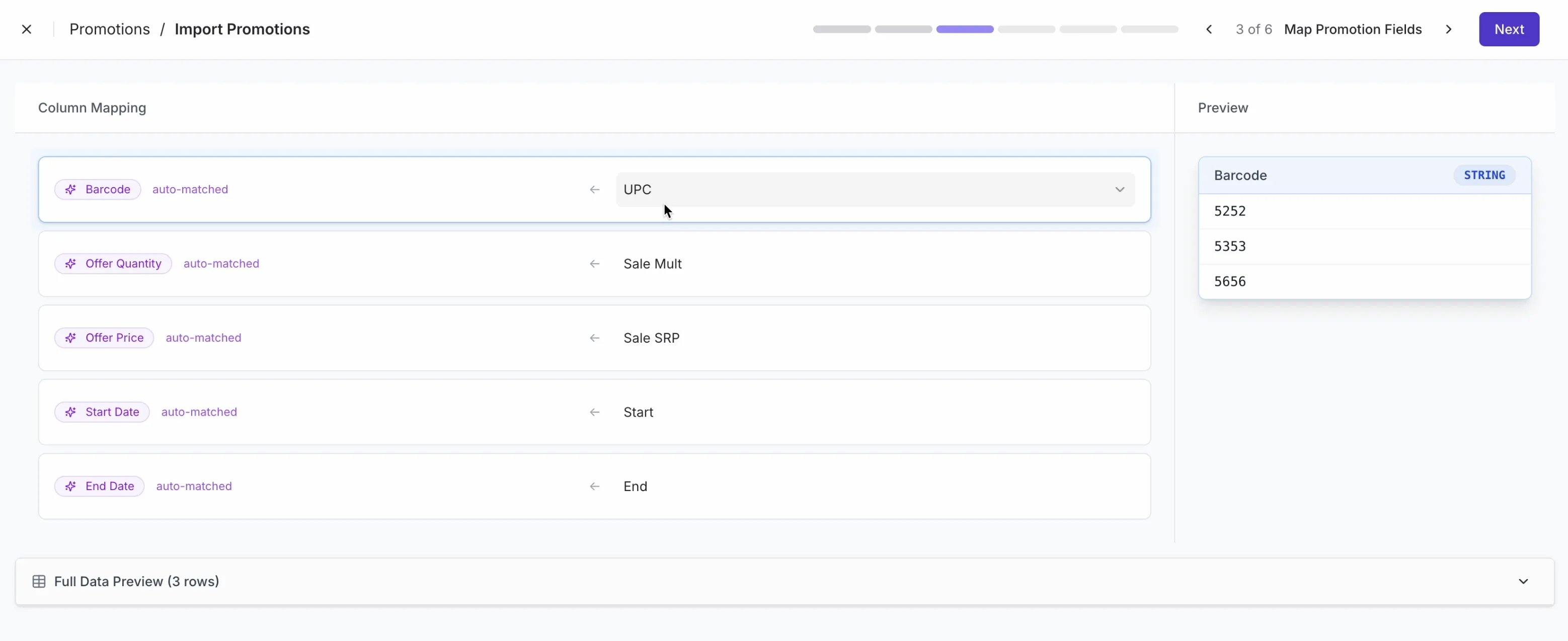
Map Promotion Fields: Vori will match your file columns to system fields (e.g., UPC → Barcode). Review and click Next.
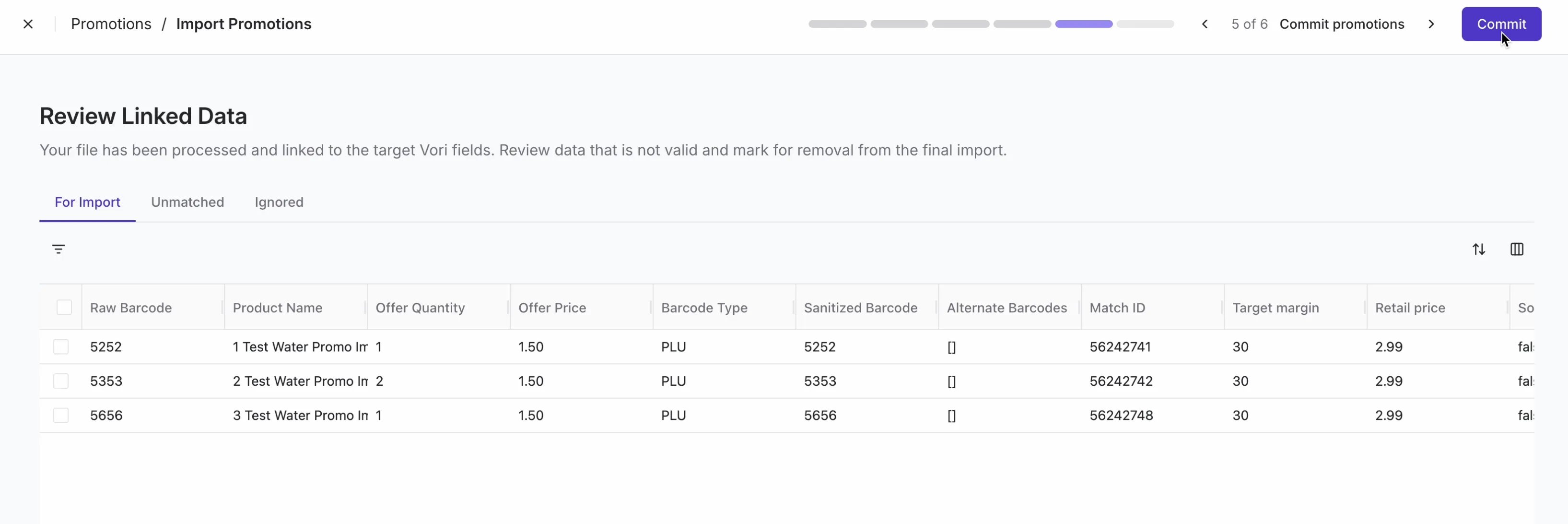
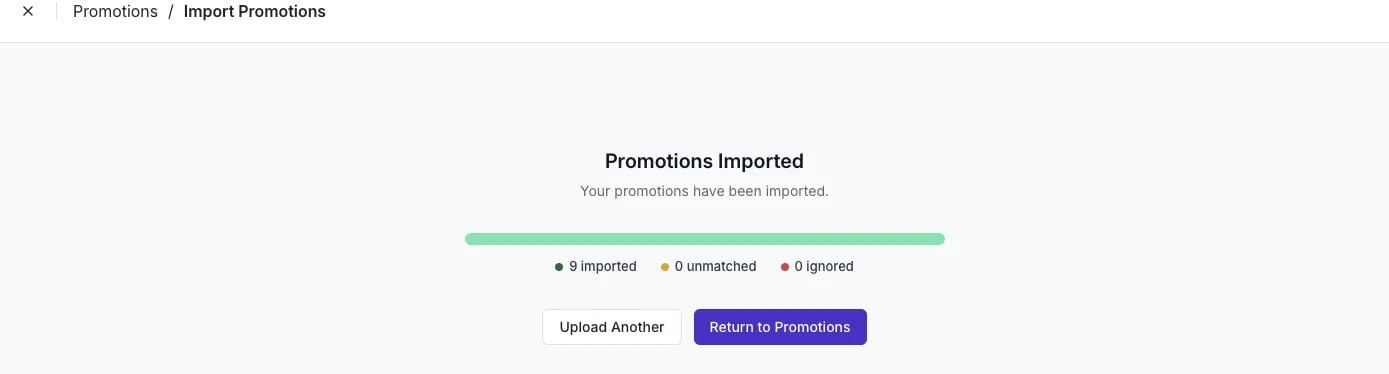
Review Linked Data: Check the Valid Rows and Invalid Rows tabs to ensure everything links correctly. Select Next, then click Commit once the file has been processed.
Why did my file fail to upload? Check for blank rows, spreadsheet formulas, “0”, or non-hyphenated date values in the UPC,Sale SRP, or Start & End columns, as these will cause the upload to fail.
Do I need to publish for each location? If the UPC is in the product file for every location, selecting All Stores in step 2 of the Import Promotions process will automatically apply the promotion across your entire chain.
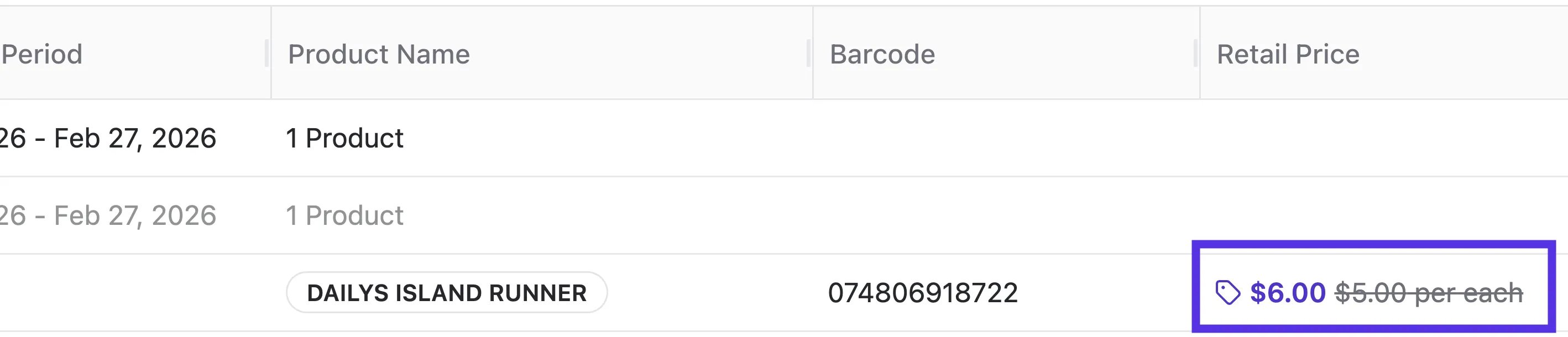
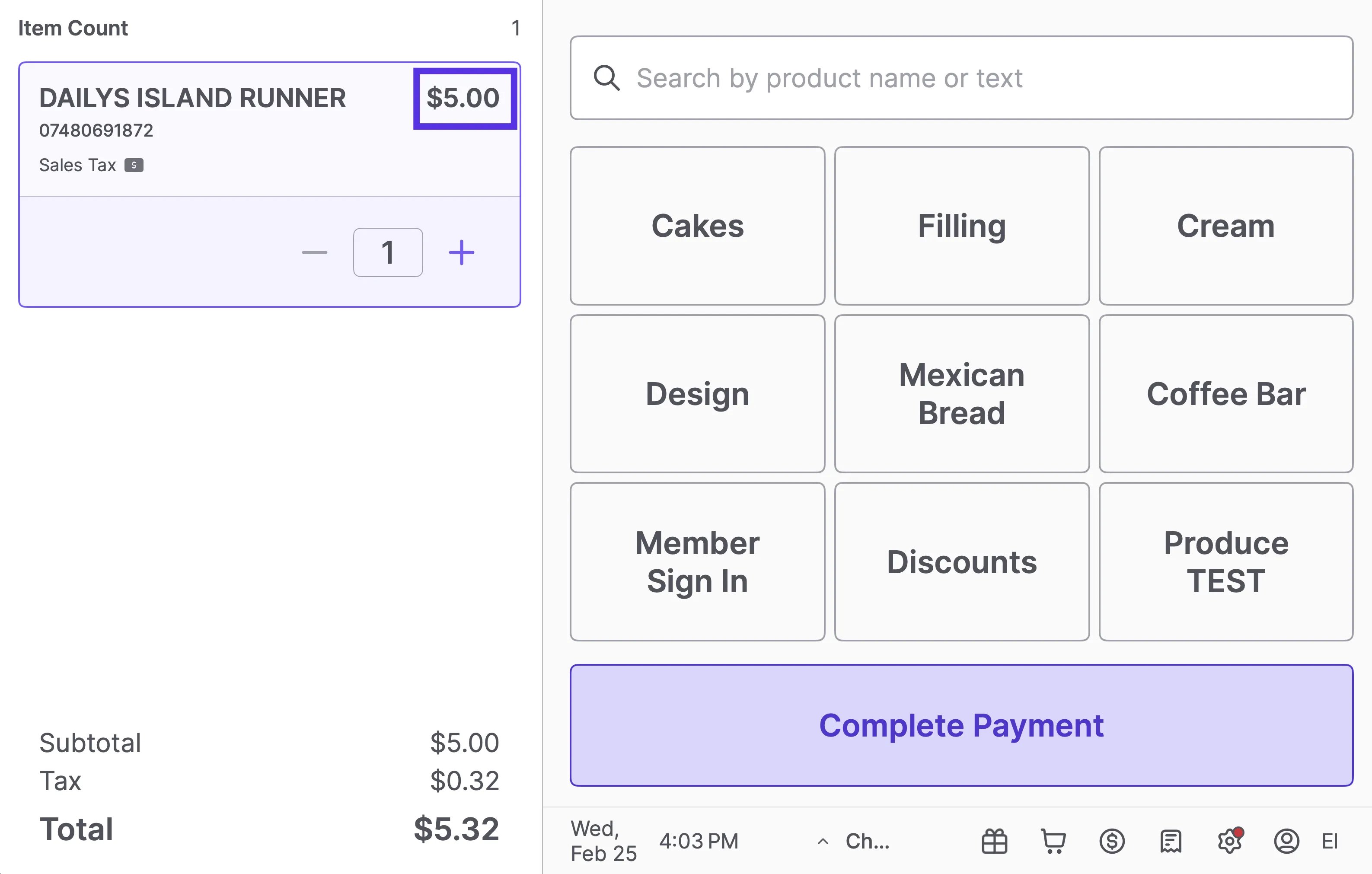
What if the promo price is higher than the retail price? Vori allows you to import these to save you time. However, to protect your shoppers, the POS is designed to ignore promotional pricing that is higher than the standard retail price.