

Activating a loyalty program can help increase cart size, encourage repeat visits, and build long-term shopper relationships. Vori makes it easy for you to offer rewards like free items, discounts, and percent-off deals, customized to your store’s goals.
Activate Loyalty
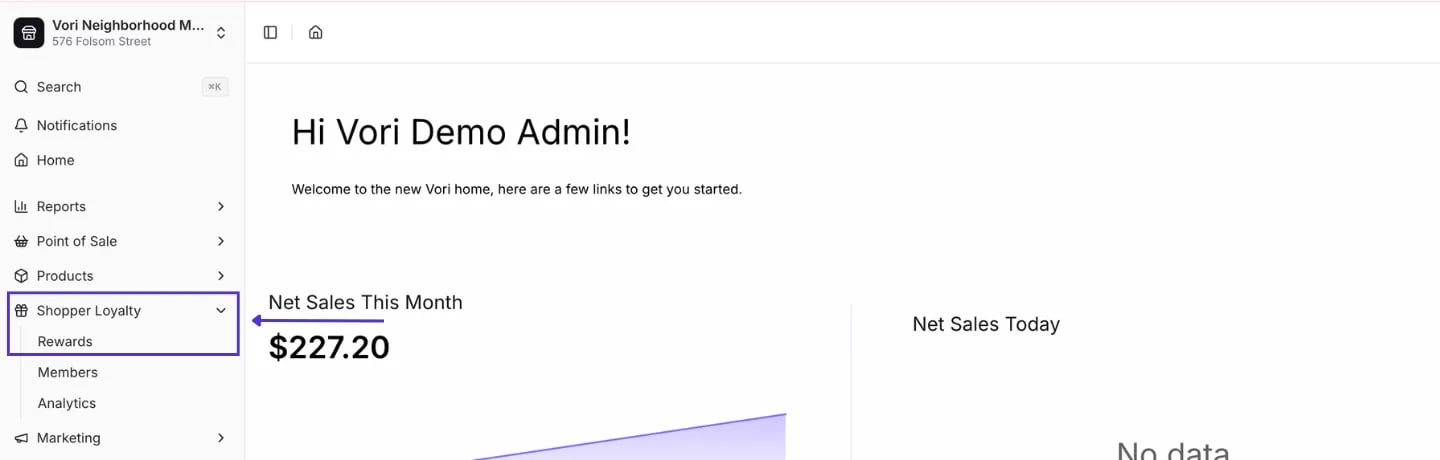
To start offering rewards, turn on the loyalty program. Follow these steps to activate Loyalty:- In the Back Office, from the left-hand navigation bar, select Shopper Loyalty, then click Rewards.
- Select the Rewards tab.
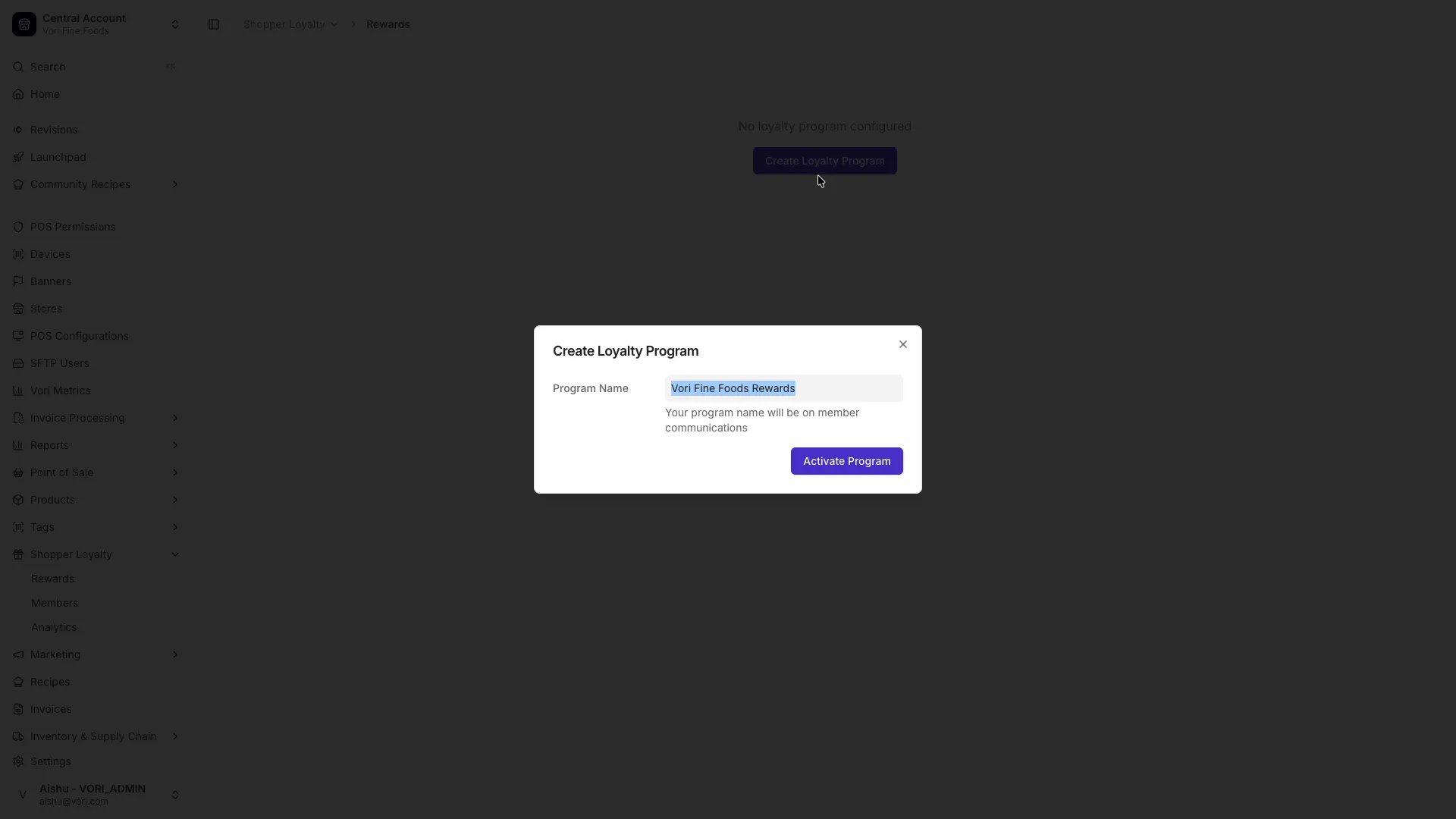
- Click Create Loyalty Program, give your program a name, and select Activate Program.
How to Structure Effective Rewards
Not sure how much to give away in your campaigns? You want to offer a meaningful incentive without cutting into your profits.Reward Value Analysis
If your margin is only 20%, a 5% reward eats up 25% of profit. If your margin is 10%, it eats half.
Recommended Structure
Create a Reward
You can customize rewards by type, earning method, and eligible products. Vori autosaves as you fill out the form — there’s no Save button. Follow these steps to create a Reward:- On the Rewards page, select New Reward (top right).
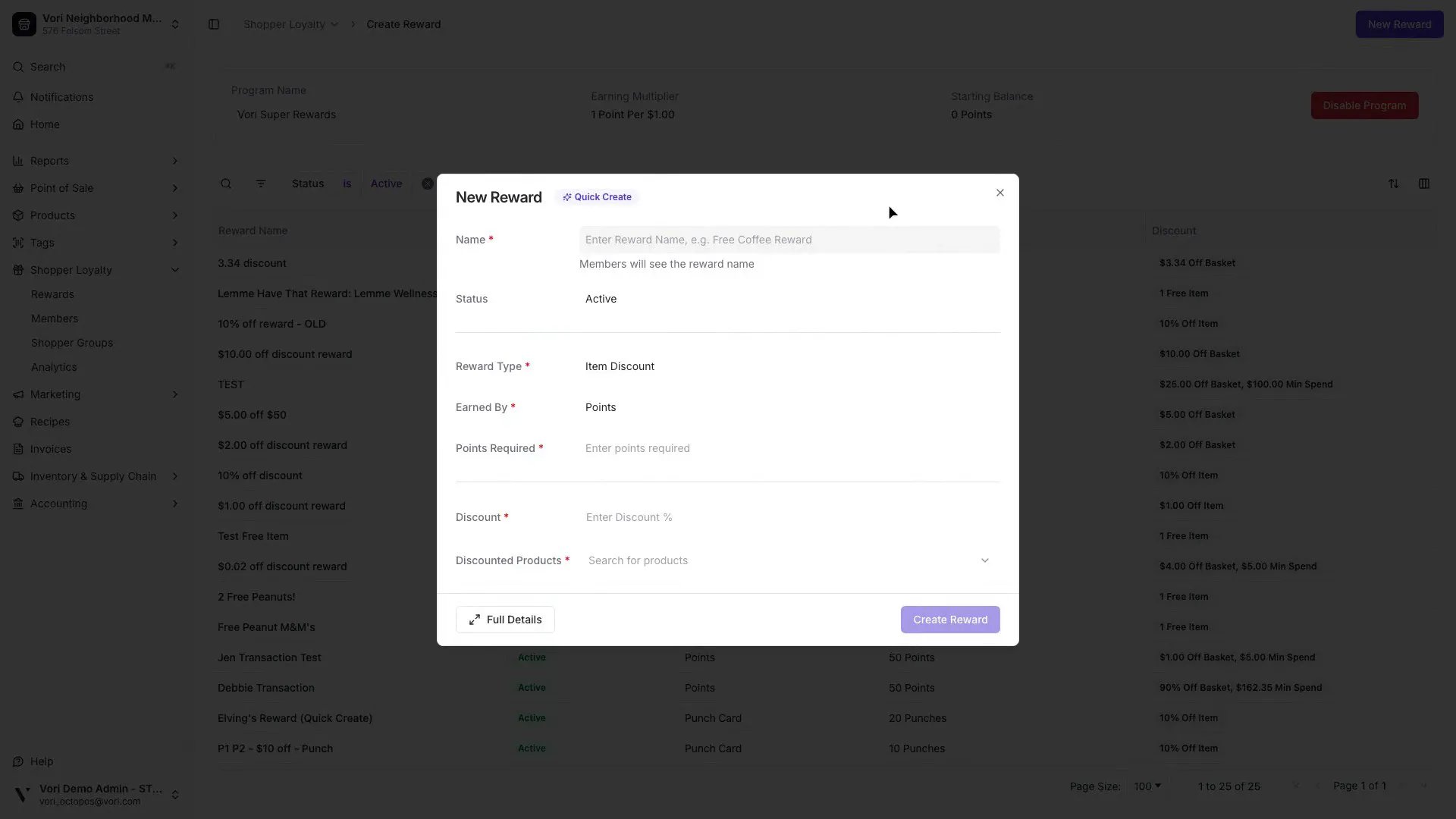
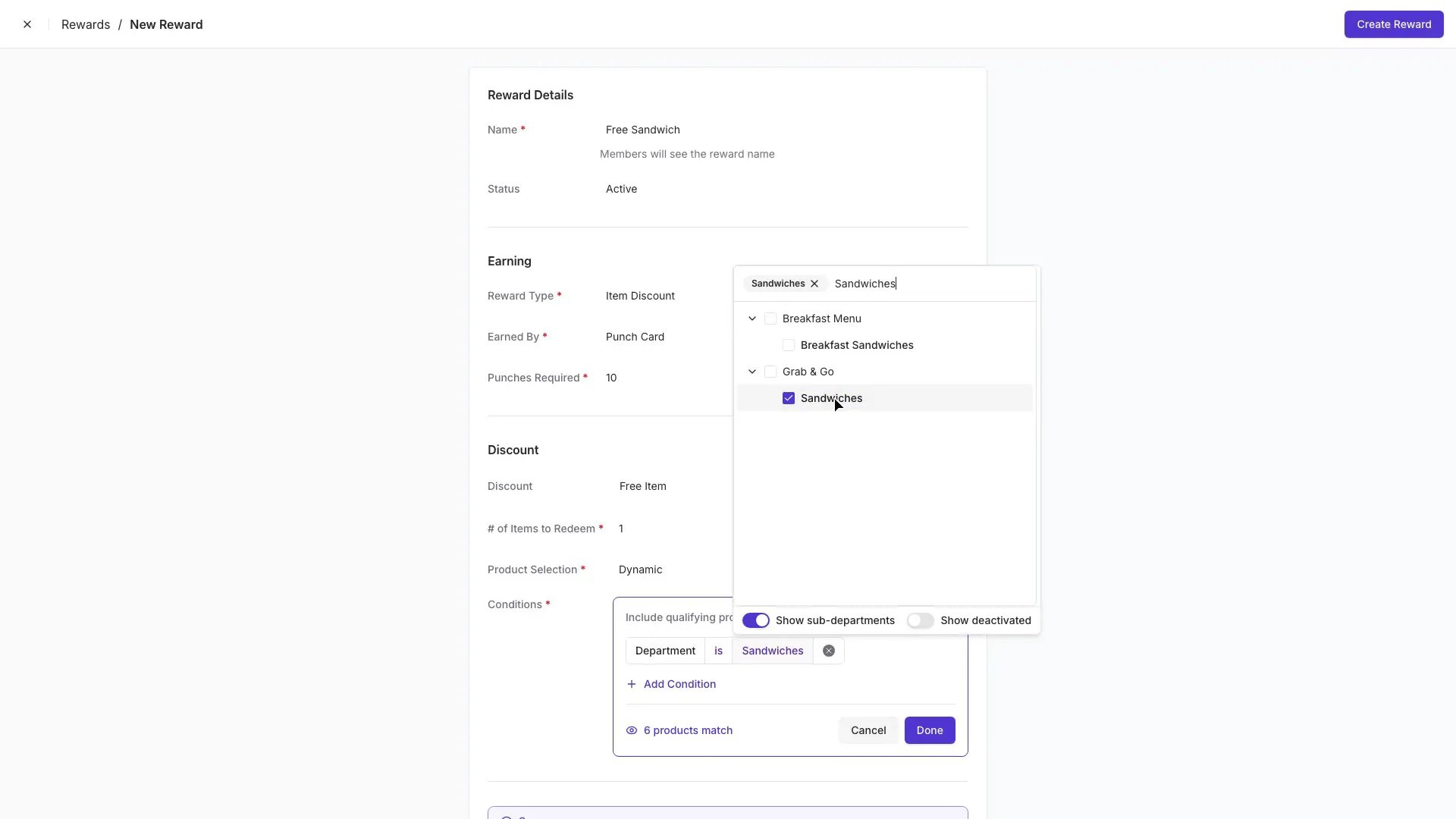
- Give the reward a Name that shoppers will recognize (e.g., Free Sandwich).
- Choose the Reward Type:
- Item Discount — savings on specific items (a free item, a dollar amount off, or a percentage off eligible products).
- Transaction Discount — a basket-level discount (a flat dollar amount or percentage off the total).
Item Savings Rewards
Item Savings rewards are now labeled Item Discount in Vori Back Office. Shoppers earn Points (per $ spent) or accumulate Punches (per item purchased) to redeem for product-specific savings.- Under Reward Type, select Item Discount.
-
Choose Earned By: Points or Punch Card.
-
When using Punch Card, the eligible products serve two purposes:
- They’re the items that earn punches when purchased.
- They’re also the items shoppers can redeem using their punches. For example, if all deli sandwiches are eligible, buying a sandwich earns a punch, and punches can be redeemed for any sandwich on the list.
-
When using Punch Card, the eligible products serve two purposes:
- Enter the number of Points or Punches required to redeem.
-
In the Discount field, enter a value and choose how the discount applies from the dropdown:
- % Off — the shopper receives a percentage discount on eligible items (e.g., 25% off beverages).
- $ Off — the shopper receives a fixed dollar amount off eligible items (e.g., $5.00 off select coffee beverages).
-
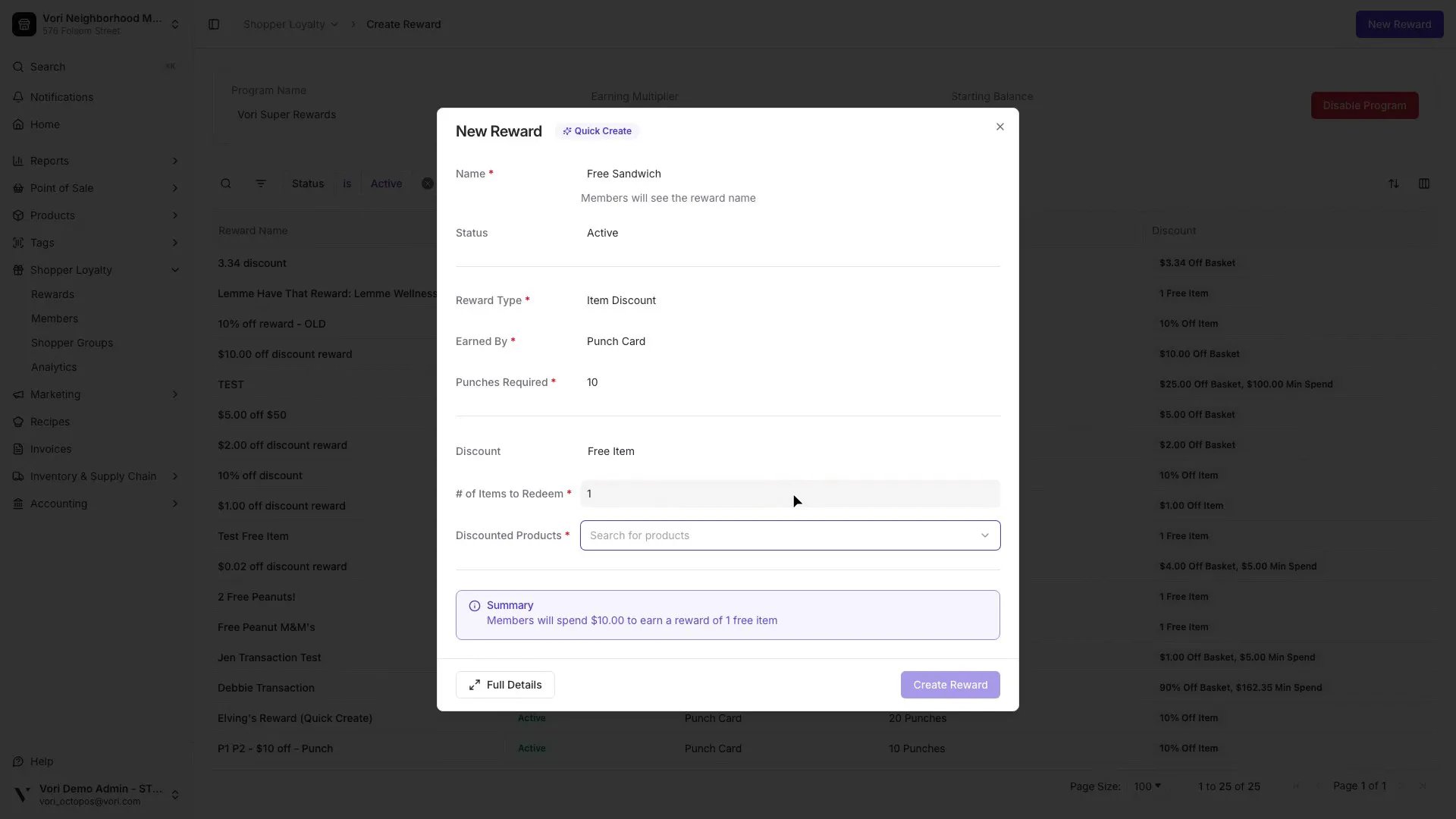
Free Item — the shopper gets eligible item(s) for free. A Quantity field appears next to the dropdown (defaults to 1) so you can control how many items they earn per redemption — e.g., 10 punches earns 1 free sandwich.
-
Under Product Selection, choose how eligible products are selected:
- Manual — pick specific products one at a time. Search by name or barcode and select Add to include them. If a product is sold by weight, the reward applies per pound.
-
Dynamic — the reward applies to any product that matches a set of conditions you define. Click Set Conditions to open the rule builder, then add a condition like Department is Sandwiches to scope the reward to a department or sub-department. Dynamic ranges automatically update as your catalog changes — no list to maintain.
Transaction Discount Rewards
Apply a flat dollar amount off the shopper’s basket total.- Under Reward Type, select Transaction Discount.
- Enter the number of Points required to redeem.
-
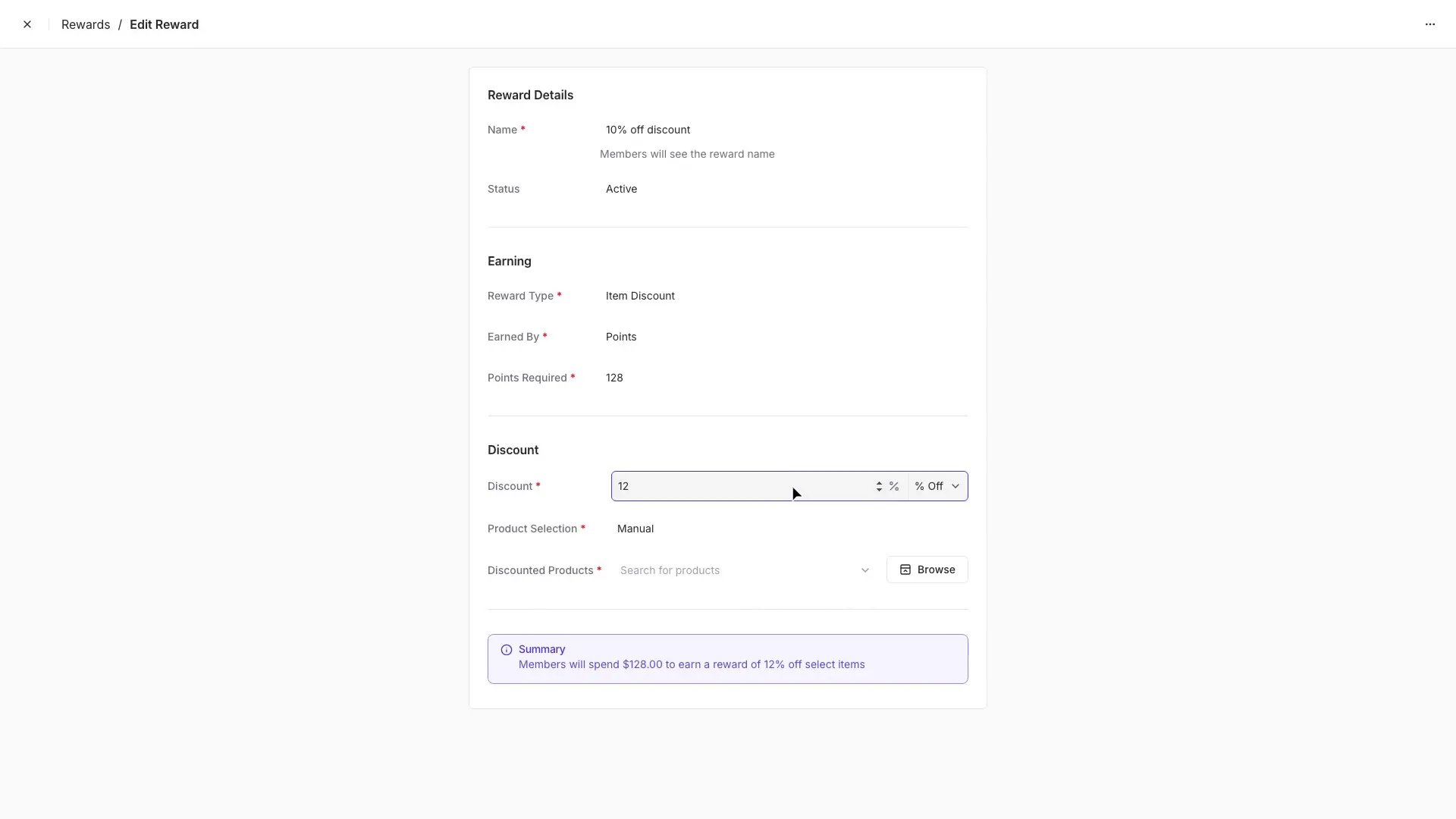
In the Discount field, enter the dollar amount (e.g.,
5.00) and select $ Off from the dropdown. - Optionally enter a Min Basket Total — the discount only applies when the basket reaches this amount (e.g., $50 minimum spend).
-
Give the reward a Name that shoppers will recognize (e.g., $5 off your $50 order).
Transaction Percent Off Rewards
A percentage off the shopper’s basket total uses the same Transaction Discount form, with the % Off type selected.- Under Reward Type, select Transaction Discount.
- Enter the number of Points required to redeem.
- In the Discount field, enter the percentage (e.g.,
10) and select % Off from the dropdown. - Optionally set a Min Basket Total to qualify.
- Give the reward a Name (e.g., 10% off your $30 order).
Additional Notes
- Item Discount rewards apply to the highest-priced eligible item by default.
-
You can exclude individual items or entire departments (e.g., Liquor or Tobacco) from earning loyalty points or punches in the Product Detail Page or Department Settings.
-
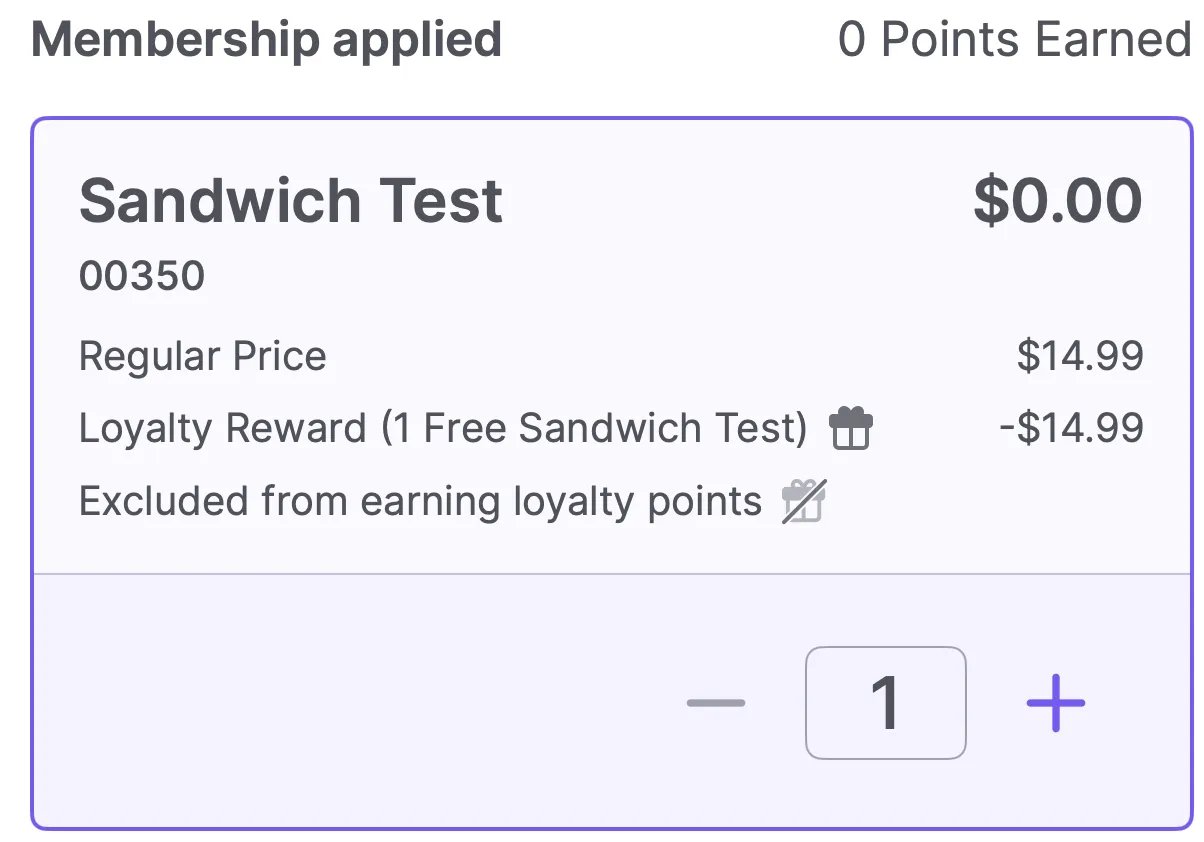
Excluded items can still be redeemed as rewards if added during reward setup.
_(Example: Shoppers won’t earn points on half sandwiches, but they can still redeem a reward to get one for free.)
_
-
Excluded items can still be redeemed as rewards if added during reward setup.
_(Example: Shoppers won’t earn points on half sandwiches, but they can still redeem a reward to get one for free.)
_
- To learn how these rewards appear at checkout, see the Redeeming Loyalty Rewards at the POS article.