

This tool merges records in bulk. Review the matched duplicates carefully before committing — merged records can’t be split back apart.
Accessing the tool
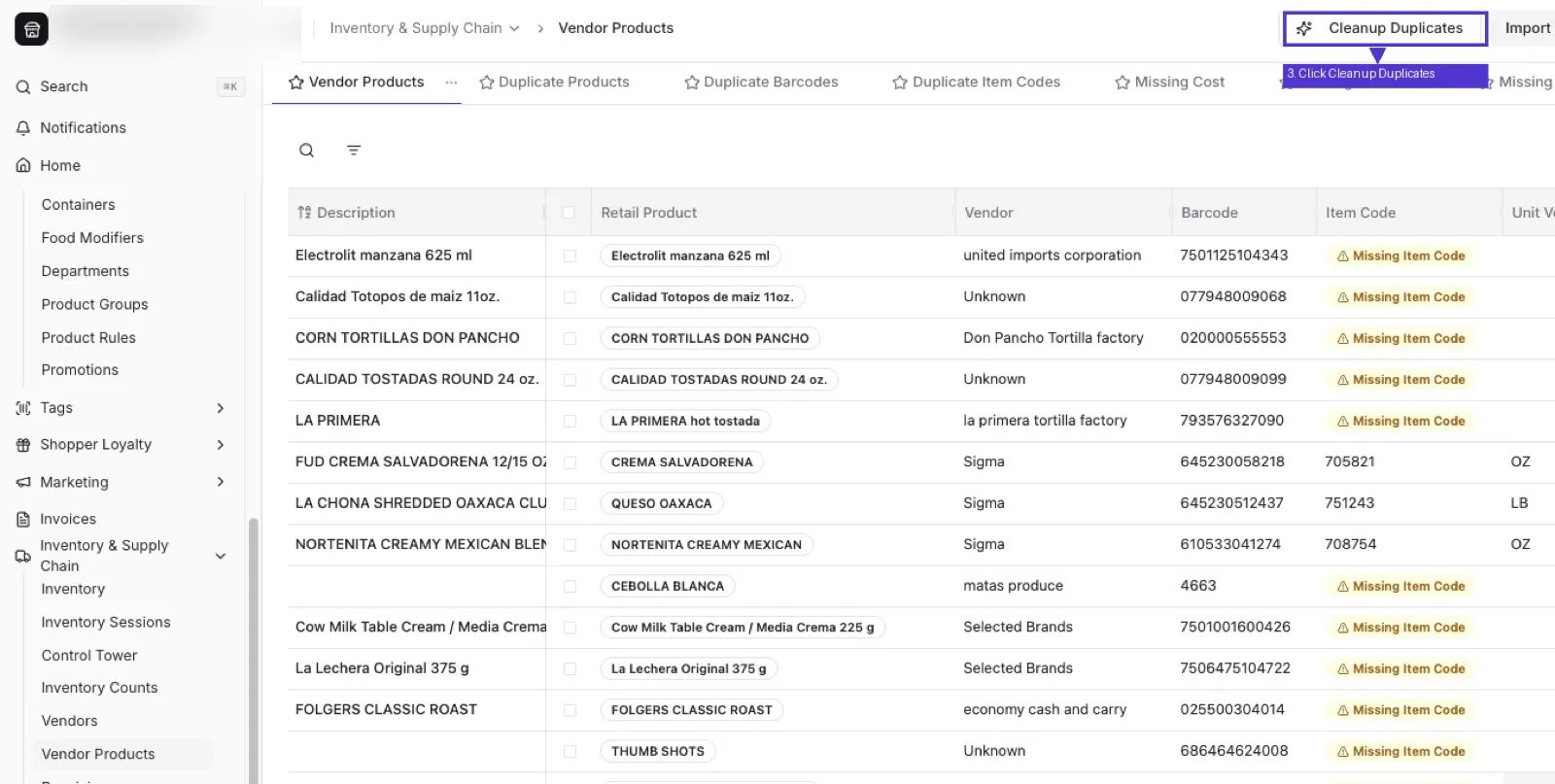
- Navigate to Inventory & Supply Chain > Vendor Products.
- Click Cleanup Duplicates in the top right.
How duplicates are matched
By default, two Vendor Products are flagged as duplicates only when all of the following match:- Item Code
- Description
- Product
Narrowing the match with optional filters
To reduce risk and target your cleanup, add one or more of these filters:- Vendor (recommended if you only want to clean up one supplier at a time)
- Barcode
- Detected Brand
- Each Cost
- Case Cost
- Pound Cost
- Case Size
Include Null Matches
This setting is on by default. When enabled, empty values count as a match — so if two records both have a blank description and everything else matches, they’re still treated as duplicates. If you want tighter matching, turn this off so records with missing data are left out of the merge.Recommended workflow
- Filter to a single vendor first.
- Review the detected duplicates carefully — confirm they represent the same real-world item.
- Add match filters if you need to narrow the results further.
- Once you’re confident the matches are correct, proceed with the cleanup.
Running the cleanup
Once you’ve reviewed the matches:- Click Commit Cleanup in the bottom right.
- You’ll be redirected to the Vendor Products page, where the button now reads Cleanup in Progress.