![vori-logo-black-horizontal-01 (1).png]](https://help.vori.com/hs-fs/hubfs/vori-logo-black-horizontal-01%20(1).png?height=42&name=vori-logo-black-horizontal-01%20(1).png)
If the handheld barcode scanner is unresponsive or not reading items correctly, follow these troubleshooting steps to identify and resolve the issue.
Check the battery level of the barcode scanner
The handheld barcode scanner indicates a low battery through both audible and visual signals. Specifically, when the battery level is low, the scanner emits four short high-pitched beeps and the LED indicator turns red for approximately four seconds upon releasing the trigger.
If these signals are displayed, place the handheld barcode scanner on the charging base to allow it to charge.
The handheld barcode scanner indicates it is charging through its LED status indicator:
-
Amber/Orange LED (Solid): Indicates that the scanner is currently charging.
-
Green LED (Solid): Indicates the scanner is fully charged.
✏️ Note: If the handheld barcode scanner is confirmed to have a charge, proceed to the next section.
Check if the scanner is paired
If the barcode scanner beeps three times and the LED indicator flashes red, the scanner has become unpaired from the base.
-
Look for the sticker labeled PAIRING on the back of the charging cradle.
-
Scan that barcode with the handheld scanner.
- Place the handheld scanner onto the charging base.
If the scanner successfully pairs, you will hear a single long beep and the LED will turn solid green or blue.
✏️ Note: If the scanner is paired but still not communicating with the POS, proceed to the next section.
Restart the POS App
-
On the main cashier screen, select the gear icon in the bottom right corner of the screen. This will open the Device Status window.
-
Select Restart App on the Device Status window.
-
Log back into the POS app and test the barcode scanner.
✏️ Note: If restarting the POS app does not fix the issue, proceed to the next section
Restart the USB Hub
Locate the POS computer under the counter. The POS Computer is a Mac Mini locked within a security mount.
-
Locate the USB hub, which is plugged into one of the back ports of the POS computer. The USB hub should have several USB cables plugged into it.
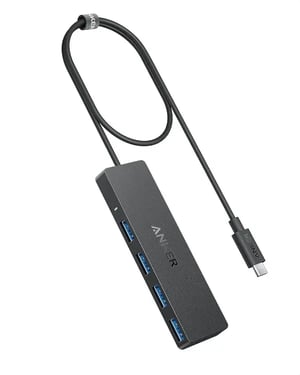
-
Unplug the host cable of the USB hub from the Mac Mini, then wait 10 seconds.
-
(The host cable is the main cable that connects all other peripherals to the Mac Mini. It is the only cable that is permanently attached to the USB hub.)
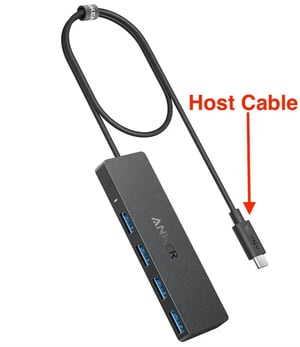
-
-
Plug the USB hub's host cable back into the Mac Mini.
-
Test the handheld barcode scanner to confirm it is communicating.
✏️ Note: If unplugging and plugging back in the USB hub does not fix the issue, proceed to the next section.
Confirm the handheld barcode scanner is plugged in
Look back under the counter to confirm all cables plugged into the USB hub are securely inserted. There should be 3 USB-A cables leading into the USB hub:
-
Receipt Printer.
-
10-Key cashier keyboard.
-
Handheld barcode scanner (not included in all POS installs).
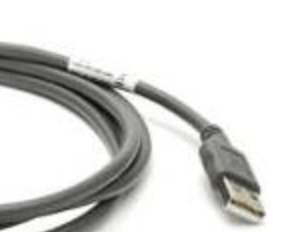
-
If any cables are not secured into the USB, plug them back in fully.
-
Test the handheld barcode scanner to confirm it is communicating.
✏️ Note: If all cables are securely connected to the USB hub and the problem isn't resolved, proceed to the next section.
Hard reset the hand scanner
-
Place the scanner onto the cradle.
-
Press and hold the trigger button for about 15 seconds until the indicator light on the scanner shows RED.
-
Release the trigger and wait for the scanner to do 3 power-up beeps for it to be reset.
✏️ Note: If the hand scanner has been hard reset and the problem isn't resolved, proceed to the next section.
Restart the Mac Mini
- Restart remotely using the Lanes tool in the New Back Office.
-
Once the system restarts, enter the admin password when prompted.
-
The password is 654321.
-
-
Log back into the POS app and test the handheld barcode scanner.
✏️ Note: If restarting the POS computer does not fix the issue, the handheld barcode scanner's communication cable has likely been damaged. Reach out to the Vori support line for help on the next steps.