

This feature is in beta.
Why Create a Purchase Order This Way Instead of Building It on the Handheld?
If your team already builds orders in a spreadsheet, upload that file directly into app.vori.com instead of re-entering it on the handheld.How to Create a Purchase Order by Uploading a CSV File
- Log into app.vori.com.
- In the left-hand navigation menu, click Inventory & Supply Chain.
- Select Purchase Orders.
- In the top right-hand corner of the page, click Upload Order.
- Select the vendor for the order.
- Drag and drop or select the file, then click Upload.
- Map your file’s columns to the correct fields, then click Next.
- Review the Order Summary, then click Create Order.
-
The order goes into Draft status for you to review and make any edits.
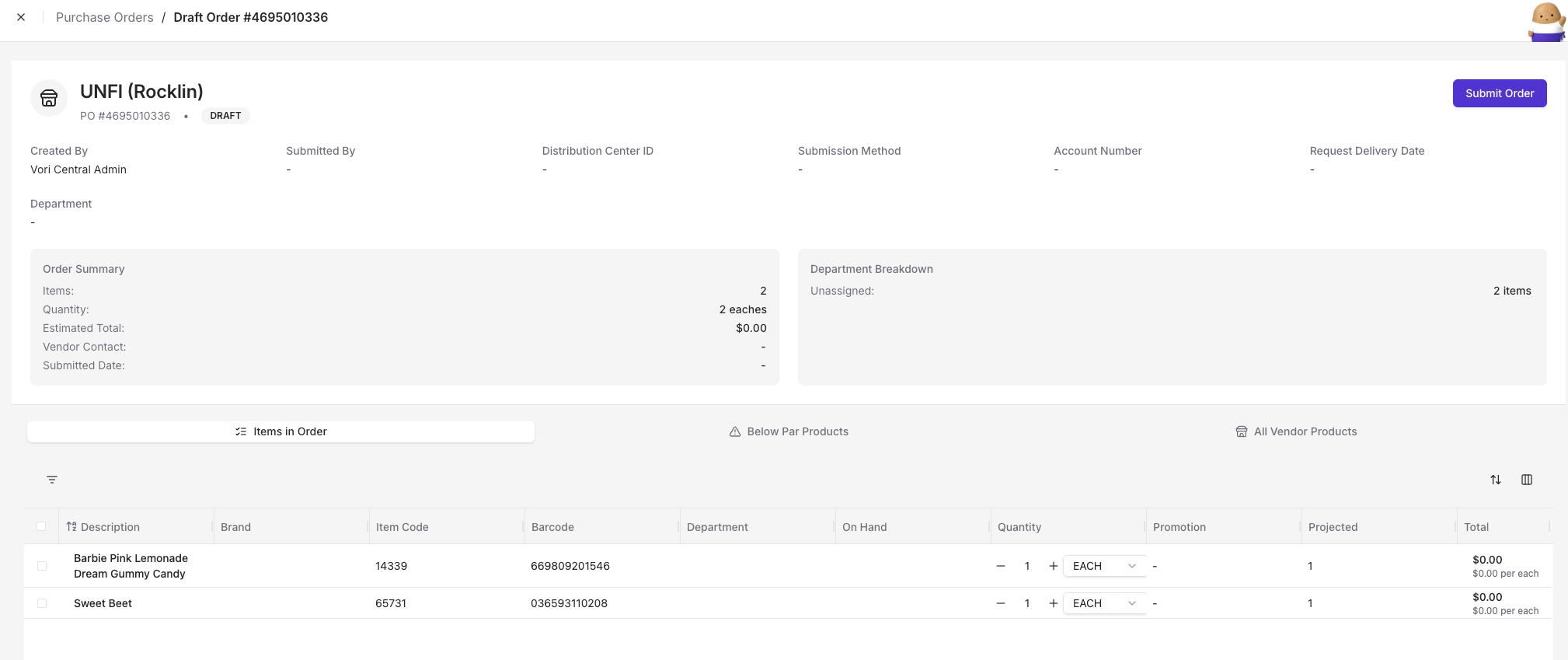
- When you’re ready, click Submit Order.
The Recently Ordered warning isn’t currently available on purchase orders created this way. It’s only available on the handheld.