Gmail Forwarding Rules for the Invoice Inbox
- Log in to the inbox that receives emailed copies of invoices.
- Click the Settings icon ⚙️ > See all settings.
- On the top navigation bar, click Forwarding and POP/IMAP.
-
In the “Forwarding menu,” set up the forwarding inbox to invoices+StoreName@vori.com. (Enter your Store Name).
- You may need to go through Two-Factor Authentication to complete some of these steps based on your inbox security setup.
-
Notify Vori that you’ve set up the forwarding rule.
-
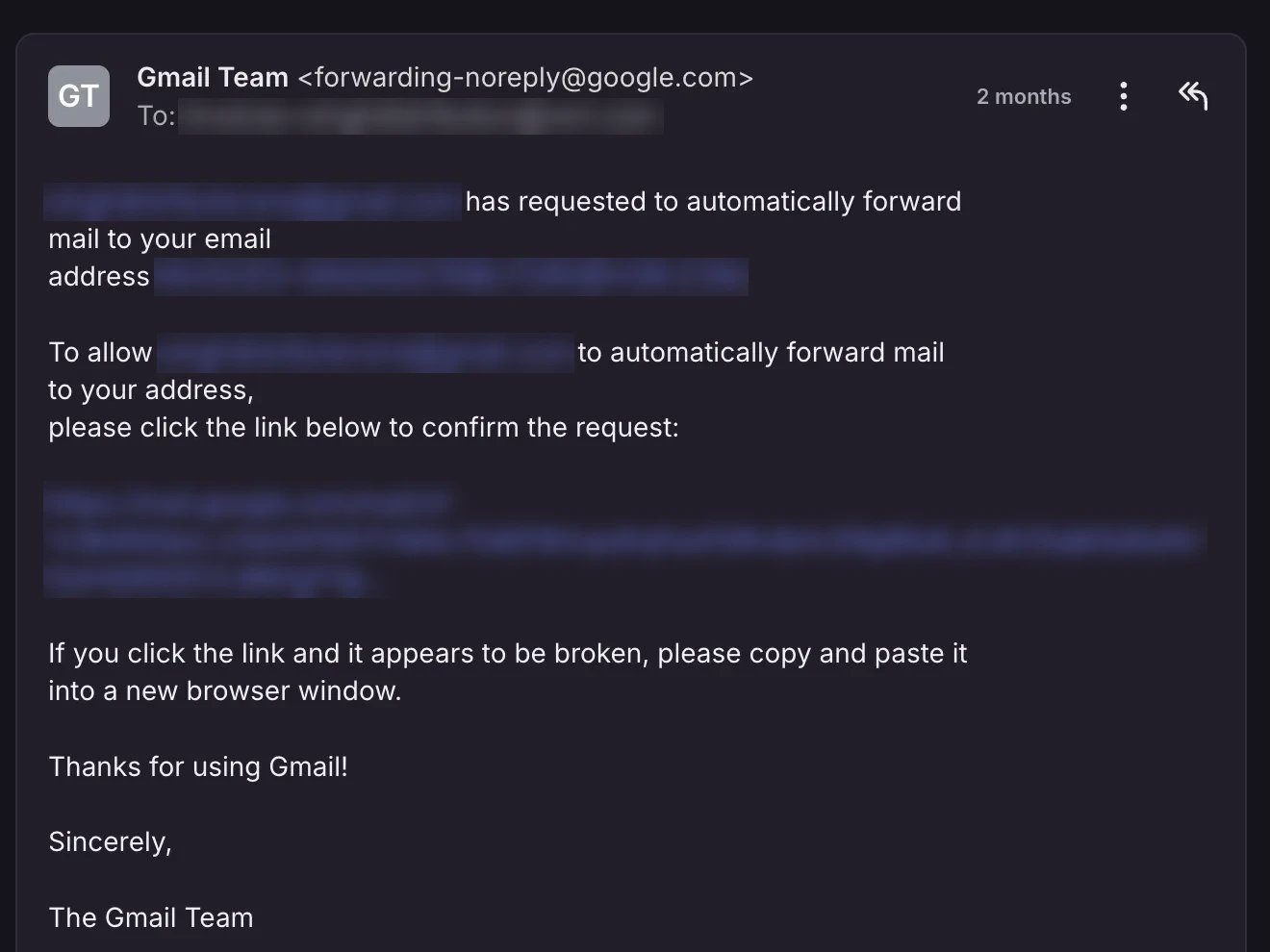
Vori must confirm you want to receive forwarded messages from your specific inbox.
-
Vori must confirm you want to receive forwarded messages from your specific inbox.
Create a Filter to Forward Only Invoices
Once Vori has approved receiving mail from your inbox:- Go back to Forwarding and POP/IMAP.
- Make sure to select Forward a copy of incoming mail to invoices+StoreName@vori.com and keep Gmail’s copy in the inbox.
- Tap creating a filter!
- When the pop-up appears, add invoice as a search parameter and check the box for has attachment → then Create filter.
- Check the box for Forward it to: and select the receiving address (invoices+StoreName@vori.com) > Click Create Filter.
- Notify Vori once you’ve completed these steps. A Vori admin finishes the setup in your store’s internal settings, and your invoices begin uploading into Vori automatically.
Microsoft Office Forwarding Rules for the Invoice Inbox
If your store uses Microsoft Office (Outlook) instead of Gmail, add the Vori inbox as a contact first, then create a forwarding rule.-
From the top-left menu, select People to open your contacts.
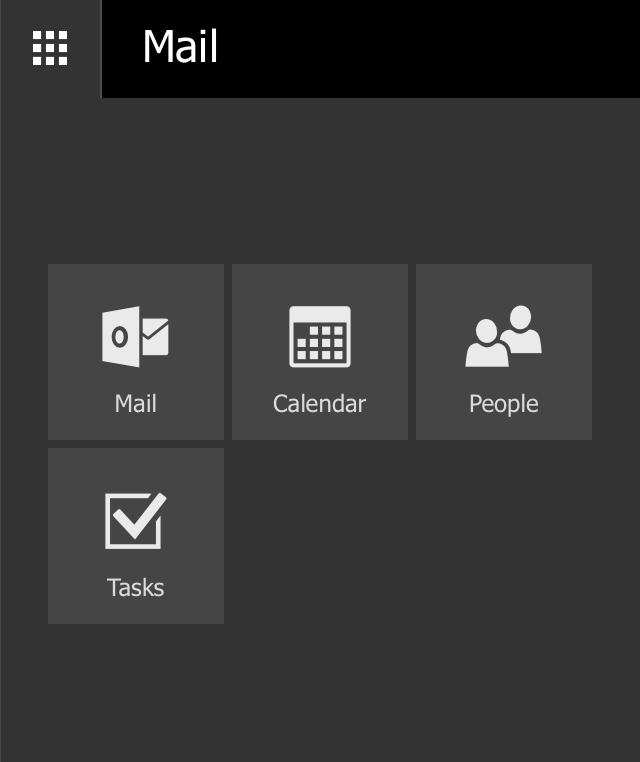
- Click New in the top-left corner to create a new contact.
- Set the contact’s email to your designated Vori inbox, invoices+StoreName@vori.com. (Enter your Store Name.)
- Go back to your inbox home page to set the forwarding rule.
-
Click the … in the top navigation bar.
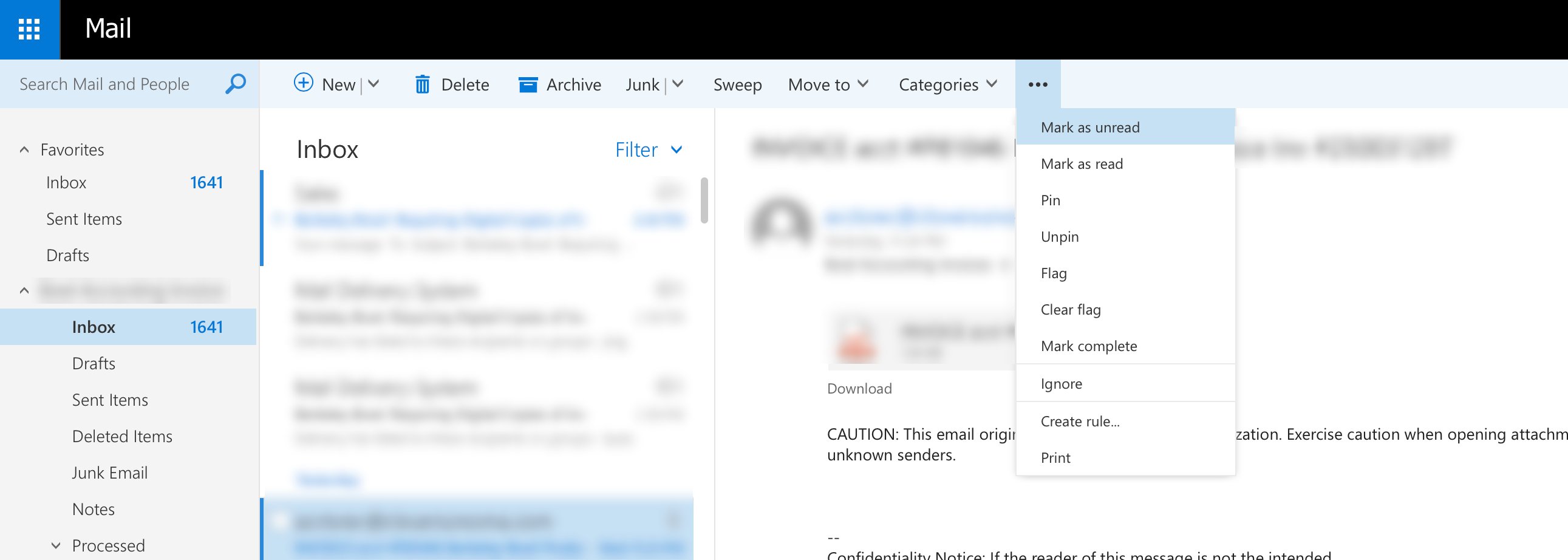
- Scroll down and click Create rule.
-
In the new inbox rule, set a single condition for the delivery inbox — It was sent to… — and choose Forward as the action, then select the Vori inbox as the destination.
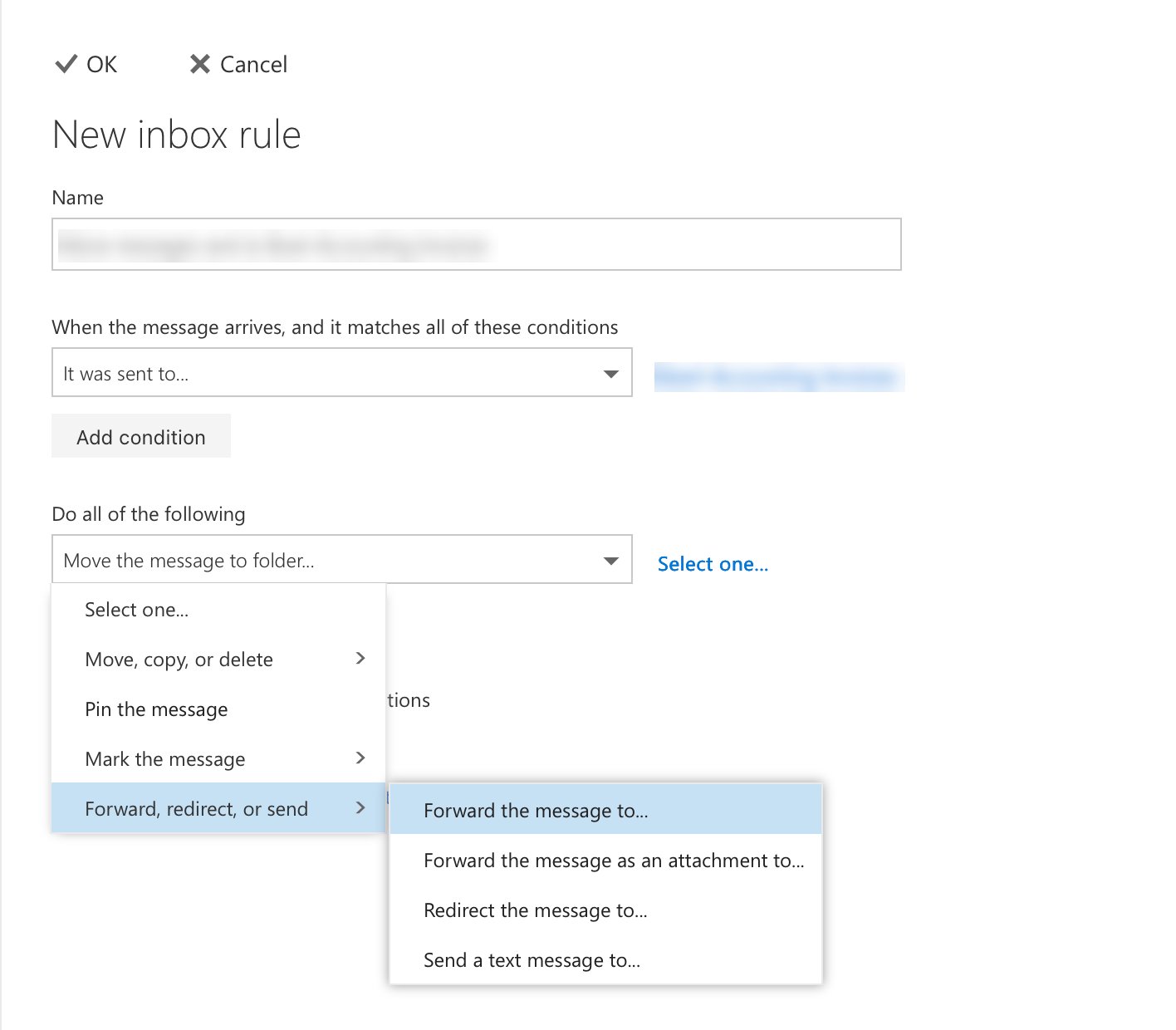
-
Select the Vori invoice inbox as the forward recipient and Save the rule.
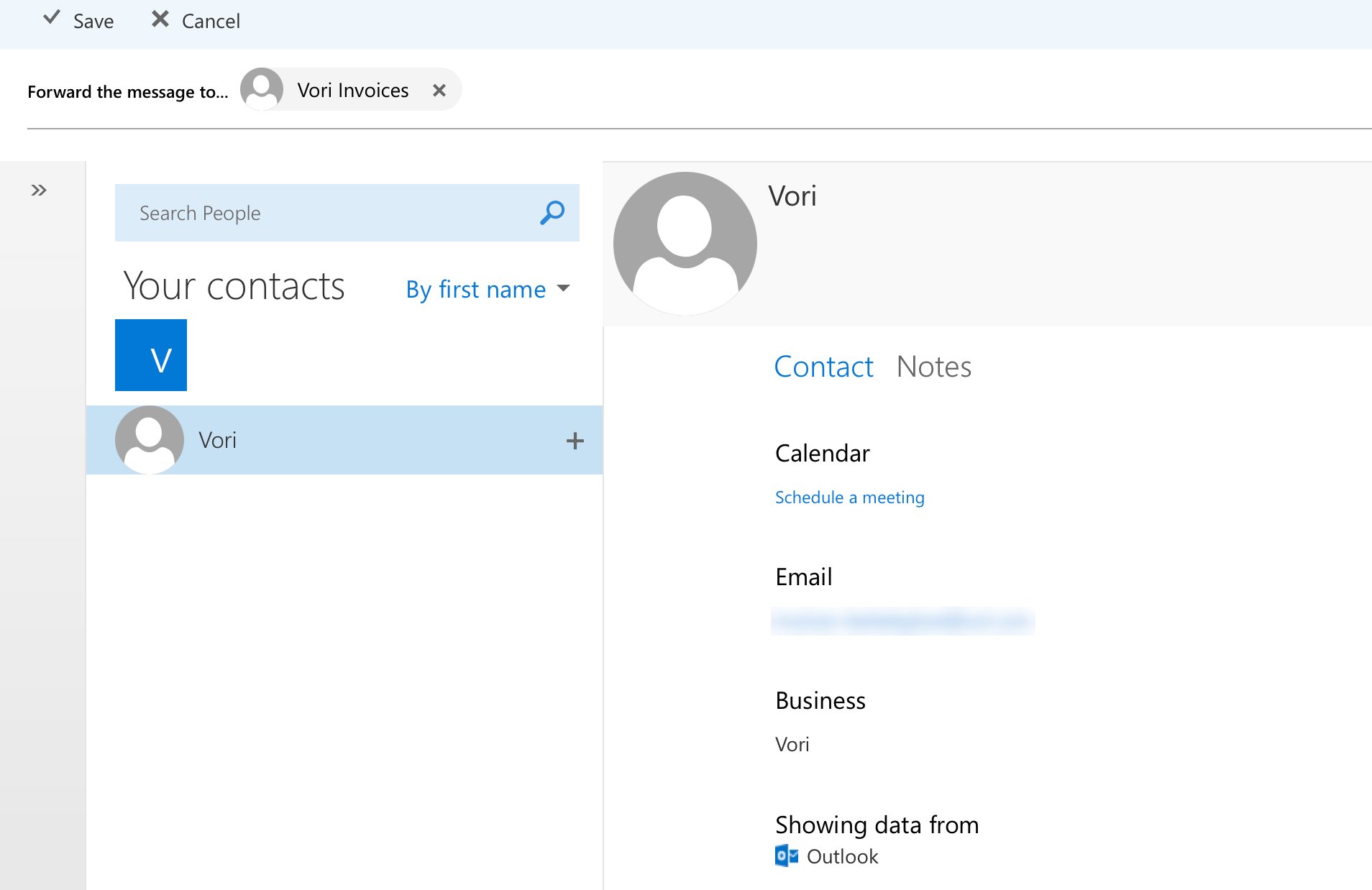
- Notify Vori once you’ve completed these steps. A Vori admin finishes the setup in your store’s internal settings, and your invoices begin uploading into Vori automatically.
Tips for filter accuracy
A forwarding rule that’s too broad can pick up mail that has nothing to do with invoices — bank statements, newsletters, even a personal email thread. Use these checks to tighten your rule, in Gmail or Outlook:- Narrow your subject keywords. Drop broad terms like “statement” — it also matches bank and account statements. Keep only the words your suppliers actually use in invoice subject lines, like “invoice” or “invoices.”
-
Add a sender or domain condition. Invoices come from a finite list of suppliers, so restricting the rule to known vendor addresses or domains is the single most effective filter.
- Gmail: add a From line to your filter with the vendor addresses or domains.
- Outlook: click Add condition, choose From, and list the vendor addresses or domains.
-
Exclude common false positives. A reply or forward thread about an invoice isn’t the invoice itself.
- Gmail: add
Re Fwd receiptto the Doesn’t have field. That field already excludes what you enter, so skip the-prefix. - Outlook: click Add an exception and exclude subjects containing “Re:”, “Fwd:”, or “receipt.”
- Gmail: add
-
Consider requiring a PDF attachment.
- Gmail: type
filename:pdfinto the Has the words field to match on attachment type directly. - Outlook: the basic rule builder only offers Has attachment, with no file-type option. Matching on file type requires Power Automate or a transport rule in the Exchange admin center.
- Gmail: type
- In Outlook, move this rule above your general or catch-all rules. With Stop processing more rules checked, the rule only protects you if it runs before a broader rule can intercept the message first. Gmail applies every matching filter independently, so rule order doesn’t affect it.
- Test against real examples. Pull a few of the emails that shouldn’t have come through and check which condition let them in — that points you to exactly what to tighten instead of guessing.
If an unrelated email gets forwarded to Vori, check its subject line and sender against your filter conditions first — that’s usually the fastest way to spot the gap.
Ask Your Vendors to Email Invoices (New System Onboarding)
To ensure Vori receives invoices automatically for cost change processing, you’ll need to ask your vendors to email invoices to your designated invoice inbox. Use the following template to make this request to your vendor contacts. Remember to replace the bracketed placeholders with your specific information.Vendor Invoice Email Request Template
Subject: Important Request: Updating Invoice Delivery for [Retailer Name] Email Body: Hi [Vendor Name], We are currently onboarding a new Point-of-Sale system and Back Office software, and want to make sure all of our data is accurate and up-to-date in the new system. To help us with this transition, can you also please email copies of all future invoices to this dedicated email address: [invoice inbox email]? That would be a huge help. Thanks again for your support, [store administrator][retailer name]
[phone number]
Handle Historical and Duplicate Invoices
Historical Invoices
Creating this filter will only affect future invoices; historical emails will not be forwarded.- Retailers will need to manually forward historical emailed invoices for cost change processing.
Duplicate Invoices
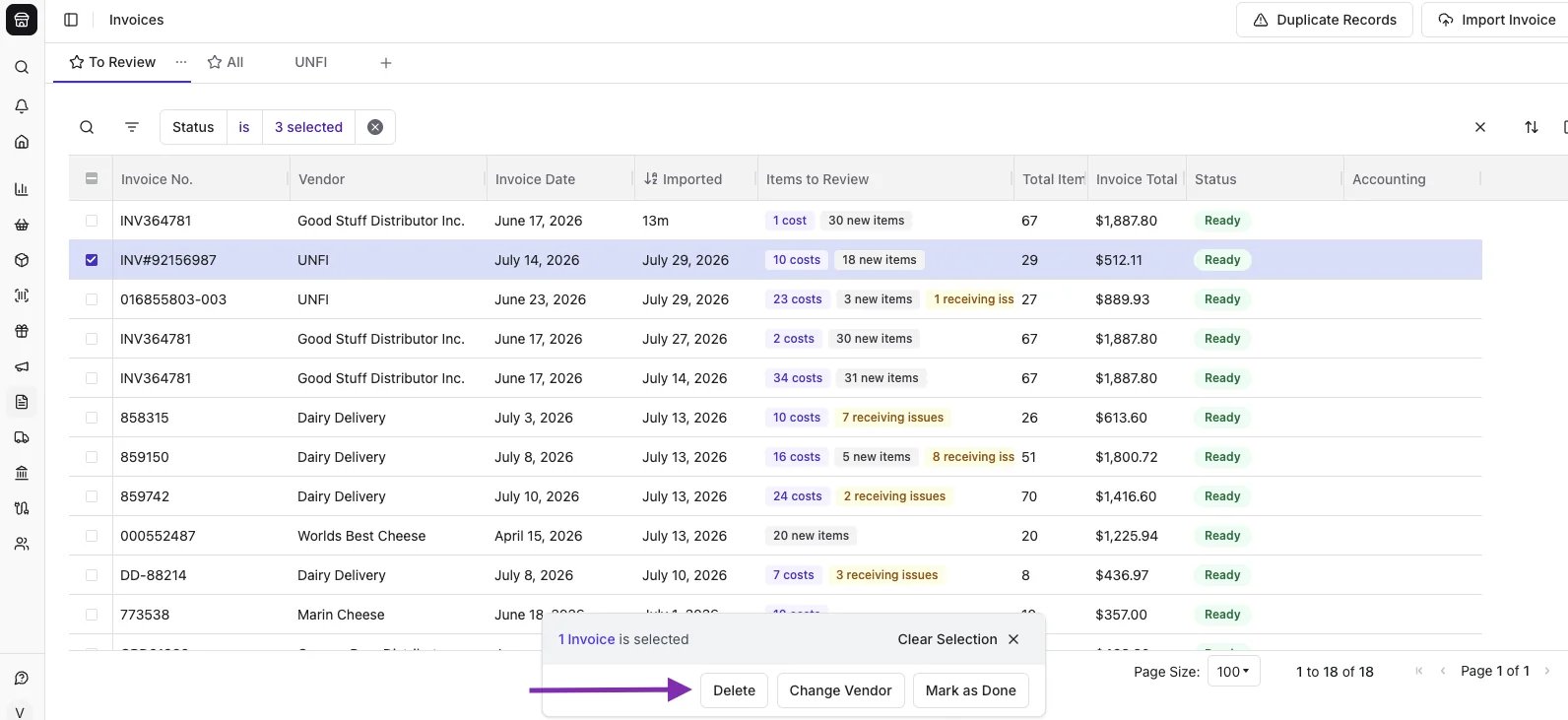
If you upload the same invoice (e.g., from both an email and a scanned upload), the system will not recognize it and will not delete it.- Delete the duplicate by selecting the invoice and tap Delete.