![vori-logo-black-horizontal-01 (1).png]](https://help.vori.com/hs-fs/hubfs/vori-logo-black-horizontal-01%20(1).png?height=42&name=vori-logo-black-horizontal-01%20(1).png)
Managing vendor-driven discounts—like those from Pendleton or Columbia—shouldn’t be a manual chore. By converting vendor price books into a Vori-friendly format, you can upload hundreds of wine and beer discounts in seconds, ensuring your shelf prices always match your latest post-offs.
Table of Contents
Before You Begin
Before uploading, ensure your vendor data is ready for the Vori importer.
-
File Format: Must be saved as a .CSV.
-
Data Extraction: Download the vendor PDF as a CSV and use a converter (or copy/paste) to move the data into Google Sheets or Excel.
-
Smart Matching: You do not need to manually filter the vendor list to match your store’s inventory. Vori will automatically match the UPCs in your file to your catalog and skip any items you don't carry.
How to Format Your Vendor Promotion File
Headers must match the Vori template exactly. Use this guide to map your vendor's data to the Vori columns:
| Column | Description | Format / Notes |
| UPC | Product barcode | Required; from vendor PDF |
| Desc | Product name | For reference |
| Sale Mult | Promotion quantity | Enter "1" for all TPR rows |
| Sale SRP | Promotional price | The TPR price (or your calculated margin) |
| Start | Promotion start date | YYYY-MM-DD (e.g., 2026-02-01) |
| End | Promotion end date | YYYY-MM-DD (e.g., 2026-02-28) |
| Type | Promotion type code | Enter ADP for all rows |
⚠️Caution: Date formatting on Vendor PDFs often use slashes (02/01/26). You must change these to dashes (2026-02-01) for the import to succeed.
Example: From PDF to CSV
To see this in action, compare the original vendor PDF to our formatted import file:
Notice how we extracted the UPC and Unit Cost from the PDF and converted them into the clean, hyphenated date format required by Vori.
Using Formulas for Custom Margins
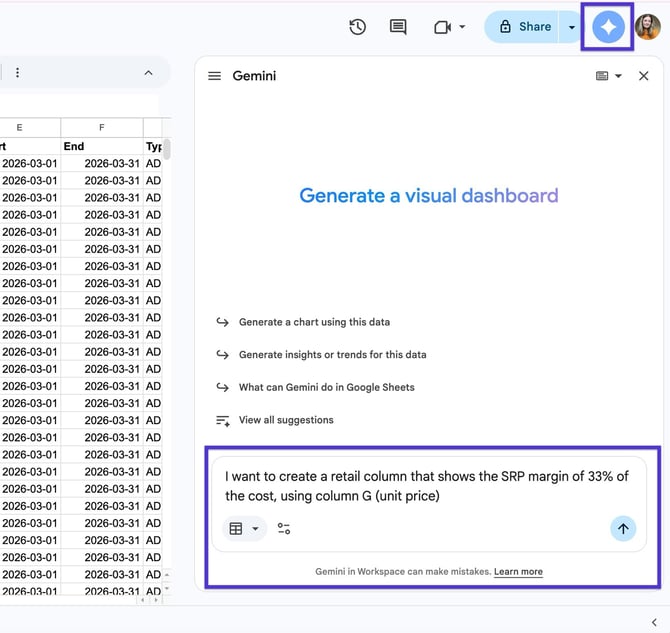
If you prefer not to use the vendor's "Suggested Retail Price," use a formula in your spreadsheet to set a consistent margin based on the Unit Cost.
To achieve a 33% margin and round to the nearest ".99" for pricing consistency, use this formula in your Sale SRP column:
=ROUNDUP(G2/0.67, 0) - 0.01
-
G2: The cell containing the Unit Cost.
-
0.67: The reciprocal of your 33% margin ($1.00 - 0.33$).
-
-0.01: The offset to ensure your price ends in .99.
💡Tip: You can use AI features in Google Sheets (like "Help me organize") to help write these equations if you are targeting a different margin.
How to Import Your Promotions
You can use the new promo import tool to import your TPRs in Vori.
-
In New Back Office, go to Products and select Promotions in the left-hand navigation.
-
Click Import File (top-right).
-
Drag & drop your formatted CSV.
-
Map Promotion Fields: Ensure your columns (UPC, Sale SRP, etc.) match the Vori system fields.
-
Review Linked Data: Check the Valid Rows tab. Remember, any items from the vendor list that you don't carry will show as invalid/skipped—this is normal!
-
Click Commit. Your promotions will now appear in the Drafts tab.
-
Review and Publish: Open the draft, verify the details, and click Publish.
Post-Publishing: Testing at the POS
Once your promotions are published, verify they are active at the register before you start your shift.
-
Wait for Sync: Allow a few minutes for the promotion to scan at the POS (this should take less than 5 minutes).
-
Scan a Test Item: Head to a register and scan one of the items from your import.
-
Verify the Price: Ensure the "Sale Price" or "TPR" appears correctly on the screen.
-
Troubleshoot: If the price shows as regular retail, ensure your POS has finished its latest sync and that today's date falls within the Start and End range you imported.