> ## Documentation Index
> Fetch the complete documentation index at: https://help.vori.com/llms.txt
> Use this file to discover all available pages before exploring further.
# Translate Help Articles to Your Preferred Language
> Learn how to view support content in your native language on your mobile device
At Vori, we want to ensure you have the information you need to run your store efficiently. If you prefer reading in a language other than English, you can use the built-in translation features on your mobile browser to instantly translate our help articles.
### Translate Using Safari (iPhone)
The Vori Help Center is optimized to work with your iPhone’s native translation tools. Follow these steps to change the language of any article.
1. Open the article you wish to read in the Vori Help Center.
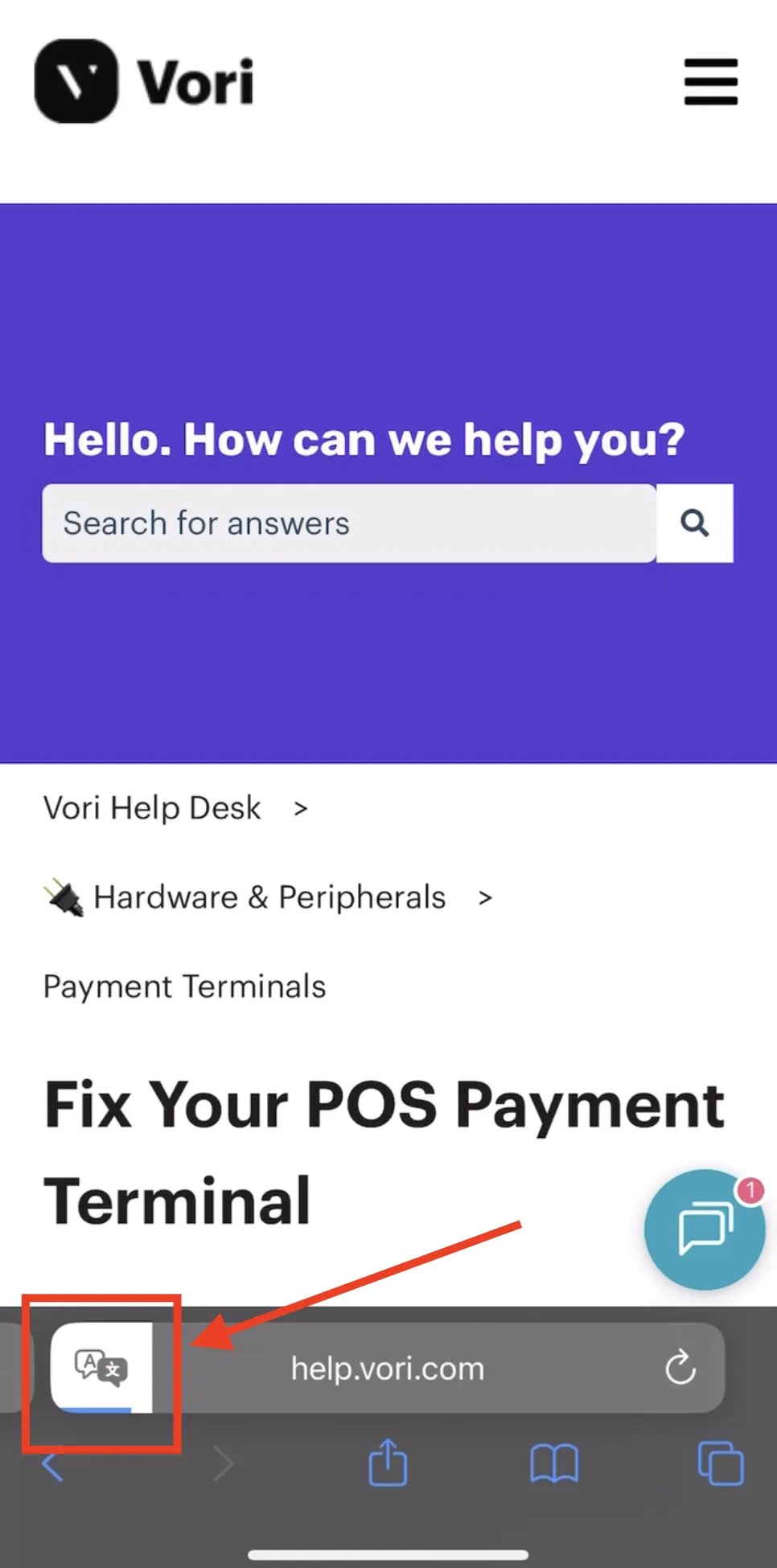
2. Locate the address bar at the bottom (or top) of your screen.
3. Tap the **Page Settings** icon (represented by **aA,** puzzle piece icon) on the left side of the address bar.
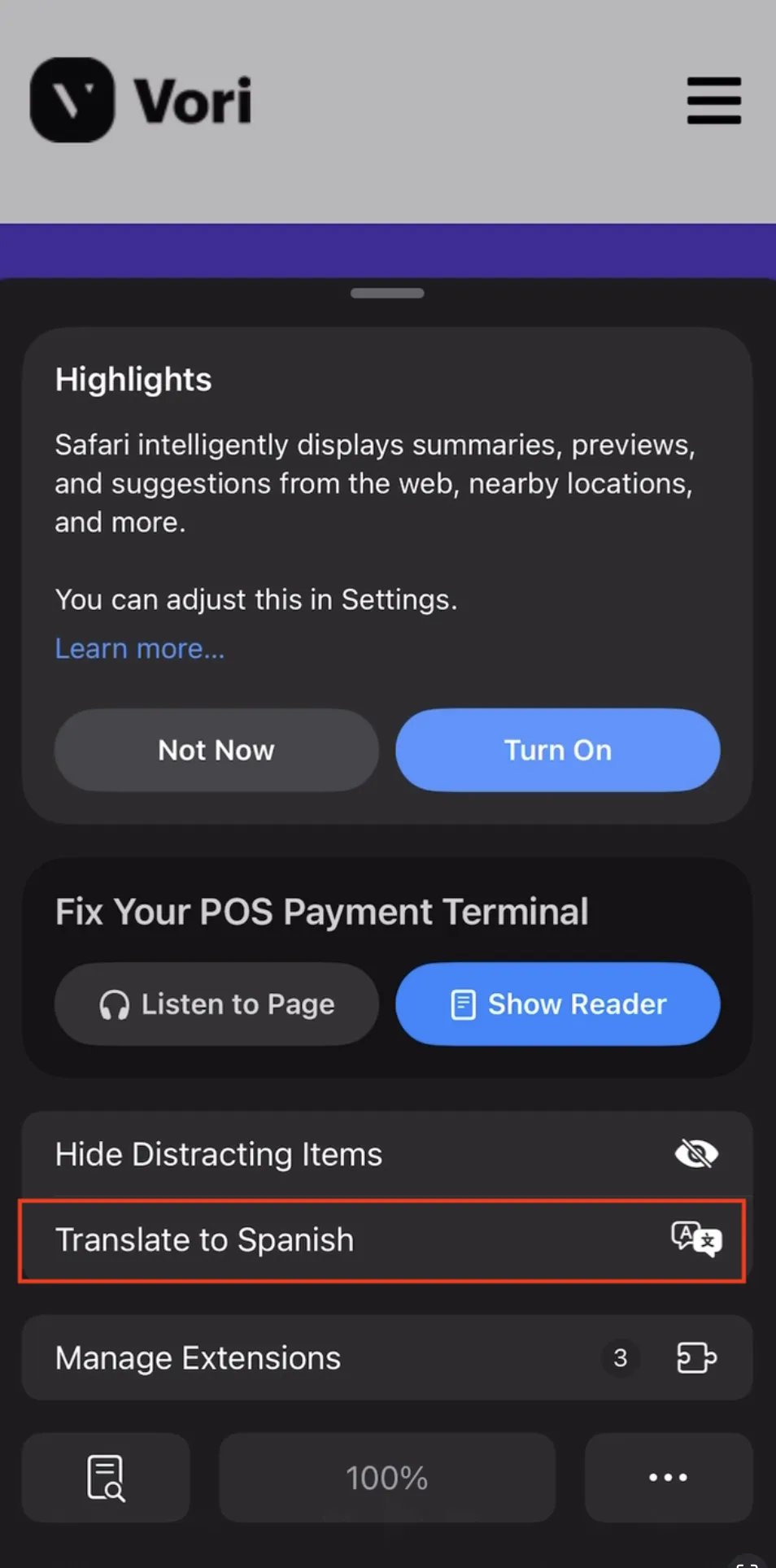
 4. Tap **Translate Website...** in the menu that appears.
1. Select your preferred language from the list (e.g., Spanish).
4. Tap **Translate Website...** in the menu that appears.
1. Select your preferred language from the list (e.g., Spanish).
 5. The page will automatically refresh and display the text in your selected language.
💡 **Tip:** Once you translate one page, Safari may automatically translate other pages you visit on [help.vori.com](/) until you turn the feature off.
***
### Translate Using Chrome - Android
If you are using an Android device, you can easily translate pages using the Chrome browser menu.
1. Open the article you wish to read in the Chrome app.
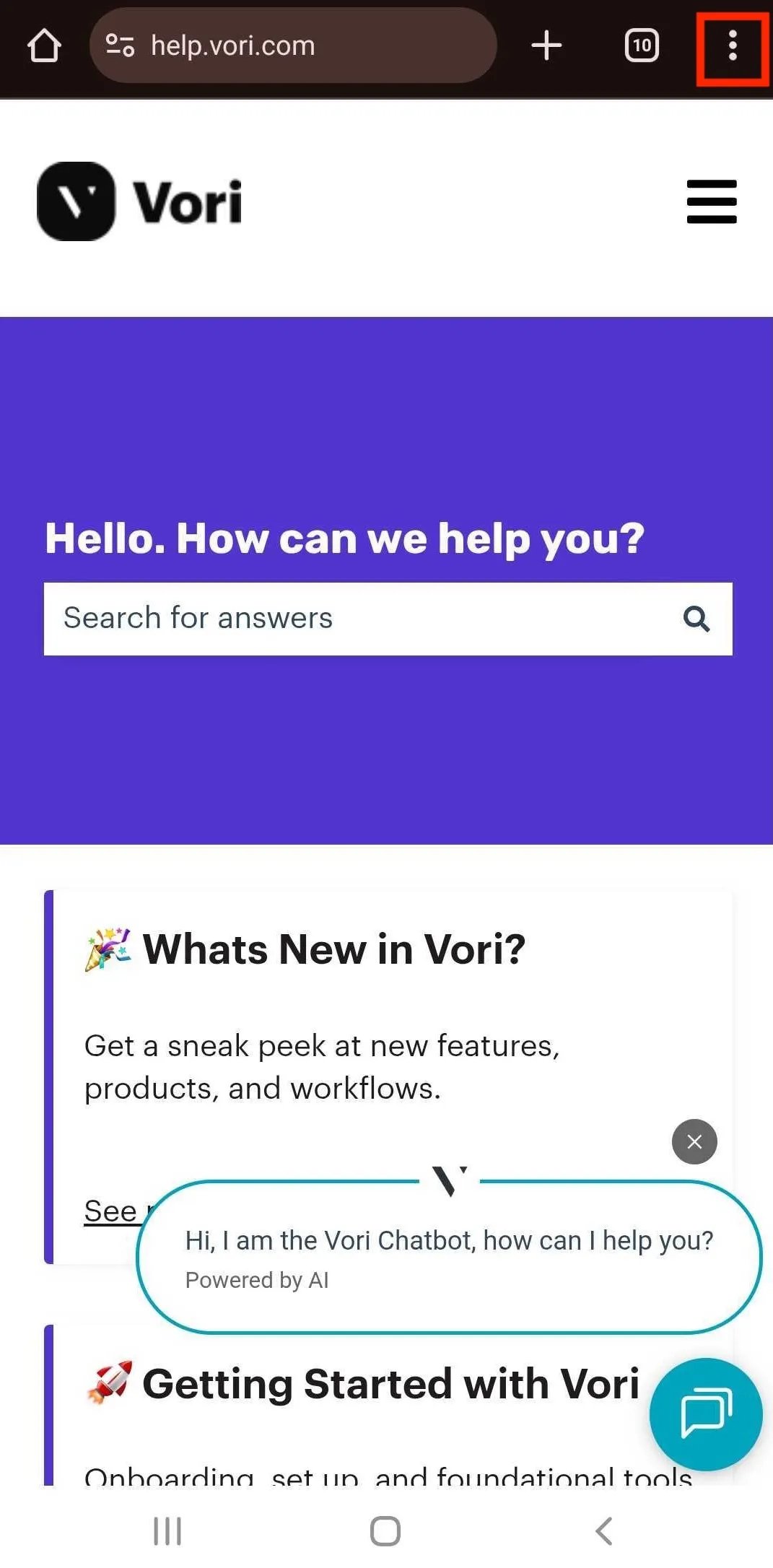
2. Tap the **three-dot menu icon** located in the top-right corner of the browser window.
5. The page will automatically refresh and display the text in your selected language.
💡 **Tip:** Once you translate one page, Safari may automatically translate other pages you visit on [help.vori.com](/) until you turn the feature off.
***
### Translate Using Chrome - Android
If you are using an Android device, you can easily translate pages using the Chrome browser menu.
1. Open the article you wish to read in the Chrome app.
2. Tap the **three-dot menu icon** located in the top-right corner of the browser window.
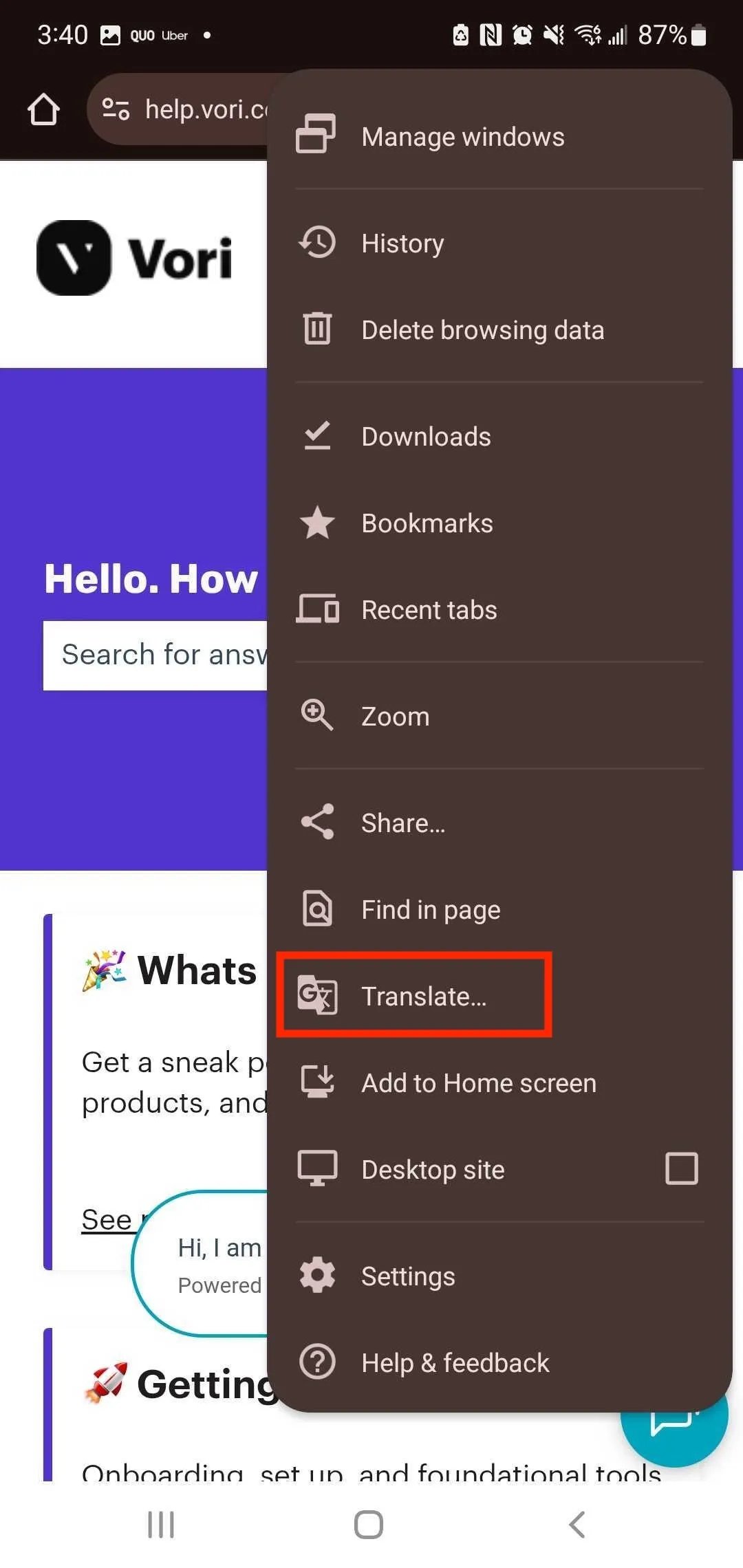
 3. Select **Translate...** from the menu options.
 4. A translation bar will appear at the top of the screen. If the language does not automatically change to your preference, tap the **gear icon** or the three dots within that translation bar.
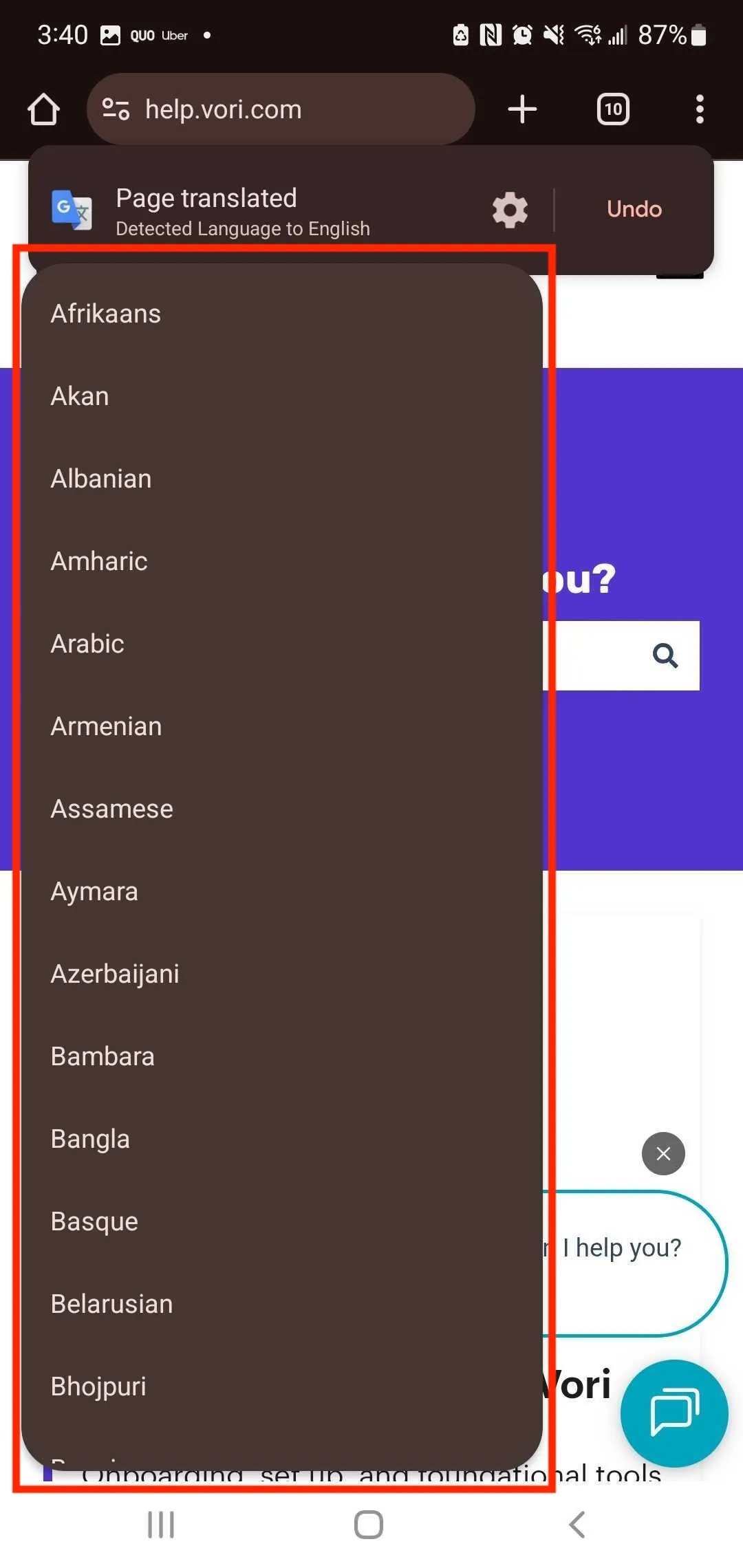
5. Select **More languages** from the dropdown menu.
4. A translation bar will appear at the top of the screen. If the language does not automatically change to your preference, tap the **gear icon** or the three dots within that translation bar.
5. Select **More languages** from the dropdown menu.
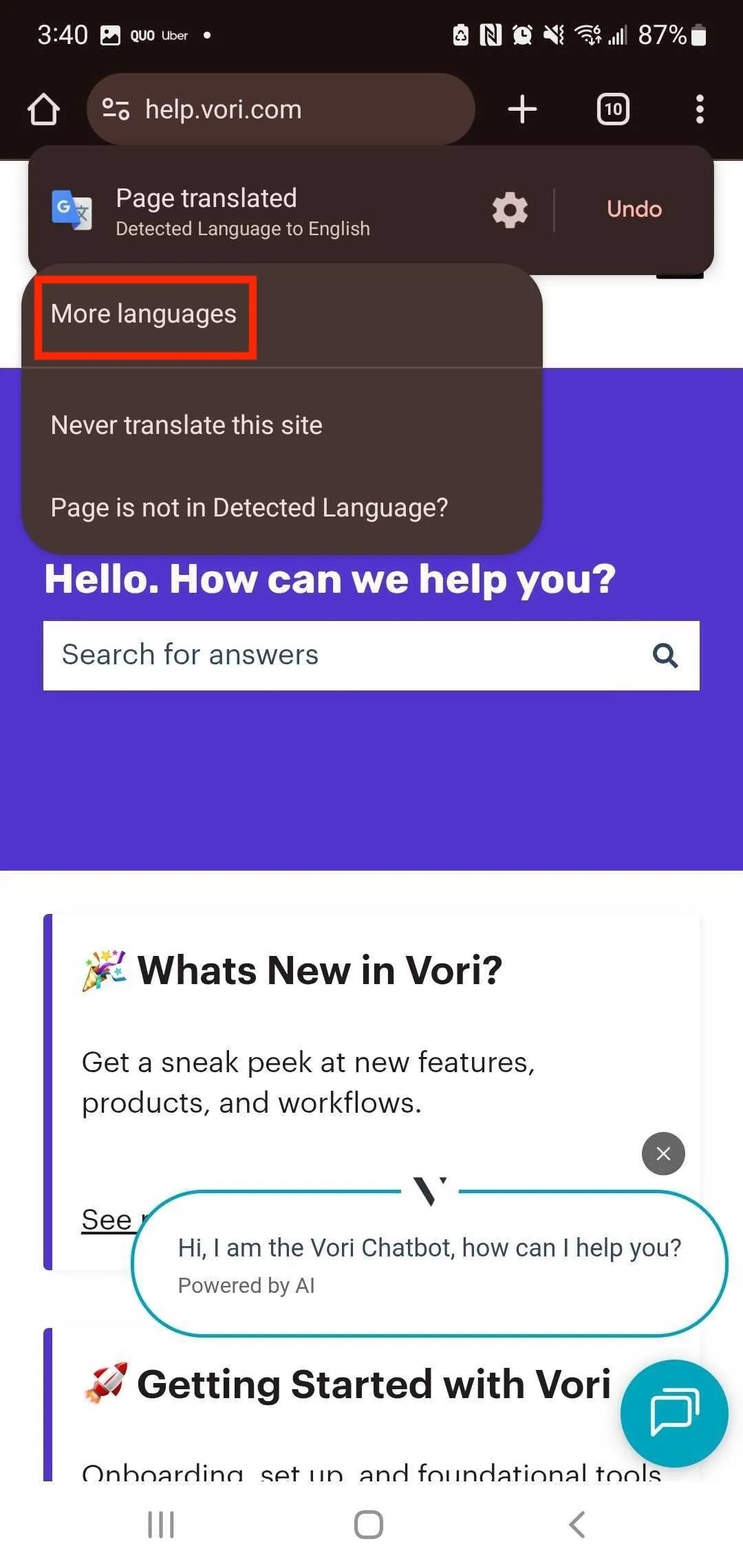 6. Scroll through the list and select your preferred language. The page will update instantly.
 ***
### Translate Using Chrome - Desktop
If you are accessing Vori from a computer, you can translate pages with just two clicks.
1. **Right-click** anywhere on the white space of the page.
***
### Translate Using Chrome - Desktop
If you are accessing Vori from a computer, you can translate pages with just two clicks.
1. **Right-click** anywhere on the white space of the page.
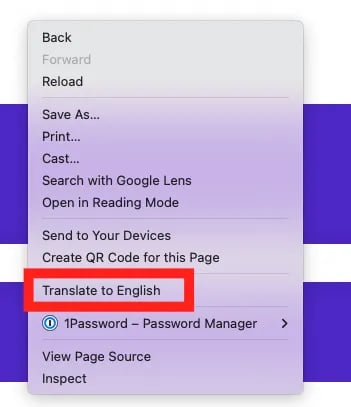 2. Select **Translate to \[Language]** from the menu that appears (e.g., "Translate to English" or your default system language).
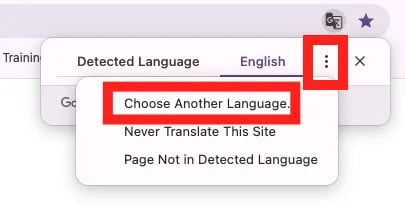
3. A small box will appear in the top-right corner near the address bar. If the language is not what you want, click the **three dots** in that box.
4. Select **Choose another language**, pick your preferred language from the list, and click **Translate**.
2. Select **Translate to \[Language]** from the menu that appears (e.g., "Translate to English" or your default system language).
3. A small box will appear in the top-right corner near the address bar. If the language is not what you want, click the **three dots** in that box.
4. Select **Choose another language**, pick your preferred language from the list, and click **Translate**.
 ***
### Troubleshooting
If you do not see the option to translate or the translation does not appear correctly, check the following.
* **Check your internet connection.** Translation requires an active data or Wi-Fi connection.
* **Update your settings.** You may need to add your preferred language to your iPhone's system settings under **General** > **Language & Region**.
* **Refresh the page.** Sometimes a quick refresh helps the browser recognize the text.
If you are still having trouble understanding a guide, please reach out to Vori Support.
## Related topics
- [Wide Large 3" x 1.5" Label Tags](/hardware-and-peripherals/tag-printer/wide-large-3-x-1-5-label-tags.md)
- [Manage Vendor Costs and Active Suppliers](/vendors-and-vendor-products/vendor-products/manage-vendor-costs-and-active-suppliers.md)
- [Setting Up Quick Food Service Counters](/whats-new-in-vori/in-alpha-quick-food-service/setting-up-quick-food-service-counters.md)
***
### Troubleshooting
If you do not see the option to translate or the translation does not appear correctly, check the following.
* **Check your internet connection.** Translation requires an active data or Wi-Fi connection.
* **Update your settings.** You may need to add your preferred language to your iPhone's system settings under **General** > **Language & Region**.
* **Refresh the page.** Sometimes a quick refresh helps the browser recognize the text.
If you are still having trouble understanding a guide, please reach out to Vori Support.
## Related topics
- [Wide Large 3" x 1.5" Label Tags](/hardware-and-peripherals/tag-printer/wide-large-3-x-1-5-label-tags.md)
- [Manage Vendor Costs and Active Suppliers](/vendors-and-vendor-products/vendor-products/manage-vendor-costs-and-active-suppliers.md)
- [Setting Up Quick Food Service Counters](/whats-new-in-vori/in-alpha-quick-food-service/setting-up-quick-food-service-counters.md)