> ## Documentation Index
> Fetch the complete documentation index at: https://help.vori.com/llms.txt
> Use this file to discover all available pages before exploring further.
# How to add Vori Back Office to the POS Cashier Screen
> This article explains how to add Vori Back Office to the POS for quick access to reporting and inventory tools.
### Introduction
Adding Vori Dash to the Mac Mini Dock provides faster access to key Back Office tools like [Reporting](/reporting/sales-and-product-performance/advanced-reporting-filtering-customizing-and-saving-report-views) and the My Products page. This guide outlines the steps for setting it up and enabling automatic launch at login.
***
### Directions
1. 3-finger swipe to the right to exit the POS screen.
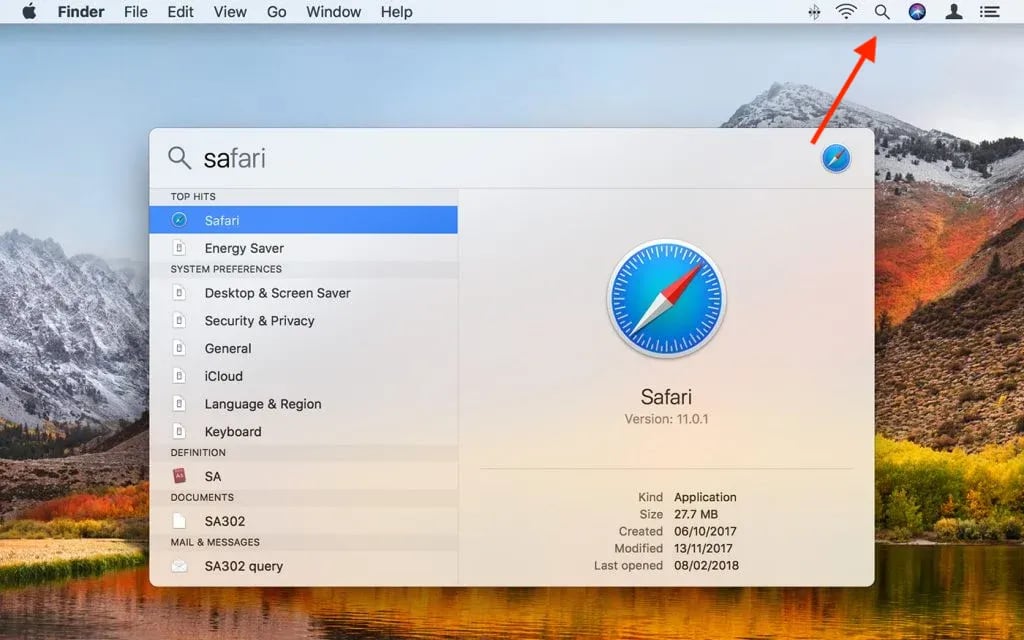
2. Tap on the magnifying glass in the upper right-hand corner of the page.
3. This will bring up **Spotlight Search**; enter *Safari* in the search bar.
 4. Navigate to [app.vori.com](https://app.vori.com/login) and enter the appropriate login credentials.
5.
4. Navigate to [app.vori.com](https://app.vori.com/login) and enter the appropriate login credentials.
5.  Once logged in, tap the Share icon in the top right corner of the page.
6. Select **Add to Dock.**
7. Name the page and tap **Add,** and it will appear on the dock.
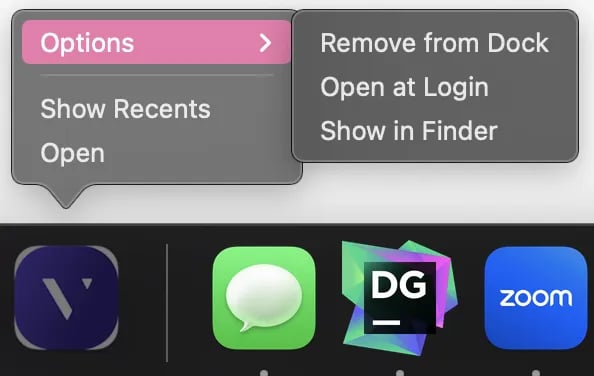
8. Right-click on the dock icon and select **Open at Login.**
Once logged in, tap the Share icon in the top right corner of the page.
6. Select **Add to Dock.**
7. Name the page and tap **Add,** and it will appear on the dock.
8. Right-click on the dock icon and select **Open at Login.**
 ***
### Additional Notes
* A connected keyboard is required to complete the setup.
* With the Vori Dash page open, switch between the POS and Dash using a three-finger swipe.
## Related topics
- [Restart a POS Cashier Screen or Shopper Display](/hardware-and-integrations/cashier-screen-and-shopper-display/restart-a-pos-cashier-screen-or-shopper-display.md)
- [Create Quick Actions in Back Office](/point-of-sale-pos/pos-customization-and-setup/create-quick-actions-in-back-office.md)
- [Fix a Black or Frozen POS Cashier Screen](/hardware-and-integrations/cashier-screen-and-shopper-display/fix-a-black-or-frozen-pos-cashier-screen.md)
***
### Additional Notes
* A connected keyboard is required to complete the setup.
* With the Vori Dash page open, switch between the POS and Dash using a three-finger swipe.
## Related topics
- [Restart a POS Cashier Screen or Shopper Display](/hardware-and-integrations/cashier-screen-and-shopper-display/restart-a-pos-cashier-screen-or-shopper-display.md)
- [Create Quick Actions in Back Office](/point-of-sale-pos/pos-customization-and-setup/create-quick-actions-in-back-office.md)
- [Fix a Black or Frozen POS Cashier Screen](/hardware-and-integrations/cashier-screen-and-shopper-display/fix-a-black-or-frozen-pos-cashier-screen.md)