> ## Documentation Index
> Fetch the complete documentation index at: https://help.vori.com/llms.txt
> Use this file to discover all available pages before exploring further.
# How to access the VoriOS app if the VoriOS download failed
> This article explains how to troubleshoot & log into the VoriOS app when a download failure occurs
### Introduction
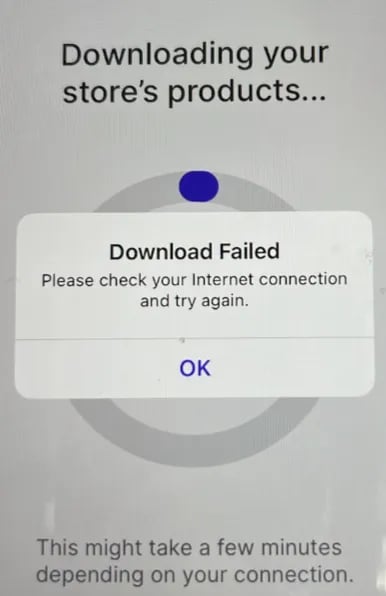
When logging into the VoriOS app, the store's product data must first sync with the app. If the VoriOS app presents a `Download Failed` message during this process, there may either be an error in the store's network or on Vori's backend.
 ***
### **Troubleshooting Steps**
Follow these steps in order by section:
#### **Check the device internet connection**
1. Swipe down from the handheld's upper right corner to open the Control Center.
***
### **Troubleshooting Steps**
Follow these steps in order by section:
#### **Check the device internet connection**
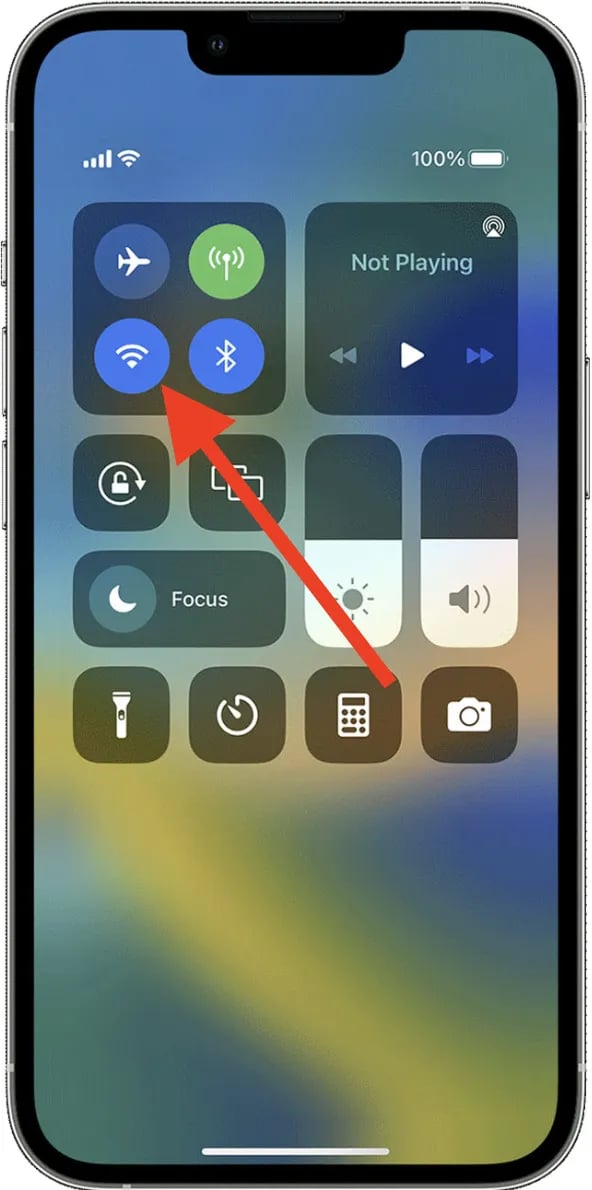
1. Swipe down from the handheld's upper right corner to open the Control Center. 2. Check the Wifi connection status based on the color of the Wifi icon.
1. **Blue Icon**: Wi-Fi is on and connected to a network.
2. **Gray Icon**: Wi-Fi is on but not connected to any network.
3. **White Icon**: Wi-Fi is off.
2. Check the Wifi connection status based on the color of the Wifi icon.
1. **Blue Icon**: Wi-Fi is on and connected to a network.
2. **Gray Icon**: Wi-Fi is on but not connected to any network.
3. **White Icon**: Wi-Fi is off.
 3. If Wi-Fi is off or you need to switch networks, press and hold the Wi-Fi icon to view available networks. Select the desired network and enter the password if prompted.
✏️ **Note** **-** If the handheld is already connected to a Wifi network, proceed to the next section.
#### Close and Reopen the VoriOS App
1. From the bottom edge of the screen, swipe up and hold for a moment. This action will reveal the App Switcher, showing all your recently used apps.
2. Swipe up on the VoriOS app's preview to close it.
3. Tap the home screen or swipe up to exit the App Switcher.
4. Tap the VoriOS app icon to reopen it, then try logging in again.
✏️ **Note** **-** If closing then reopening the VoriOS app does not fix this issue, proceed to the next step.
#### Uninstall then reinstall the VoriOS app
1. On the home screen of the handheld, press and hold the VoriOS icon until a menu appears.
2. Tap **Remove App** on the menu.
3. On the popup menu, tap **Delete App.** Then confirm the choice by tapping **Delete**.
4. Open the **App Store** and search for VoriOS.
5. Tap **Reinstall** next to the VoriOS app icon in the App store.
6. Once installed, tap the VoriOS app icon to reopen it, then try logging in again.
✏️ **Note** **-** If uninstalling then reinstalling the app does not fix the issue, contact Vori for support.
## Related topics
- [How to create a product on the VoriOS app](/product-and-product-catalog-management/product-creation-and-set-up/how-to-create-a-product-on-the-vori-os-app.md)
- [Troubleshoot Camera Scanner Connection Issues with the VoriOS app](/hardware-and-peripherals/handheld-and-mobile-devices/troubleshoot-camera-scanner-connection-issues-with-the-vori-os-app.md)
- [Connect the Zebra Printer to the VoriOS App](/hardware-and-peripherals/tag-printer/connect-the-zebra-printer-to-the-vorios-app.md)
3. If Wi-Fi is off or you need to switch networks, press and hold the Wi-Fi icon to view available networks. Select the desired network and enter the password if prompted.
✏️ **Note** **-** If the handheld is already connected to a Wifi network, proceed to the next section.
#### Close and Reopen the VoriOS App
1. From the bottom edge of the screen, swipe up and hold for a moment. This action will reveal the App Switcher, showing all your recently used apps.
2. Swipe up on the VoriOS app's preview to close it.
3. Tap the home screen or swipe up to exit the App Switcher.
4. Tap the VoriOS app icon to reopen it, then try logging in again.
✏️ **Note** **-** If closing then reopening the VoriOS app does not fix this issue, proceed to the next step.
#### Uninstall then reinstall the VoriOS app
1. On the home screen of the handheld, press and hold the VoriOS icon until a menu appears.
2. Tap **Remove App** on the menu.
3. On the popup menu, tap **Delete App.** Then confirm the choice by tapping **Delete**.
4. Open the **App Store** and search for VoriOS.
5. Tap **Reinstall** next to the VoriOS app icon in the App store.
6. Once installed, tap the VoriOS app icon to reopen it, then try logging in again.
✏️ **Note** **-** If uninstalling then reinstalling the app does not fix the issue, contact Vori for support.
## Related topics
- [How to create a product on the VoriOS app](/product-and-product-catalog-management/product-creation-and-set-up/how-to-create-a-product-on-the-vori-os-app.md)
- [Troubleshoot Camera Scanner Connection Issues with the VoriOS app](/hardware-and-peripherals/handheld-and-mobile-devices/troubleshoot-camera-scanner-connection-issues-with-the-vori-os-app.md)
- [Connect the Zebra Printer to the VoriOS App](/hardware-and-peripherals/tag-printer/connect-the-zebra-printer-to-the-vorios-app.md)