> ## Documentation Index
> Fetch the complete documentation index at: https://help.vori.com/llms.txt
> Use this file to discover all available pages before exploring further.
# Search & Manage the Vendor Products Catalog
> Use the Vendor Products list to find items by item code, audit costs, and clean up your data
While you can manage vendors directly from a product page, Vori also provides a dedicated **Vendor Products** view. This is your command center for searching your entire supplier database and auditing your costs in bulk.
### Accessing the Vendor Products Catalog
Vendor products have their own dedicated page, under **Inventory & Supply Chain**.
On this page, you can:
* Search by **vendor item codes** or product names.
* Filter to quickly find specific products.
* Open a product record to review or update details.
 ***
### Search by Vendor Item Code
When you are reviewing a paper invoice, you often only have the **Vendor Item Code** for an item (e.g., 57447), not the store's barcode. You can use the Vendor Products page to quickly identify which product that code belongs to.
1. Navigate to **Inventory & Supply Chain** > **[Vendor Products](https://app.vori.com/retail/vendor-products)**.
2. Click the **Filters** icon (or the search bar).
3. Select **Item Code** from the dropdown options.
4. Enter the code from your invoice.
This will isolate the specific vendor listing so you can check the cost or cost date immediately.
***
### Search by Vendor Item Code
When you are reviewing a paper invoice, you often only have the **Vendor Item Code** for an item (e.g., 57447), not the store's barcode. You can use the Vendor Products page to quickly identify which product that code belongs to.
1. Navigate to **Inventory & Supply Chain** > **[Vendor Products](https://app.vori.com/retail/vendor-products)**.
2. Click the **Filters** icon (or the search bar).
3. Select **Item Code** from the dropdown options.
4. Enter the code from your invoice.
This will isolate the specific vendor listing so you can check the cost or cost date immediately.
 ***
### Filter for Data Issues
To keep your margins accurate, your data needs to be clean. The Vendor Products page offers "Smart Filters" to help you find problems before they affect your pricing.
At the top of the **Vendor Products** page, look for the quick filter buttons:
***
### Filter for Data Issues
To keep your margins accurate, your data needs to be clean. The Vendor Products page offers "Smart Filters" to help you find problems before they affect your pricing.
At the top of the **Vendor Products** page, look for the quick filter buttons:
 * **Missing Cost:** Shows all vendor links that have a missing cost. These items may be falsely skewing your margins.
* **Has Duplicate Barcode:** Identifies where the same barcode is attached to multiple vendor product records. This often happens if an item was added manually when it already existed.
* **Has Duplicate Item Code:** Flags when a specific vendor item code appears more than once. This helps you merge duplicate entries so your order guides don't list the same item twice.
* **Has Duplicate Vendor Product:** Detects exact matches where the same vendor-product combination is listed twice. Removing these prevents confusion during ordering.
* **Has Missing Case Size:** Highlights items where the pack size is undefined. Without a case size, Vori cannot calculate a correct unit cost or margin.
**➡️ Next Steps:** For detailed steps and best practices, see the [**Merging Duplicate Vendors and Products**](/vendors-and-vendor-products/vendor-management/merging-duplicate-vendors-and-products) guide. If you have a large volume of duplicates to clean up at once, see [**Bulk Merge Duplicate Vendor Products**](/vendors-and-vendor-products/vendor-products/bulk-merge-duplicate-vendor-products) instead.
***
### Edit or Unlink Vendor Products
You can update supplier details or fix incorrect connections directly from the catalog list.
#### To Edit Vendor Details:
1. Hover over the **Description** column in the Vendor Product list and click **Open** to view the product details.
2. Update vendor product details, including **Barcode**, **Description**, **Cost**, **Case Size**, or **Item Code**, by making edits in the fields.
3. Changes are saved automatically.
* **Missing Cost:** Shows all vendor links that have a missing cost. These items may be falsely skewing your margins.
* **Has Duplicate Barcode:** Identifies where the same barcode is attached to multiple vendor product records. This often happens if an item was added manually when it already existed.
* **Has Duplicate Item Code:** Flags when a specific vendor item code appears more than once. This helps you merge duplicate entries so your order guides don't list the same item twice.
* **Has Duplicate Vendor Product:** Detects exact matches where the same vendor-product combination is listed twice. Removing these prevents confusion during ordering.
* **Has Missing Case Size:** Highlights items where the pack size is undefined. Without a case size, Vori cannot calculate a correct unit cost or margin.
**➡️ Next Steps:** For detailed steps and best practices, see the [**Merging Duplicate Vendors and Products**](/vendors-and-vendor-products/vendor-management/merging-duplicate-vendors-and-products) guide. If you have a large volume of duplicates to clean up at once, see [**Bulk Merge Duplicate Vendor Products**](/vendors-and-vendor-products/vendor-products/bulk-merge-duplicate-vendor-products) instead.
***
### Edit or Unlink Vendor Products
You can update supplier details or fix incorrect connections directly from the catalog list.
#### To Edit Vendor Details:
1. Hover over the **Description** column in the Vendor Product list and click **Open** to view the product details.
2. Update vendor product details, including **Barcode**, **Description**, **Cost**, **Case Size**, or **Item Code**, by making edits in the fields.
3. Changes are saved automatically.
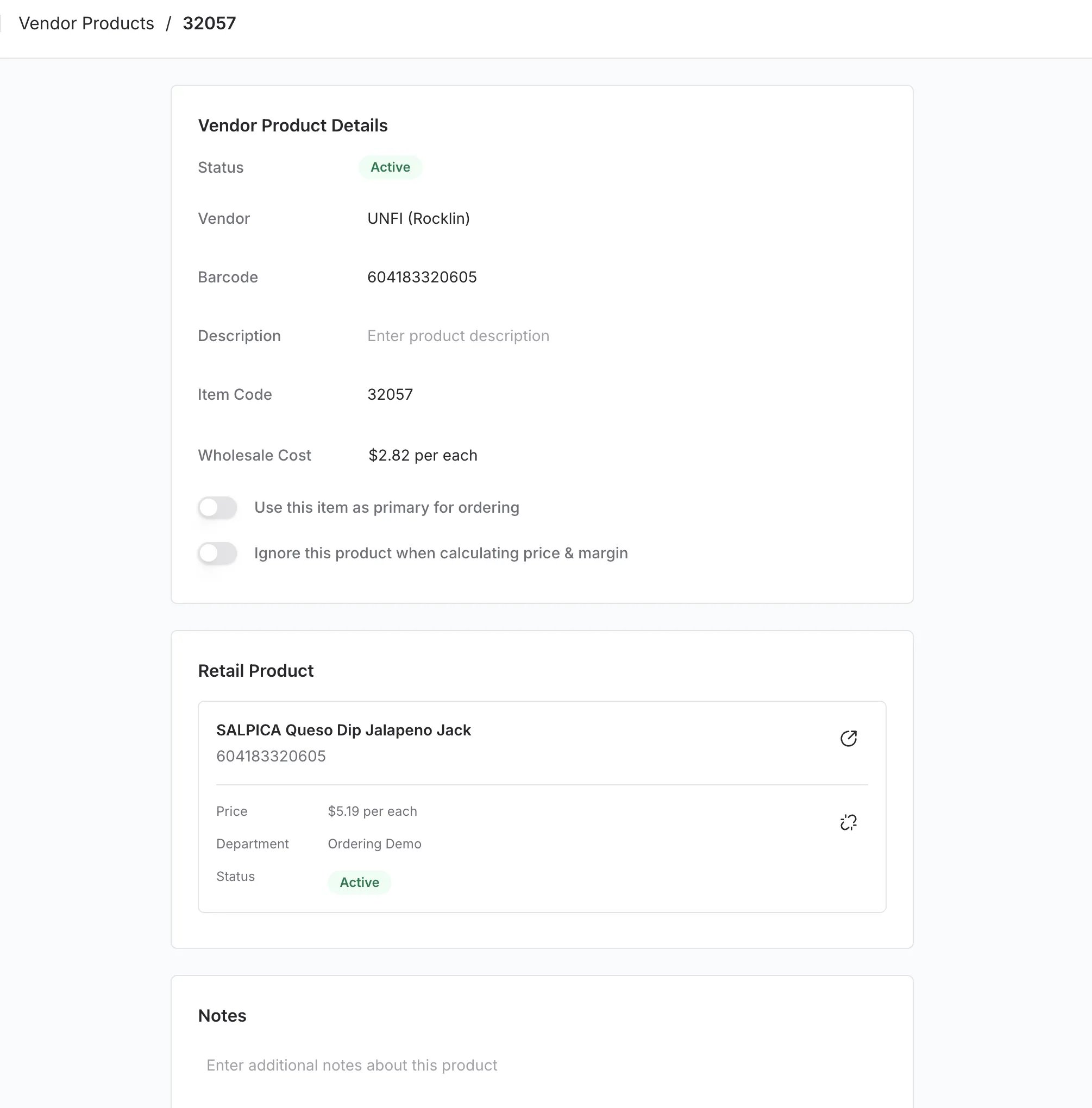 #### To Navigate to the Retail Product
Sometimes you need to jump from the vendor's data to the main store product.
1. Hover over the **Description** column in the Vendor Product list and click **Open** to view the product details.
2. Scroll to the **Retail Product** card.
3. Select the curved arrow icon to open the item in a new browser tab, rather than the current view.
#### To Navigate to the Retail Product
Sometimes you need to jump from the vendor's data to the main store product.
1. Hover over the **Description** column in the Vendor Product list and click **Open** to view the product details.
2. Scroll to the **Retail Product** card.
3. Select the curved arrow icon to open the item in a new browser tab, rather than the current view.
 This will take you directly to the main **Product Details** page for that item.
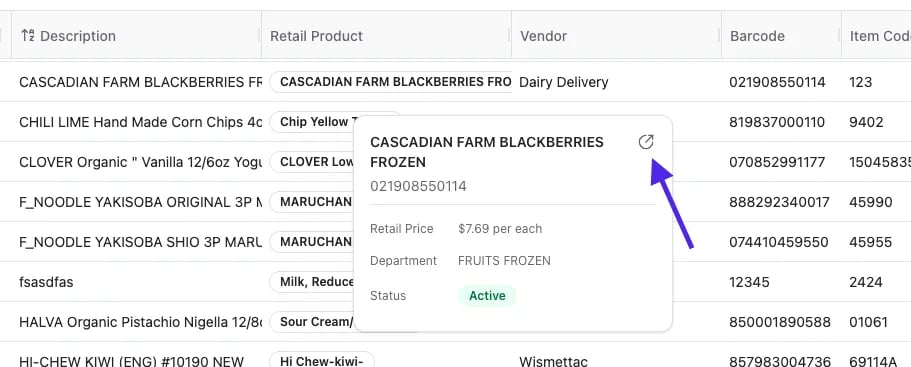
💡 **Tip:** You can also hover over the Retail Product name and click the curved arrow icon to open the item in a new browser tab instead of the current view.
This will take you directly to the main **Product Details** page for that item.
💡 **Tip:** You can also hover over the Retail Product name and click the curved arrow icon to open the item in a new browser tab instead of the current view.
 #### **To Unlink the Retail Product**
If a vendor item is connected to the wrong store product, you can break the link here.
1. Hover over the product row in the **Vendor Products** catalog and click **Open**.
2. Scroll down to the **Retail Product** card.
3. Click the **Unlink** (broken chain) icon to separate the vendor item from the store product.
#### **To Unlink the Retail Product**
If a vendor item is connected to the wrong store product, you can break the link here.
1. Hover over the product row in the **Vendor Products** catalog and click **Open**.
2. Scroll down to the **Retail Product** card.
3. Click the **Unlink** (broken chain) icon to separate the vendor item from the store product.
 **➡️ Next Steps:** For detailed steps to import Vendor Products, see the [**How to Format & Upload Vendor Products**](/vendors-and-vendor-products/vendor-products/how-to-format-and-upload-vendor-products) guide.
## Related topics
- [Manage Vendors and Contacts](/vendors-and-vendor-products/vendor-management/manage-vendors-and-contacts.md)
- [Build Your Product List (APL) From Scratch – For New Stores](/product-and-product-catalog-management/product-creation-and-set-up/build-your-product-list-apl-from-scratch-for-new-stores.md)
- [Merging Duplicate Vendors and Products](/vendors-and-vendor-products/vendor-management/merging-duplicate-vendors-and-products.md)
**➡️ Next Steps:** For detailed steps to import Vendor Products, see the [**How to Format & Upload Vendor Products**](/vendors-and-vendor-products/vendor-products/how-to-format-and-upload-vendor-products) guide.
## Related topics
- [Manage Vendors and Contacts](/vendors-and-vendor-products/vendor-management/manage-vendors-and-contacts.md)
- [Build Your Product List (APL) From Scratch – For New Stores](/product-and-product-catalog-management/product-creation-and-set-up/build-your-product-list-apl-from-scratch-for-new-stores.md)
- [Merging Duplicate Vendors and Products](/vendors-and-vendor-products/vendor-management/merging-duplicate-vendors-and-products.md)