![vori-logo-black-horizontal-01 (1).png]](https://help.vori.com/hs-fs/hubfs/vori-logo-black-horizontal-01%20(1).png?height=42&name=vori-logo-black-horizontal-01%20(1).png)
Table of Contents
Before You Start
Vori uses CardConnect to process payments. To change where your funds are deposited, you must submit a request directly through the CardPointe portal.
-
Required Access: You will need your CardPointe login credentials.
-
Documentation: Have your new bank account and routing numbers ready. CardConnect may also require a voided check or a bank letter for verification.
How to Submit a Bank Account Change
Follow these steps to create a support ticket with CardConnect for a bank account update.
-
Go to cardpointe.com/account and log in to your merchant profile.
-
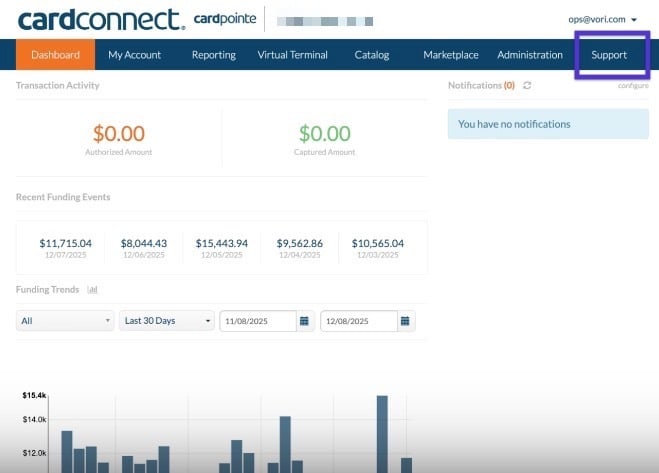
Navigate to the Support tab in the top menu.
-
Click Create New Ticket.
-
Select the store location you wish to update from the dropdown menu.
-
In the Reason dropdown, select Bank Account Change.

-
Fill out the required bank details in the description or form fields provided.
-
Click Submit.
Multi-Location Stores
If you manage multiple store locations, please note that bank account updates are handled per merchant ID.
-
Individual Requests: You must repeat the steps above for each location to ensure all stores are updated to the new account.
-
Verification: CardConnect support may reach out via the ticket or email to confirm the change for security purposes.
✏️ Note: Once the ticket is submitted, it usually takes 2–3 business days for CardConnect to verify the new account and update your deposits.