![vori-logo-black-horizontal-01 (1).png]](https://help.vori.com/hs-fs/hubfs/vori-logo-black-horizontal-01%20(1).png?height=42&name=vori-logo-black-horizontal-01%20(1).png)
✏️ Note: This article describes features in New Back Office and is launching with select stores (in beta testing). For instructions on accessing New Back Office, view our guide: Access New Back Office.
Table of Contents
Understanding the Promotion Hierarchy
The Vori Promotions tool can be found under Products in the left-hand navigation.
New Promotions are organized in a specific three-tier structure to keep your data organized. Understanding this hierarchy helps you identify exactly how a deal is set up.
-
Promotion (The Container): This acts as the "folder" for your sale. It holds the name (e.g., "Super Bowl Weekend") and the dates/times the sale is active.

-
Offer (The Logic): This lives inside the Promotion. It defines the math (e.g., "Buy 1 Get 1 Free" or "20% Off").

-
Product: These are the specific SKUs attached to the Offer.

Manual vs. Dynamic Selection
When viewing products within an offer, Vori indicates how those items were added:
-
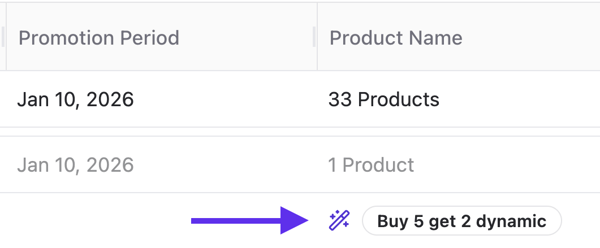
Wand Icon: Indicates Dynamic Selection. This means this product is part of a group or range based on specific conditions. These selections are "dynamic" because the list of included items will automatically update if your Product Catalog changes (e.g., adding a new product that matches the "Chips" condition).
-
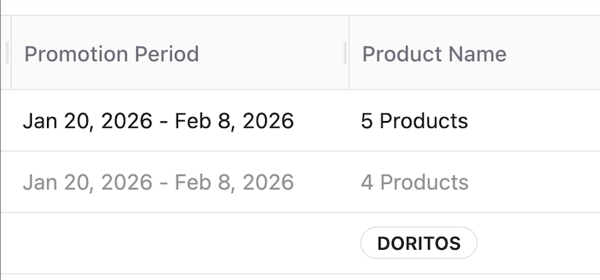
No Icon: Indicates Manual Selection. These products were added directly and individually to the offer.
View Promotion Status
The Status column tells you which deals are currently live at your store.
- Draft: The promotion is incomplete and has not been published.
- Pending: The promotion has a future start date and is not yet active.
- Active: The promotion is currently live and will ring up at the POS.
- Completed: The promotion date has passed.
-
Canceled: The promotion has been manually stopped. To preserve reporting integrity, any promotion that was ever Active can only be Canceled, never Deleted.
-
Deleted: This status is reserved exclusively for Drafts that were never published. Once a draft is deleted, it is permanently removed from the system.
You can sort your dashboard by clicking the Status column header to group all Active deals together.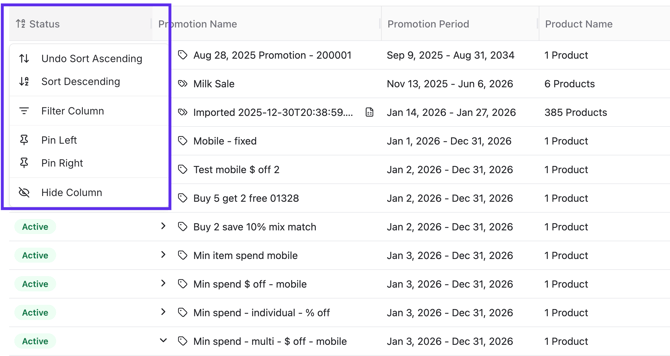
Search & Filter: Finding Active Deals
You can quickly check if a specific item is already on sale or find a campaign by name using the search and filter tools.
Quick Search
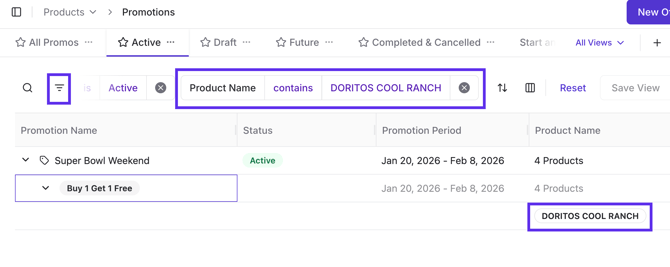
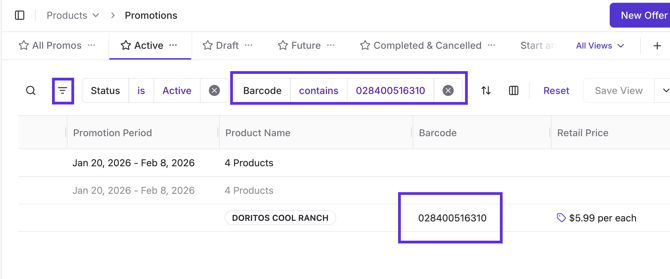
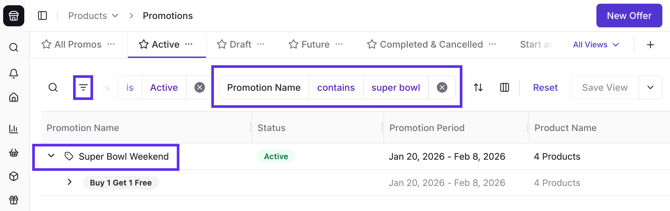
Use the search bar at the top of the Promotions table to find deals by:
-
Product Name
-
Barcode (UPC/PLU)
-
Promotion Name
Advanced Filtering
For more complex searches, use the Filter tool:
-
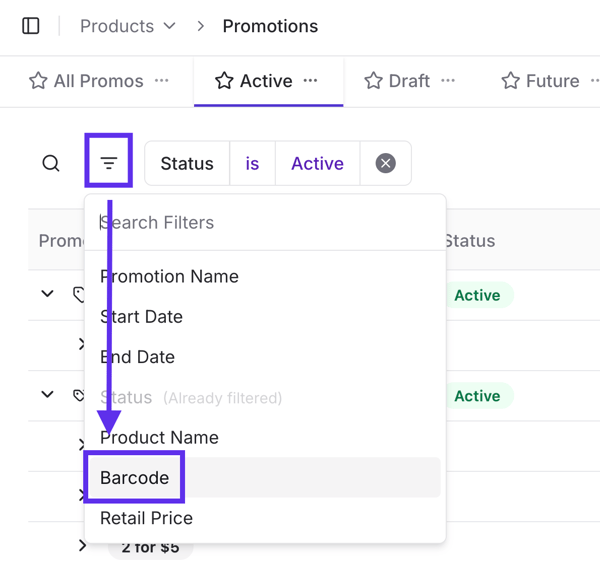
Click Filter at the top left of the Promotions table.
-
Select a category (such as Barcode) from the dropdown menu.
-
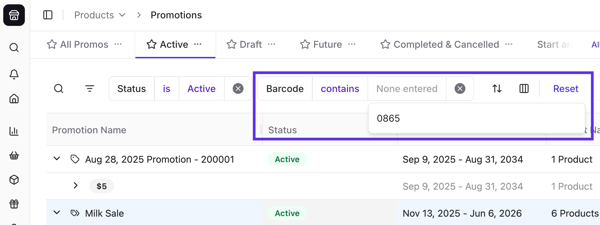
Enter the specific value you want to check.
-
The table will update to show only the Promotions matching those criteria.
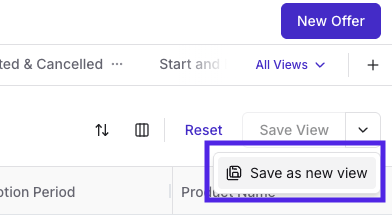
💡Tip: You can save frequent searches (like "Active Dairy Promos") by clicking Save View in the top right corner.
Identifying Promotional Pricing
Vori uses visual cues next to each product to help you identify deals without opening every item.
The Purple Promotion Icon
A purple tag icon next to a price indicates the product is on promotion. Hover over this icon to see a quick summary of the deal.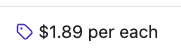
Pricing Display Types
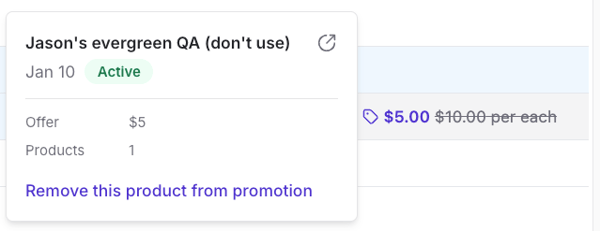
- Strikethrough Price: Indicates a TPR (Temporary Price Reduction). You will see the original price crossed out with the new promotional price next to it.
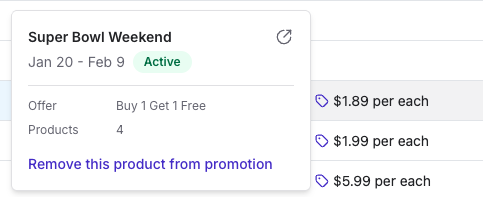
- Purple Icon Only: Used when the final price is conditional (e.g., "Buy 2 Get 1 Free"). Because the price depends on what the shopper buys, a single "new" price isn't displayed.
- Bold Purple Text: Indicates the product has multiple active promotions overlapping. Bold Purple Text is currently only visible in the Product Catalog table. The Promotions Table does not yet feature this bolding for multiple deals.
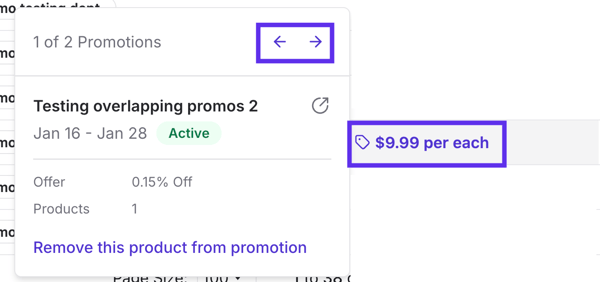
Managing Promotion Overlaps
You can view the priority of these offers on the Product Details page under Pricing → Active Promotions. Vori uses the following priority rules:
-
Priority 1: The promotion ending soonest takes precedence.
-
Priority 2: If two promotions end at the same time, the most recently created one takes priority.
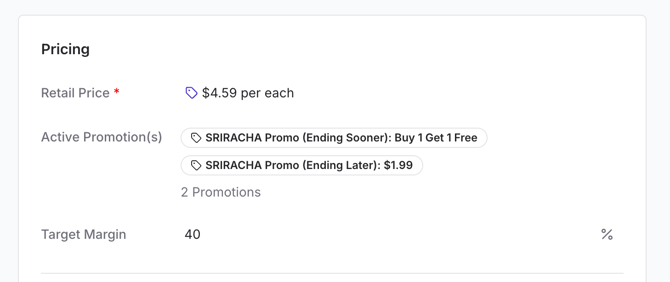
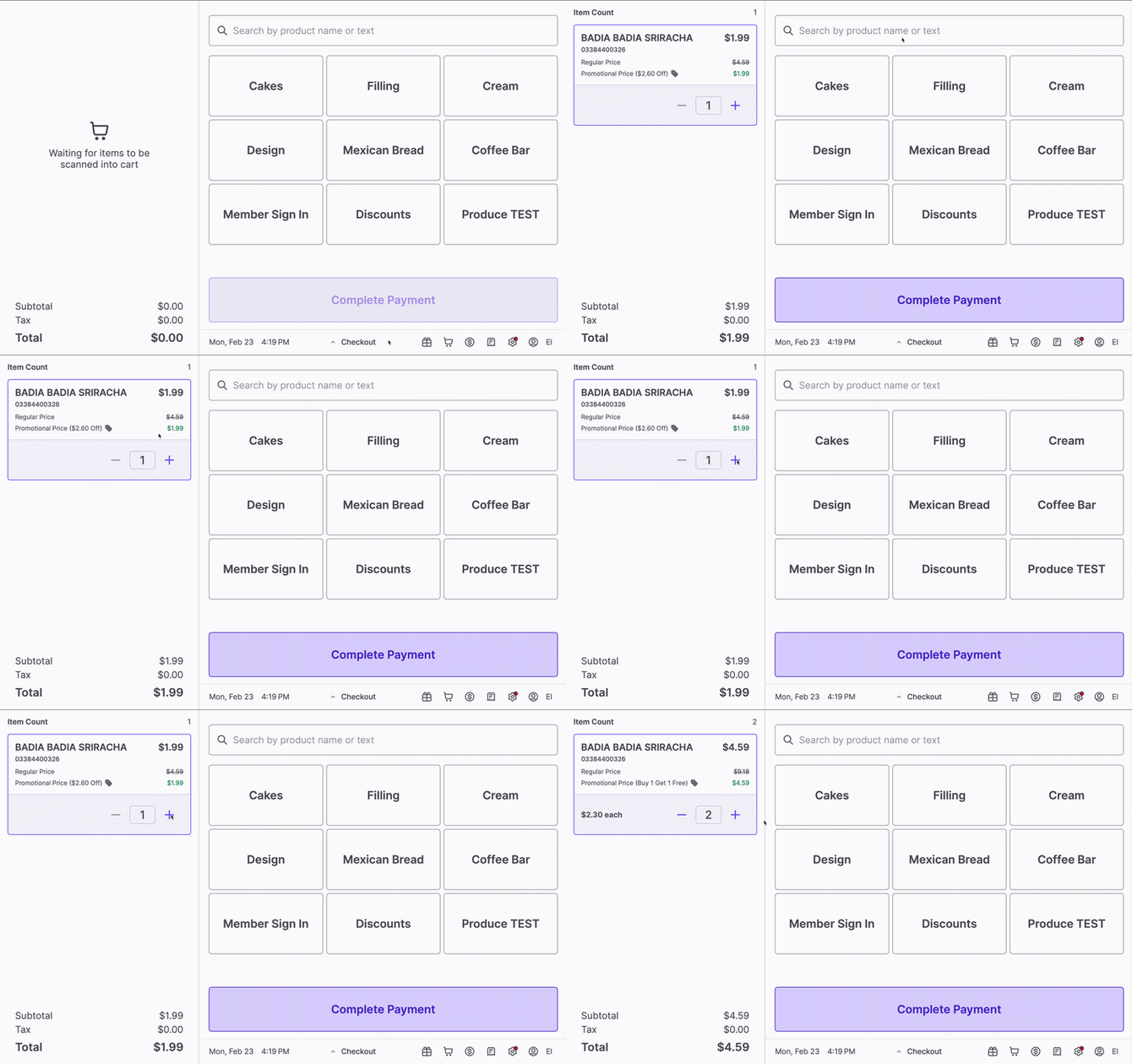
💡Strategic Overlaps: You can use these rules to "stack" different types of deals. For example, if you want to offer a discounted price for a single item but a BOGO deal for customers who buy two, set the BOGO to end slightly earlier (even by one hour) than the single-item discount. This ensures the system selects the BOGO as the primary offer when the quantity requirements are met.
Example:
-
Step 1: Create the $1.99 Promotion
-
Set this as a standard price reduction.
-
Set the End Date or Time to be further out (for example, March 2nd).

-
-
Step 2: Create the BOGO Promotion
-
Set this as a "Buy 1, Get 1 Free" offer.
-
Set the End Date to be slightly earlier than the first one (for example, February 28th).

-
- Step 3: POS Experience
or ➡️ Next Step: Ready to start building? Learn How to Create a Promotion: Time, Frequency, & Schedule to set up your deal's "container."