![vori-logo-black-horizontal-01 (1).png]](https://help.vori.com/hs-fs/hubfs/vori-logo-black-horizontal-01%20(1).png?height=42&name=vori-logo-black-horizontal-01%20(1).png)
Introduction
When a lane's payment terminal loses power, its screen will be dark and cashiers can't accept card payments. This is usually caused by the power cable becoming unplugged. Because the cable is made of several connected segments, this article shows where to look for any loose connections.
✏️ Note: Before proceeding, check if any other peripherals on the POS have also lost power, including the receipt printer, scanner scale, or cashier screen.
If any other components have also lost power, the lane's Uninterruptible Power Supply (UPS) has likely lost power or is operating in battery-backup mode and is only providing power to some of the peripherals.
Table of contents
- Check if the payment terminal is truly turned off
- Power cycle the POS lane
- Move the payment terminal's power cable to a different outlet
- Check the back panel of the payment terminal
Proceed through the troubleshooting steps in order below.
Check if the payment terminal is truly turned off
On the payment terminal, press the physical keys on the keypad and listen for a beeping sound.
✏️ Note: If the terminal does not beep when a button is pressed, click here to proceed to the next section.
If the terminal beeps when a button is pressed, follow the directions below:
-
Press and hold the red and green buttons on the payment terminal's physical keyboard for 30 seconds.
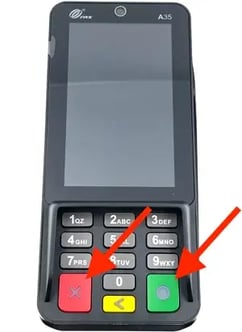
- If successful, the terminal should restart and automatically proceed through a series of screens until it loads the Welcome screen.
⚠️ Caution: Do not tap the terminal's touch screen until the Welcome screen is loaded. If any on-screen buttons are tapped while the terminal is reloading, the boot process will be disrupted and the terminal will need to be restarted again.
If the payment terminal does not restart, proceed to the next section.
Power cycle the POS lane
-
Locate the lane's Uninterruptible Power Supply (UPS) under the POS counter. All of the lane's power cables run to this device.
-
Press and hold the UPS power button for 5 seconds to turn it off.
-
Wait 10 seconds for all peripherals to fully power off.
-
Press and hold the UPS power button again to power the system back on.
-
Enter the admin password on the cashier screen: 654321
-
Log back into the POS app.
- Check if the payment terminal's touch screen has come back online.
If the payment terminal does not turn on, proceed to the next section.
Check under the counter for any unplugged cable segments
The payment terminal's power cable is composed of several segments that plug into each other. If one segment becomes unplugged, then the payment terminal will lose power.
-
Look back under the counter for the lane's Uninterruptible Power Supply (UPS).
- On the UPS, look for a plugged in USB-A outlet adapter (A below). Confirm the adapter is fully inserted into the UPS.
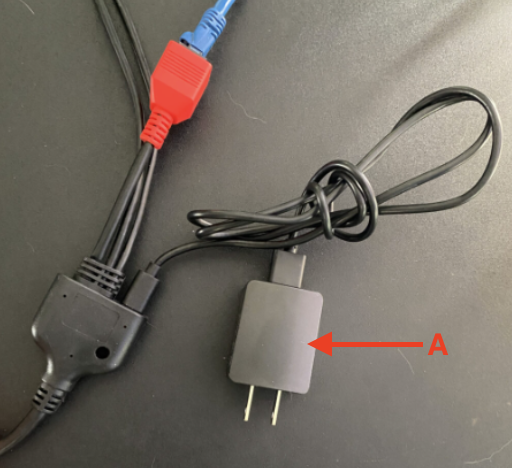
- The adapter may be a different color and shape than pictured.
- If the USB adapter is fully plugged in, check that the head of the USB cable (B below) is fully inserted into the adapter.
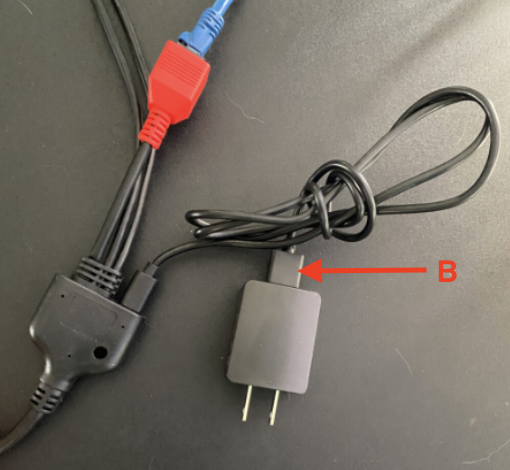
- If the USB cable's head is fully plugged in, check that the other end of the USB cable (C below) is fully inserted into the payment terminal's combo cable.
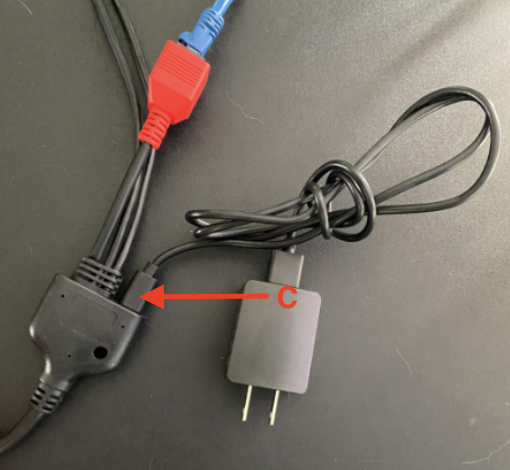
If all three sections of the payment terminal's power cable are fully inserted but the payment terminal does not turn on, proceed to the next section.
Move the payment terminal's power cable to a different outlet
In case there may be an issue with the connected outlet, swap the payment terminal's power cable with another cable on the UPS.
If the payment terminal turns on and the swapped device turns off, the UPS is likely running on backup battery. Check that the lane’s outlet is supplying power—a tripped breaker or other electrical issue may be the cause.
✏️ Note: Be sure to return the two cables to their original ports on the UPS when finished troubleshooting.
If the power cables have been swapped and the terminal does not turn on, proceed to the next section.
Check the back panel of the payment terminal
The top-end of the payment terminal's power cable may have become unplugged. To access it for confirmation, the following materials are needed:
-
#0 Phillips head screwdriver
- #1 Phillips head screwdriver
Directions below:
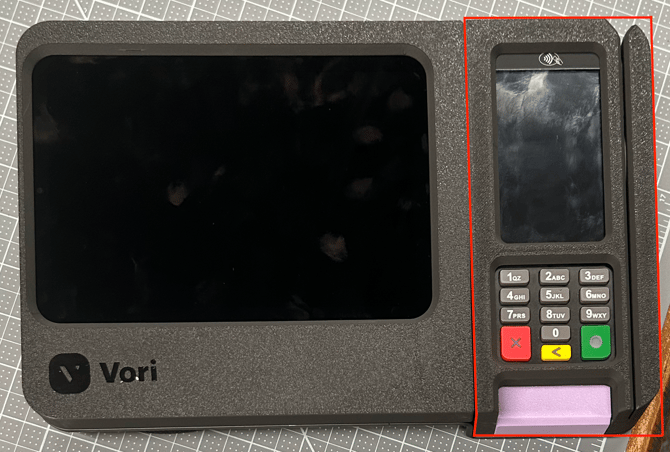
- Locate the Shopper Display enclosure. This is the mounted case that holds both the Shopper Display and the payment terminal.
- On the back of the Shopper Display enclosure, unfasten the velcro tie that retains the payment terminal's power cable.
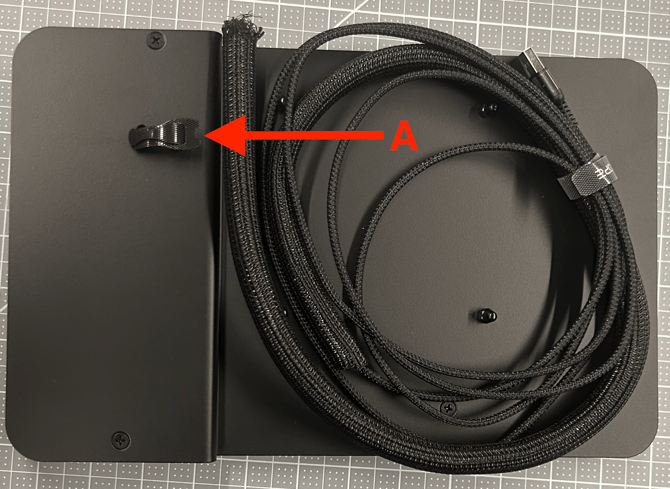
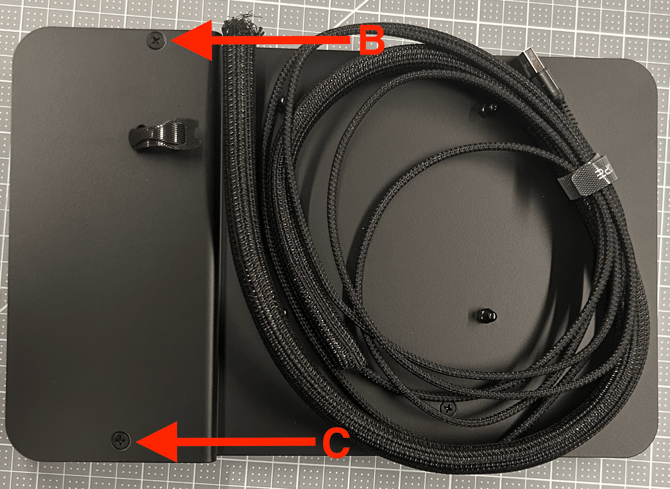
- Use the #1 Phillips head screwdriver to remove the two screws (B & C below) located behind the payment terminal.
- Lift the payment terminal and its enclosure from the back plate that the screws were removed from.
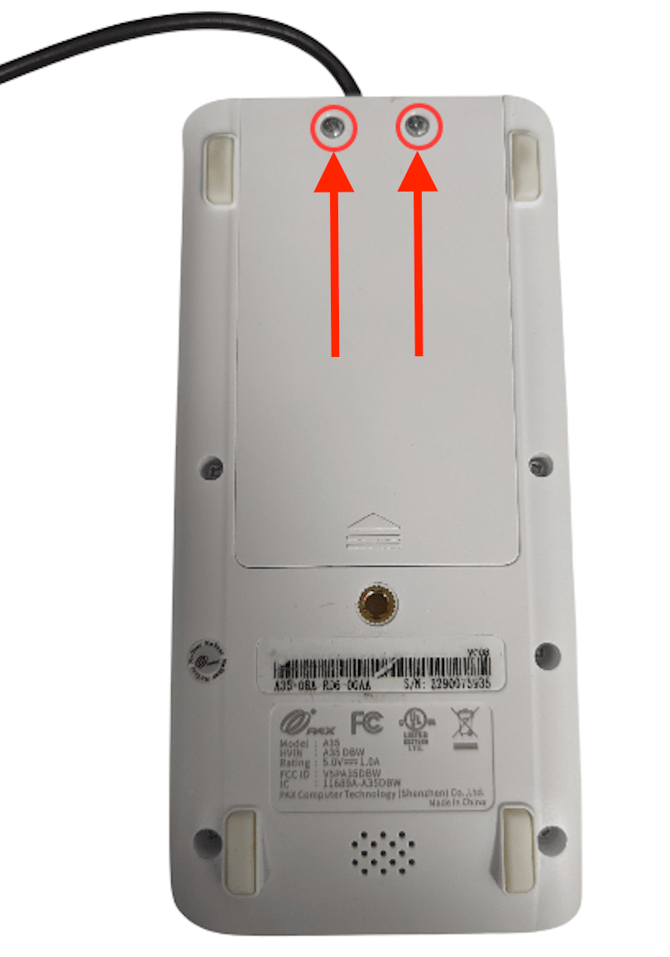
- On the now exposed back of the payment terminal, use the #0 Phillips head screwdriver to remove the two screw screws. Then lift off the back panel of the payment terminal to expose the power cable's port.
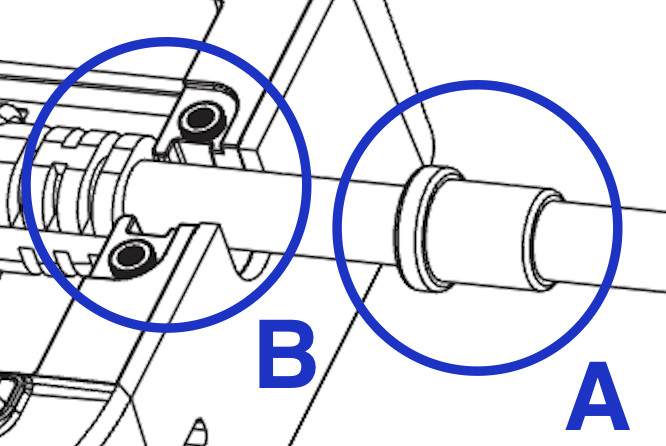
- Lift the power cable's retention ring (A below) from the highlight notch (B below) on the back of the payment terminal. This will allow the power cable to be easily adjusted.
- Confirm the power cable is fully seated in the payment terminal's power port.
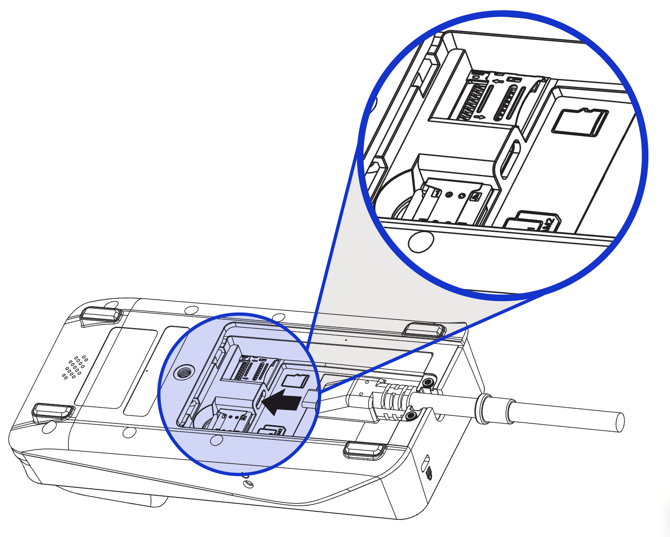
- If the payment terminal powers back on, perform the following steps:
- Reinsert the power cable's retention ring into its notch.
- Reattach the back plate of the payment terminal.
- Reattach the payment terminal and it's surrounding case to the back plate of the Shopper Display enclosure.
- Fasten the power cable under the velcro tie on the back of the Shopper Display enclosure.
If the payment terminal does not turn on after completing all of the provided steps, reach out to Vori Support for further assistance.