> ## Documentation Index
> Fetch the complete documentation index at: https://help.vori.com/llms.txt
> Use this file to discover all available pages before exploring further.
# Receiving
> Train your team to check in vendor deliveries against an invoice using the Receiving module on VoriOS.
Receiving lives in the VoriOS App and lets your team check in a vendor delivery against its invoice right from the floor. Use this guide to walk a new team member through their first receiving session.
Receiving is currently in closed beta and only available to select stores.
***
### Walk through a session together
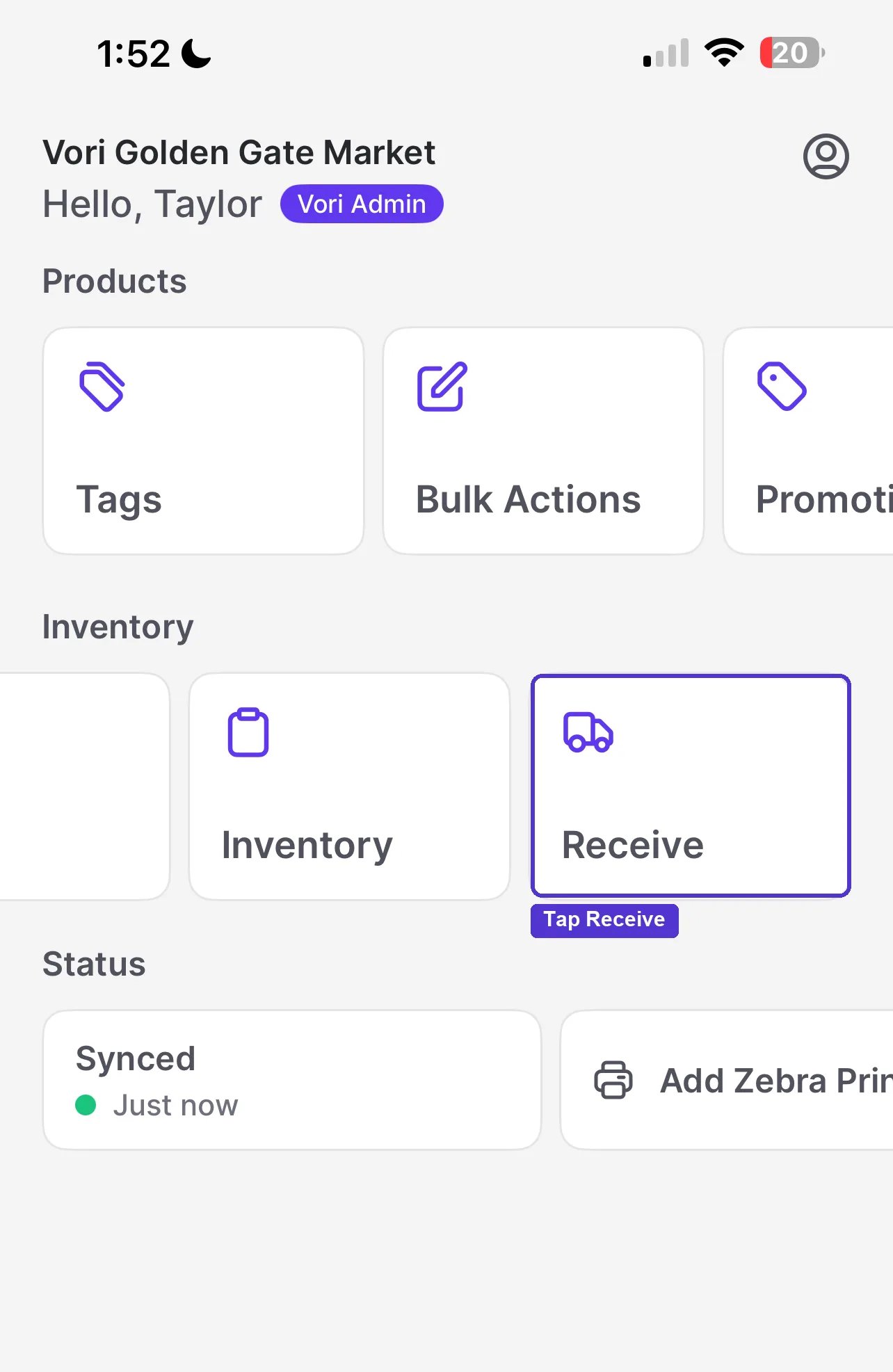
1. From the VoriOS home screen, tap **Receive**.
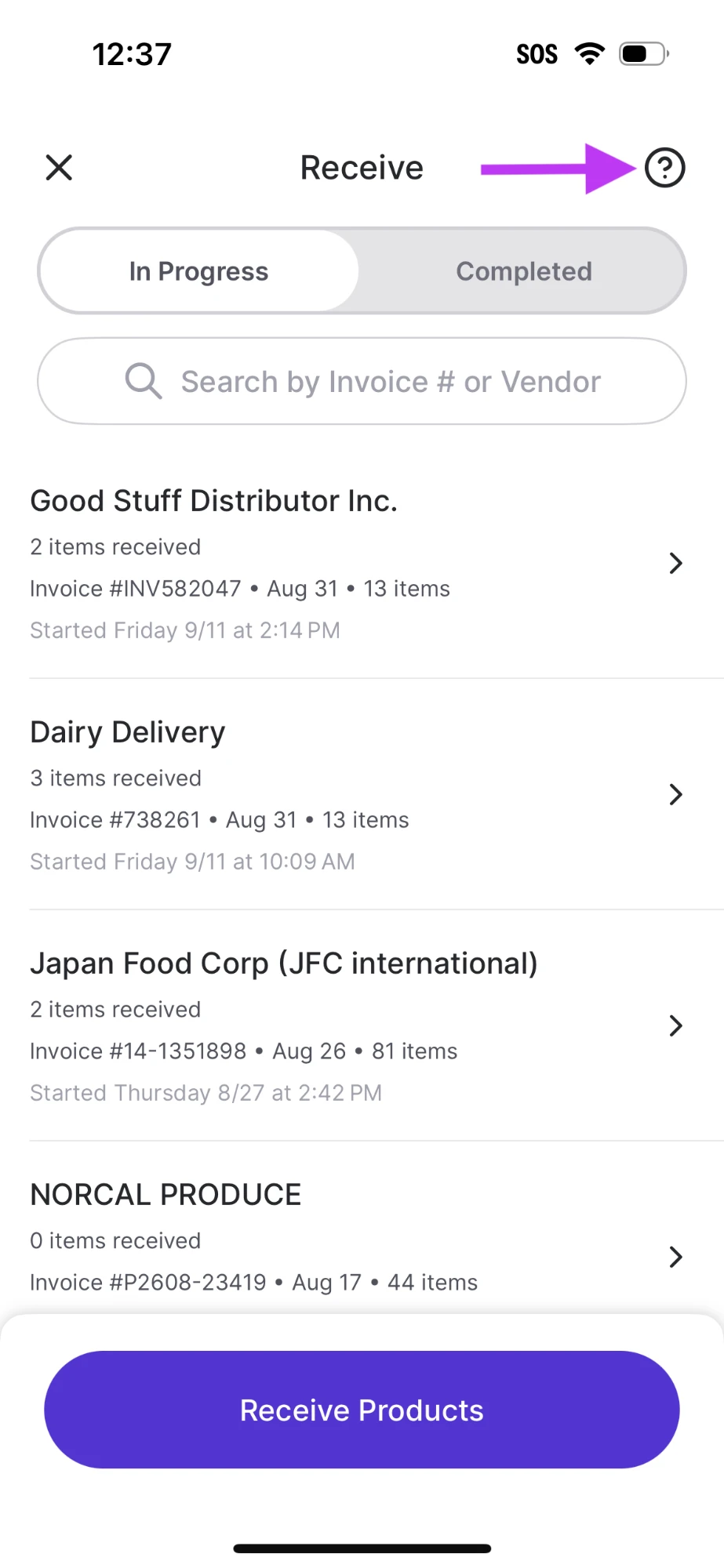
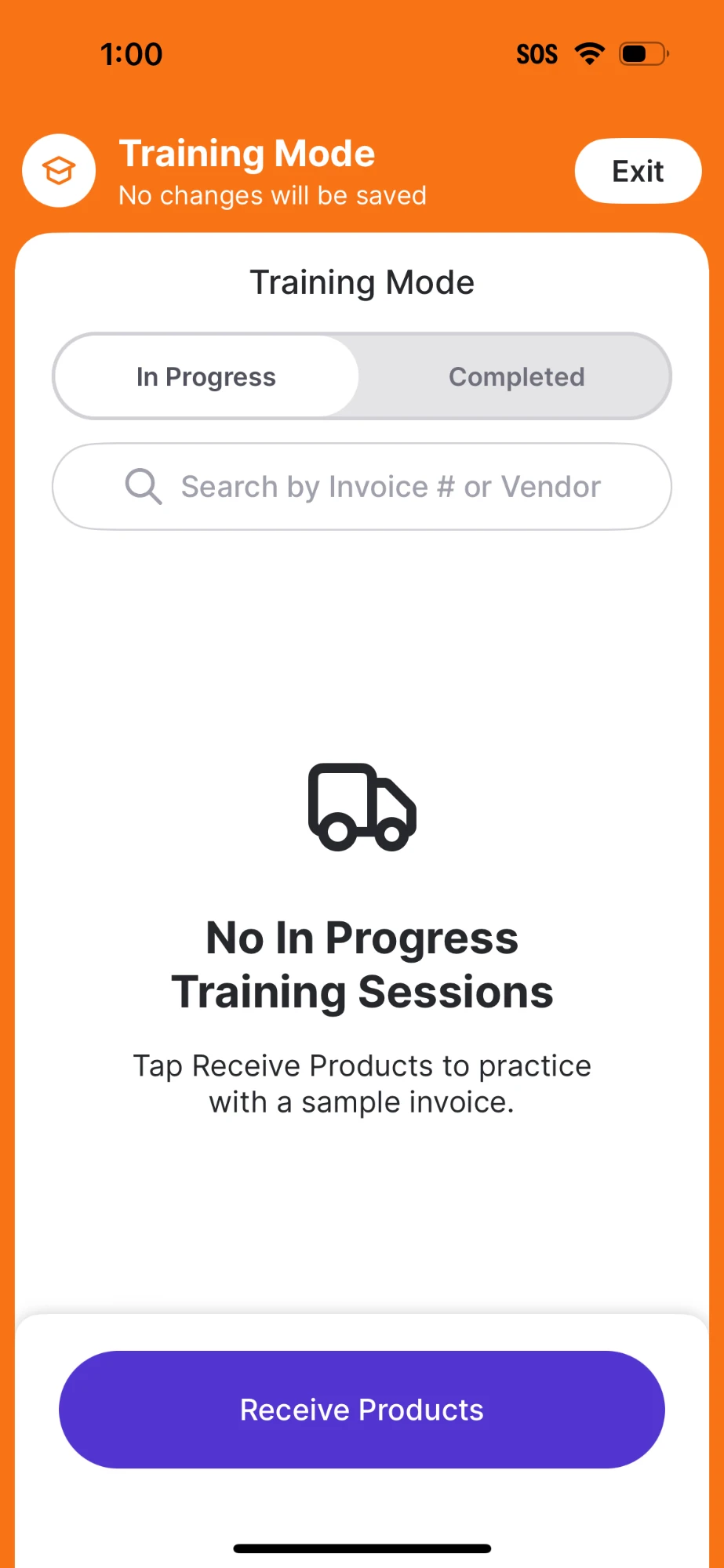
 2. Tap the **?** mark to enter *Training Mode*, then tap **Receive Products** to start a fresh session.
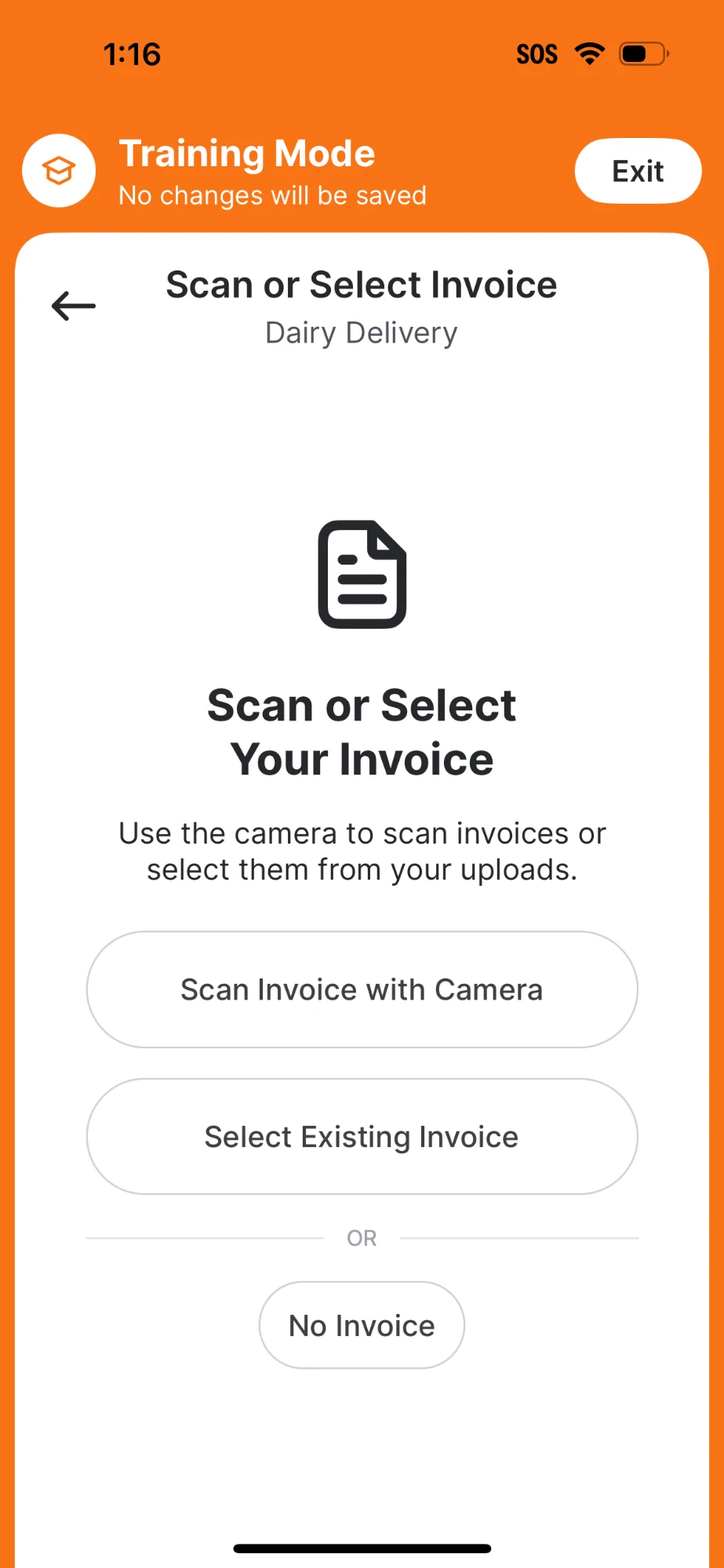
3. Select the vendor, then choose how to bring in the invoice: **Scan Invoice with Camera**, **Select Existing Invoice** (a dummy invoice in Training Mode), or **No Invoice**.
2. Tap the **?** mark to enter *Training Mode*, then tap **Receive Products** to start a fresh session.
3. Select the vendor, then choose how to bring in the invoice: **Scan Invoice with Camera**, **Select Existing Invoice** (a dummy invoice in Training Mode), or **No Invoice**.
 4. Scan or tap each item to mark it received. If a quantity doesn't match, tap **Edit** to correct it; if an item isn't in the catalog yet, tap **Add Case Size** so Vori knows how much to add to inventory.
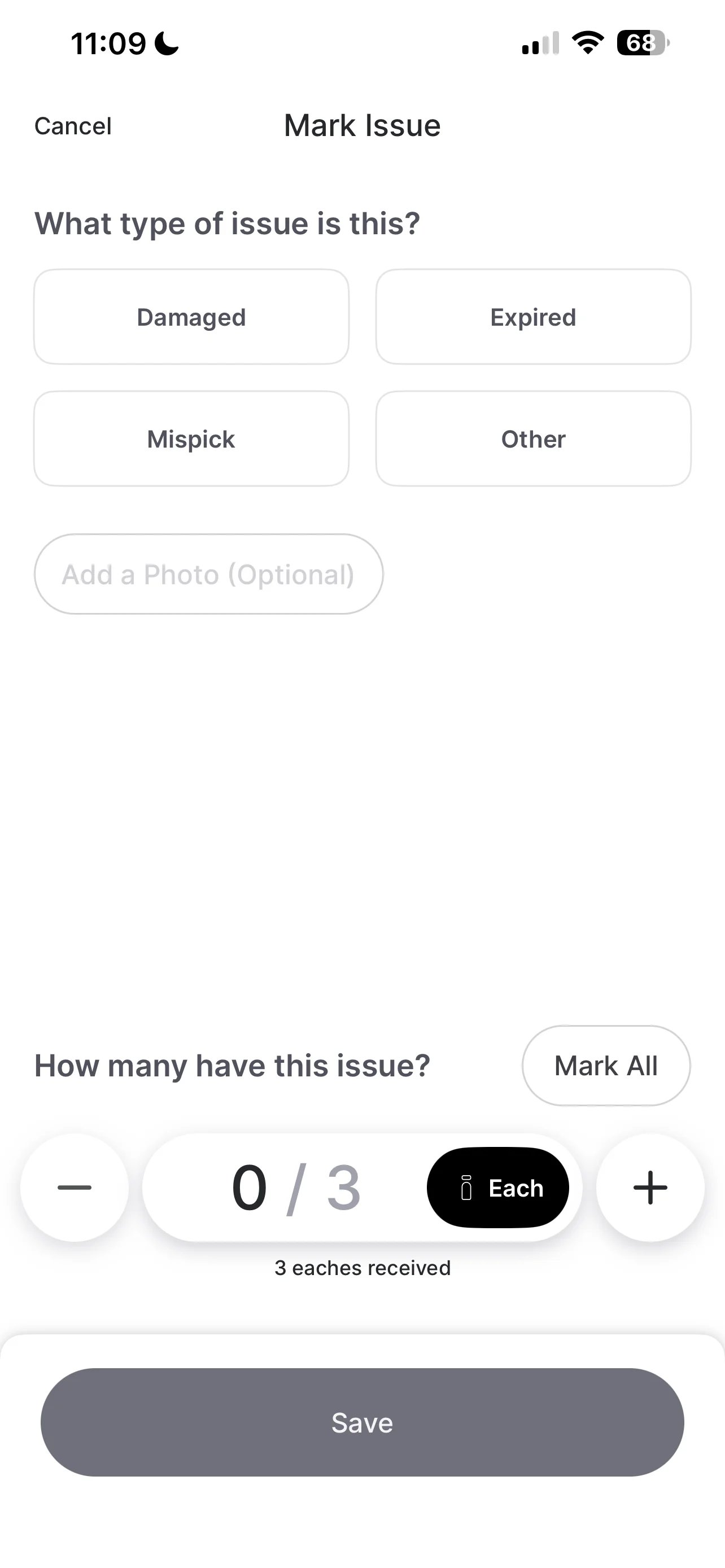
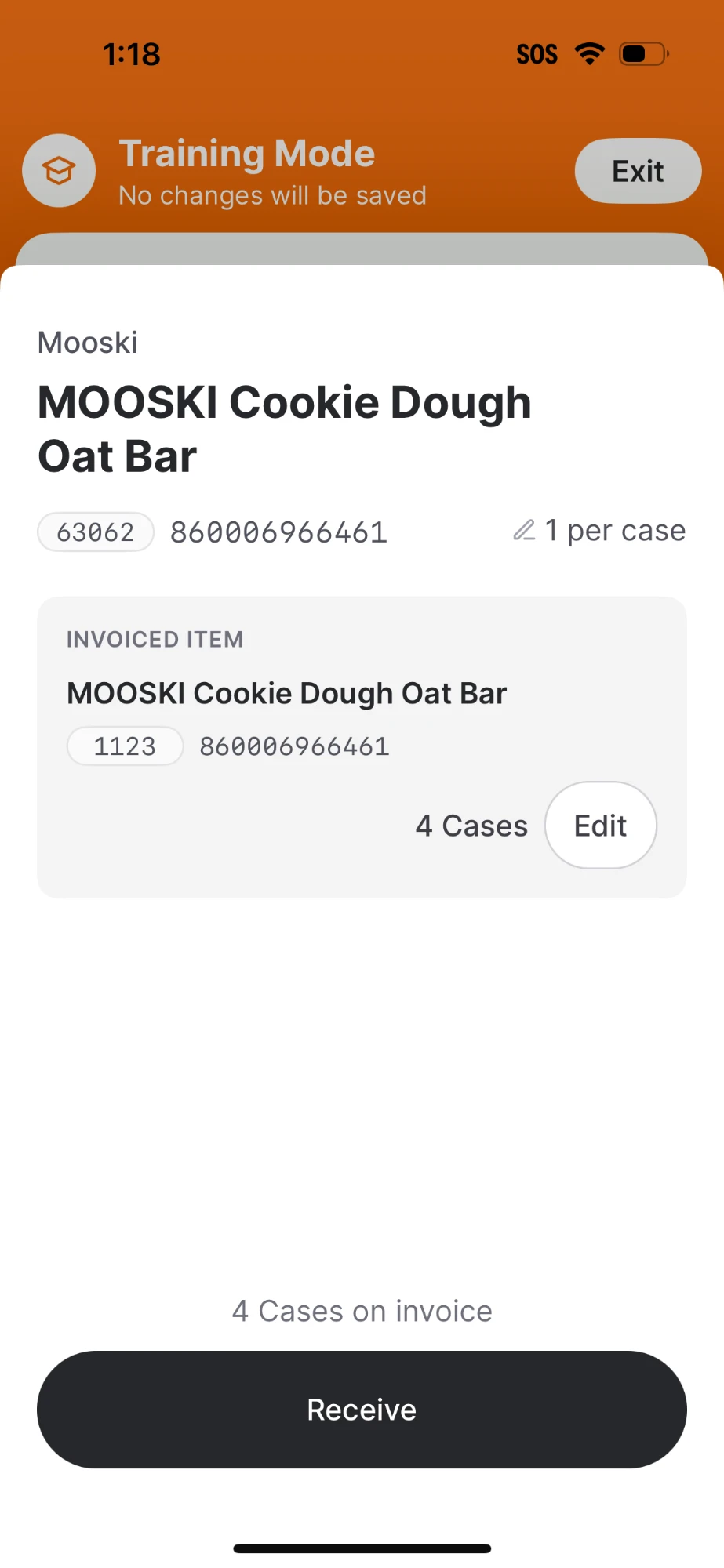 5. For anything that didn't arrive as expected, tap the item, tap **Mark an Issue**, and choose a type: **Damaged**, **Expired**, **Mispick**, or **Other**. A photo is optional.
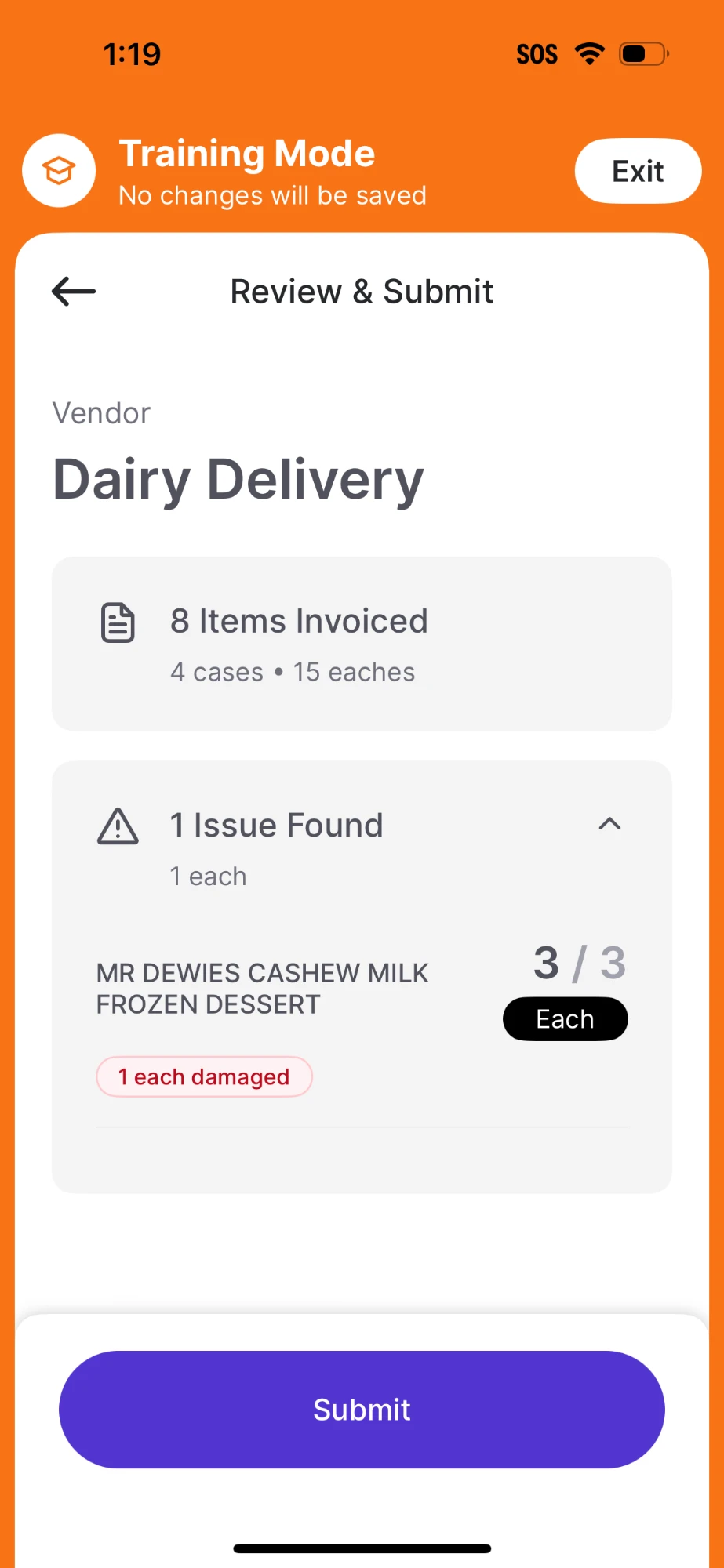
 6. Tap **Review** to see the session totals, then **Submit** to complete it.
 ***
### Check their understanding
Before signing off on a trainee, confirm they can:
* Start a session against a queued invoice and against a scanned paper invoice.
* Flag a damaged, expired, or mispicked item with a photo attached.
* Handle an item flagged **No Product Match** by adding a case size.
Remind the trainee that a scanned invoice can take a few minutes to process, especially on a weak Wi-Fi signal. Don't restart the scan while it's still processing.
For the full reference on every screen, issue type, and edge case, see [Receive Deliveries on the Handheld](/invoicing-cost-changes-and-smart-pricing/receiving/receive-deliveries-on-the-handheld).
## Related topics
- [Receive Deliveries on the Handheld](/invoicing-cost-changes-and-smart-pricing/receiving/receive-deliveries-on-the-handheld.md)
- [Review Received Deliveries and Commit Cost Changes](/invoicing-cost-changes-and-smart-pricing/receiving/review-received-deliveries-and-commit-cost-changes.md)
- [Transfer Inventory From One Store to Another](/inventory-and-ordering/inventory/transfer-inventory-from-one-store-to-another.md)
***
### Check their understanding
Before signing off on a trainee, confirm they can:
* Start a session against a queued invoice and against a scanned paper invoice.
* Flag a damaged, expired, or mispicked item with a photo attached.
* Handle an item flagged **No Product Match** by adding a case size.
Remind the trainee that a scanned invoice can take a few minutes to process, especially on a weak Wi-Fi signal. Don't restart the scan while it's still processing.
For the full reference on every screen, issue type, and edge case, see [Receive Deliveries on the Handheld](/invoicing-cost-changes-and-smart-pricing/receiving/receive-deliveries-on-the-handheld).
## Related topics
- [Receive Deliveries on the Handheld](/invoicing-cost-changes-and-smart-pricing/receiving/receive-deliveries-on-the-handheld.md)
- [Review Received Deliveries and Commit Cost Changes](/invoicing-cost-changes-and-smart-pricing/receiving/review-received-deliveries-and-commit-cost-changes.md)
- [Transfer Inventory From One Store to Another](/inventory-and-ordering/inventory/transfer-inventory-from-one-store-to-another.md)