> ## Documentation Index
> Fetch the complete documentation index at: https://help.vori.com/llms.txt
> Use this file to discover all available pages before exploring further.
# Ordering
> Train your team to build and submit vendor orders using the Ordering module on VoriOS.
Ordering lives in the VoriOS App and lets your team build vendor orders right from the aisle, using scan data and your vendor catalogs. Use this guide to walk a new team member through their first ordering session.
*Training Mode* uses your real vendors and products. Trainees can build and submit orders, but nothing is saved or sent to your vendors.
***
### Walk through a session together
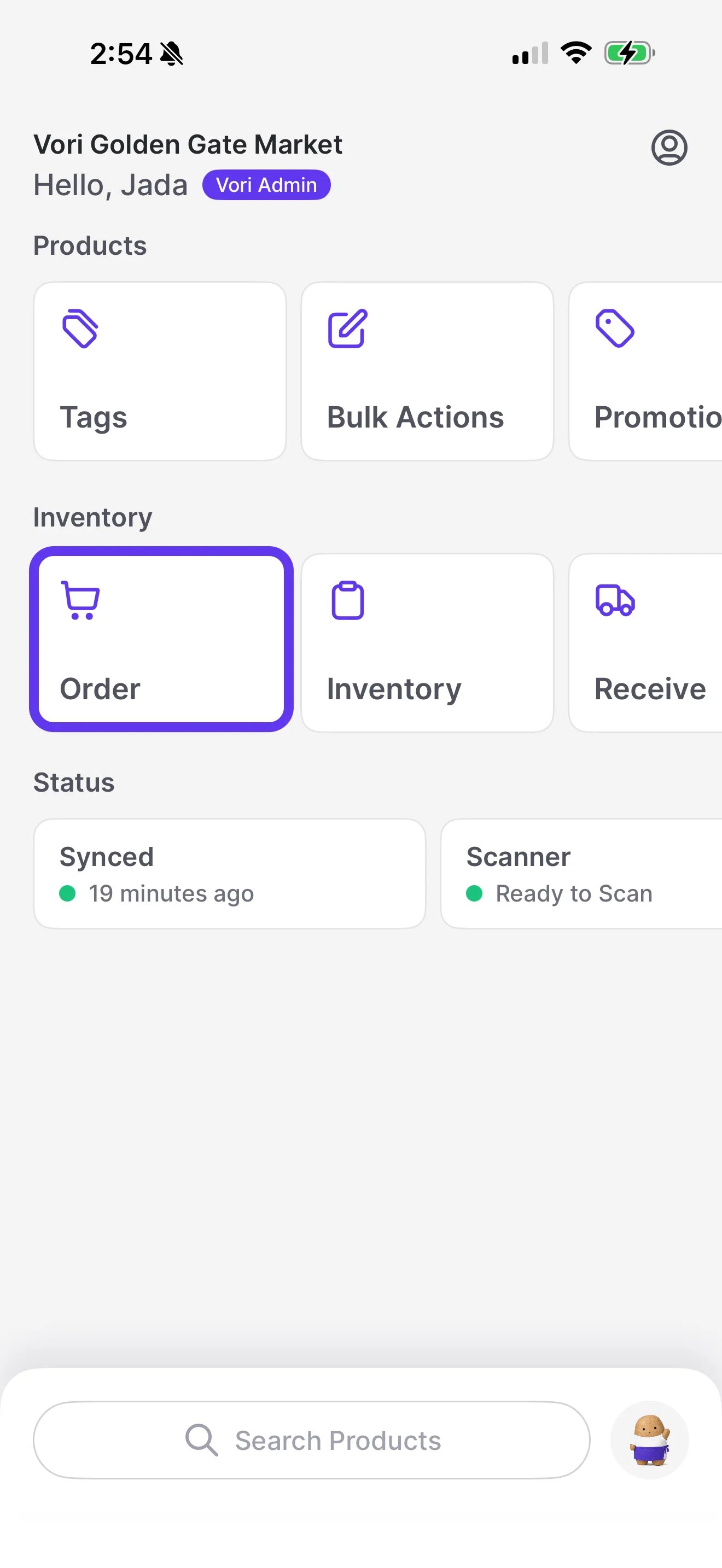
1. From the VoriOS home screen, tap **Order**.
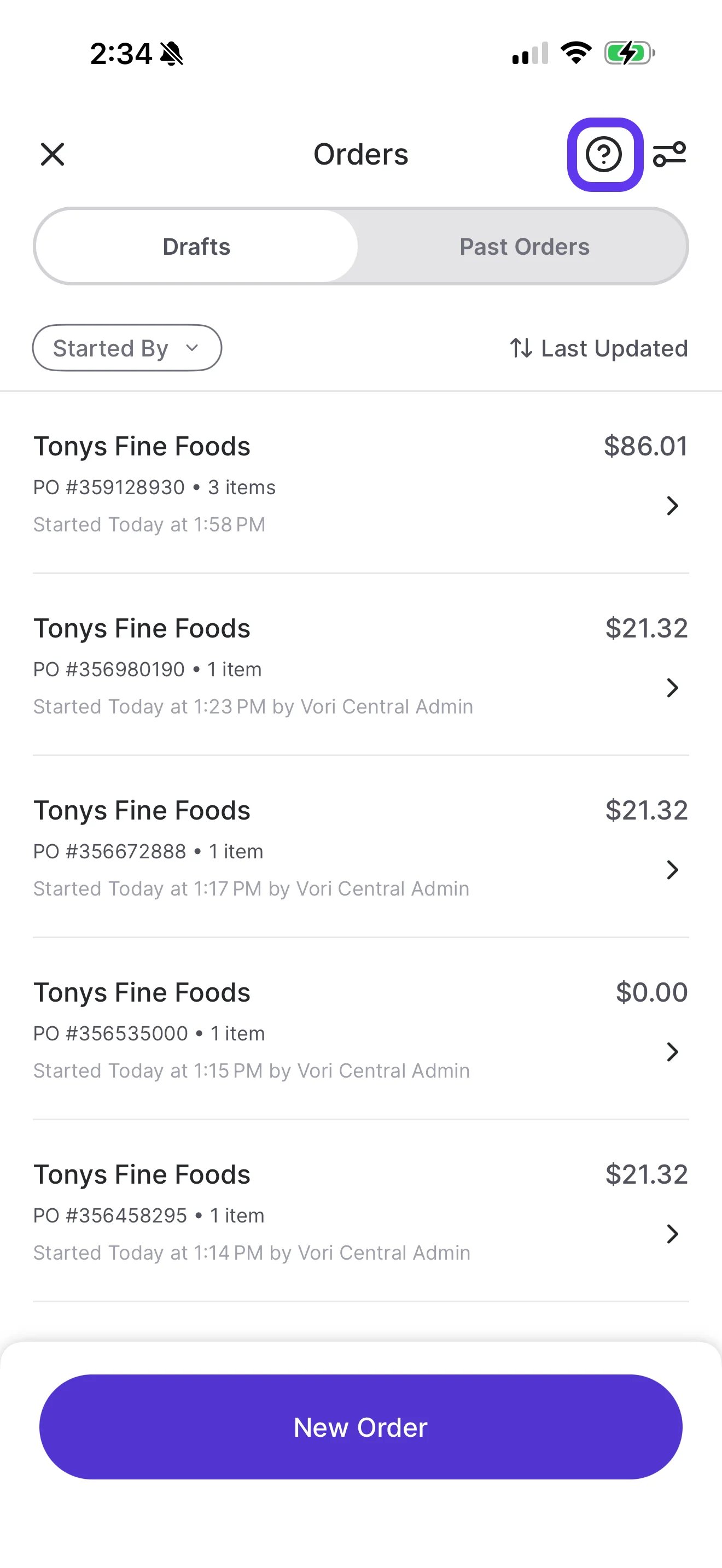
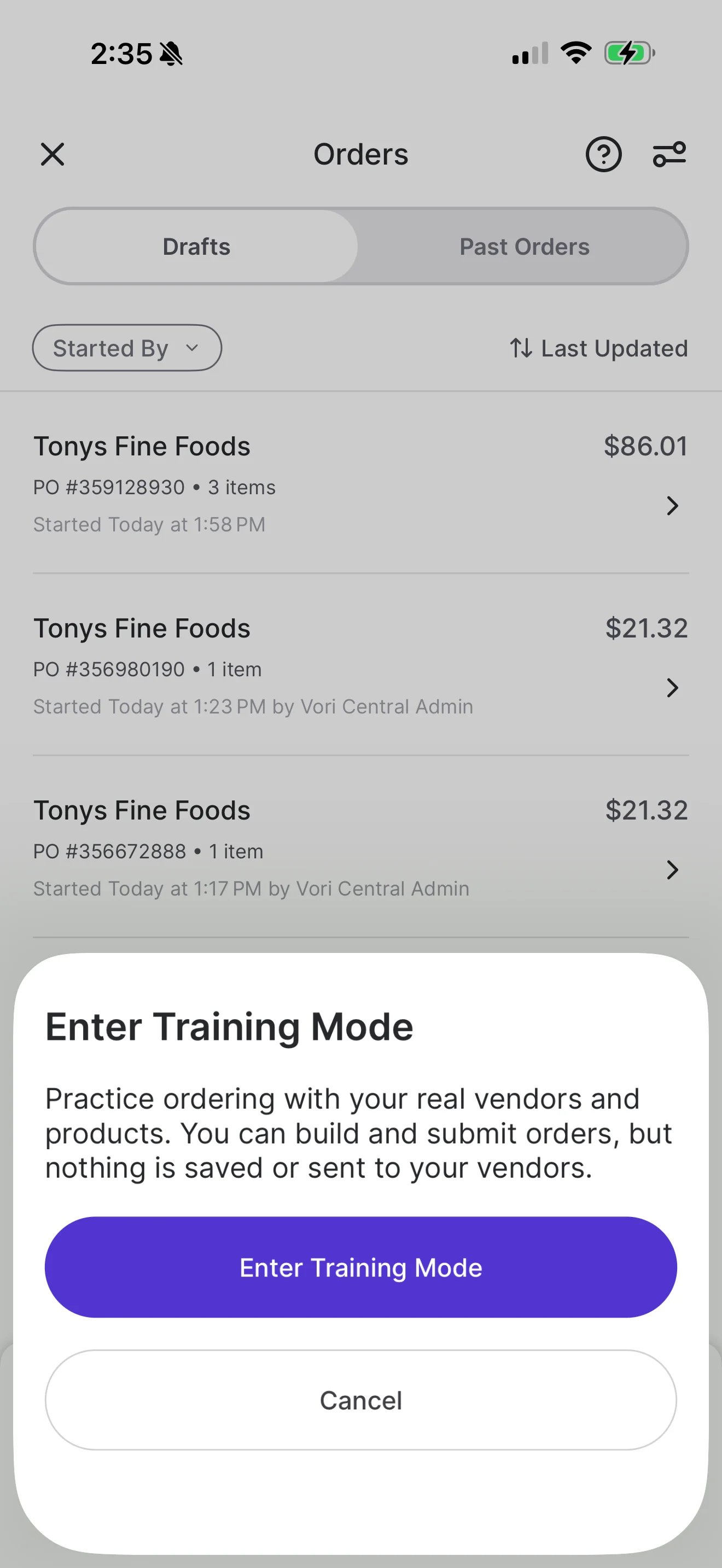
 2. On the **Orders** screen, tap the **?** mark, then tap **Enter Training Mode**.
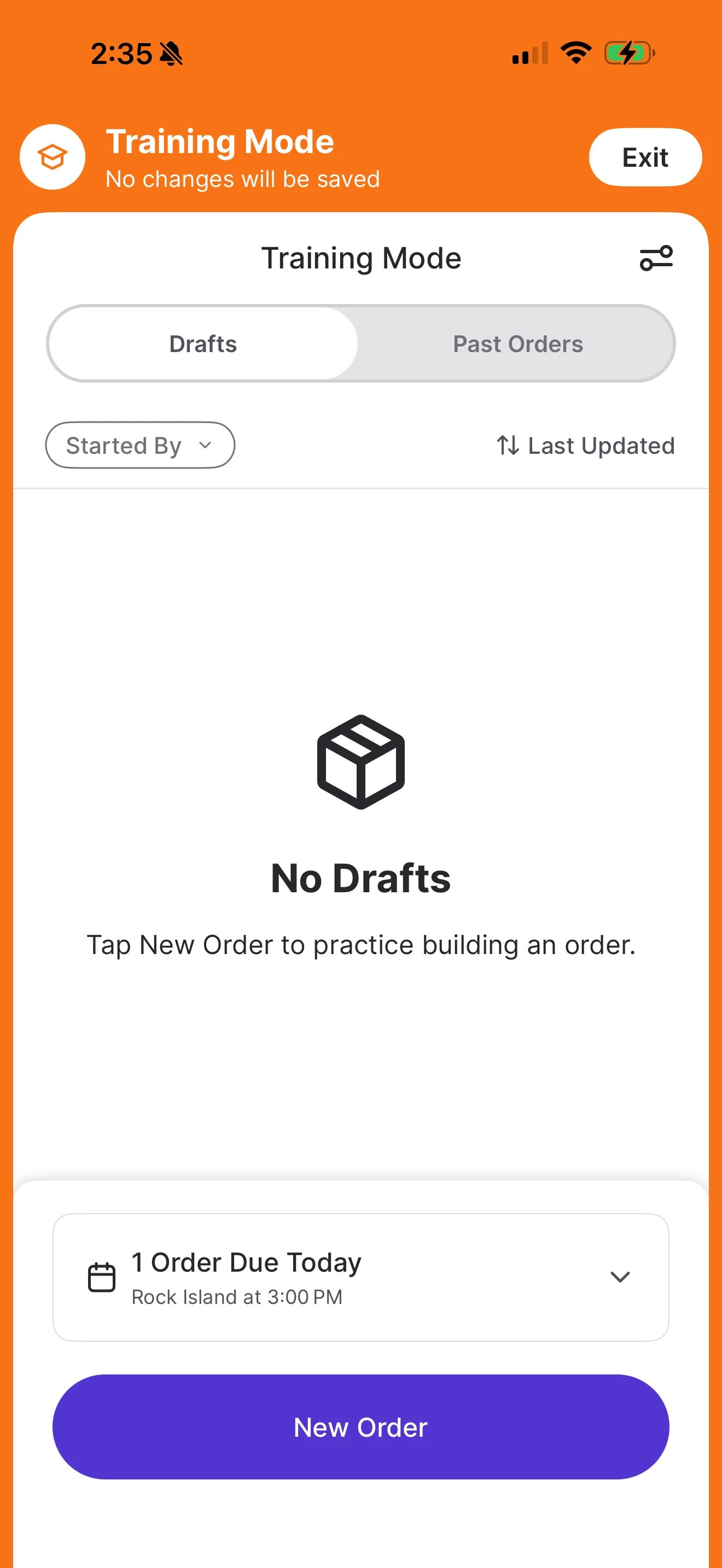
3. An orange **Training Mode** banner appears at the top of the screen. Tap **New Order** to start a practice order.
2. On the **Orders** screen, tap the **?** mark, then tap **Enter Training Mode**.
3. An orange **Training Mode** banner appears at the top of the screen. Tap **New Order** to start a practice order.
 4. Choose an order type:
* **Single Vendor Order:** Pick one vendor from your **Vendor List**.
* **Multi Vendor Order:** Scan products from any vendor. Vori sorts them by vendor at checkout.
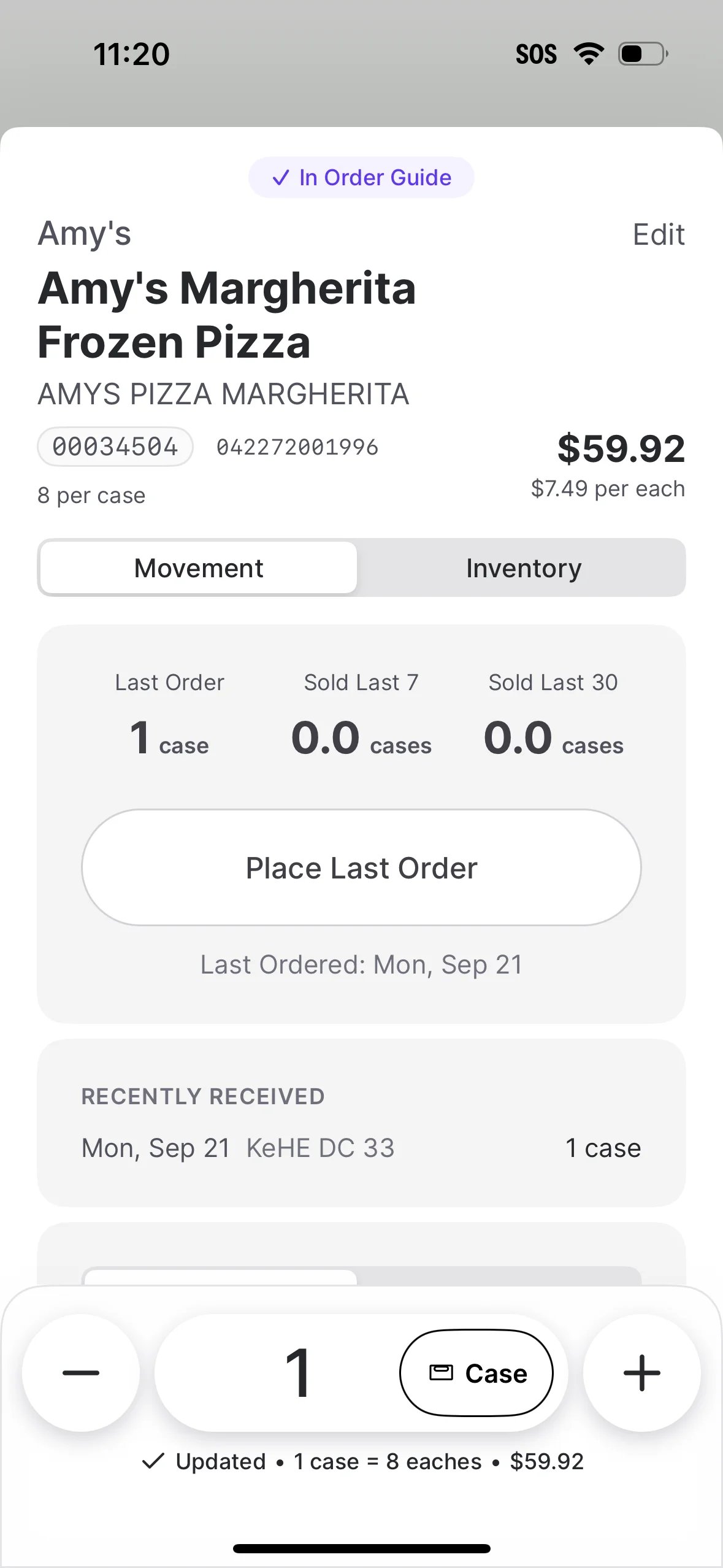
5. Scan a product or search by name, item code, or barcode. On **Product Order Details**, review the movement data and on-hand inventory, then set the quantity with the **+ / –** buttons and toggle between **Case** and **Each**.
4. Choose an order type:
* **Single Vendor Order:** Pick one vendor from your **Vendor List**.
* **Multi Vendor Order:** Scan products from any vendor. Vori sorts them by vendor at checkout.
5. Scan a product or search by name, item code, or barcode. On **Product Order Details**, review the movement data and on-hand inventory, then set the quantity with the **+ / –** buttons and toggle between **Case** and **Each**.
 6. If a product shows a **No Vendor Found**, **Missing Item Code**, or **Mismatched Code** alert, walk the trainee through what it means. The product cannot be added until the missing vendor or item code is filled in.
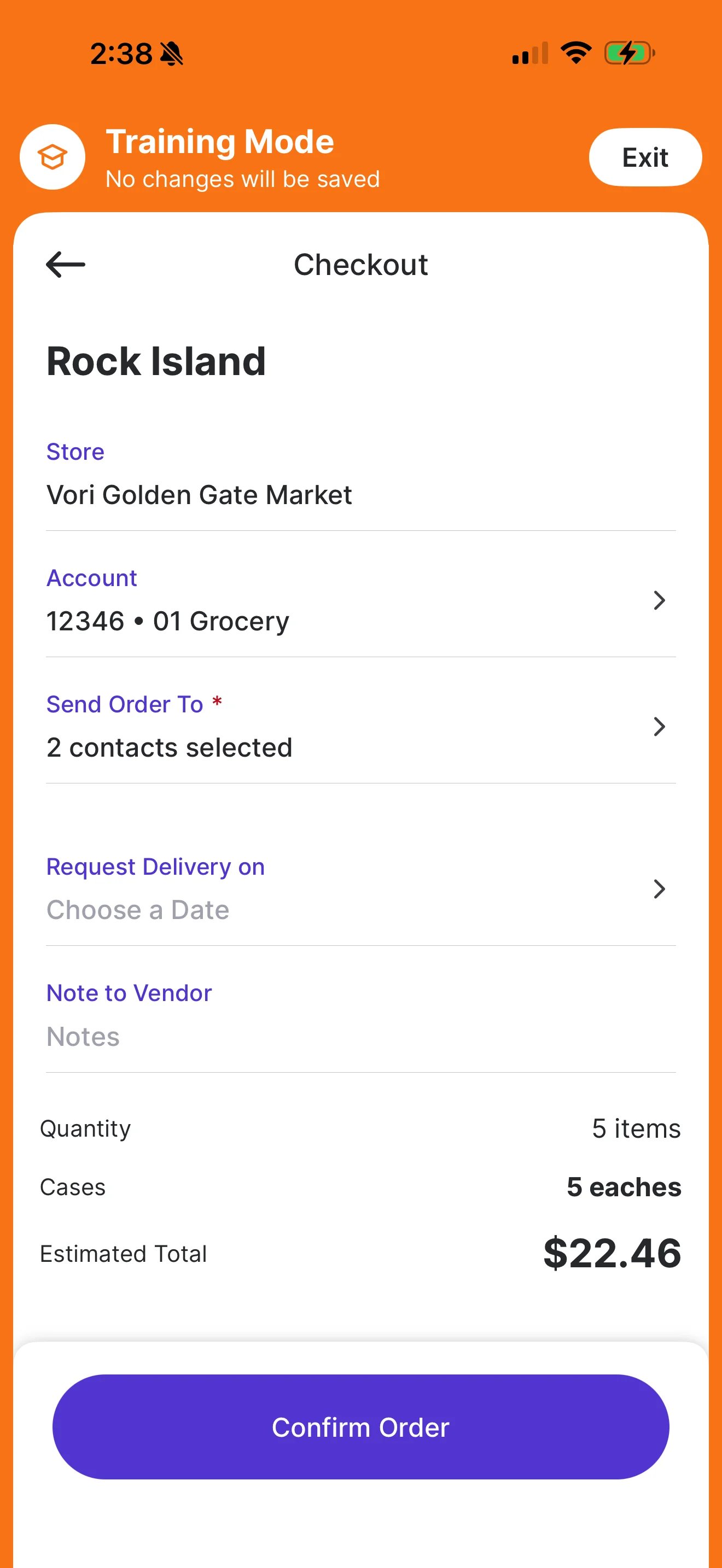
7. Tap **Finish & Checkout**. Review the **Account**, **Send Order To** contacts, delivery date, and order totals, then tap **Confirm Order**.
6. If a product shows a **No Vendor Found**, **Missing Item Code**, or **Mismatched Code** alert, walk the trainee through what it means. The product cannot be added until the missing vendor or item code is filled in.
7. Tap **Finish & Checkout**. Review the **Account**, **Send Order To** contacts, delivery date, and order totals, then tap **Confirm Order**.
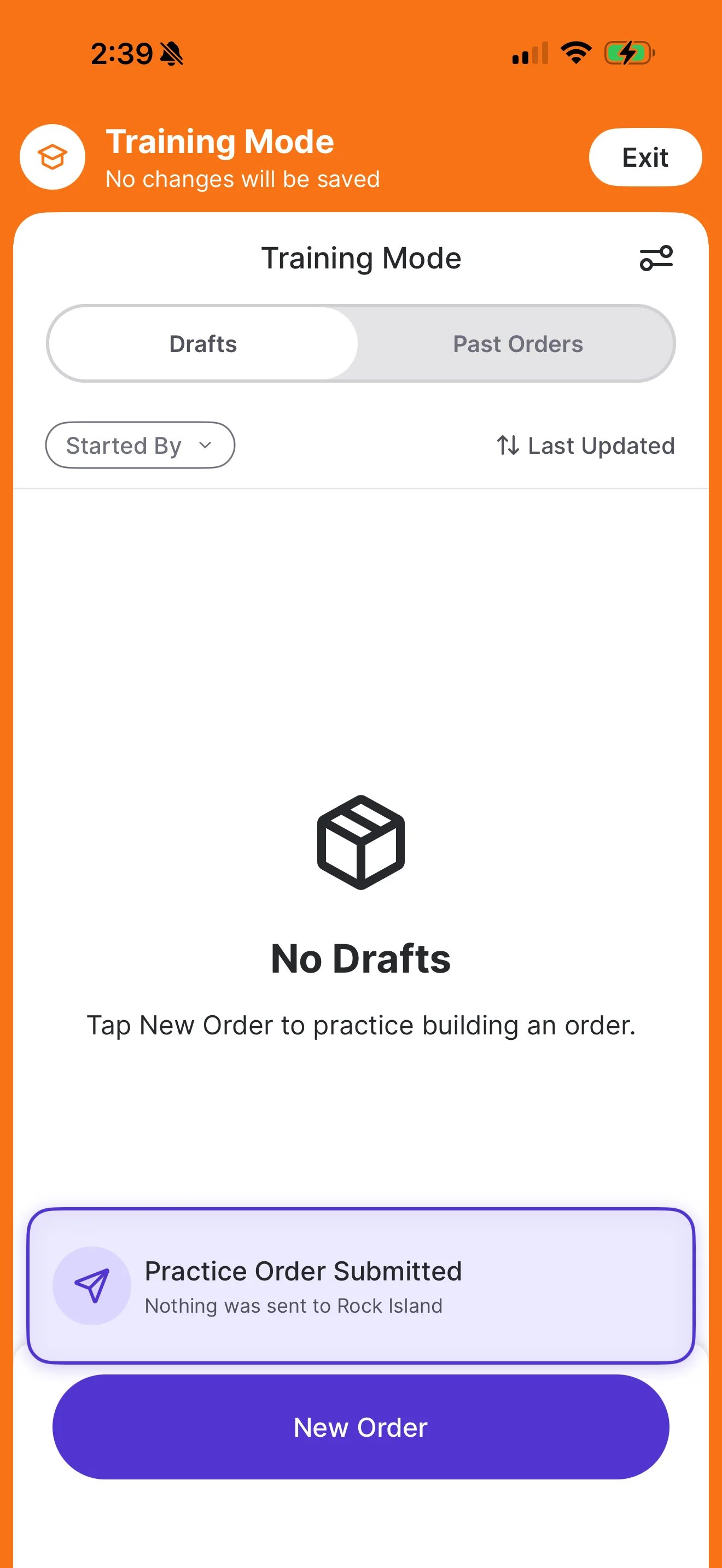
 8. A **Practice Order Submitted** message confirms that nothing was sent to the vendor. Tap **Exit** in the orange banner to leave Training Mode.
 ***
### Check their understanding
Before signing off on a trainee, confirm they can:
* Start a Single Vendor Order and a Multi Vendor Order.
* Use movement data and on-hand inventory to choose a quantity, and switch between **Case** and **Each**.
* Explain what to do when a product shows **No Vendor Found**, **Missing Item Code**, or **Mismatched Code**.
* Check the account, contacts, and delivery date before tapping **Confirm Order**.
Remind the trainee that outside of Training Mode, a submitted order goes straight to the vendor and its email address cannot be changed. Double-check checkout details before confirming.
For the full reference on every screen, alert, and checkout option, see [Place Orders on VoriOS](/inventory-and-ordering/ordering/place-orders-in-vori-operating-system).
## Related topics
- [Preparing Your Store for Ordering Launch](/inventory-and-ordering/ordering/preparing-your-store-for-ordering-launch.md)
- [Manage Vendor Costs and Active Suppliers](/vendors-and-vendor-products/vendor-products/manage-vendor-costs-and-active-suppliers.md)
- [Place Orders on VoriOS](/inventory-and-ordering/ordering/place-orders-in-vori-operating-system.md)
***
### Check their understanding
Before signing off on a trainee, confirm they can:
* Start a Single Vendor Order and a Multi Vendor Order.
* Use movement data and on-hand inventory to choose a quantity, and switch between **Case** and **Each**.
* Explain what to do when a product shows **No Vendor Found**, **Missing Item Code**, or **Mismatched Code**.
* Check the account, contacts, and delivery date before tapping **Confirm Order**.
Remind the trainee that outside of Training Mode, a submitted order goes straight to the vendor and its email address cannot be changed. Double-check checkout details before confirming.
For the full reference on every screen, alert, and checkout option, see [Place Orders on VoriOS](/inventory-and-ordering/ordering/place-orders-in-vori-operating-system).
## Related topics
- [Preparing Your Store for Ordering Launch](/inventory-and-ordering/ordering/preparing-your-store-for-ordering-launch.md)
- [Manage Vendor Costs and Active Suppliers](/vendors-and-vendor-products/vendor-products/manage-vendor-costs-and-active-suppliers.md)
- [Place Orders on VoriOS](/inventory-and-ordering/ordering/place-orders-in-vori-operating-system.md)