![vori-logo-black-horizontal-01 (1).png]](https://help.vori.com/hs-fs/hubfs/vori-logo-black-horizontal-01%20(1).png?height=42&name=vori-logo-black-horizontal-01%20(1).png)
The SNAP Incentives report gives you a clear view of how your Double Up Food Bucks program is performing. Whether you need to track how many coupons are being issued to shoppers or verify redemption totals for reimbursement, this dashboard provides the data you need to keep your program running smoothly.
Table of Contents
Accessing the Report
You can find all Double Up Food Bucks data within the Finances section of Vori Back Office.
-
Log in to Vori Back Office.
-
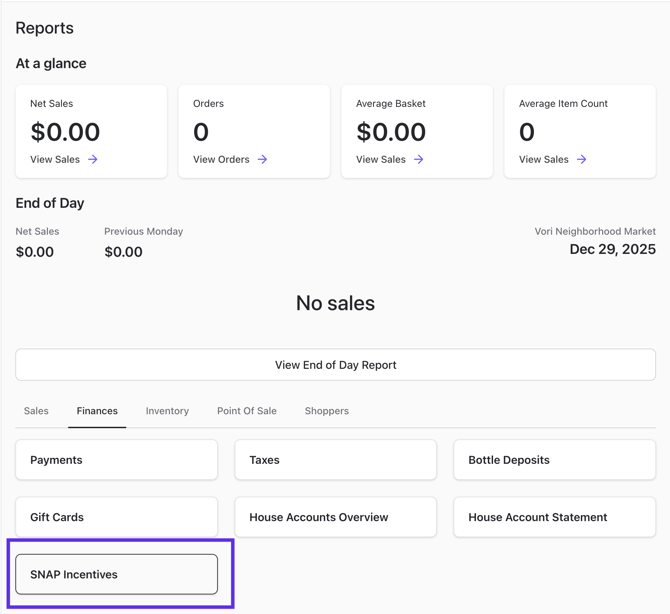
Click Reports in the left navigation menu.

-
Select Finances.
-
Click SNAP Incentives.
-
Use the Date Range selector at the top left to choose the period you want to analyze (e.g., "Last 30 Days" or "Previous Month").
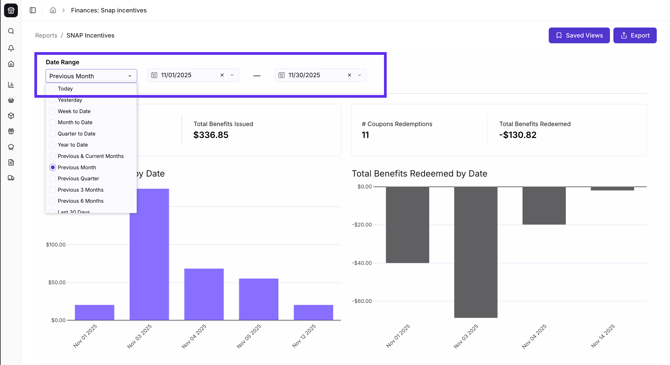
💡 Don't Forget! These tools are available on all SNAP Incentive reports to help you dig deeper into your data:


Coupon Issuance & Redemptions
This section tracks the coupons generated for your shoppers at the register.
Where can I find how many Double Up Buck coupons have been issued?
- You can find this in the # Coupons Issued card at the top left of the dashboard. This number represents the total count of coupons generated for shoppers during your selected date range.
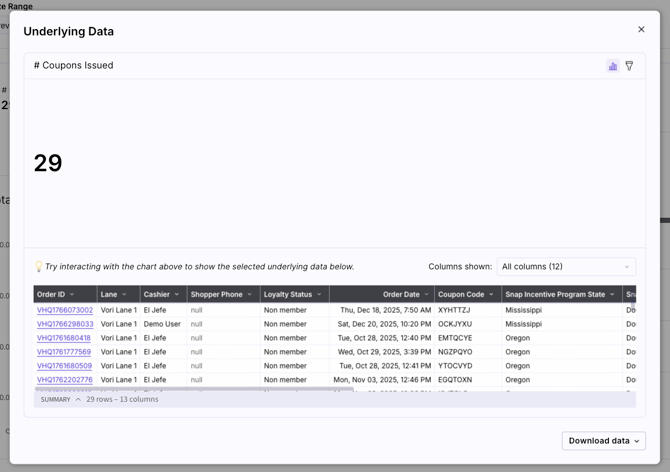
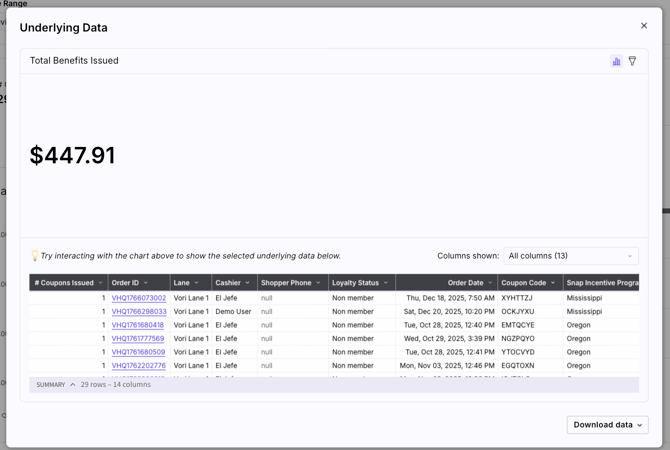
- Next to it, Total Benefits Issued shows the total dollar value of those coupons.
Where can I see how many coupons shoppers have redeemed?
- Look at the # Coupons Redemptions card on the top right. This tells you how many times shoppers have used a coupon at the register.
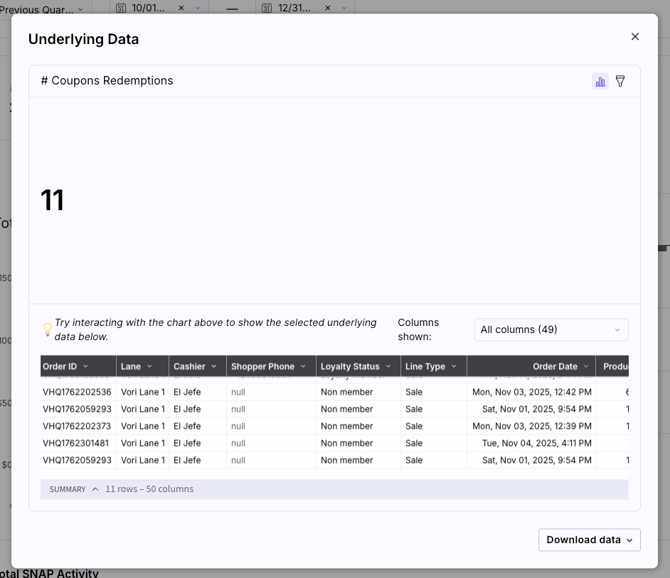
- The Total Benefits Redeemed card shows the total dollar amount of discounts given.
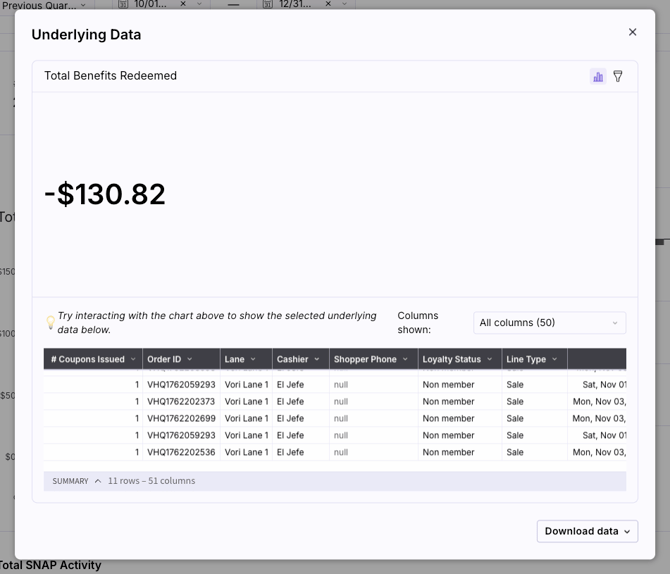
✏️ Note: The Total Benefits Redeemed amount will appear as a negative number (e.g., -$495.49) because it represents a discount applied to the transaction.
Total SNAP Activity
This section helps you compare your incentive program performance against your overall SNAP sales volume.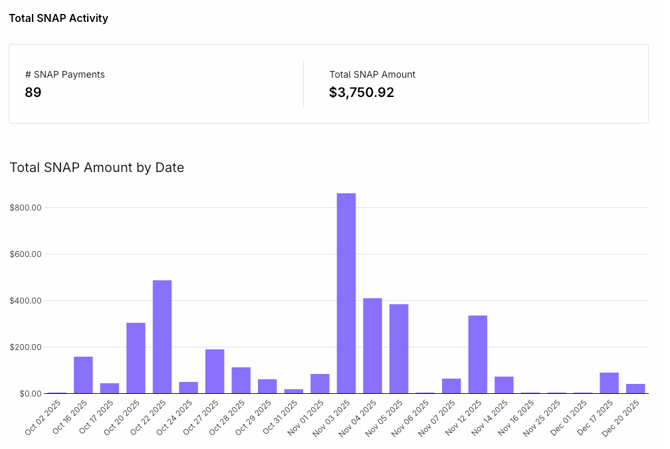
Where can I see my store's total SNAP sales volume?
- Scroll down to the Total SNAP Activity section to see:
-
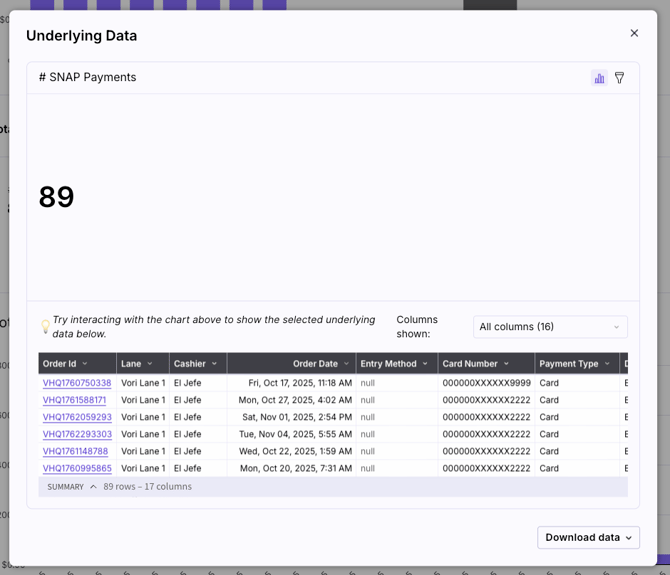
# SNAP Payments: The total count of EBT SNAP transactions in the selected period.
-
Total SNAP Amount: The total revenue collected from those SNAP payments.

-
What info can be found in the underlying data?
By clicking the Show underlying data icon on the Total SNAP Amount by Date chart, you can audit individual EBT payments with data such as:
-
Payment Methods: Confirm the Payment Type (EBT/eWIC) and Entry Method (e.g., Card or Manual).
-
Card Security: View the masked Card Number, Card Brand, and Online/Offline status.
-
Transaction Status: Verify the payment Status (e.g., Paid) and the exact Authorized Amount collected.