> ## Documentation Index
> Fetch the complete documentation index at: https://help.vori.com/llms.txt
> Use this file to discover all available pages before exploring further.
# Assign Tags to Products
> Set which tag template a product uses one at a time, in bulk, or automatically with a Product Rule.
✏️ **Note:** Custom Tag Printing and Design is currently in beta. If you're interested in joining the beta or learning more about this feature, reach out to our team at **[support@vori.com](mailto:support@vori.com)**.
Once you've [built a tag template](/tag-printing-and-design/design-your-own-tags), you need to assign the template to the products that will use it. You can do this on a single product, across a bulk selection or product group, or automatically with a Product Rule — pick whichever fits how many products you're updating.
***
### Option 1: Set a Template on a Single Product
Use this when you're setting up one product at a time.
1. Open the product's details page.
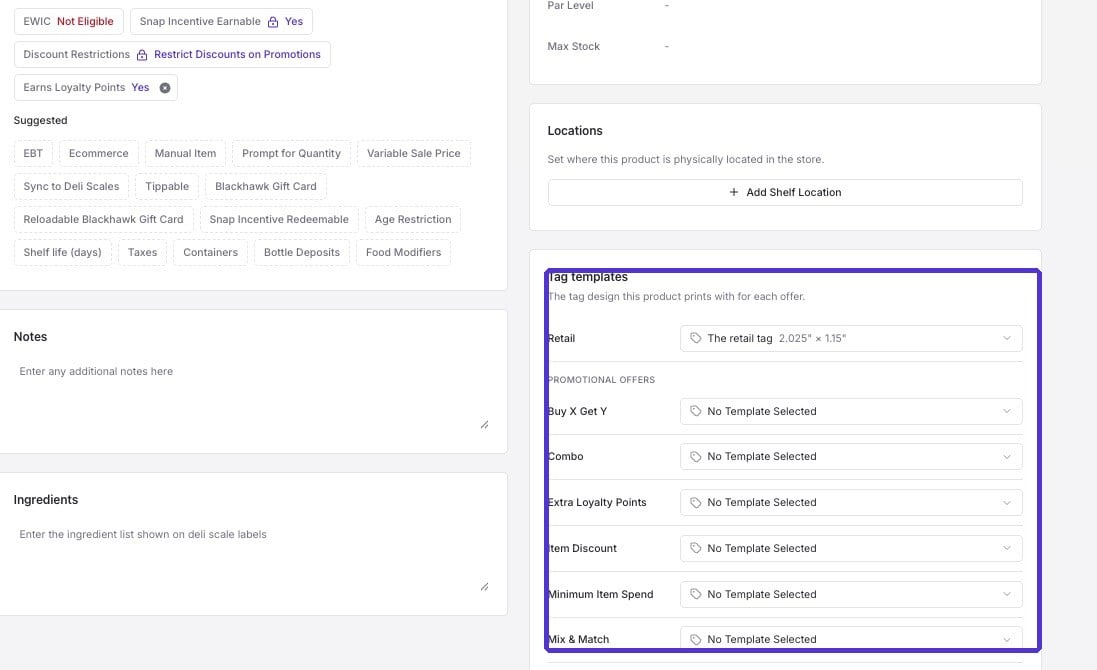
2. Find the **Tag Templates** section.
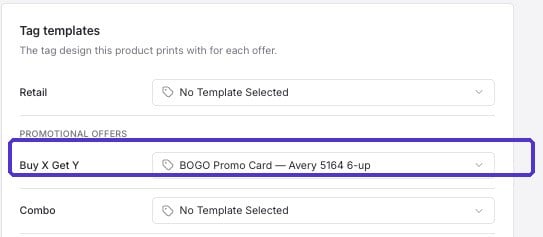
3. For each offer or retail type on that product, choose the template it should use.
This becomes the product's default template — the one Vori uses automatically whenever that product lands in the print queue.
 ***
### Option 2: Assign a Template in Bulk
Use this when you have a group of products that should all share the same template — for example, everything in a product group you already built, or every product in a department.
1. Select the products you want to update. Filter by an existing [product group](/product-and-product-catalog-management/product-creation-and-set-up/create-and-manage-product-groups), or by any other filter, like department:
***
### Option 2: Assign a Template in Bulk
Use this when you have a group of products that should all share the same template — for example, everything in a product group you already built, or every product in a department.
1. Select the products you want to update. Filter by an existing [product group](/product-and-product-catalog-management/product-creation-and-set-up/create-and-manage-product-groups), or by any other filter, like department:
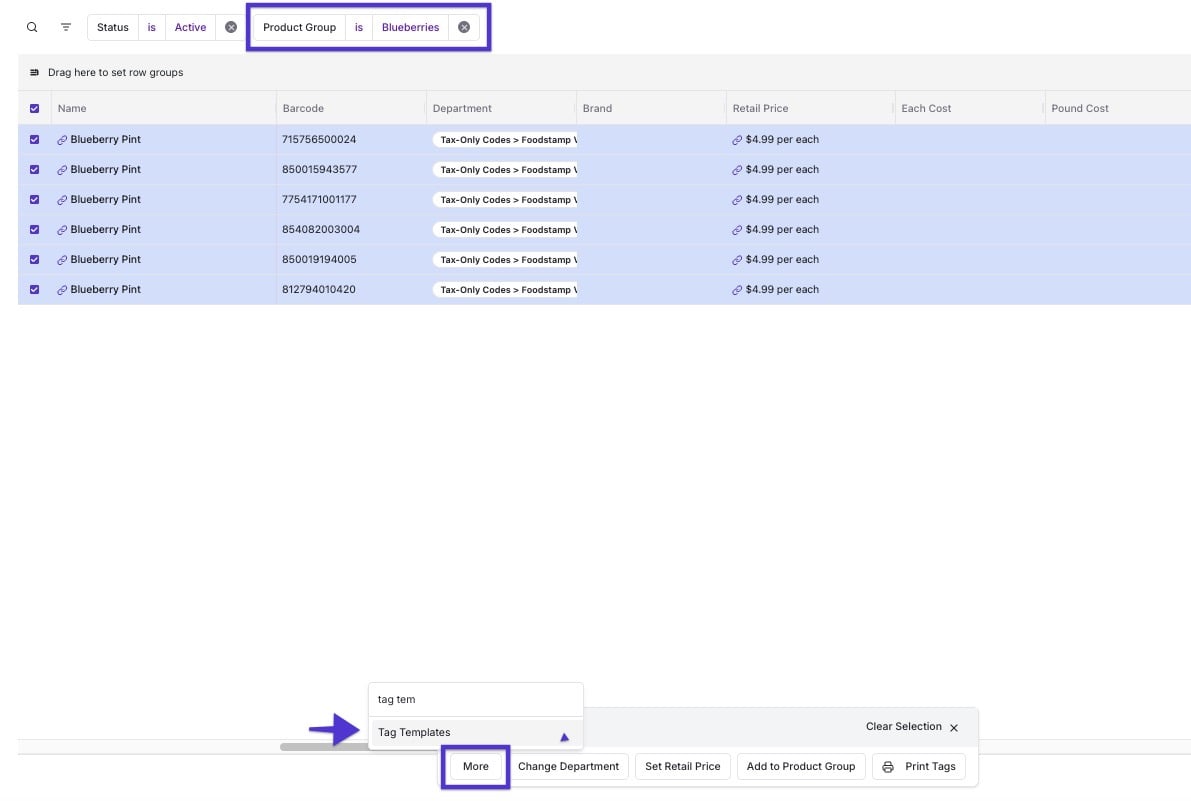
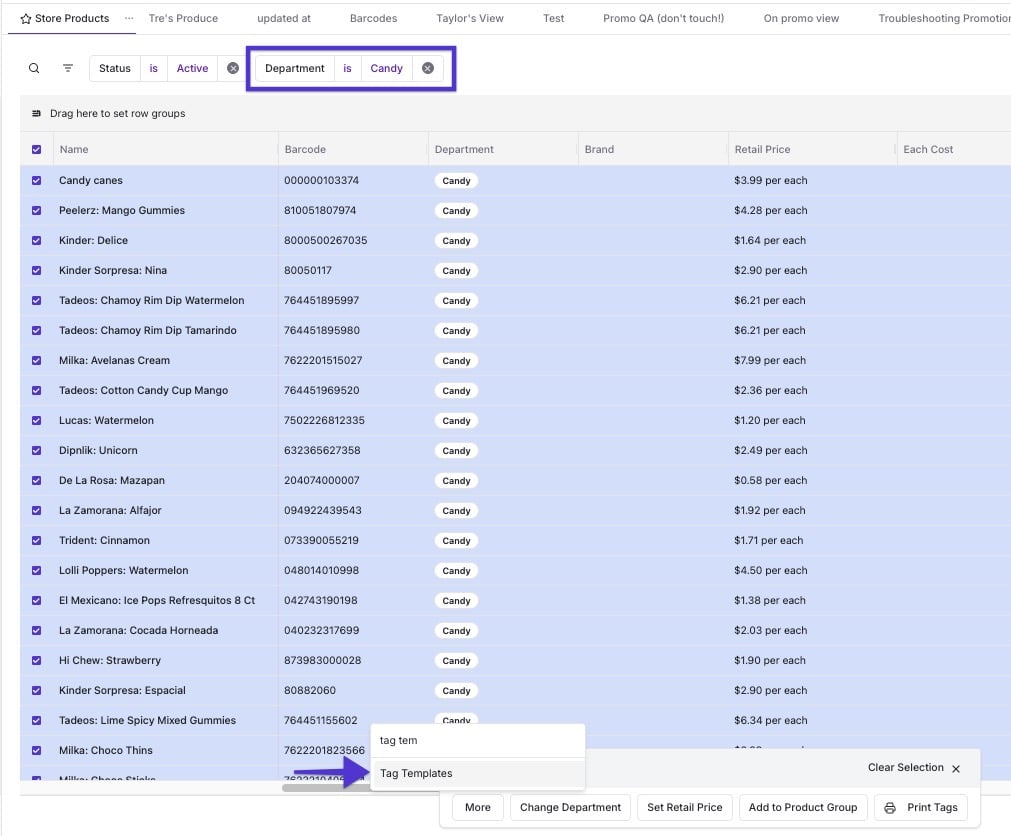 2. From the bulk actions bar, choose **More → Tag Templates**.
3. Choose the offer type and the template to apply, then save.
2. From the bulk actions bar, choose **More → Tag Templates**.
3. Choose the offer type and the template to apply, then save.
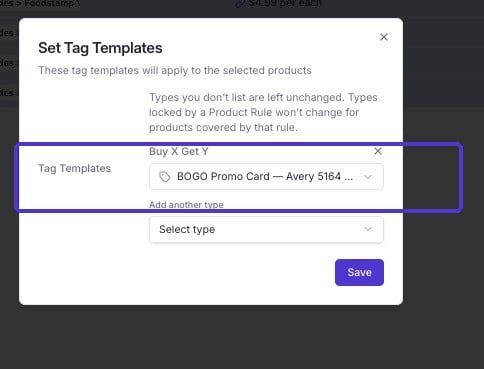 Vori applies that template to every product you selected in one action.
***
### Option 3: Assign a Template Automatically with a Product Rule
Use this when you want new and existing products to stay covered automatically, without manually re-assigning a template every time your catalog changes.
1. Go to [Product Rules](/product-and-product-catalog-management/product-catalog-and-bulk-management/product-rules) and create a new rule.
2. Set the condition products need to match — for example, department is Beer, or product group is Snacks.
3. Choose the offer type and tag template that rule should apply. You can add more than one type to the same rule — for example, a Retail template and a Buy X Get Y template together — so one rule covers every tag a matching product needs.
Vori applies that template to every product you selected in one action.
***
### Option 3: Assign a Template Automatically with a Product Rule
Use this when you want new and existing products to stay covered automatically, without manually re-assigning a template every time your catalog changes.
1. Go to [Product Rules](/product-and-product-catalog-management/product-catalog-and-bulk-management/product-rules) and create a new rule.
2. Set the condition products need to match — for example, department is Beer, or product group is Snacks.
3. Choose the offer type and tag template that rule should apply. You can add more than one type to the same rule — for example, a Retail template and a Buy X Get Y template together — so one rule covers every tag a matching product needs.
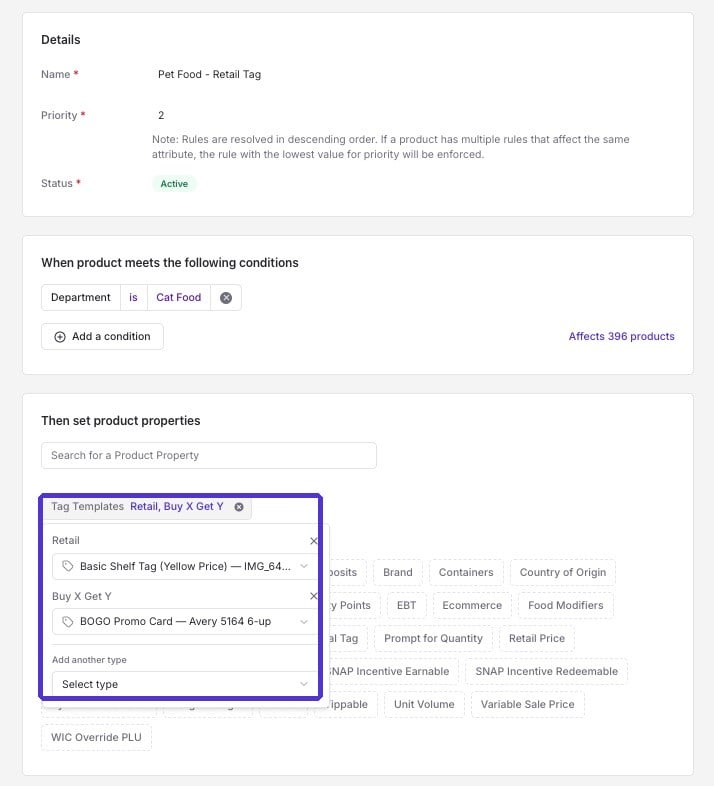 Every product matching that condition uses the assigned template, including products you add later that also match. This works the same way tax, EBT eligibility, and other product attributes are already assigned by Product Rule — it's condition-based, not tied to where a product sits in your department structure.
✏️ **Note:** Product Rules are set per store. If you manage multiple locations, set up matching rules at each store individually.
***
### Other Ways to Print Without Pre-Assigning a Template
* **One-off override at print time.** When you print from the queue, you can swap in a different template for that print run only. It doesn't change the product's saved default template — see [Review the Tag Print Queue](/tag-printing-and-design/review-the-tag-print-queue).
* **Single-tag reprint from the product page.** Open the product, then use the **⋯** menu to print just that one tag — handy for replacing a single torn or missing shelf tag without touching the queue.
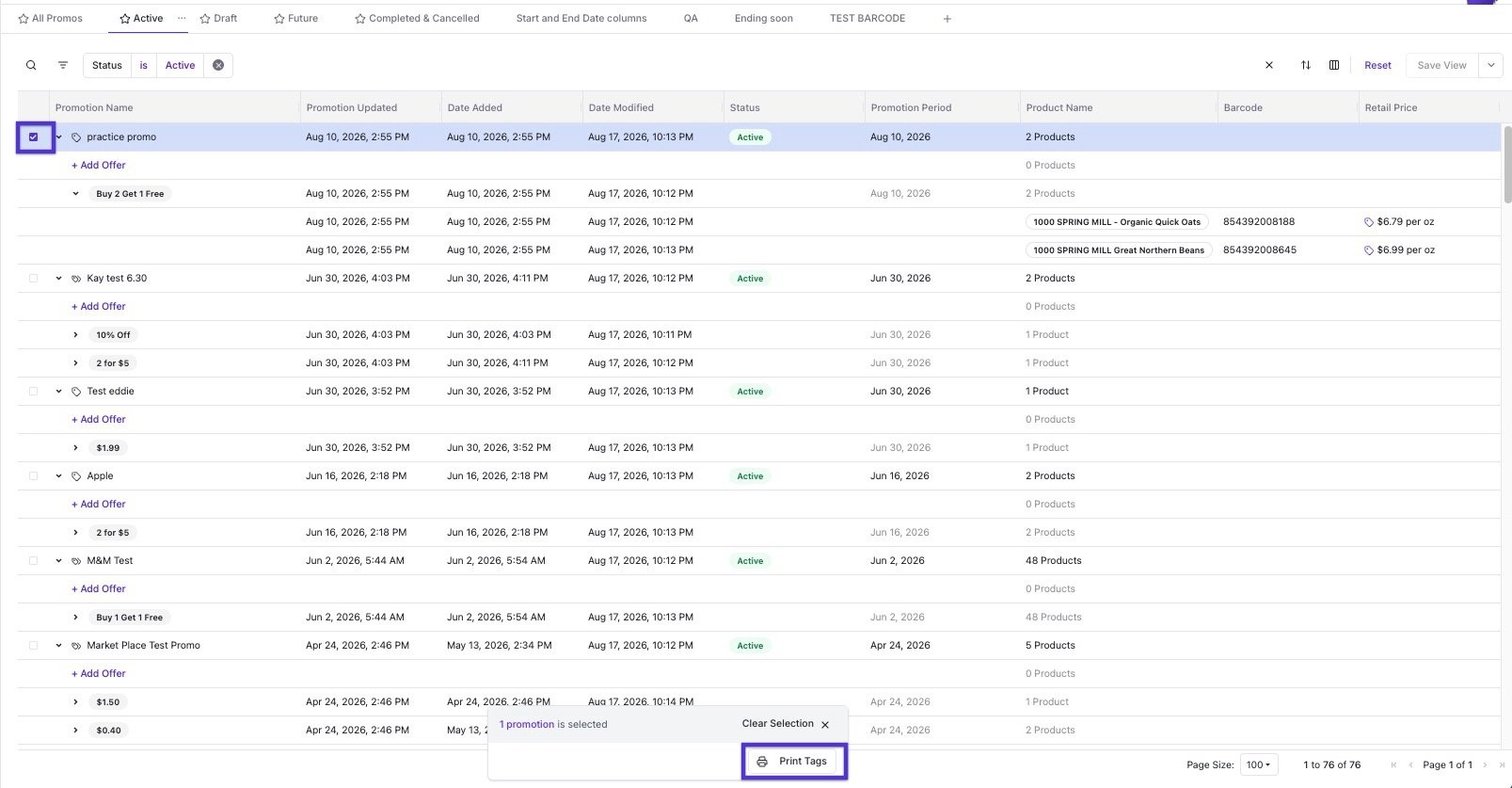
* **Print directly from a promotion.** Select a promotion and choose **Print Tags** to queue up every product in it at once, using whatever template each product is already assigned.
Every product matching that condition uses the assigned template, including products you add later that also match. This works the same way tax, EBT eligibility, and other product attributes are already assigned by Product Rule — it's condition-based, not tied to where a product sits in your department structure.
✏️ **Note:** Product Rules are set per store. If you manage multiple locations, set up matching rules at each store individually.
***
### Other Ways to Print Without Pre-Assigning a Template
* **One-off override at print time.** When you print from the queue, you can swap in a different template for that print run only. It doesn't change the product's saved default template — see [Review the Tag Print Queue](/tag-printing-and-design/review-the-tag-print-queue).
* **Single-tag reprint from the product page.** Open the product, then use the **⋯** menu to print just that one tag — handy for replacing a single torn or missing shelf tag without touching the queue.
* **Print directly from a promotion.** Select a promotion and choose **Print Tags** to queue up every product in it at once, using whatever template each product is already assigned.
 ***
### Bonus: Set a Shelf Location
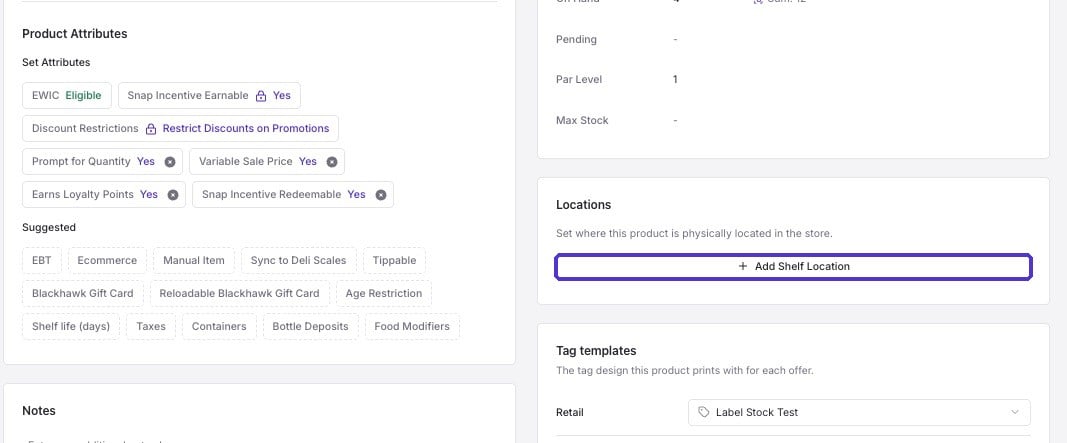
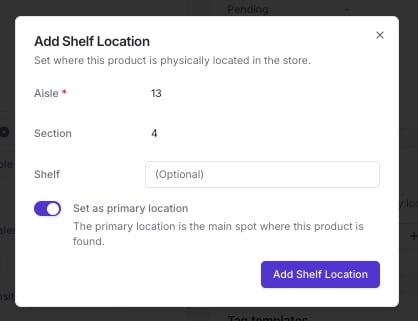
While you're on a product's details page, you can also set its **shelf location** — aisle, section, and shelf. This doesn't affect which template a product uses, but it powers sort-by-aisle when you're printing from the queue, so whoever hangs the tags can walk the floor once instead of backtracking. See [Review the Tag Print Queue](/tag-printing-and-design/review-the-tag-print-queue) for where that shows up.
***
### Bonus: Set a Shelf Location
While you're on a product's details page, you can also set its **shelf location** — aisle, section, and shelf. This doesn't affect which template a product uses, but it powers sort-by-aisle when you're printing from the queue, so whoever hangs the tags can walk the floor once instead of backtracking. See [Review the Tag Print Queue](/tag-printing-and-design/review-the-tag-print-queue) for where that shows up.
 ## Related topics
- [Design Your Own Tags](/tag-printing-and-design/design-your-own-tags.md)
- [Review the Tag Print Queue](/tag-printing-and-design/review-the-tag-print-queue.md)
- [Print Product Tags on VoriOS](/product-and-product-catalog-management/product-creation-and-set-up/print-product-tags-on-vori-os.md)
## Related topics
- [Design Your Own Tags](/tag-printing-and-design/design-your-own-tags.md)
- [Review the Tag Print Queue](/tag-printing-and-design/review-the-tag-print-queue.md)
- [Print Product Tags on VoriOS](/product-and-product-catalog-management/product-creation-and-set-up/print-product-tags-on-vori-os.md)