![vori-logo-black-horizontal-01 (1).png]](https://help.vori.com/hs-fs/hubfs/vori-logo-black-horizontal-01%20(1).png?height=42&name=vori-logo-black-horizontal-01%20(1).png)
Quick Food Service (QFS) tools allow you to manage made-to-order items—like coffee, sandwiches, and tacos—directly inside the POS alongside everyday grocery sales. This integrated workflow helps you capture more meal spend, improve profitability, and keep lines moving from a single system.
⚠️ Quick Food Service is optimized for specific counter service formats with simple orders, such as coffee bars, deli stations, taquerias, and smoothie counters.
Table of Contents
Before You Start
- Ensure your store is on the latest version of the POS software.
-
Verify you have access to the Vori Back Office for menu configuration.
Configure Food Modifiers in New Back Office
Modifiers make made-to-order possible. Before you start selling, set up your modifier categories ( e.g., Quesadilla) and individual options (e.g., Cheese, Carnitas, and Veggies)
Create a New Food Modifier
-
Go to Products and select Food Modifiers in the left-hand navigation menu.
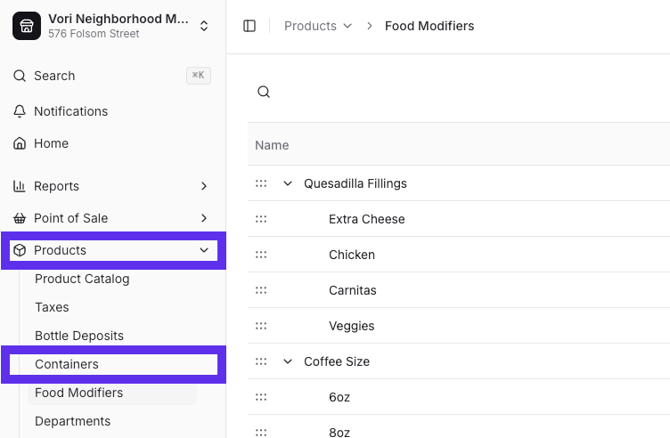
-
Select New Food Modifier from the top right corner.
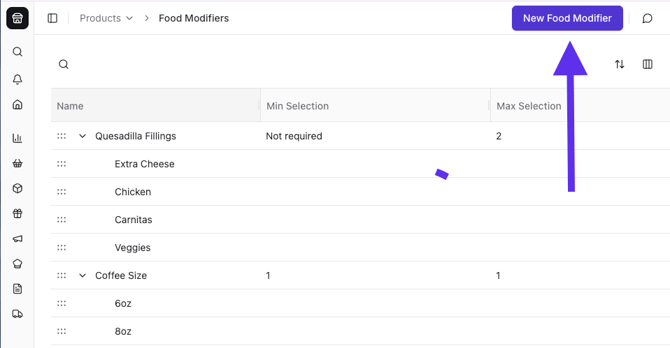
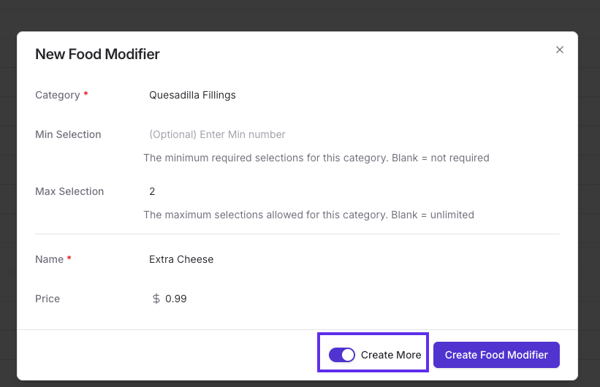
- Create a Modifier Category (e.g., Quesadilla Fillings).
-
Set Minimum and Maximum Selections for that category (optional) to control how many modifiers a shopper can choose.
-
Create each selectable option your team can ring up as a Modifier (e.g., Carnitas).
-
Assign a price or leave it at $0.00.
- Use the Create More toggle to add multiple modifiers at once.
-
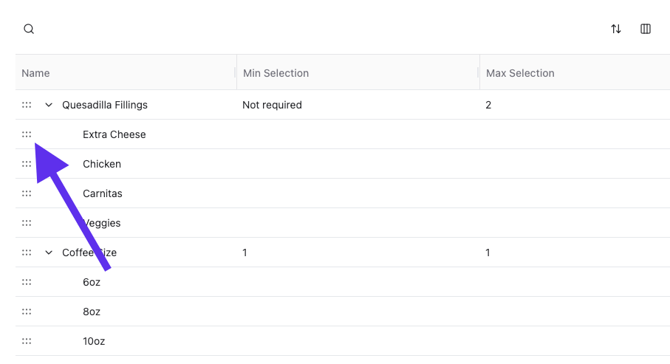
- Use the drag-and-drop "grabbers" to arrange the order in which these options appear on the POS screen.
💡 Pro-Tip: Use the AI Menu Assistant to set up new modifiers fast. Simply describe the item and its modifiers, and Vori will recommend a structured menu setup for you to review and save.
Use the VoriAI Menu Assistant
For a faster setup, you can use the VoriAI Menu Assistant to build your menu using natural language.
-
Click the VoriAI chat icon in the top right of the Back Office.
-
Tell the assistant what you want to add (e.g., "Help me add Boba items to my menu").
-
Follow the prompts to provide the price, barcode/PLU, and department.
-
The assistant will suggest common modifier categories (e.g., "Sweetness Level"). Confirm if they look correct.
-
Review your plan, then click Allow to let Vori create your new products and modifiers automatically..
Edit a Food Modifier in New Back Office
-
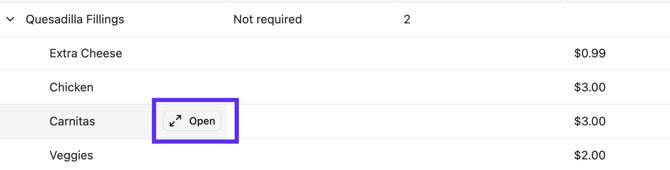
Locate the modifier or category you want to update, hover over the modifier name, and click Open.
-
Update the Modifier Name and Price, or the Category Name and Min/Max Selection.
-
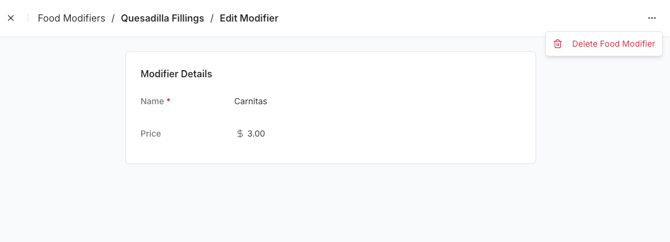
To delete a modifier, click the three dots (•••) in the edit view and select Delete.
-
Changes save instantly and will reflect at the POS.
Set Up Your Quick Food Service Departments
To keep your POS interface organized and reporting clean, create a dedicated department hierarchy.
-
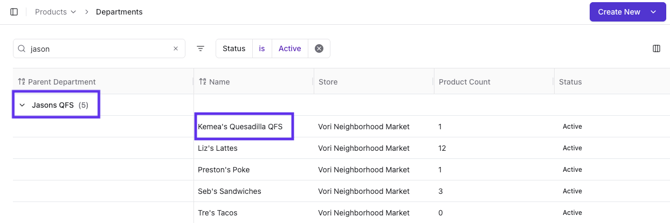
Create parent departments for your counter service (e.g., "Cafe" or "Deli").
-
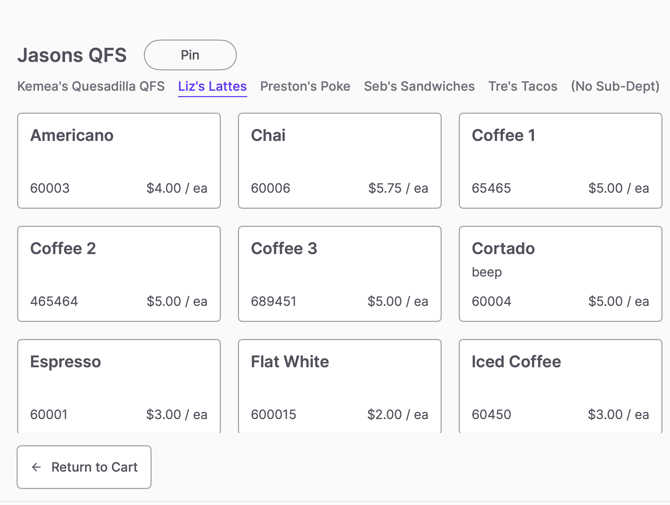
Create sub-departments within that parent department for different menu types (e.g., Sandwiches, Smoothies, Coffee).
-
This setup creates easy-to-navigate tabs on the POS instead of cluttering your screen with multiple top-level buttons.
-
Ensure this parent department is added as a Quick Action button on your POS.
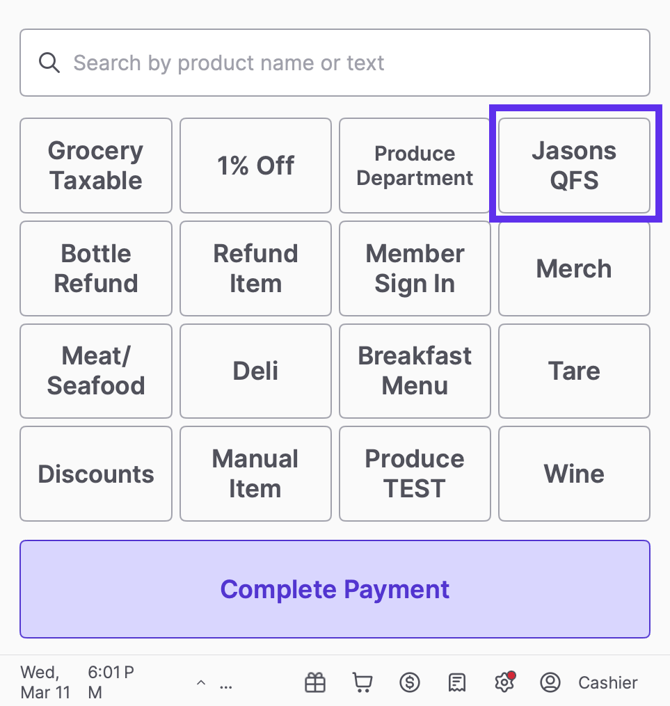
✏️Note: To add or update a Quick Action button (the main tile on the POS home screen), please contact Vori Support. Learn more in the article Customize Your POS With Quick Action Buttons and Manual Items.
Assign Food Modifiers to Products
Once your modifiers are created, you must link them to the products you sell.
-
Open your product (e.g., Quesadilla) in the Product Catalog.
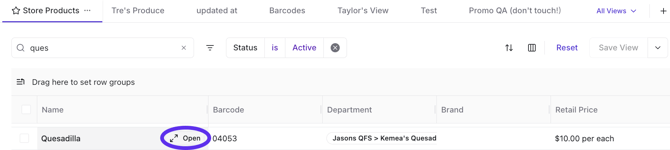
-
Assign the appropriate modifier categories to that item in the Product Attributes section.
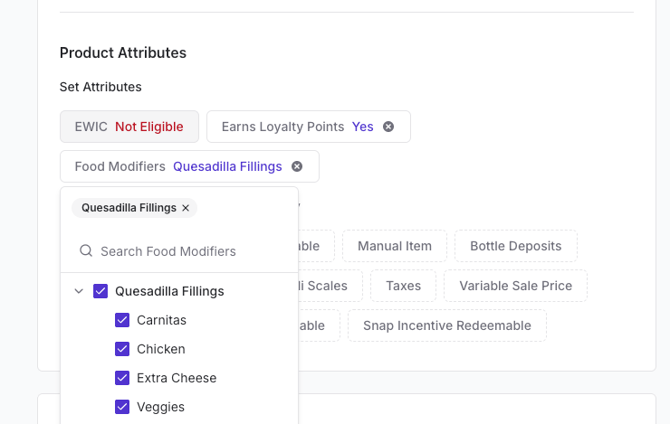
-
Changes save instantly and will reflect at the POS.
Bulk Update Food Modifiers
You can select multiple items in the Product Catalog and use the bulk edit tool to assign modifier categories to all of them at once.
-
Navigate to the Product Catalog in the left-hand navigation menu.
-
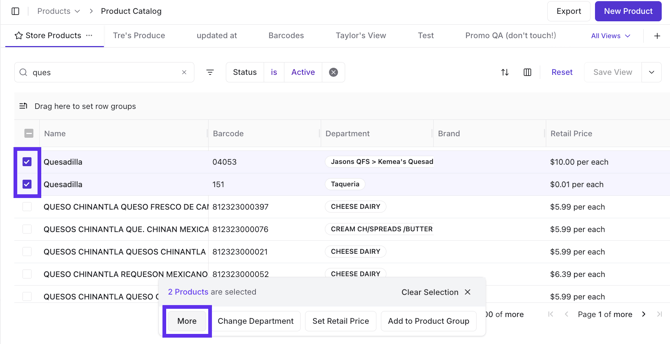
Select the products you want to update by clicking the checkboxes next to their names.
-
Click the More button at the bottom of the screen.
-
Select Food Modifiers from the list of attributes.
-
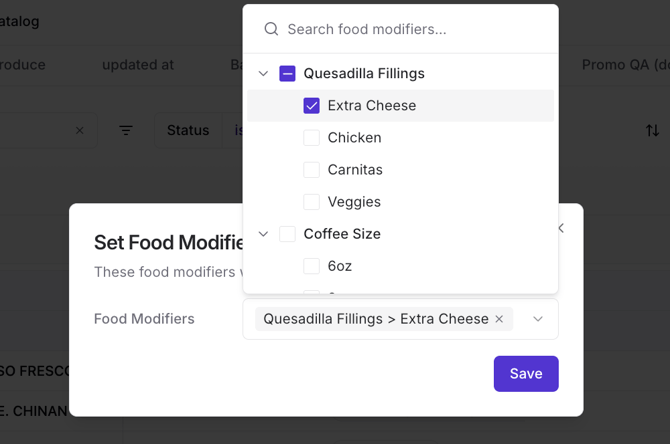
In the pop-up window, use the Search food modifiers... field or the dropdown list to select the Modifier Categories you wish to assign.
-
Click Save to apply these modifiers to all selected products.
-
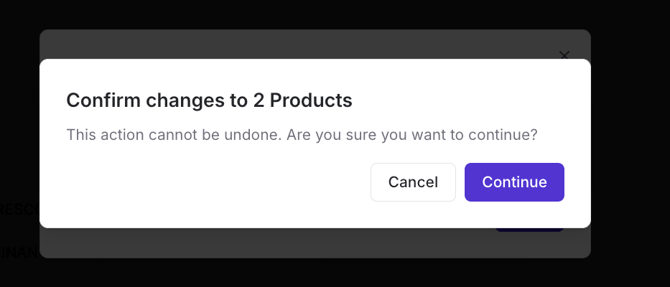
A confirmation message will appear. Select Continue to finish.
✏️ Note: Adding, editing, and viewing Food Modifiers on a product is currently supported in New Back Office only.
Ring Up Quick Food Service Items at the Counter
At the register, cashiers are guided through a structured workflow to ensure order accuracy.
To Ring Up a Quick Food Service Item:
-
Find the item and tap to initiate modifiers.
-
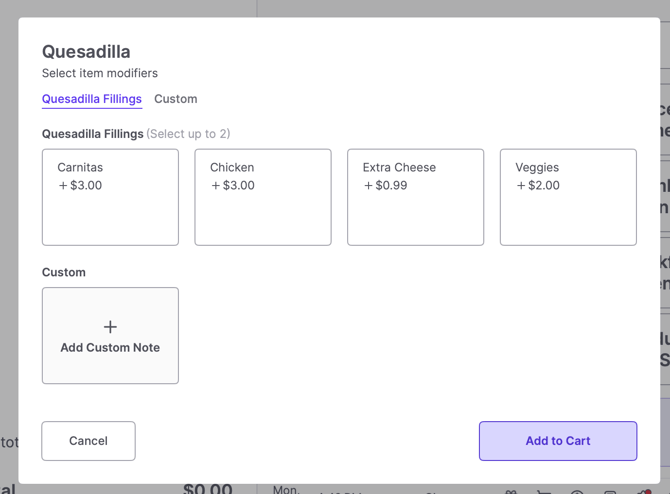
The POS will prompt you for required modifiers.
-
Select the shopper’s choices.
-
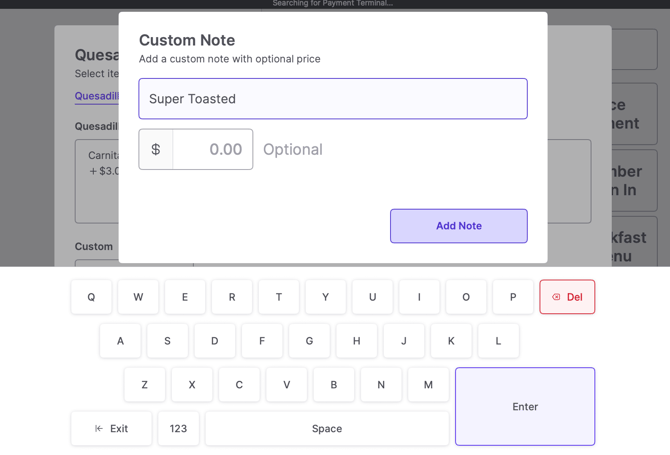
To add a special request not listed, tap Add Custom Note
-
Enter a description and optional price. (custom price or leave blank -emphasize this)
-
-
Tap Add to Cart.
-
The cart clearly displays the item and all selected modifiers so both the cashier and shopper can confirm accuracy.
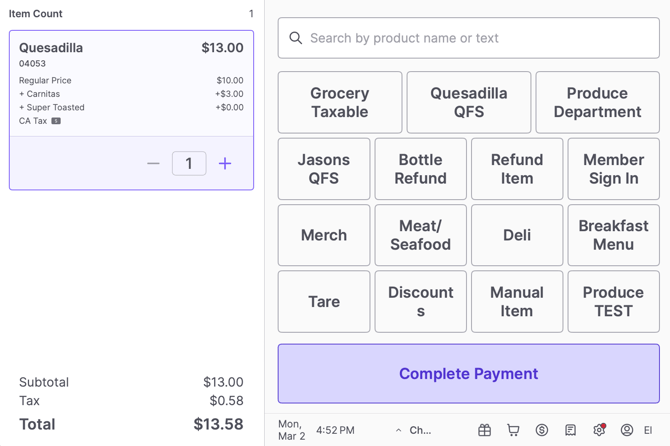
Edit a Quick Food Service Item on the POS
If a shopper changes their mind before paying, you can adjust their selections directly in the cart.
-
Tap the item you would like to edit and select More.
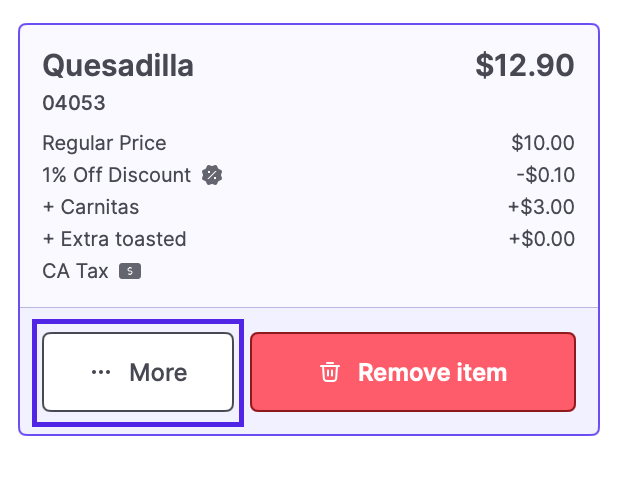
-
From the list select Edit Food Modifiers.
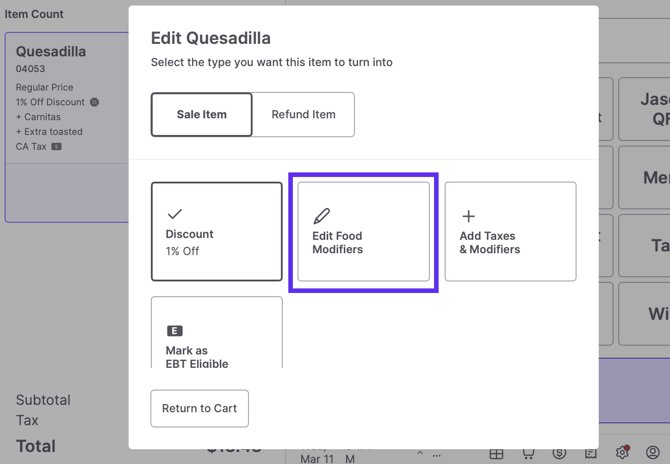
-
Select the shopper’s choices.
- Tap Apply Changes to save.
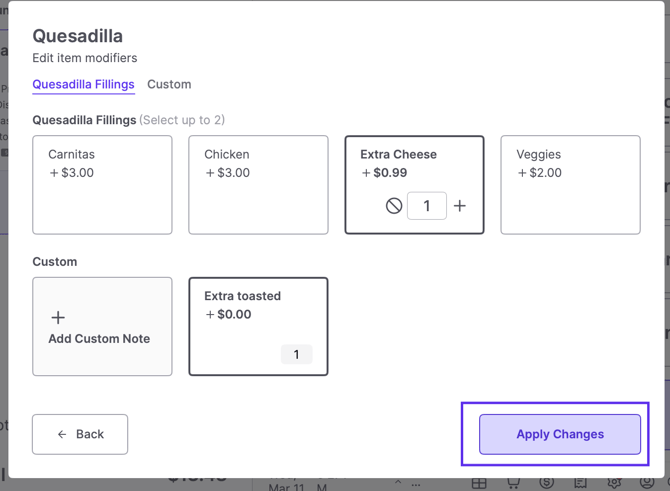
Send Tickets to Prep
Orders can be sent to the kitchen at the end of a sale or mid-transaction.
Standard Flow
In a standard checkout flow, the kitchen ticket is generated after payment is finalized.
-
Once all items are in the cart, tap Complete Payment.
-
Enter a Name for Order to help the prep team identify the shopper.
-
Tap Continue to Payment and process the transaction as usual.
-
Once paid, the POS will automatically print a separate kitchen ticket. The shopper's receipt is optional.
Using Suspended Orders (Pay Later)
Suspended Orders allow shoppers to order at the deli and continue shopping for groceries.
-
Go to your Food Service department and tap the Pin button at the top.
-
Add the food item and modifiers to the cart.
-
Tap Submit Order.
-
Enter the shopper's name for easier pickup and tap Submit Order again.
-
The POS will print a Not Paid receipt for the shopper and a prep ticket for the kitchen.
-
To pay, scan the Not Paid receipt at any lane.
-
Or navigate to the receipt icon, select View All Orders, select the Paused tab, and tap Resume Order to complete checkout.
-
How to Edit the Number of Printed Kitchen Receipts
If you need to change how many prep tickets print for the kitchen, use the hidden POS configuration menu:
-
Log into the POS.
-
Tap the Date in the bottom corner three times quickly to open the hidden menu.
-
Select Quick Service Food.
-
Select the quantity of kitchen receipts desired.
-
Tap Return to cart.
-
Click the Gear Icon, then restart the app to apply your changes.
Track Food Service Sales in Unified Reporting
Prepared foods are one of the highest-margin areas in your store. Vori provides connected reporting so you can protect those margins without needing a separate restaurant system.
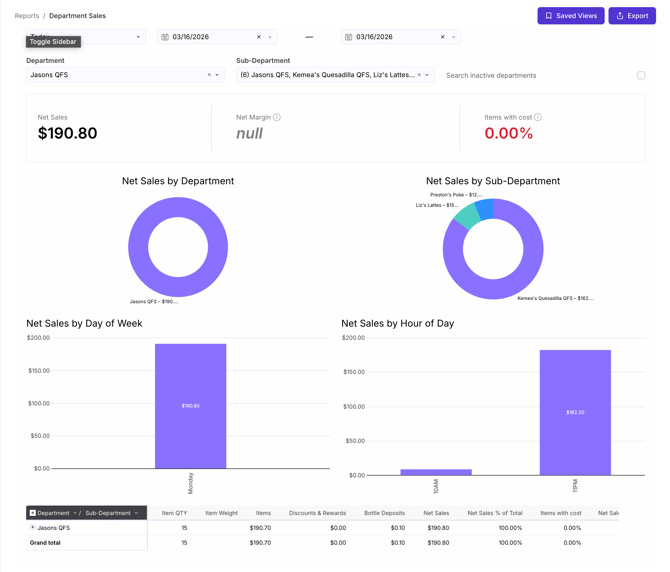
- Department-Level Tracking: Use the Department Sales report to see exactly how much net sales your Food Service departments are generating.
✏️ Note: Recipe-level ingredient tracking isn’t available at this time.