![vori-logo-black-horizontal-01 (1).png]](https://help.vori.com/hs-fs/hubfs/vori-logo-black-horizontal-01%20(1).png?height=42&name=vori-logo-black-horizontal-01%20(1).png)
Some stores sell both single units and multi-packs under the exact same barcode (e.g., a single soda can that is also sold as a plastic-wrapped 6-pack).
You can configure these items using one of three options, depending on how you want your cashiers to handle them at the register.
Table of Contents
- Option 1: Prompt for Quantity
- Option 2: Variable Price Override
- Option 3: Separate PLU
- Troubleshooting
Option 1: Prompt for Quantity
Best for: High-speed checkout where cashiers can quickly count the pack size.
In this method, the POS stops and asks the cashier to confirm how many units are being sold (e.g., entering "6" for a 6-pack).
Set Up in Vori Back Office
-
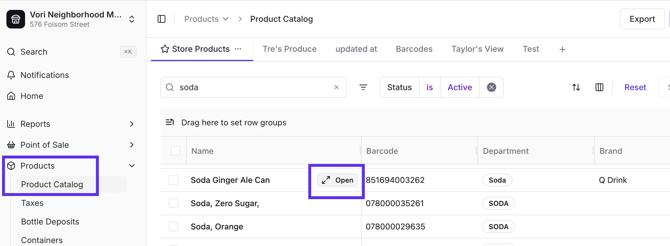
Select Products > Product Catalog from the left menu and locate the item.
-
Locate the product and open it by hovering over the product name.
-
Enter the price for a single unit.
-
(e.g., Enter $2.29/per can).
-
-
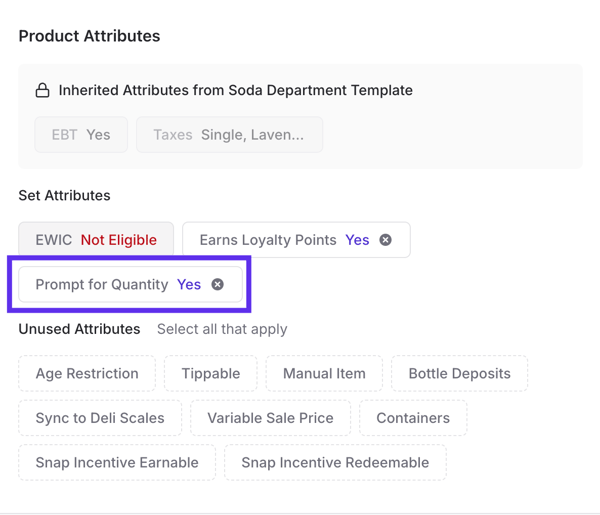
In the Product Attributes section, enable any applicable bottle deposit attributes and Prompt for Quantity.
- Tap Create Product.
-
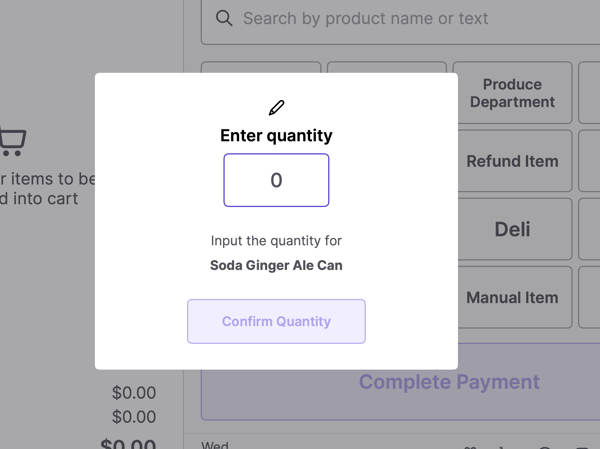
When this item is scanned at the POS, the system will prompt the cashier to enter the quantity sold (e.g., they will enter "6" for a full 6-pack).
Option 2: Variable Price Override
Best for: Items where the pack price fluctuates or isn't standard.
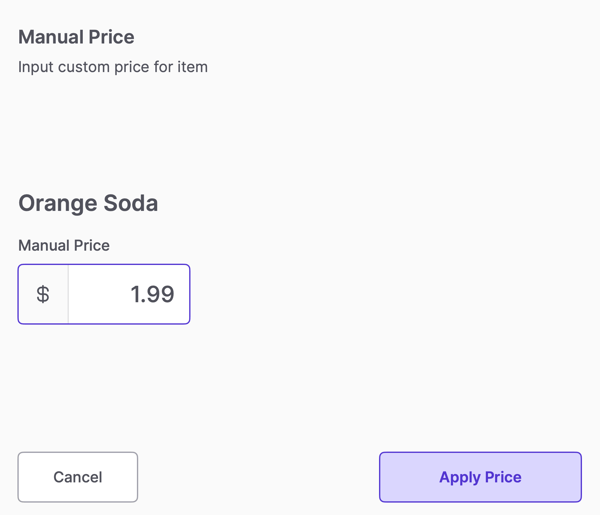
In this method, the system prompts the cashier to manually enter the total price for the item at the moment of scanning.
Set Up in Vori Back Office
-
Select Products > Product Catalog from the left menu and locate the item.
-
Locate the product and open it by hovering over the product name.
-
Change the Retail Price to $0.01 (the price will be adjusted manually at the POS).
-
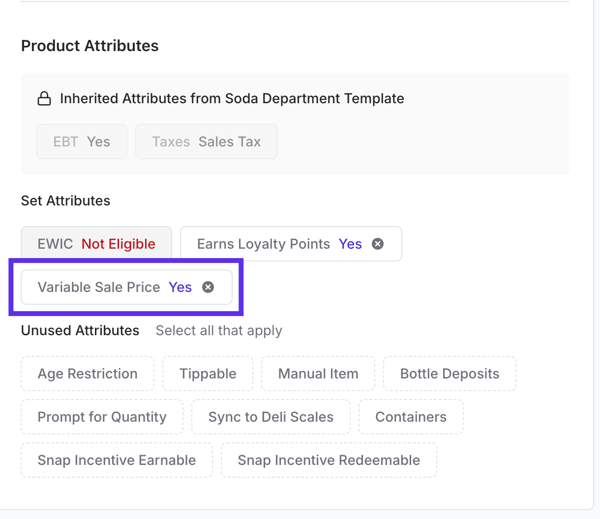
In the Product Attributes section, enable any applicable bottle deposit attributes Variable Price.
-
Tap Create Product.
- When this item is scanned at the POS, the system will prompt the cashier to enter the correct price manually at the moment of sale.
Option 3: Separate PLU
Best for: Accurate inventory tracking of singles vs. packs.
In this method, you use the main barcode for the multi-pack and a manual code (PLU) for the single unit.
How to Configure in the Back Office
-
Main Product: Set up the scanned barcode as the multi-pack (e.g., the 6-pack price).
-
Second Product: Create a separate product for the single unit.
-
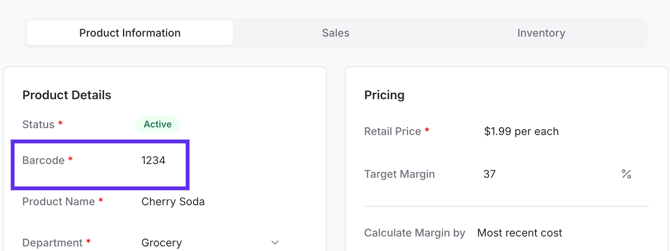
Assign PLU: Give the single unit a short PLU (e.g, 1234) instead of a barcode.
-
-
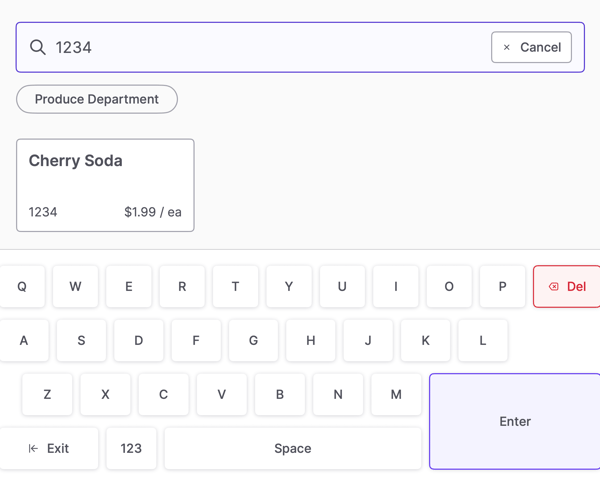
At Register: The cashier scans the pack for the full price or types 1234 to sell the single unit.
Troubleshooting
Quantity prompt not appearing at the register? Go to Vori Back Office and confirm the Prompt for Quantity toggle is active for that specific product.
Price calculation issues for multi-packs? Verify that your pricing is set per unit and that bottle deposits are configured correctly.