![vori-logo-black-horizontal-01 (1).png]](https://help.vori.com/hs-fs/hubfs/vori-logo-black-horizontal-01%20(1).png?height=42&name=vori-logo-black-horizontal-01%20(1).png)
While you can manage vendors directly from a product page, Vori also provides a dedicated Vendor Products view. This is your command center for searching your entire supplier database and auditing your costs in bulk.
Table of Contents
Accessing the Vendor Products Catalog
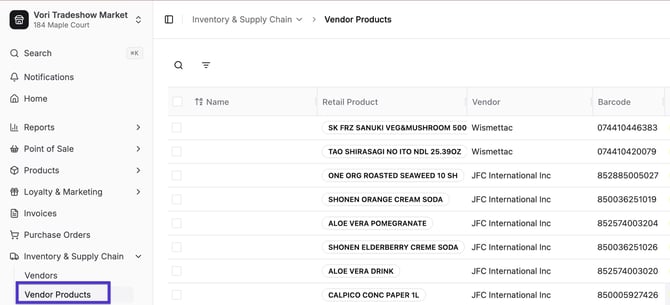
Vendor products have their own dedicated page, under Inventory & Supply Chain.
On this page, you can:
-
Search by vendor item codes or product names.
-
Filter to quickly find specific products.
-
Open a product record to review or update details.
Search by Vendor Item Code
When you are reviewing a paper invoice, you often only have the Vendor Item Code for an item (e.g., 57447), not the store's barcode. You can use the Vendor Products page to quickly identify which product that code belongs to.
-
Navigate to Inventory & Supply Chain > Vendor Products.
-
Click the Filters icon (or the search bar).
-
Select Item Code from the dropdown options.
-
Enter the code from your invoice.
This will isolate the specific vendor listing so you can check the cost or cost date immediately.
Filter for Data Issues
To keep your margins accurate, your data needs to be clean. The Vendor Products page offers "Smart Filters" to help you find problems before they affect your pricing.
At the top of the Vendor Products page, look for the quick filter buttons:

-
Missing Cost: Shows all vendor links that have a missing cost. These items may be falsely skewing your margins.
-
Has Duplicate Barcode: Identifies where the same barcode is attached to multiple vendor product records. This often happens if an item was added manually when it already existed.
-
Has Duplicate Item Code: Flags when a specific vendor item code appears more than once. This helps you merge duplicate entries so your order guides don't list the same item twice.
-
Has Duplicate Vendor Product: Detects exact matches where the same vendor-product combination is listed twice. Removing these prevents confusion during ordering.
-
Has Missing Case Size: Highlights items where the pack size is undefined. Without a case size, Vori cannot calculate a correct unit cost or margin.
➡️ Next Steps: For detailed steps and best practices, see the Merging Duplicate Vendors and Products guide.
Edit or Unlink Vendor Products
You can update supplier details or fix incorrect connections directly from the catalog list.
To Edit Vendor Details:
- Hover over the Description column in the Vendor Product list and click Open to view the product details.
-
Update vendor product details, including Barcode, Description, Cost, Case Size, or Item Code, by making edits in the fields.
-
Changes are saved automatically.

To Navigate to the Retail Product
Sometimes you need to jump from the vendor's data to the main store product.
-
Hover over the Description column in the Vendor Product list and click Open to view the product details.
-
Scroll to the Retail Product card.
-
Select the curved arrow icon to open the item in a new browser tab, rather than the current view.

This will take you directly to the main Product Details page for that item.
💡 Tip: You can also hover over the Retail Product name and click the curved arrow icon to open the item in a new browser tab instead of the current view.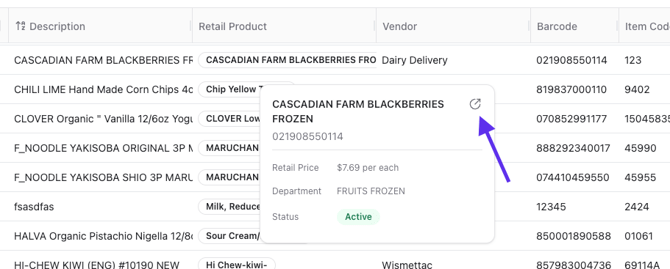
To Unlink the Retail Product
If a vendor item is connected to the wrong store product, you can break the link here.
-
Hover over the product row in the Vendor Products catalog and click Open.
-
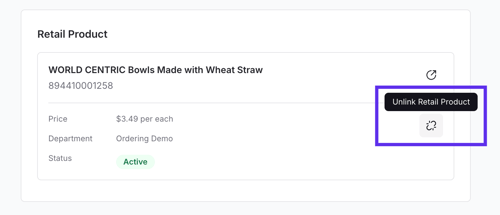
Scroll down to the Retail Product card.
-
Click the Unlink (broken chain) icon to separate the vendor item from the store product.
➡️ Next Steps: For detailed steps to import Vendor Products, see the How to Format & Upload Vendor Products guide.