![vori-logo-black-horizontal-01 (1).png]](https://help.vori.com/hs-fs/hubfs/vori-logo-black-horizontal-01%20(1).png?height=42&name=vori-logo-black-horizontal-01%20(1).png)
Your Point of Sale (POS) relies on a constant connection to sync data in two directions: downloading new product info (like price changes, new products) from the Back Office and uploading transaction data (sales) from the store.
If changes made in the Back Office aren't showing up on the register, or if sales aren't appearing in your reports, the lane may be experiencing a sync delay.
Table of Contents
Expected Sync Times
Under normal network conditions, data syncs automatically.
-
Product Updates: Changes made in the Back Office (new items, price changes) typically appear on the POS within 1–5 minutes.
-
Sales Data: Transactions sync to the Back Office in near real-time.
If the data is not appearing after 5 minutes, proceed to the steps below.
💡Tip: Which screen should I use? Perform these steps on the POS Cashier Screen (the large monitor facing the employee that shows the product buttons). 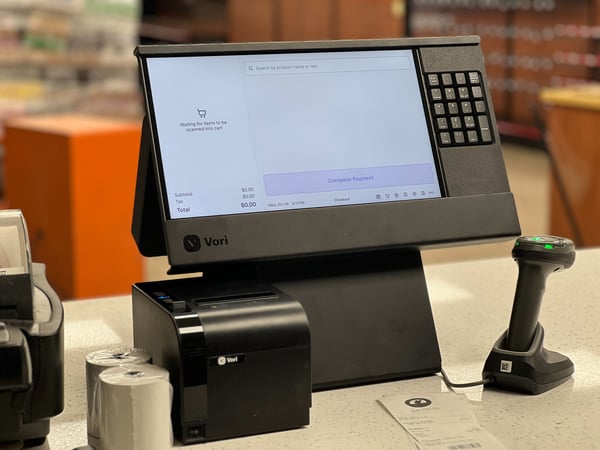
Check Data Sync Timestamps
You can verify exactly when a lane last synced different types of data by checking the status directly on the register.
-
Go to the specific POS lane.
-
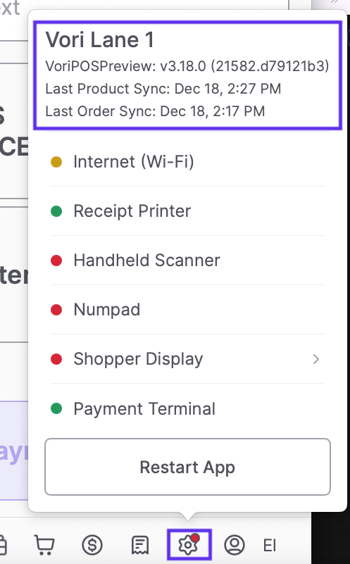
Tap the Gear icon in the bottom right corner of the POS Cashier Screen.
-
Locate the timestamps at the top of the settings window. You will see two key status lines:
-
Last Product Sync: Shows when the lane last downloaded item updates (prices, new products).
-
Last Order Sync: Shows when the lane last uploaded sales transactions.
-
-
Compare the time displayed to the current time.
-
Last Order Sync: Should be close to the current time if the store is processing sales.
- Last Product Sync: May show an older time. This is normal if you haven't made recent changes in the Back Office.
-
The Last Product Sync timestamp only updates when there are actual changes to download (e.g., price updates or new items). If you haven't updated products recently, an older timestamp here does not indicate an error.
-
-
-
Check the Internet Status indicator in the same window.
-
Green: The internet connection is active.
-
Red: The internet connection is down.
-
✏️ Note: If the internet status is Red, the lane is in "Offline Mode." It will store data locally and sync automatically once the connection is restored.
Force a Data Sync
If the internet status is Green but your Last Order Sync is old (or you just updated products but the Last Product Sync hasn't changed), the app may need a restart.
-
Restart the Vori POS app by tapping the Gear icon in the bottom right corner and selecting Restart App.

-
Re-open the app.
-
Wait 1-2 minutes for the system to reconnect.
-
Tap the Gear icon again.
-
Verify the Last Product Sync and Last Order Sync timestamps now show the current time.
Troubleshooting
If the sync timestamps do not update after a restart, review the connection status.
What if the internet status is Red? The lane cannot sync data without an internet connection.
-
Check the iPad's Wi-Fi settings.
-
Restart your modem or router.
-
Contact your Internet Service Provider (ISP) if the outage is store-wide.
What if the timestamps remain stuck? If you have restarted the app and confirmed a strong internet connection, but the data still fails to sync:
-
Contact Vori Support.
-
Provide the specific Last Product Sync or Last Order Sync timestamp displayed on the lane to help the team investigate.