> ## Documentation Index
> Fetch the complete documentation index at: https://help.vori.com/llms.txt
> Use this file to discover all available pages before exploring further.
# Track the Complete Lifecycle of Customer Transactions
> Learn how to gain detailed visibility into the full history of every customer transaction, including voids, refunds, and suspensions.
✏️ \*\*Note:\*\*This article describes features in the New Back Office ([app.vori.com](http://app.vori.com/)). For instructions on accessing it, view our guide: [Access the New Back Office.](/vori-setup-and-troubleshooting/access-the-new-vori-back-office)
### **Navigate to the New Transactions Page**
The new **Transactions** page provides a unified view of your Point of Sale (POS) activity, helping you monitor key transaction events like voids and refunds.
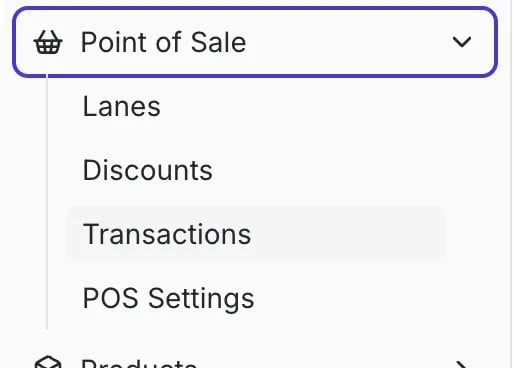
1. From the New Vori Back Office menu on the left, navigate to **Point of Sale**.
2. Click **Transactions** under the **Point of Sale** section.
 ***
### **Understand the Transactions Table**
The Transactions page table gives you an overview of every transaction at your store. You can customize the view by adjusting columns, applying filters, and sorting.
***
### **Understand the Transactions Table**
The Transactions page table gives you an overview of every transaction at your store. You can customize the view by adjusting columns, applying filters, and sorting.
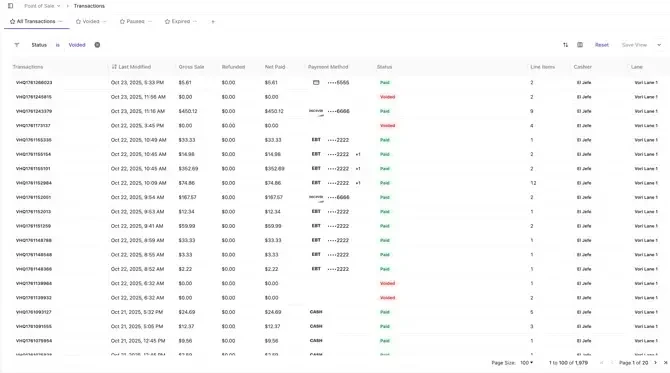 The table includes the following columns:
| **Column Name** | **Description** |
| ------------------ | ------------------------------------------------------------------------------------------------------------------------- |
| **Transactions** | The unique identifier for the transaction. |
| **Last Modified** | The date and time the transaction status was last updated *(e.g., paid, voided, or refunded).* |
| **Gross Sale** | The original total amount of the sale before any refunds or voids. |
| **Refunded** | The total dollar amount of line items or the entire transaction that was refunded. |
| **Net Paid** | The final dollar amount paid by the shopper, net of refunds. |
| **Payment Method** | The method of payment used (e.g., **CASH**, **EBT**, **House Account**, etc.). |
| **Status** | The current state of the transaction (e.g., **Paid**, **Voided**, **Paused**, **Partially Refunded, Refunded, Expired**). |
| **Line Items** | The total number of unique products in the transaction. |
| **Cashier** | The staff member who processed the transaction. |
| **Lane** | The register used for the transaction. |
***
### **Filtering and Saving Views**
To focus on transactions of interest, you can easily filter the table, by clicking the filter icon next to the column headers.
The table includes the following columns:
| **Column Name** | **Description** |
| ------------------ | ------------------------------------------------------------------------------------------------------------------------- |
| **Transactions** | The unique identifier for the transaction. |
| **Last Modified** | The date and time the transaction status was last updated *(e.g., paid, voided, or refunded).* |
| **Gross Sale** | The original total amount of the sale before any refunds or voids. |
| **Refunded** | The total dollar amount of line items or the entire transaction that was refunded. |
| **Net Paid** | The final dollar amount paid by the shopper, net of refunds. |
| **Payment Method** | The method of payment used (e.g., **CASH**, **EBT**, **House Account**, etc.). |
| **Status** | The current state of the transaction (e.g., **Paid**, **Voided**, **Paused**, **Partially Refunded, Refunded, Expired**). |
| **Line Items** | The total number of unique products in the transaction. |
| **Cashier** | The staff member who processed the transaction. |
| **Lane** | The register used for the transaction. |
***
### **Filtering and Saving Views**
To focus on transactions of interest, you can easily filter the table, by clicking the filter icon next to the column headers.
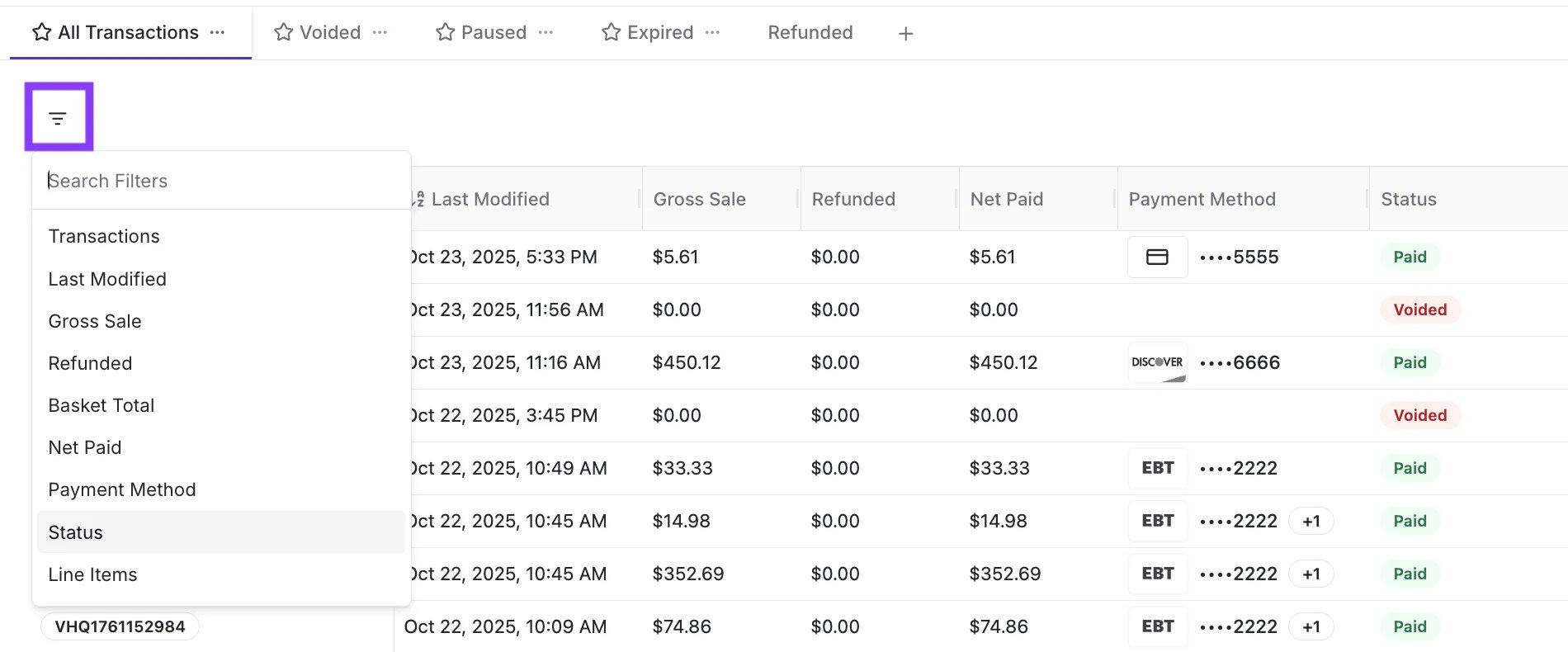 Once you've applied filters, you can **Save View** to quickly access these filters later.
1. After applying your filters, click **Save View** in the top right corner.
2. Click **Save as New View**.
Once you've applied filters, you can **Save View** to quickly access these filters later.
1. After applying your filters, click **Save View** in the top right corner.
2. Click **Save as New View**.
 3. Enter a descriptive title (e.g., **Refunded** or **Cashier El Jefe Voids**).\\
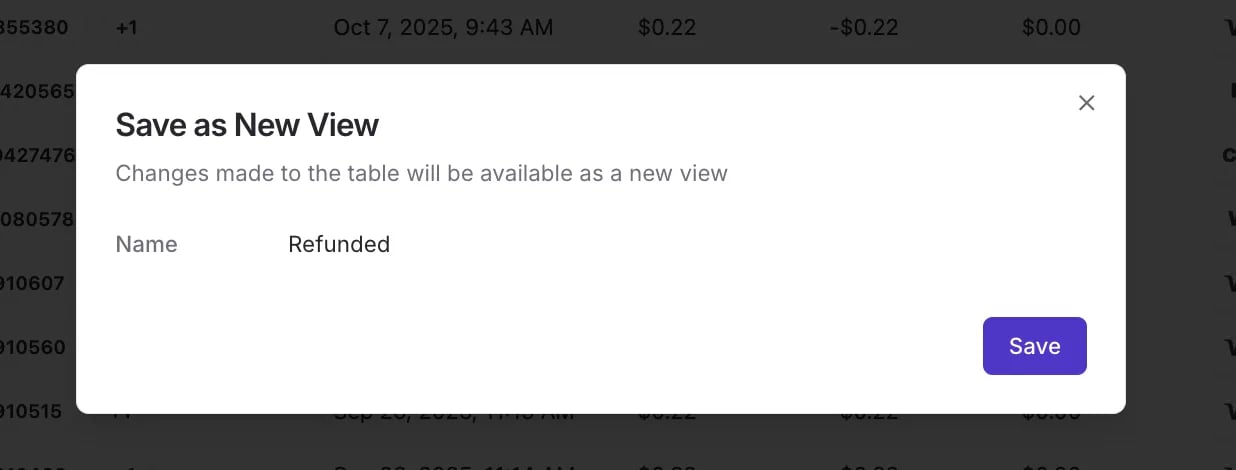 4. Click **Save**. Your new view will appear as a selectable tab at the top of the table.
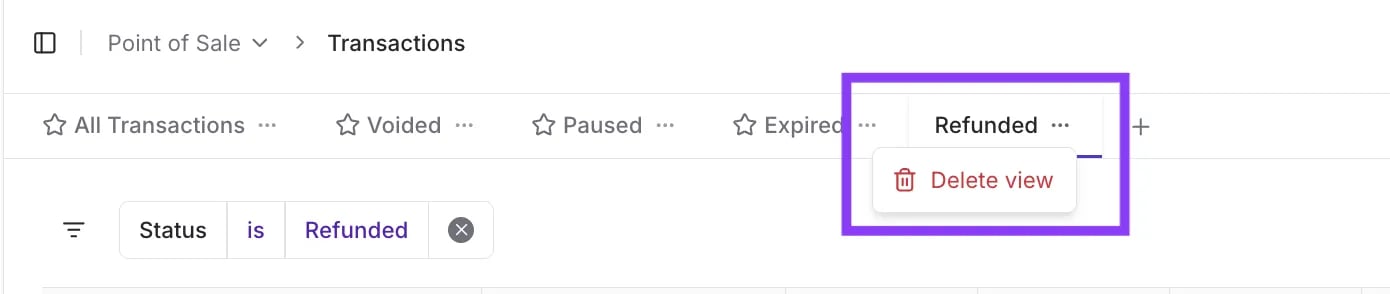
 **To Delete a Saved View:**
1. Click the three dots **(...)** next to the saved view you wish to remove (e.g., the **Refunded** tab).
2. Click **Delete view**.
**To Delete a Saved View:**
1. Click the three dots **(...)** next to the saved view you wish to remove (e.g., the **Refunded** tab).
2. Click **Delete view**.
 ***
### **Inspect Transaction Details**
You can click **Open** on any transaction in the table to view its complete, detailed history. This is key to inspecting for suspicious activity or understanding a specific order’s journey.
***
### **Inspect Transaction Details**
You can click **Open** on any transaction in the table to view its complete, detailed history. This is key to inspecting for suspicious activity or understanding a specific order’s journey.
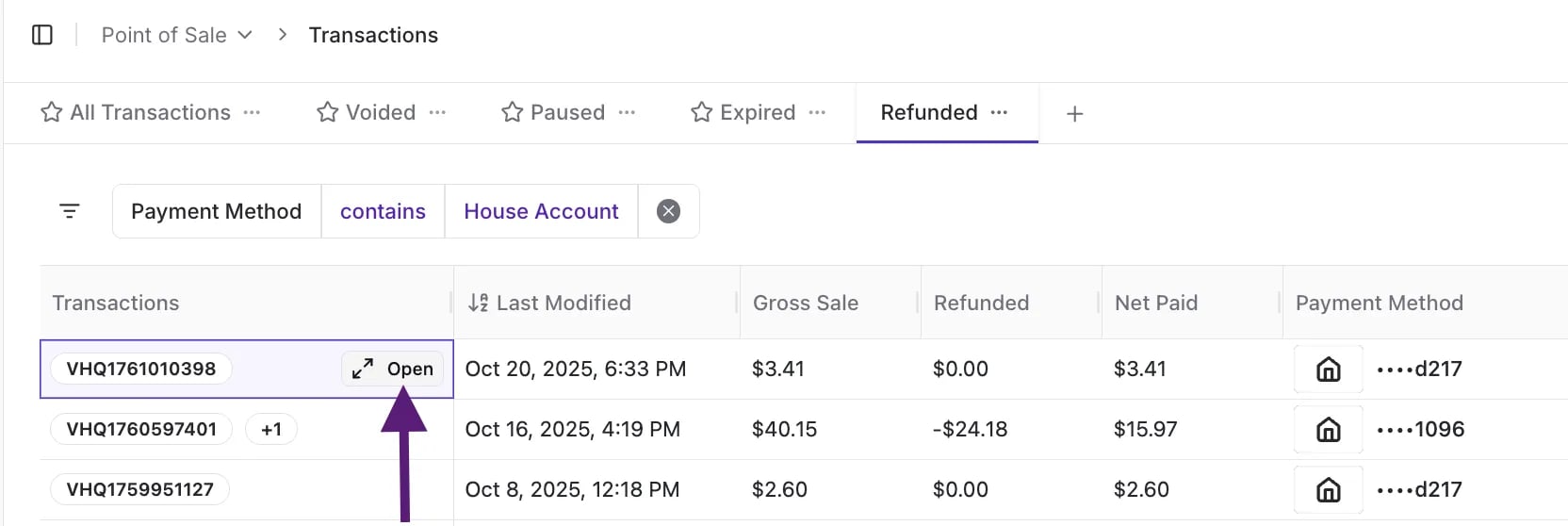 The detail page is broken down into four sections:
#### Transaction Summary
This section provides an overview of the transaction’s final state, including:
* **Status**
* **Net Paid** amount
* **Cashier** and **Register**
* **Payment Method** (e.g., **House Account** \*\*\*\*1998)
* **Last Modified**
* **Shopper and Loyalty Details**
#### Screenshot 2025-10-24 at 11.28.20 AM
#### Transaction Details
This section breaks down the total transaction cost:
* **Retail Total:** The sum of all item prices.
* \*\*Taxes:\*\*Taxes charged.
* **Modifiers:** Details about the Bottle Deposits or CRVs charged.
* **Coupons/Discounts/Promotions:** Details around coupons, discounts, or promotions applied to the transaction.
* **Refunds:** Amount if any refunds were made.
* **Total:** The final amount.
#### Screenshot 2025-10-24 at 11.28.47 AM
#### Transaction History
This chronological log tracks all major events in the transaction's lifecycle, creating a transparent, auditable trail.
* You will see when the **Transaction Started**, when it was **Paid**, and when any **Refunded** or **Voided** actions occurred, including the staff member and time for each event.
The detail page is broken down into four sections:
#### Transaction Summary
This section provides an overview of the transaction’s final state, including:
* **Status**
* **Net Paid** amount
* **Cashier** and **Register**
* **Payment Method** (e.g., **House Account** \*\*\*\*1998)
* **Last Modified**
* **Shopper and Loyalty Details**
#### Screenshot 2025-10-24 at 11.28.20 AM
#### Transaction Details
This section breaks down the total transaction cost:
* **Retail Total:** The sum of all item prices.
* \*\*Taxes:\*\*Taxes charged.
* **Modifiers:** Details about the Bottle Deposits or CRVs charged.
* **Coupons/Discounts/Promotions:** Details around coupons, discounts, or promotions applied to the transaction.
* **Refunds:** Amount if any refunds were made.
* **Total:** The final amount.
#### Screenshot 2025-10-24 at 11.28.47 AM
#### Transaction History
This chronological log tracks all major events in the transaction's lifecycle, creating a transparent, auditable trail.
* You will see when the **Transaction Started**, when it was **Paid**, and when any **Refunded** or **Voided** actions occurred, including the staff member and time for each event.
 #### Line Items
This table details the products involved in the transaction, including:
* **Quantity (Qty)**
* **Name** and **Barcode**
* The **Added At** column indicates the exact date and time the item was added (or removed/voided) from the transaction.
* **Price**, Discounts, **Taxes**, Modifiers, Total, Coupons, Earned Punches, Loyalty Rewards, Modifier Taxes, Promotions, WIC Adjustments and **Status**
#### Screenshot 2025-10-24 at 11.28.55 AM
By surfacing this outlier data (such as high numbers of voids or suspended transactions), you can quickly inspect individual transactions and look at cashiers side-by-side to ensure compliance and prevent theft.
***
### How to Provide Printed POS Order Information for Older Transactions
You can use your web browser's functionality to provide a physical copy of an order's details.
1. Open the specific transaction details page (using the **Open** button in the main table).
2. Use the web browser's print feature (**Ctrl + P** on PC or **Cmd + P** on Mac) to print a view of the Order's current state.
## Related topics
- [Frequently Asked Questions](/faqs.md)
- [A Better Vori Experience: From Back Office to the POS](/whats-new-in-vori/feature-releases/a-better-vori-experience-from-back-office-to-the-pos.md)
- [Review Transaction Volume Over Time](/reporting/sales-and-product-performance/review-transaction-volume-over-time.md)
#### Line Items
This table details the products involved in the transaction, including:
* **Quantity (Qty)**
* **Name** and **Barcode**
* The **Added At** column indicates the exact date and time the item was added (or removed/voided) from the transaction.
* **Price**, Discounts, **Taxes**, Modifiers, Total, Coupons, Earned Punches, Loyalty Rewards, Modifier Taxes, Promotions, WIC Adjustments and **Status**
#### Screenshot 2025-10-24 at 11.28.55 AM
By surfacing this outlier data (such as high numbers of voids or suspended transactions), you can quickly inspect individual transactions and look at cashiers side-by-side to ensure compliance and prevent theft.
***
### How to Provide Printed POS Order Information for Older Transactions
You can use your web browser's functionality to provide a physical copy of an order's details.
1. Open the specific transaction details page (using the **Open** button in the main table).
2. Use the web browser's print feature (**Ctrl + P** on PC or **Cmd + P** on Mac) to print a view of the Order's current state.
## Related topics
- [Frequently Asked Questions](/faqs.md)
- [A Better Vori Experience: From Back Office to the POS](/whats-new-in-vori/feature-releases/a-better-vori-experience-from-back-office-to-the-pos.md)
- [Review Transaction Volume Over Time](/reporting/sales-and-product-performance/review-transaction-volume-over-time.md)