> ## Documentation Index
> Fetch the complete documentation index at: https://help.vori.com/llms.txt
> Use this file to discover all available pages before exploring further.
# Review Transaction Volume Over Time
> Spot traffic patterns and understand when your store is busiest.
### Navigate to Sales Overview
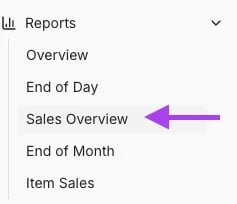
1. Go to **Reports**, and select **Sales Overview** from the drop-down.
 2. Choose the desired date range\\
 3. Scroll to the bottom of the page, view \*\*Transactions.\*\*You can see total transaction count per day, day of week, and by hour.
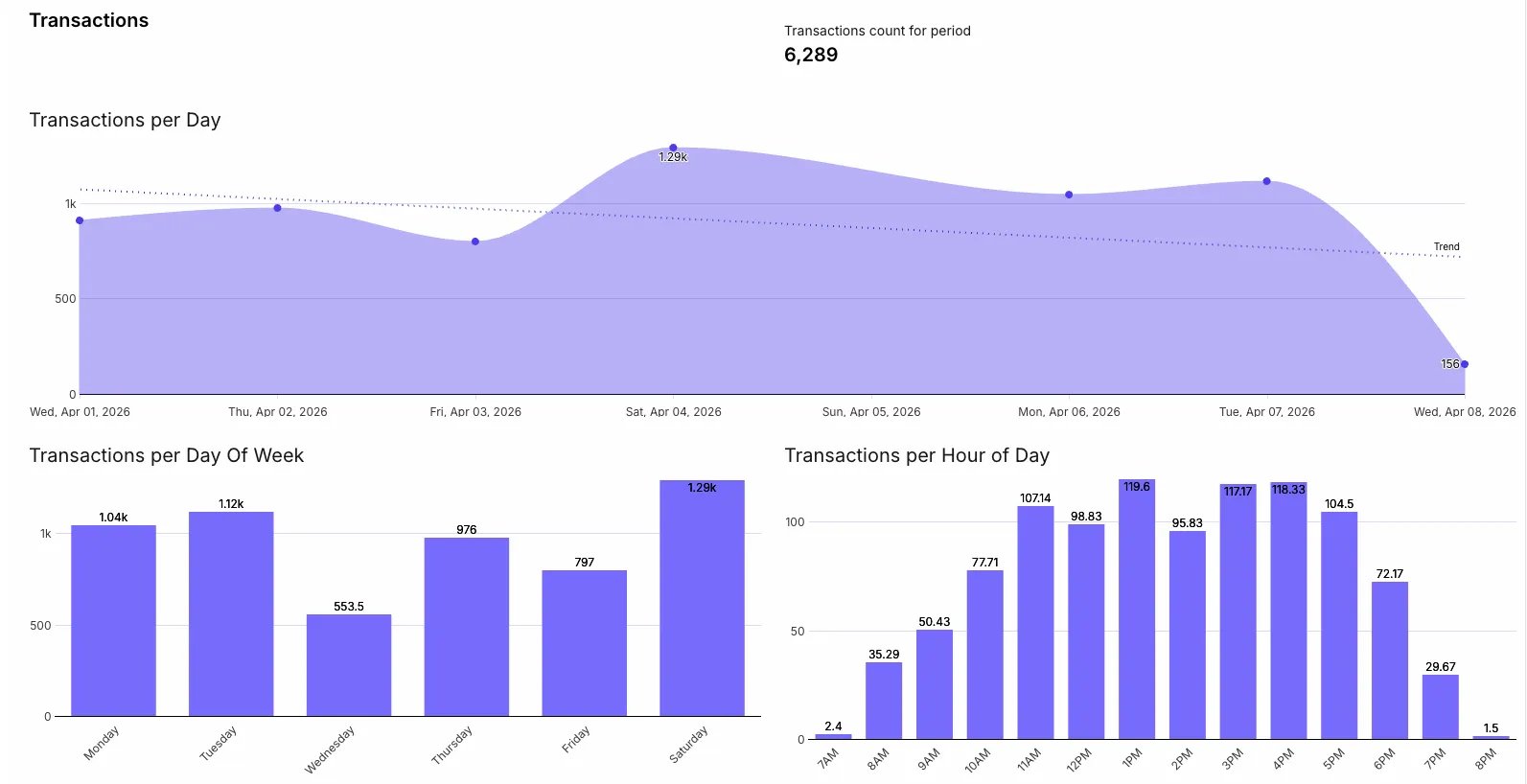 💡**Tip:** Review transactions by day and hour to plan staffing and keep checkout running smoothly. This also helps track customer count.
## Related topics
- [Review and Print the Till Report](/reporting/daily-and-shift-reports/review-and-print-the-till-report.md)
- [Bulk Merge Duplicate Vendor Products](/vendors-and-vendor-products/vendor-products/bulk-merge-duplicate-vendor-products.md)
- [How to review Campaigns reporting](/reporting/inventory-and-purchase-reports/how-to-review-campaigns-reporting.md)
💡**Tip:** Review transactions by day and hour to plan staffing and keep checkout running smoothly. This also helps track customer count.
## Related topics
- [Review and Print the Till Report](/reporting/daily-and-shift-reports/review-and-print-the-till-report.md)
- [Bulk Merge Duplicate Vendor Products](/vendors-and-vendor-products/vendor-products/bulk-merge-duplicate-vendor-products.md)
- [How to review Campaigns reporting](/reporting/inventory-and-purchase-reports/how-to-review-campaigns-reporting.md)