> ## Documentation Index
> Fetch the complete documentation index at: https://help.vori.com/llms.txt
> Use this file to discover all available pages before exploring further.
# How to view Purchase Orders in Reporting
> This article explains how to view and analyze purchase orders placed through the VoriOS Ordering App using the Reporting page in Back Office.
### Introduction
Tracking purchase orders is an essential part of managing inventory and vendor relationships. The Purchase Orders section in Vori’s Reporting page provides an interactive way to monitor submitted orders by vendor, date range, and order volume.
***
### **Navigating to Purchase Orders**
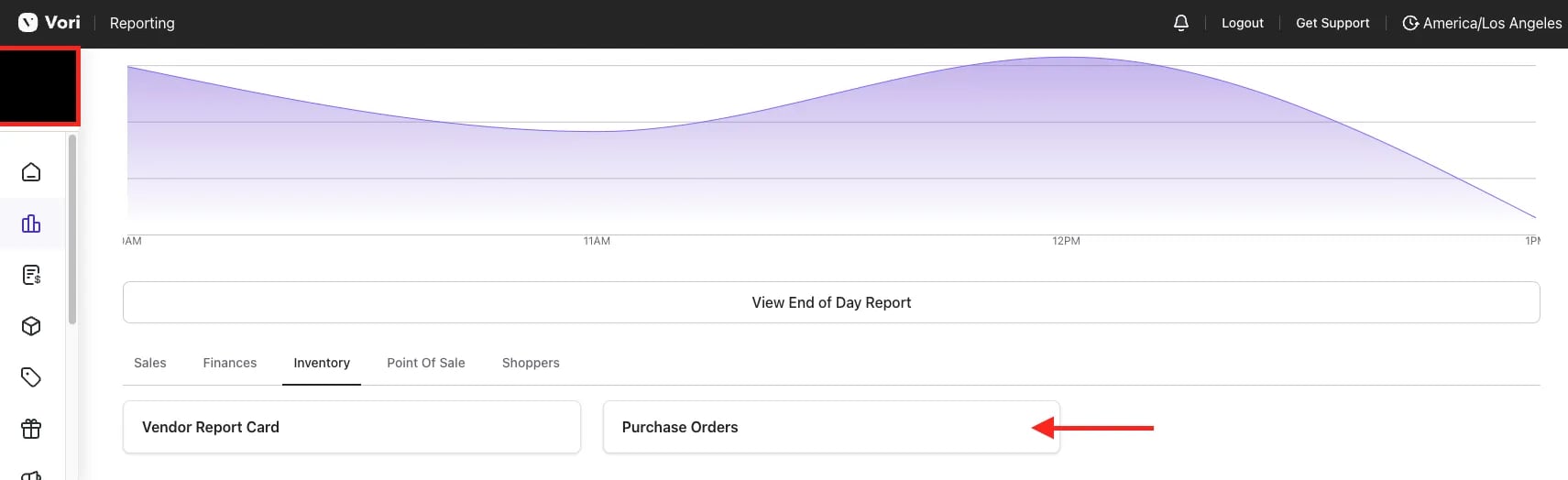
To get started, click on Reports, then Overview, select the Inventory tab, and select **`Purchase Orders`.**
 ***
### Overview
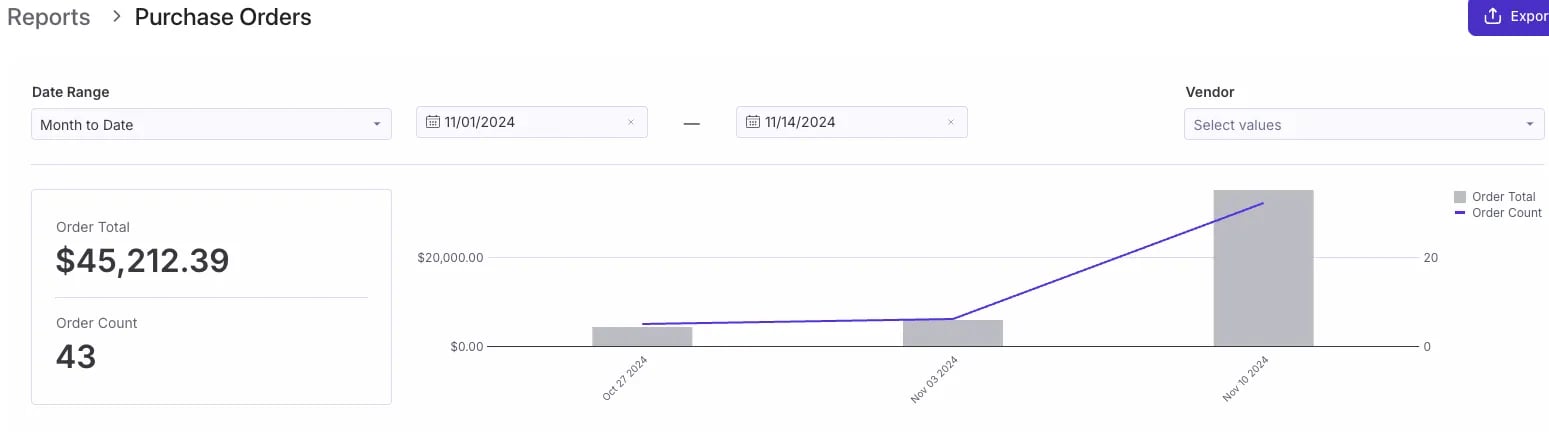
Use filters to narrow down results by **date range** and **vendor**, and view the **Order Total** and **Order Count** in both numerical and chart formats for easy analysis.
***
### Overview
Use filters to narrow down results by **date range** and **vendor**, and view the **Order Total** and **Order Count** in both numerical and chart formats for easy analysis.
 ***
### Purchase Orders
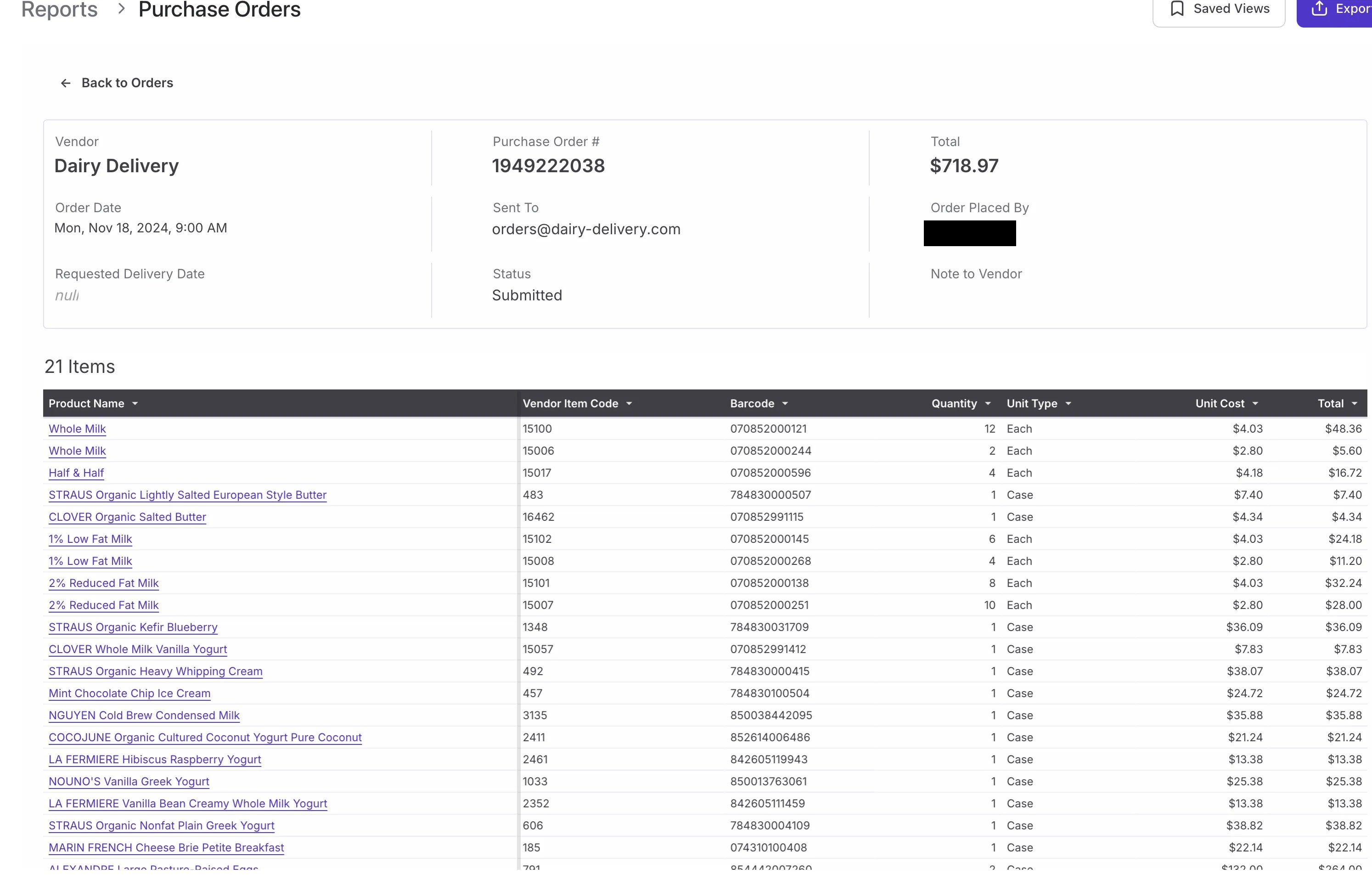
This section displays all submitted Purchase Orders, sorted by the most recent orders.
Selecting a purchase order opens a detailed summary, including:
* Line items
* Vendor codes
* Barcodes
* Quantities
* Unit costs
Selecting a **Product Name** opens the corresponding item on the **Products** page.
***
### Purchase Orders
This section displays all submitted Purchase Orders, sorted by the most recent orders.
Selecting a purchase order opens a detailed summary, including:
* Line items
* Vendor codes
* Barcodes
* Quantities
* Unit costs
Selecting a **Product Name** opens the corresponding item on the **Products** page.
 ***
### Additional Notes:
* Reports can be exported via PDF and [scheduled for export](/reporting/tax-and-financial-reports/how-to-schedule-a-report-export).
*
***
### Additional Notes:
* Reports can be exported via PDF and [scheduled for export](/reporting/tax-and-financial-reports/how-to-schedule-a-report-export).
*  For more detailed data, click the three dots (**⋯**) in the top-right corner of a figure or chart to reveal **More actions**, then select **View underlying data** for a line-by-line view. Each row links to its transaction and product.
* To create a Saved View within this report, follow along with this guide [here.](/reporting/sales-and-product-performance/advanced-reporting-filtering-customizing-and-saving-report-views)
## Related topics
- [Frequently Asked Questions](/faqs.md)
- [How to review Campaigns reporting](/reporting/inventory-and-purchase-reports/how-to-review-campaigns-reporting.md)
- [How to view the Tipping Report](/reporting/daily-and-shift-reports/how-to-view-the-tipping-report.md)
For more detailed data, click the three dots (**⋯**) in the top-right corner of a figure or chart to reveal **More actions**, then select **View underlying data** for a line-by-line view. Each row links to its transaction and product.
* To create a Saved View within this report, follow along with this guide [here.](/reporting/sales-and-product-performance/advanced-reporting-filtering-customizing-and-saving-report-views)
## Related topics
- [Frequently Asked Questions](/faqs.md)
- [How to review Campaigns reporting](/reporting/inventory-and-purchase-reports/how-to-review-campaigns-reporting.md)
- [How to view the Tipping Report](/reporting/daily-and-shift-reports/how-to-view-the-tipping-report.md)