> ## Documentation Index
> Fetch the complete documentation index at: https://help.vori.com/llms.txt
> Use this file to discover all available pages before exploring further.
# Review end-of-shift cashier reporting
> Use reporting to review, filter, and print cashier reports by shift.
For stores with multiple cashiers and tills, review and print reports for each cashier to track payments and shift totals.
### Generate a Cashier Report Card
1. Go to Reports, Overview, select \*\*Point of Sale,\*\*then **Cashier Report Card.**
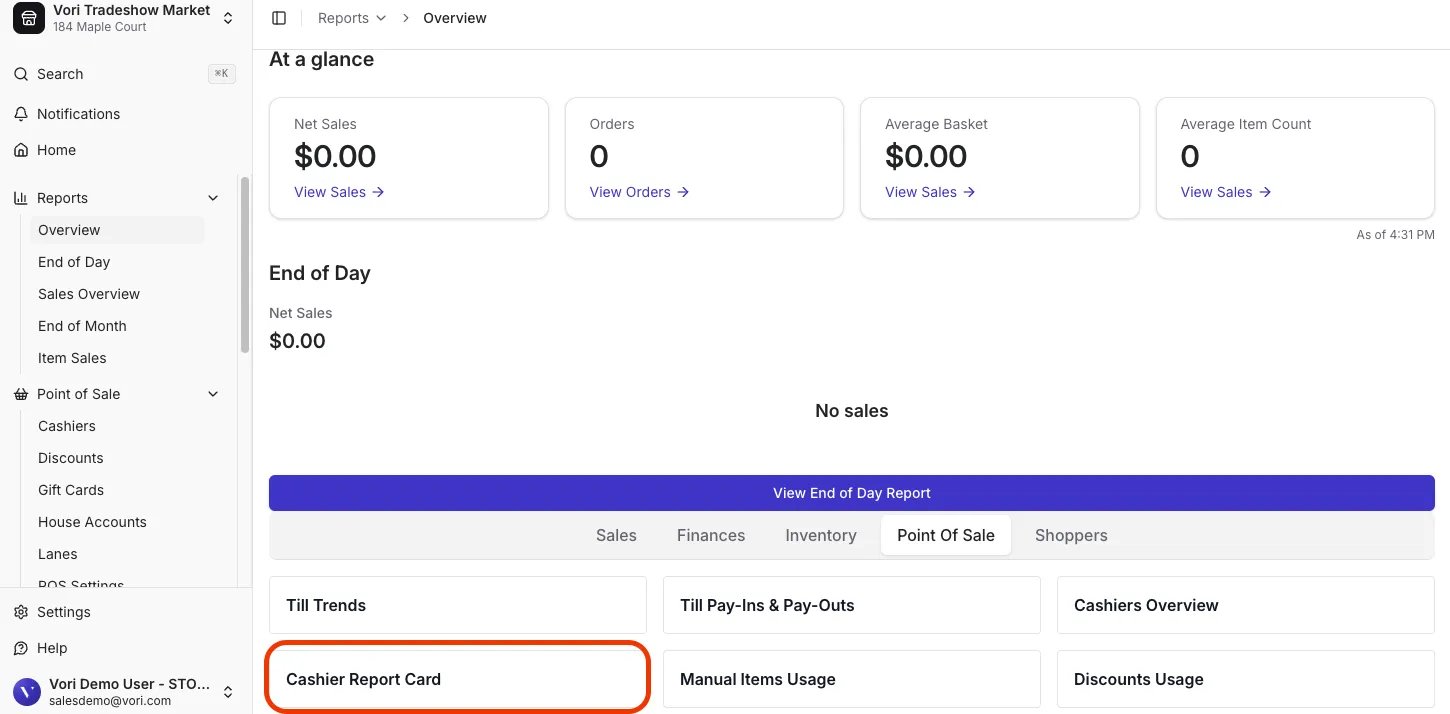 2. Filter by the desired **date range** and **cashier**, then allow time for the embedded charts to load.
 ***
### Export a Cashier Report Card
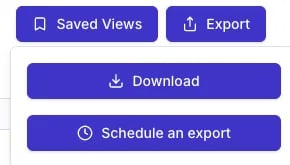
1. Click **Export** in the top right.
2. Select **Download.**
The report downloads as a PDF - you can open, share, or print it as needed.
***
### Export a Cashier Report Card
1. Click **Export** in the top right.
2. Select **Download.**
The report downloads as a PDF - you can open, share, or print it as needed.
 **💡 Tip:** To see the total cash to drop at the end of the shift, Scroll to Tills Summary, find **Net Cash**.
 ***
### Tips:
* **[Schedule exports](/reporting/tax-and-financial-reports/how-to-schedule-a-report-export)**: Set reports to run automatically for regular reviews.
* **[Saved Views](/reporting/sales-and-product-performance/advanced-reporting-filtering-customizing-and-saving-report-views)**: Save filtered reports for quicker access.
* View detailed insights: Click the three dots (**⋯**) in the top-right corner of any figure or chart to reveal **More actions**, then select **View underlying data** for a line-by-line breakdown. Each row links to its transaction and product.
***
### Tips:
* **[Schedule exports](/reporting/tax-and-financial-reports/how-to-schedule-a-report-export)**: Set reports to run automatically for regular reviews.
* **[Saved Views](/reporting/sales-and-product-performance/advanced-reporting-filtering-customizing-and-saving-report-views)**: Save filtered reports for quicker access.
* View detailed insights: Click the three dots (**⋯**) in the top-right corner of any figure or chart to reveal **More actions**, then select **View underlying data** for a line-by-line breakdown. Each row links to its transaction and product.
 ## Related topics
- [Review and Print the End of Day Report](/reporting/daily-and-shift-reports/review-and-print-the-end-of-day-report.md)
- [Using the POS as a Cashier](/point-of-sale-pos/basic-cashier-functions/using-the-pos-as-a-cashier.md)
- [Floating vs. Fixed Tills](/cashier-and-till-management/till-management/floating-vs-fixed-tills.md)
## Related topics
- [Review and Print the End of Day Report](/reporting/daily-and-shift-reports/review-and-print-the-end-of-day-report.md)
- [Using the POS as a Cashier](/point-of-sale-pos/basic-cashier-functions/using-the-pos-as-a-cashier.md)
- [Floating vs. Fixed Tills](/cashier-and-till-management/till-management/floating-vs-fixed-tills.md)