> ## Documentation Index
> Fetch the complete documentation index at: https://help.vori.com/llms.txt
> Use this file to discover all available pages before exploring further.
# Review and Print the Till Report
> Quickly access a breakdown of daily tills and cash drawer activity, whether you're at the POS or in the Back Office.
### Introduction
Get a detailed breakdown of till activity to track performance and reconcile cash. The Tills Report gives your store a complete summary of each till session. It includes sales data, payment details, and cash logs, making it easier to reconcile cash drawers and monitor cashier performance.
You can access the Till Report from two places:
* **Back Office:** For a high-level overview and to make adjustments to till counts.
* **POS:** For a detailed, printable report of a specific till session.
### Understanding Till Status and Differences
Before reviewing your reports, it helps to understand the key terms for till status and cash differences.
#### Understanding Till Status
A till's status refers to whether it has been closed. Tills can have one of two statuses:
* **Open:** A closing till amount has not yet been reported.
* **Closed:** A closing till amount has been reported for the till.
#### Understanding Till Differences
A till difference is the calculated cash variance between the **Expected Amount** and the **Actual Amount**. This dollar amount is shown in the **Difference** column of the report.
* **Expected Amount:** The automatically calculated till balance based on the starting amount, cash transactions, pay-ins, pay-outs, cash back, and cash refunds.
* **Actual Amount:** The amount of cash the cashier counts and reports when they close the till.
All tills will fall into one of three categories:
* **Till Under:** The **Actual Amount** is less than the **Expected Amount**. When this occurs, the difference will be displayed in red with parentheses.
* **Till Over:** The **Actual Amount** is more than the **Expected Amount**. When this occurs, the difference will be displayed in black.
* **Till Accurate:** The **Actual Amount** is equal to the **Expected Amount**. When this occurs, the till difference will be \$0.00 or empty.
***
### Till Report in the Back Office
#### View the Till Report:
You can view the Till Report directly from the Back Office:
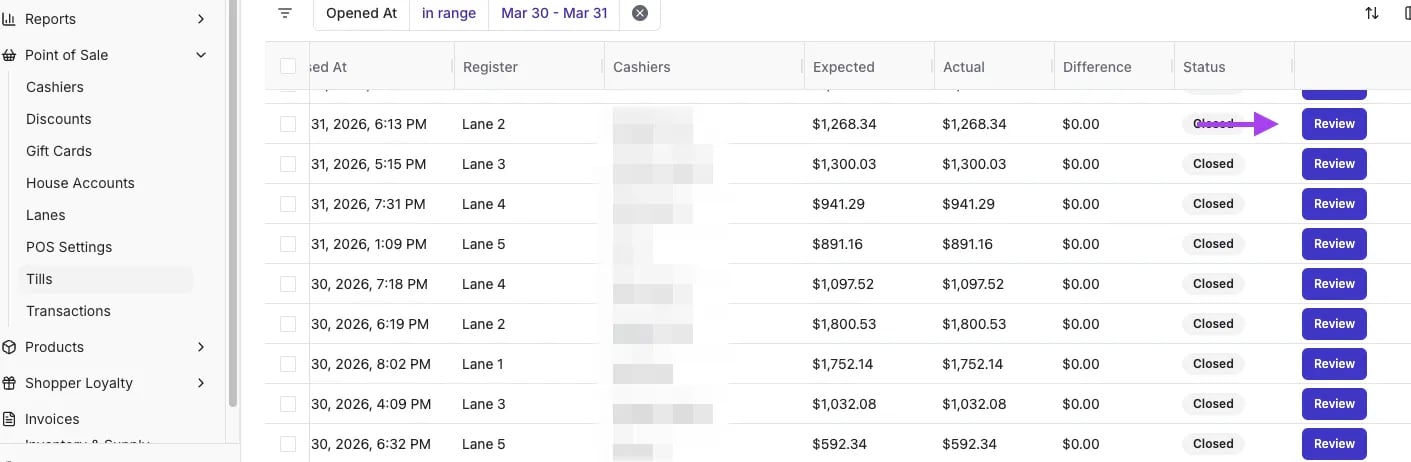
1. Navigate to **Point of Sale** in the left-hand menu.
2. Click **Tills**. This page displays all recent till sessions.
3. Use the **Date**, **Register**, or **Cashier** filters to find the session you want to review.
4. Click **Review**on the right side of any row to open the Till Summary panel.\\
 #### Adjust a Till Balance
Reviewing till balance helps identify any errors or discrepancies in cash handling or transaction entries. To adjust balance,
1. From the Till Summary panel, click **Adjust Till**.
2. In the **Starting Amount** or **Updated Count** field, enter the correct opening or closing cash amount.
3. Click **Confirm** to save the new balance.\\
#### Adjust a Till Balance
Reviewing till balance helps identify any errors or discrepancies in cash handling or transaction entries. To adjust balance,
1. From the Till Summary panel, click **Adjust Till**.
2. In the **Starting Amount** or **Updated Count** field, enter the correct opening or closing cash amount.
3. Click **Confirm** to save the new balance.\\
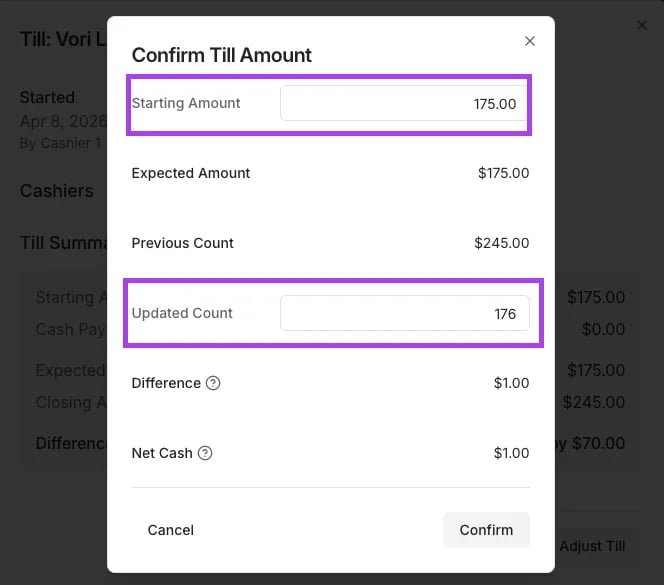 **✏️ Note:** In order to adjust a till balance, the till must be closed. If till is still open, there will only be an option to Review.
#### Print the Till Report in the Back Office
To download and print a PDF version of the tills:
* Use your browser's print function (e.g., Ctrl+P or Cmd+P) to save as a PDF or print it.
**✏️ Note:** The most detailed, pre-formatted report is available for printing directly from the POS register.
***
### Till Report at the POS
#### View the Till Report:
You can also generate the Till Report directly from the register.
###### If the Till is closed:
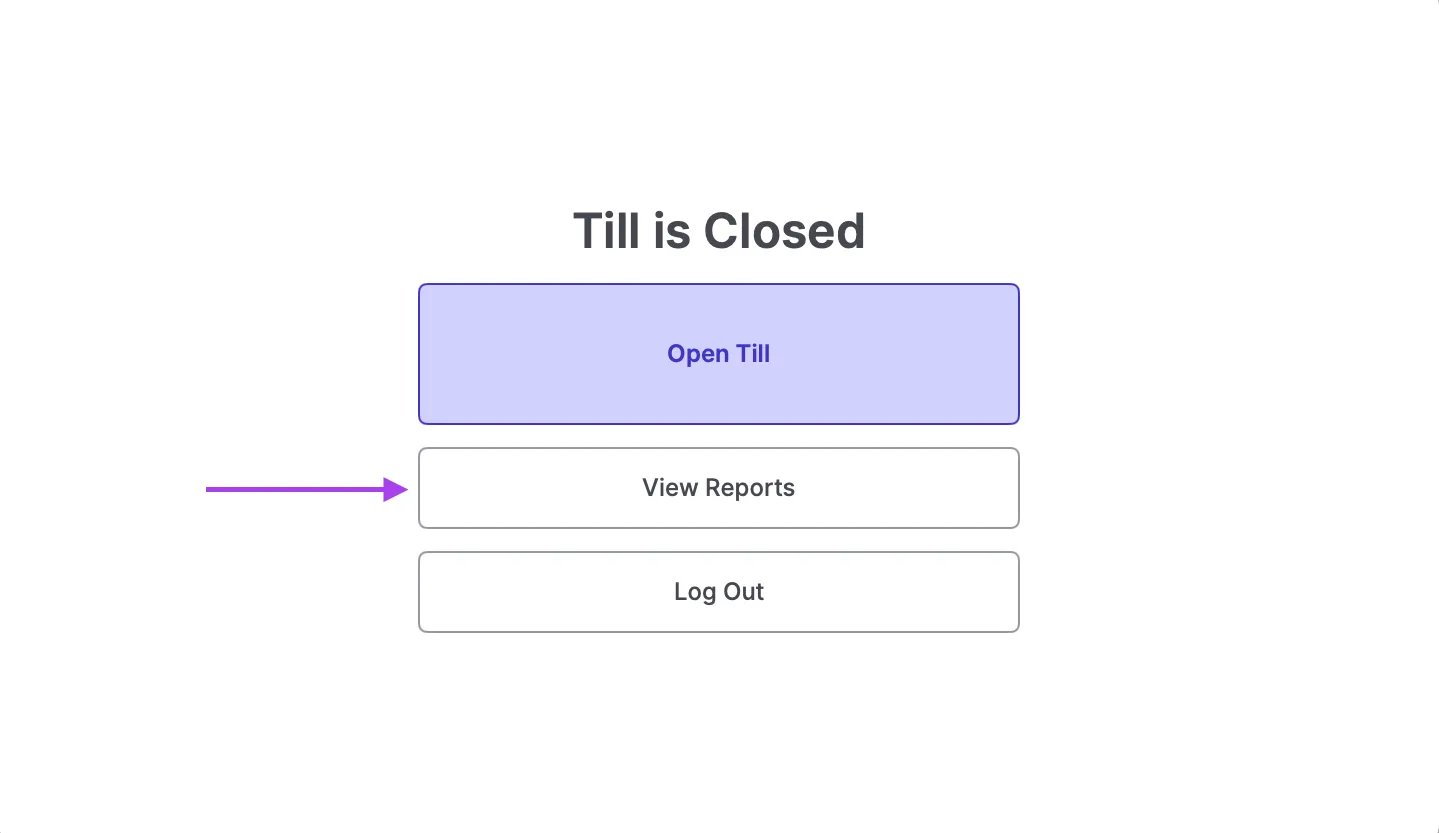
1. Log in to the POS as Manager
2. Tap **View Reports**.
3. Select Tills.\\
**✏️ Note:** In order to adjust a till balance, the till must be closed. If till is still open, there will only be an option to Review.
#### Print the Till Report in the Back Office
To download and print a PDF version of the tills:
* Use your browser's print function (e.g., Ctrl+P or Cmd+P) to save as a PDF or print it.
**✏️ Note:** The most detailed, pre-formatted report is available for printing directly from the POS register.
***
### Till Report at the POS
#### View the Till Report:
You can also generate the Till Report directly from the register.
###### If the Till is closed:
1. Log in to the POS as Manager
2. Tap **View Reports**.
3. Select Tills.\\
 4. Choose the desired report to review.
###### If the Till is open:
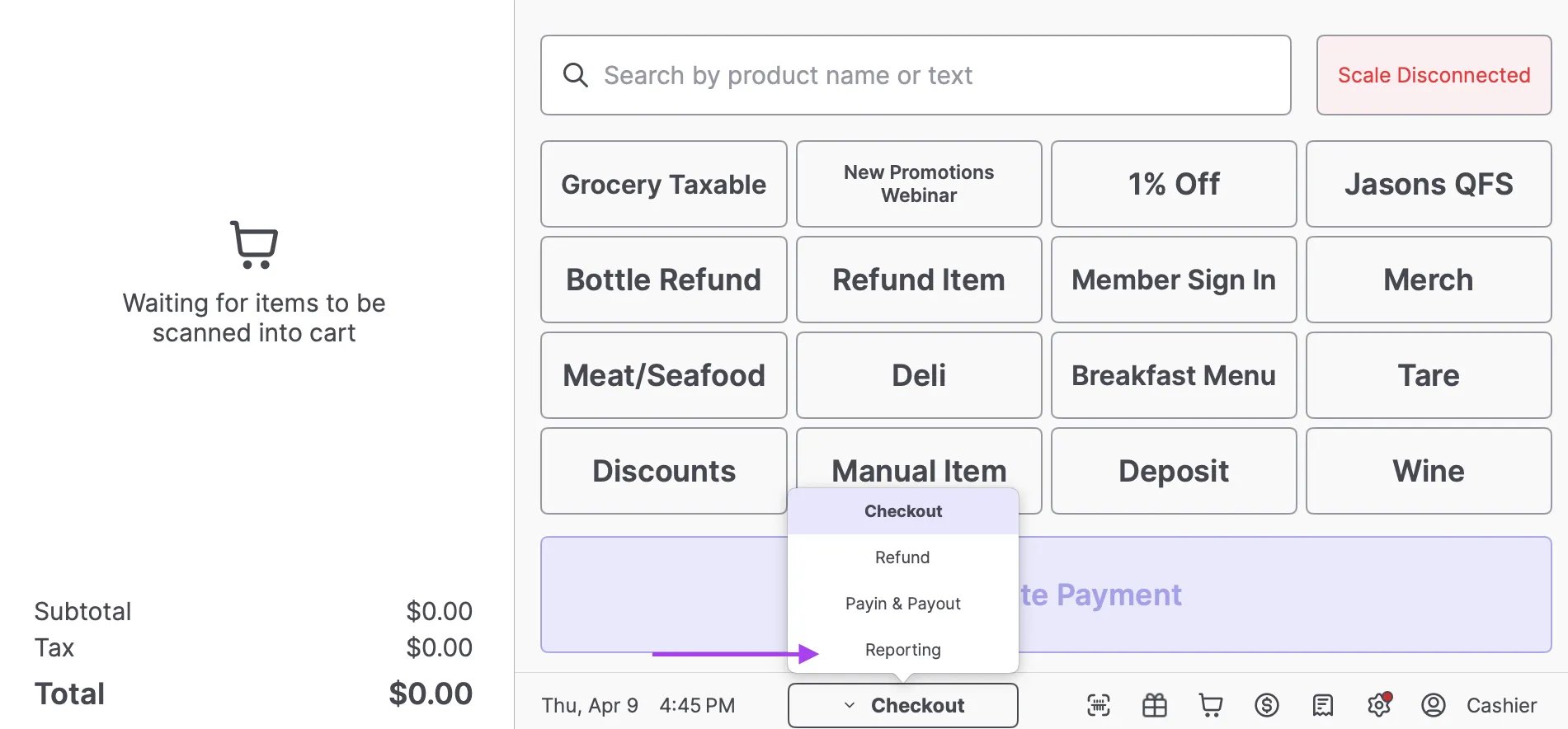
1. At the bottom of the POS, tap **Checkout**, then **Reporting**
2. Select Tills.\\
4. Choose the desired report to review.
###### If the Till is open:
1. At the bottom of the POS, tap **Checkout**, then **Reporting**
2. Select Tills.\\
 #### Printed Till Report from the POS
The report generated at the POS is the most comprehensive version available.
To print it:
1. Follow the steps above to generate the Till Report on the screen.
2. Tap **Print Report** at the bottom of the screen.
The printed Till Report includes the following sections:
* Net Sales, Order Total, Average Basket Size, Average Item Count
* Sales Summary
* Payments Summary
* Department Sales
## Related topics
- [Review and Print the End of Day Report](/reporting/daily-and-shift-reports/review-and-print-the-end-of-day-report.md)
- [Review end-of-shift cashier reporting](/reporting/daily-and-shift-reports/review-end-of-shift-cashier-reporting.md)
- [Process Cash Back at the POS](/point-of-sale-pos/basic-cashier-functions/process-cash-back-at-the-pos.md)
#### Printed Till Report from the POS
The report generated at the POS is the most comprehensive version available.
To print it:
1. Follow the steps above to generate the Till Report on the screen.
2. Tap **Print Report** at the bottom of the screen.
The printed Till Report includes the following sections:
* Net Sales, Order Total, Average Basket Size, Average Item Count
* Sales Summary
* Payments Summary
* Department Sales
## Related topics
- [Review and Print the End of Day Report](/reporting/daily-and-shift-reports/review-and-print-the-end-of-day-report.md)
- [Review end-of-shift cashier reporting](/reporting/daily-and-shift-reports/review-end-of-shift-cashier-reporting.md)
- [Process Cash Back at the POS](/point-of-sale-pos/basic-cashier-functions/process-cash-back-at-the-pos.md)