> ## Documentation Index
> Fetch the complete documentation index at: https://help.vori.com/llms.txt
> Use this file to discover all available pages before exploring further.
# Review and Print the End of Day Report
> Quickly access a breakdown of daily sales, payments, and tills, whether you're at the POS or in the Back Office
### Introduction
The End of Day Report gives your store a complete snapshot of daily performance. It includes sales totals, payment methods, and till activity, making it easier to maintain financial control and make data-informed decisions.
You can access the report from two places:
* **Back Office:** See a full summary with interactive charts and download a PDF version.
* **POS:** Generate a printed report from Reporting Mode at the register.
***
### End of Day Report in the Back Office
#### View the End of Day Report:
1. Go to the **Reports** tab in the Back Office.
2. Select **End of Day** from the left-hand menu.
3. A shaded line graph displays your store’s hourly net sales for the selected date. Hover over any point to see exact sales totals for that hour.
4. Scroll down to see detailed sections for sales, cash, department sales, till activity, and payments all in one place.
✏️ **Note:** The report defaults to today’s date. Tap the date in the top-left corner to view a different day.
#### Print the Report in the Back Office
To download and print a PDF version:
* Click **Print** in the top-right corner of the End of Day Report page.
 ***
### End of Day Report at the POS
You can also generate the End of Day Report directly from the register.
#### View the End of Day Report:
1. Log in to the POS as a **Manager**.
2. Tap **Checkout**, then switch to **Reporting Mode**.
***
### End of Day Report at the POS
You can also generate the End of Day Report directly from the register.
#### View the End of Day Report:
1. Log in to the POS as a **Manager**.
2. Tap **Checkout**, then switch to **Reporting Mode**.
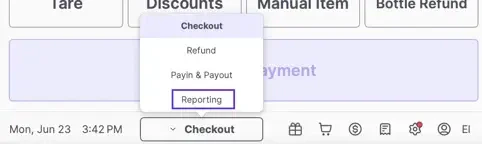 3. Select **End of Day**.
4. Ensure all tills are closed:
* You can only close a till from the terminal it's active on.
* Once all tills are closed, a checkbox will appear.
3. Select **End of Day**.
4. Ensure all tills are closed:
* You can only close a till from the terminal it's active on.
* Once all tills are closed, a checkbox will appear.
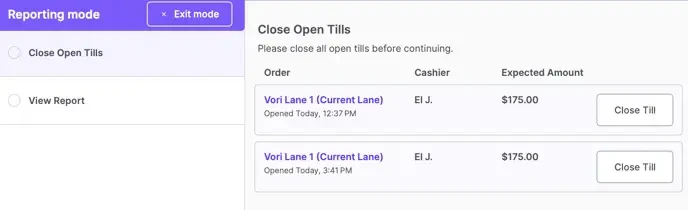 5. Press **Continue** to generate the report.
6. When ready, tap **Print Report** to print a receipt-style report.
#### Printed End of Day Report from the POS
The End of Day report printed from the POS includes the following:
* Summary of orders, total sales, average basket size, and average item count
* Sales recap
* Payment breakdown
* Department sales
* Till summary (showing open/close events by session)
5. Press **Continue** to generate the report.
6. When ready, tap **Print Report** to print a receipt-style report.
#### Printed End of Day Report from the POS
The End of Day report printed from the POS includes the following:
* Summary of orders, total sales, average basket size, and average item count
* Sales recap
* Payment breakdown
* Department sales
* Till summary (showing open/close events by session)
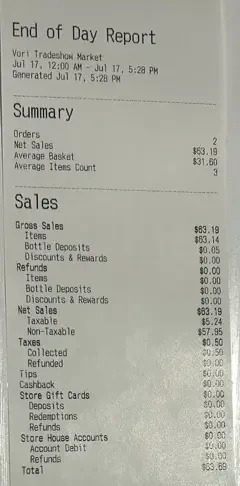
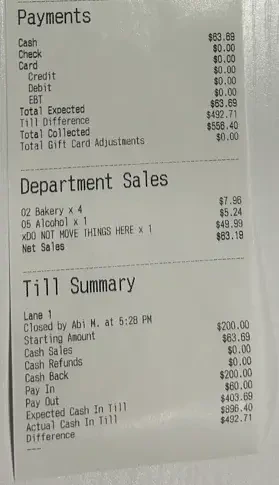 ✏️ **Note:** The report content is the same whether printed from POS or downloaded from Back Office.
#### Alternative Access at POS
You can also tap **View Reports** (after logging in as a Manager) to access and print the End of Day Report.
***
### Report Descriptions
Each section of the report shows detailed sales, payments, and till metrics. Tap the arrow on any row to open the full primary report.
#### Name
#### Description of Report
#### Primary Report
**Sales
Summary**
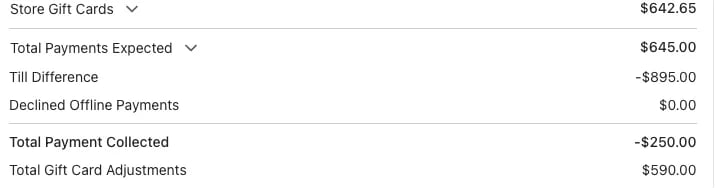
Gross sales, refunds, net sales, tips, gift cards, expected vs. collected payments, and any offline/declined transactions.
Any Declined Offline, Payments, and Gift Card Adjustments will be displayed here.
*Note: If there is a Till Difference, the Total Payment Collected might be different.*
**Sales Overview**
**Cash
Summary**
Starting cash, refunds, pay-ins/outs, and till differences.
**Tills**
**Department Sales**
Sales by department/sub-department with quantity, item sales, discounts, deposits, and margin.
**Item Sales**
**Till
Summary**
Daily balance summary by till.
**Tills**
**Payments by Cashier**
Overview of payment types handled per cashier.
**Payments**
**Payments by Register**
Payment breakdown per POS lane.
**Payments**
**💡 Tip:** Use the arrows to jump directly to any full report.
✏️ **Note:** The report content is the same whether printed from POS or downloaded from Back Office.
#### Alternative Access at POS
You can also tap **View Reports** (after logging in as a Manager) to access and print the End of Day Report.
***
### Report Descriptions
Each section of the report shows detailed sales, payments, and till metrics. Tap the arrow on any row to open the full primary report.
#### Name
#### Description of Report
#### Primary Report
**Sales
Summary**
Gross sales, refunds, net sales, tips, gift cards, expected vs. collected payments, and any offline/declined transactions.
Any Declined Offline, Payments, and Gift Card Adjustments will be displayed here.
*Note: If there is a Till Difference, the Total Payment Collected might be different.*
**Sales Overview**
**Cash
Summary**
Starting cash, refunds, pay-ins/outs, and till differences.
**Tills**
**Department Sales**
Sales by department/sub-department with quantity, item sales, discounts, deposits, and margin.
**Item Sales**
**Till
Summary**
Daily balance summary by till.
**Tills**
**Payments by Cashier**
Overview of payment types handled per cashier.
**Payments**
**Payments by Register**
Payment breakdown per POS lane.
**Payments**
**💡 Tip:** Use the arrows to jump directly to any full report.
 ***
### **Store Gift Cards**
Gift card activity appears in the End of Day Report but is not included in gross sales totals.
* **Deposits:** Value of gift cards purchased.
* **Redemptions:** Sales paid using gift cards.
* **Refunds:** Amount refunded back to gift cards.
* **Card Adjustments:** Balance updates or newly issued cards via Back Office.
***
### **Store Gift Cards**
Gift card activity appears in the End of Day Report but is not included in gross sales totals.
* **Deposits:** Value of gift cards purchased.
* **Redemptions:** Sales paid using gift cards.
* **Refunds:** Amount refunded back to gift cards.
* **Card Adjustments:** Balance updates or newly issued cards via Back Office.
 ## Related topics
- [Review end-of-shift cashier reporting](/reporting/daily-and-shift-reports/review-end-of-shift-cashier-reporting.md)
- [Process Offline Payments in Vori POS](/point-of-sale-pos/basic-cashier-functions/process-offline-payments-in-vori-pos.md)
- [Review and Print the Till Report](/reporting/daily-and-shift-reports/review-and-print-the-till-report.md)
## Related topics
- [Review end-of-shift cashier reporting](/reporting/daily-and-shift-reports/review-end-of-shift-cashier-reporting.md)
- [Process Offline Payments in Vori POS](/point-of-sale-pos/basic-cashier-functions/process-offline-payments-in-vori-pos.md)
- [Review and Print the Till Report](/reporting/daily-and-shift-reports/review-and-print-the-till-report.md)