> ## Documentation Index
> Fetch the complete documentation index at: https://help.vori.com/llms.txt
> Use this file to discover all available pages before exploring further.
# Understanding the Promotions Dashboard & Hierarchy
> Learn how to navigate your promotions, understand the relationship between offers and products, and identify active deals at a glance.
✏️ **Note:** This article describes features and is launching with select stores (in beta testing). For instructions on accessing New Back Office, view our guide: [Access New Back Office.](/vori-setup-and-troubleshooting/access-the-new-vori-back-office)
### Understanding the Promotion Hierarchy
The Vori Promotions tool can be found under Products in the left-hand navigation.
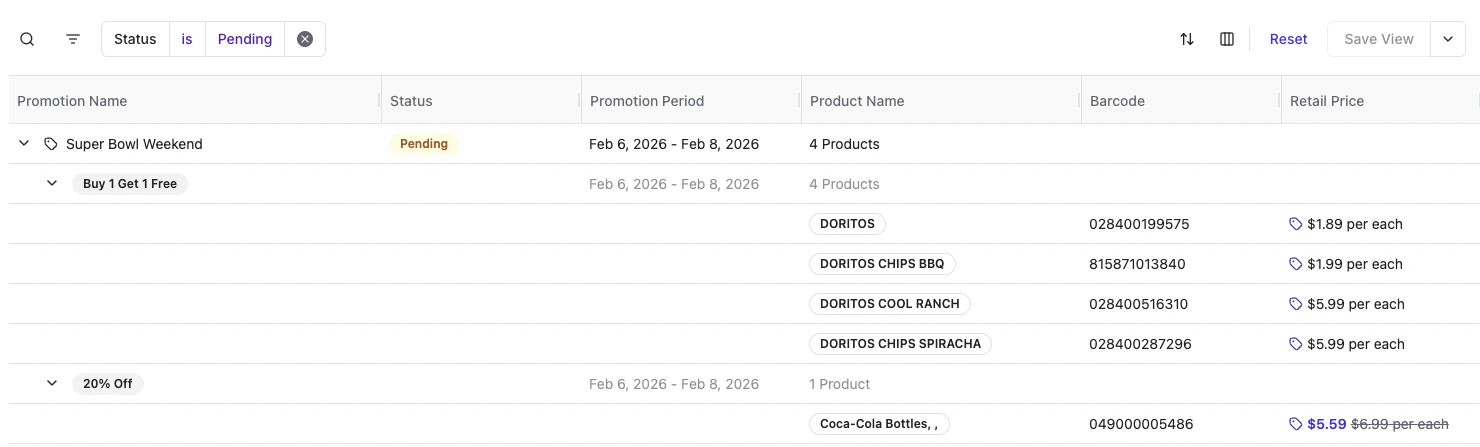
New Promotions are organized in a specific three-tier structure to keep your data organized. Understanding this hierarchy helps you identify exactly how a deal is set up.
1. **Promotion (The Container):** This acts as the "folder" for your sale. It holds the name (e.g., "Super Bowl Weekend") and the dates/times the sale is active.
 2. **Offer (The Logic):** This lives inside the Promotion. It defines the math (e.g., "Buy 1 Get 1 Free" or "20% Off").
 3. **Product:** These are the specific SKUs attached to the Offer.
 #### Manual vs. Dynamic Selection
When viewing products within an offer, Vori indicates how those items were added:
* **Wand Icon:** Indicates **Dynamic Selection**. This means this product is part of a group or range based on specific conditions. These selections are "dynamic" because the list of included items will automatically update if your Product Catalog changes (e.g., adding a new product that matches the "Chips" condition).\\
#### Manual vs. Dynamic Selection
When viewing products within an offer, Vori indicates how those items were added:
* **Wand Icon:** Indicates **Dynamic Selection**. This means this product is part of a group or range based on specific conditions. These selections are "dynamic" because the list of included items will automatically update if your Product Catalog changes (e.g., adding a new product that matches the "Chips" condition).\\
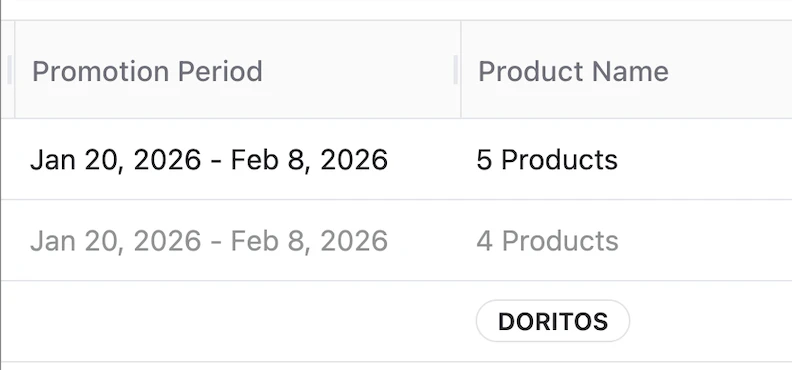
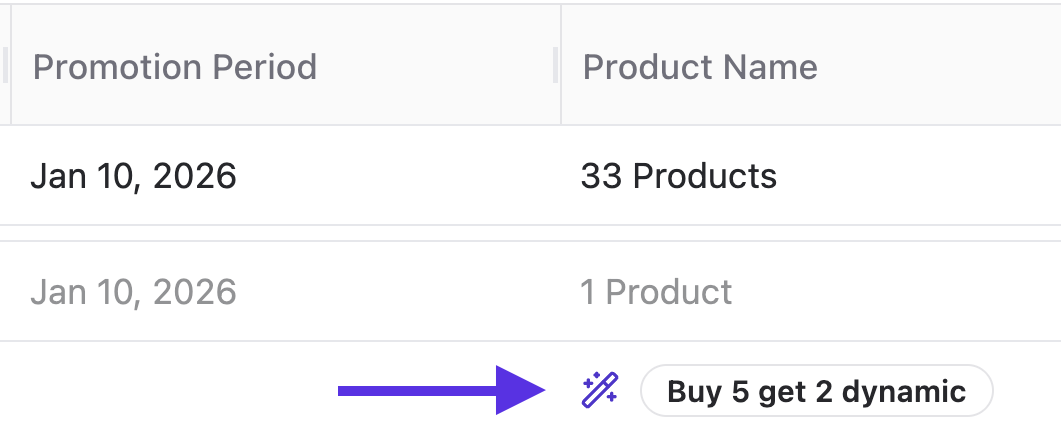 * **No Icon:** Indicates **Manual Selection**. These products were added directly and individually to the offer.
 ***
### View Promotion Status
The **Status** column tells you which deals are currently live at your store.
* **Draft:** The promotion is incomplete and has not been published.
* **Pending:** The promotion has a future start date and is not yet active.
* **Active:** The promotion is currently live and will ring up at the POS.
* **Completed:** The promotion date has passed.
* **Canceled:** The promotion has been manually stopped. To preserve reporting integrity, any promotion that was ever **Active** can only be **Canceled, never Deleted.**
* **Deleted:** This status is reserved exclusively for **Drafts** that were never published. Once a draft is deleted, it is permanently removed from the system.
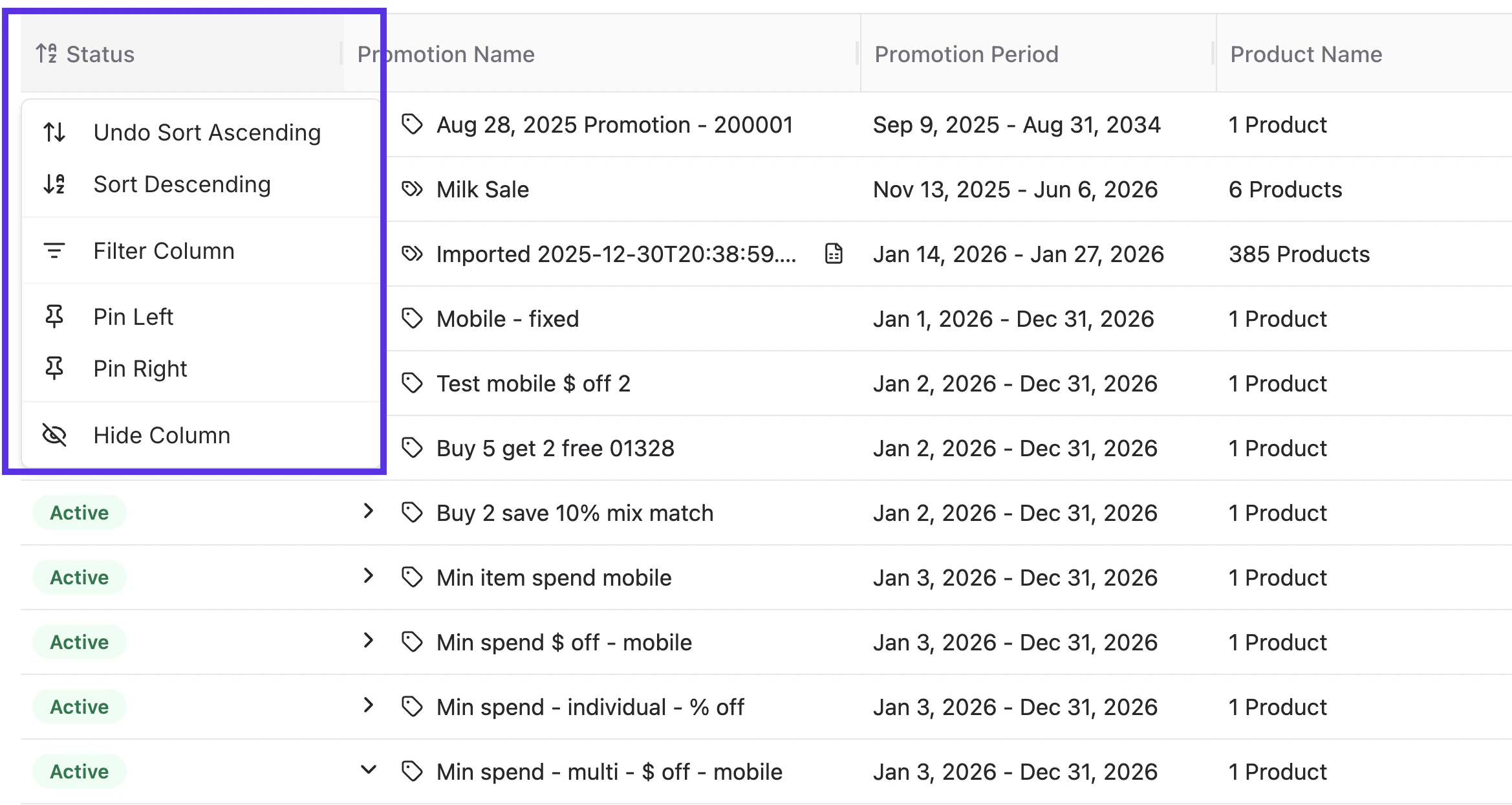
You can sort your dashboard by clicking the **Status** column header to group all **Active** deals together.
***
### View Promotion Status
The **Status** column tells you which deals are currently live at your store.
* **Draft:** The promotion is incomplete and has not been published.
* **Pending:** The promotion has a future start date and is not yet active.
* **Active:** The promotion is currently live and will ring up at the POS.
* **Completed:** The promotion date has passed.
* **Canceled:** The promotion has been manually stopped. To preserve reporting integrity, any promotion that was ever **Active** can only be **Canceled, never Deleted.**
* **Deleted:** This status is reserved exclusively for **Drafts** that were never published. Once a draft is deleted, it is permanently removed from the system.
You can sort your dashboard by clicking the **Status** column header to group all **Active** deals together.
 ***
### Search & Filter: Finding Active Deals
You can quickly check if a specific item is already on sale or find a campaign by name using the search and filter tools.
#### Quick Search
Use the search bar at the top of the Promotions table to find deals by:
* \*\*Product Name
***
### Search & Filter: Finding Active Deals
You can quickly check if a specific item is already on sale or find a campaign by name using the search and filter tools.
#### Quick Search
Use the search bar at the top of the Promotions table to find deals by:
* \*\*Product Name
 \*\*
* \*\*Barcode (UPC/PLU)
\*\*
* \*\*Barcode (UPC/PLU)
 \*\*
* **Promotion Name\
\*\*
* **Promotion Name\
 **
#### Advanced Filtering
For more complex searches, use the **Filter** tool:
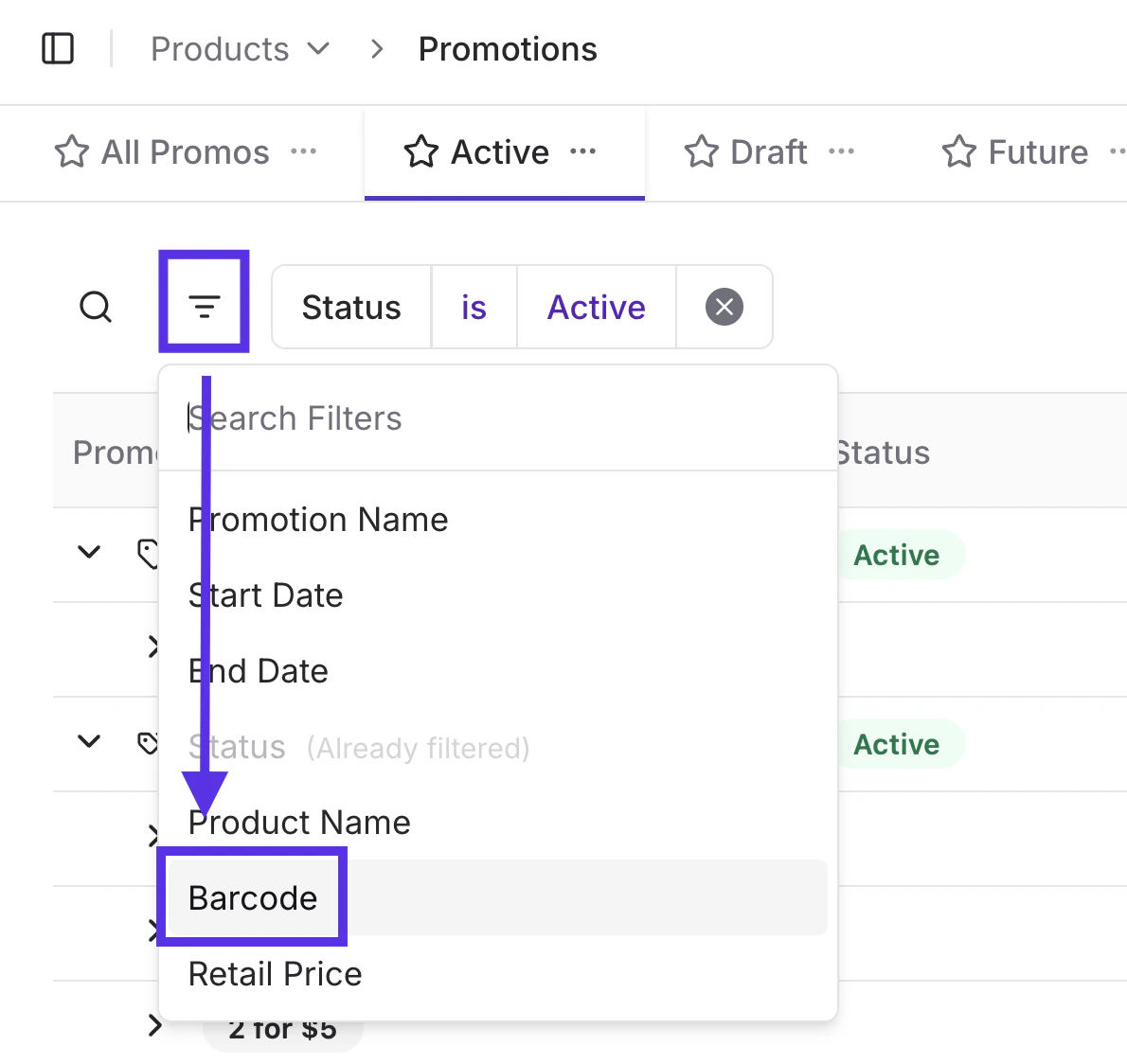
1. Click **Filter** at the top left of the Promotions table.
2. Select a category (such as **Barcode**) from the dropdown menu.\\
**
#### Advanced Filtering
For more complex searches, use the **Filter** tool:
1. Click **Filter** at the top left of the Promotions table.
2. Select a category (such as **Barcode**) from the dropdown menu.\\
 3. Enter the specific value you want to check.
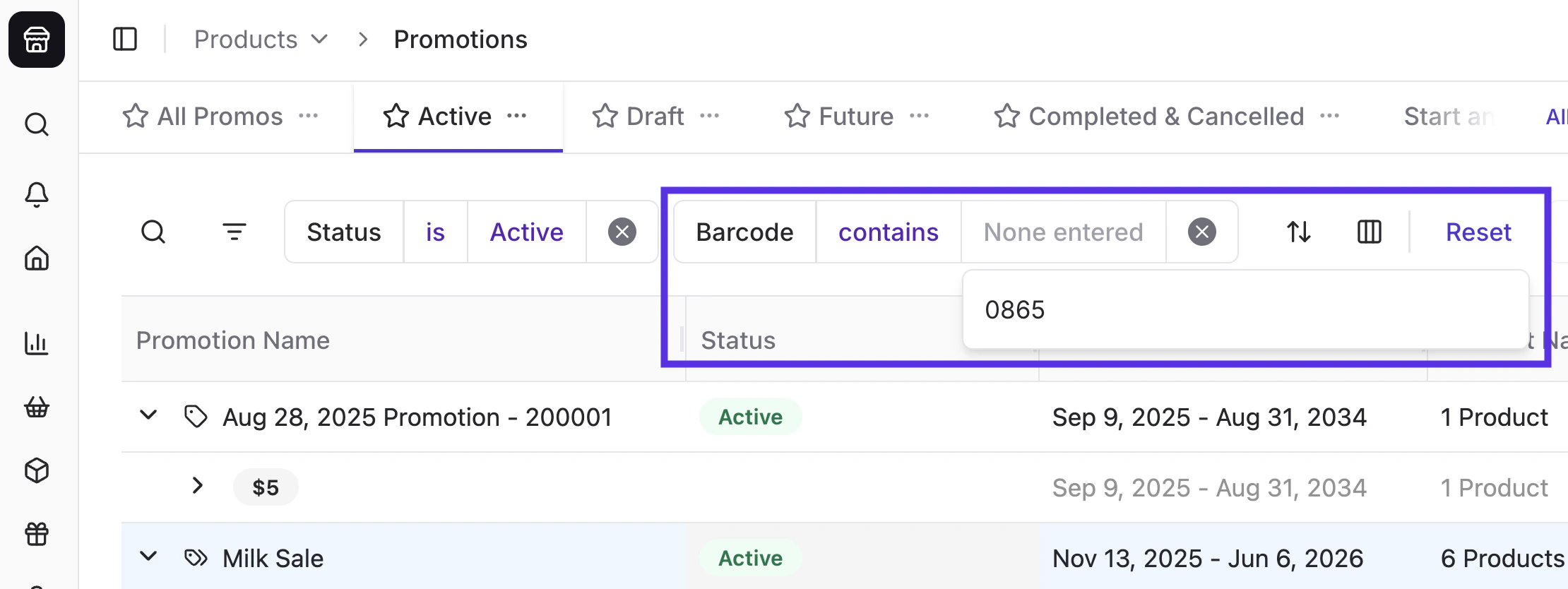 4. The table will update to show only the Promotions matching those criteria.
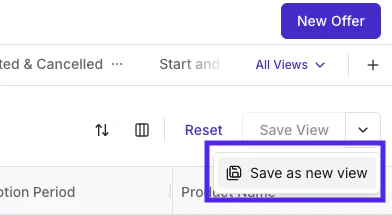
**💡Tip:** You can save frequent searches (like "Active Dairy Promos") by clicking **Save View** in the top right corner.
4. The table will update to show only the Promotions matching those criteria.
**💡Tip:** You can save frequent searches (like "Active Dairy Promos") by clicking **Save View** in the top right corner.
 ***
### Identifying Promotional Pricing
Vori uses visual cues next to each product to help you identify deals without opening every item.
#### The Purple Promotion Icon
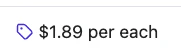
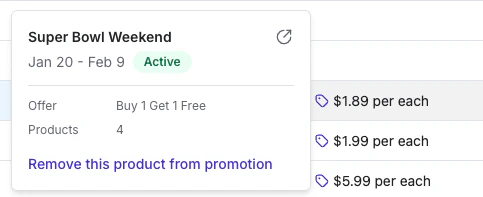
A purple tag icon next to a price indicates the product is on promotion. Hover over this icon to see a quick summary of the deal.
***
### Identifying Promotional Pricing
Vori uses visual cues next to each product to help you identify deals without opening every item.
#### The Purple Promotion Icon
A purple tag icon next to a price indicates the product is on promotion. Hover over this icon to see a quick summary of the deal.
 #### Pricing Display Types
* **Strikethrough Price:** Indicates a **TPR (Temporary Price Reduction)**. You will see the original price crossed out with the new promotional price next to it.
#### Pricing Display Types
* **Strikethrough Price:** Indicates a **TPR (Temporary Price Reduction)**. You will see the original price crossed out with the new promotional price next to it.
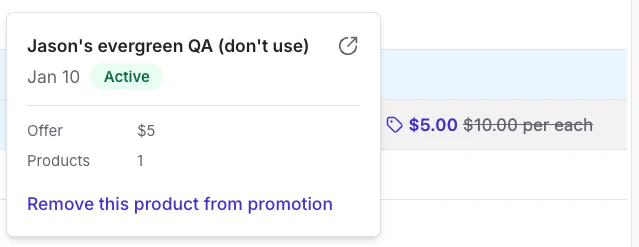 * **Purple Icon Only:** Used when the final price is conditional (e.g., "Buy 2 Get 1 Free"). Because the price depends on what the shopper buys, a single "new" price isn't displayed.
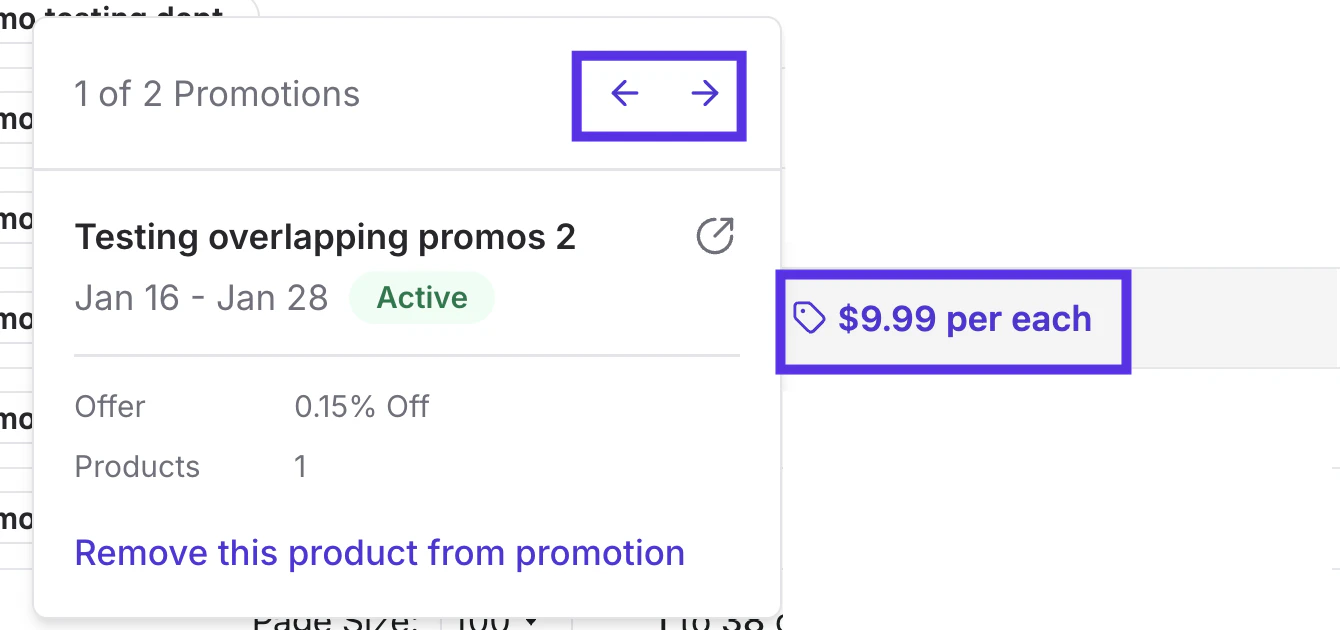
 * **Bold Purple Text:** Indicates the product has **multiple active promotions** overlapping. Bold Purple Text is **currently only visible in the Product Catalog table**. The Promotions Table does not yet feature this bolding for multiple deals.
 #### Managing Promotion Overlaps
You can view the priority of these offers on the **Product Details** page under **Pricing → Active Promotions**. Vori uses the following priority rules:
* **Priority 1:** The promotion ending soonest takes precedence.
* **Priority 2:** If two promotions end at the same time, the most recently created one takes priority.
#### Managing Promotion Overlaps
You can view the priority of these offers on the **Product Details** page under **Pricing → Active Promotions**. Vori uses the following priority rules:
* **Priority 1:** The promotion ending soonest takes precedence.
* **Priority 2:** If two promotions end at the same time, the most recently created one takes priority.
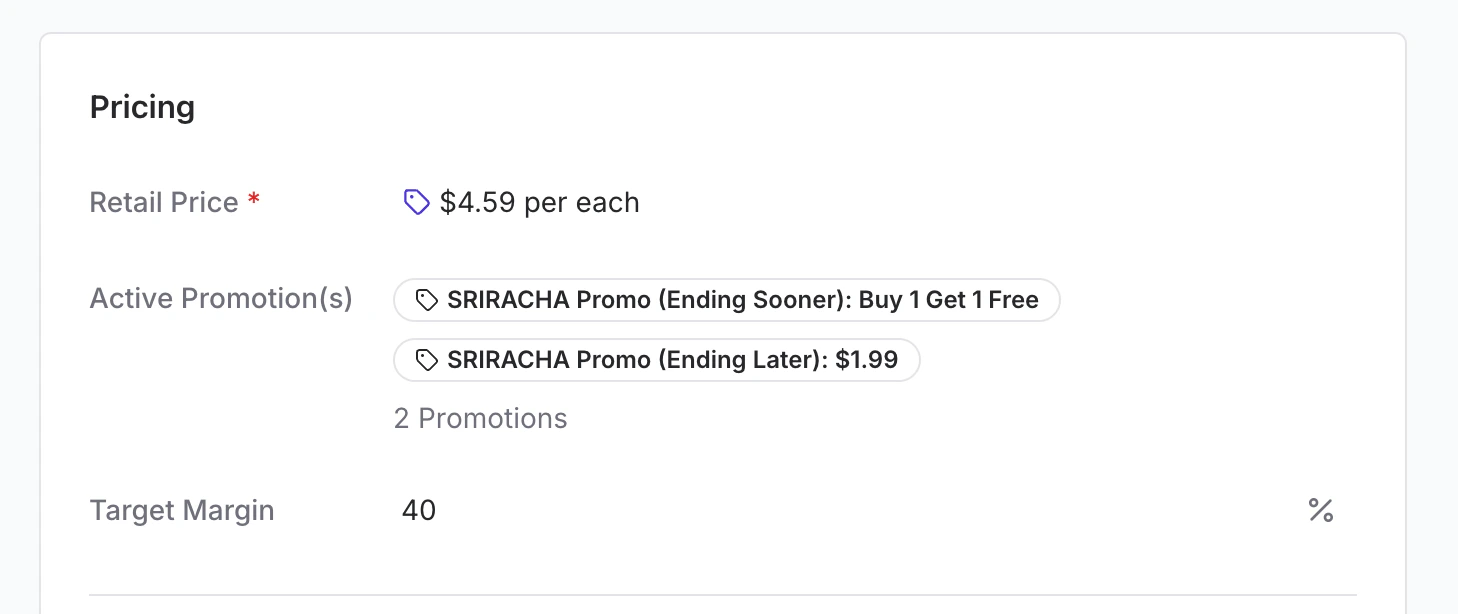 **💡Strategic Overlaps:** You can use these rules to "stack" different types of deals. For example, if you want to offer a discounted price for a single item but a BOGO deal for customers who buy two, set the BOGO to end slightly earlier (even by one hour) than the single-item discount. This ensures the system selects the BOGO as the primary offer when the quantity requirements are met.
**Example**:
* **Step 1: Create the \$1.99 Promotion**
* Set this as a standard price reduction.
* Set the **End Date** or **Time** to be further out (for example, March 2nd).
**💡Strategic Overlaps:** You can use these rules to "stack" different types of deals. For example, if you want to offer a discounted price for a single item but a BOGO deal for customers who buy two, set the BOGO to end slightly earlier (even by one hour) than the single-item discount. This ensures the system selects the BOGO as the primary offer when the quantity requirements are met.
**Example**:
* **Step 1: Create the \$1.99 Promotion**
* Set this as a standard price reduction.
* Set the **End Date** or **Time** to be further out (for example, March 2nd).
 * **Step 2: Create the BOGO Promotion**
* Set this as a "Buy 1, Get 1 Free" offer.
* Set the **End Date** to be slightly earlier than the first one (for example, February 28th).
* **Step 2: Create the BOGO Promotion**
* Set this as a "Buy 1, Get 1 Free" offer.
* Set the **End Date** to be slightly earlier than the first one (for example, February 28th).
 * \*\*Step 3: POS Experience
 \*\*
***
**➡️ Next Step:** Ready to start building? Learn **[How to Create a Promotion: Time, Frequency, & Schedule](/promotions/creating-a-promotion-time-frequency-schedule)** to set up your deal's "container."
\*\*
***
**➡️ Next Step:** Ready to start building? Learn **[How to Create a Promotion: Time, Frequency, & Schedule](/promotions/creating-a-promotion-time-frequency-schedule)** to set up your deal's "container."