> ## Documentation Index
> Fetch the complete documentation index at: https://help.vori.com/llms.txt
> Use this file to discover all available pages before exploring further.
# How to Format and Import Promotion Files
> Learn how to import a promotion file to upload hundreds of promotional prices, start dates, and eligible products in a single step.
Managing store-wide promotions shouldn't eat up your day. With Vori, you can import a promotion file to upload hundreds of sale prices, start dates, and eligible products in one go. That means consistent pricing across your stores without the busywork.
Vori supports two import paths:
* **CSV** — for promotions you build yourself from the Vori template.
* **SIL (.txt)** — for vendor-provided promotional SIL files from UNFI, AWG, and URM weekly TPRs/ADs. Download the SIL file from your vendor portal and import it directly into Vori — no formatting required in most cases. For edge cases where minor edits may be needed, see the troubleshooting notes below.
***
### Before you begin
Before uploading, make sure your file meets these standards. This keeps your import smooth and error-free.
* **File format:** **.CSV** (for self-built promotions) or **.txt** SIL files (for UNFI, AWG, and URM vendor-provided weekly TPRs/ADs).
* **File size:** Up to 500 lines per file. Got more? Split into multiple files.
* **Supported promotions:** Dollar Amount Price Reductions and Mix & Match (e.g., 2 for \$4).
***
### How to Format Your Promotion File
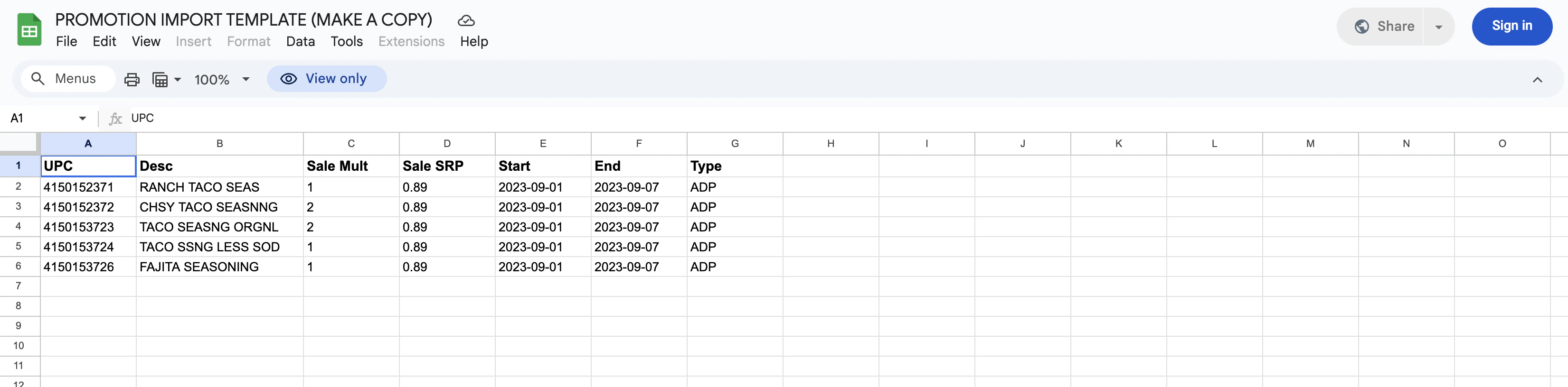
Headers should match the Vori template exactly for auto-matching. Use this guide:
| Column | Description | Format / Notes |
| ------------- | -------------------- | -------------------------------------------------- |
| **UPC** | Product barcode | Required; cannot be blank |
| **Desc** | Product name | For reference |
| **Sale Mult** | Promotion quantity | Use "1" for single items, "2" for a 2-for-\$4 deal |
| **Sale SRP** | Promotional price | Required; cannot be 0 |
| **Start** | Promotion start date | **YYYY-MM-DD** (e.g., 2026-03-01) |
| **End** | Promotion end date | **YYYY-MM-DD** (e.g., 2026-03-07) |
| **Type** | Promotion type code | Enter ADP for all promotions |
\*\*💡Tip:\*\*Open the [**Promotion Import Template**](https://docs.google.com/spreadsheets/d/123_quJFi9pZ76rvTVwOnJFZhOHw8pEmh1LxWzm37AvY/edit?gid=0#gid=0) in Google Sheets, select **File > Make a copy**, and enter your data there to ensure the headers stay perfect.
 ***
### How to import a vendor SIL file (UNFI, AWG, URM)
If you're importing a weekly promotional SIL file from UNFI, AWG, or URM, you can skip the formatting step entirely.
1. Download the promotional SIL file from your vendor portal the same way you do today.
2. In **New Back Office**, go to **Products > [Promotions](https://app.vori.com/retail/promotions)** and click **Import File**.
3. Drag and drop the SIL file (or select it from your computer). Vori detects the SIL format automatically.
4. **Select Stores** where the promotions should apply.
5. **Review Linked Data:** Check the **Valid Rows** and **Invalid Rows** tabs, then click **Next** and **Commit**.
#### Troubleshooting SIL imports
* **If the upload times out:** If the upload runs longer than 20 seconds, try the import again.
* **If you receive an error referencing `0.00`:**
1. Open the SIL file in a plain text editor, such as TextEdit on Mac or Notepad on Windows.
2. Search for `0.00`.
3. Find the semicolon (`;`) immediately before that `0.00` value.
4. Delete the text starting at that semicolon and continue deleting until the next semicolon that closes the same SIL section.
5. Save the file and re-import it into Vori.
6. If you are not sure which section to remove, stop editing the file and contact Vori Support for help.
***
### How to import your promotions
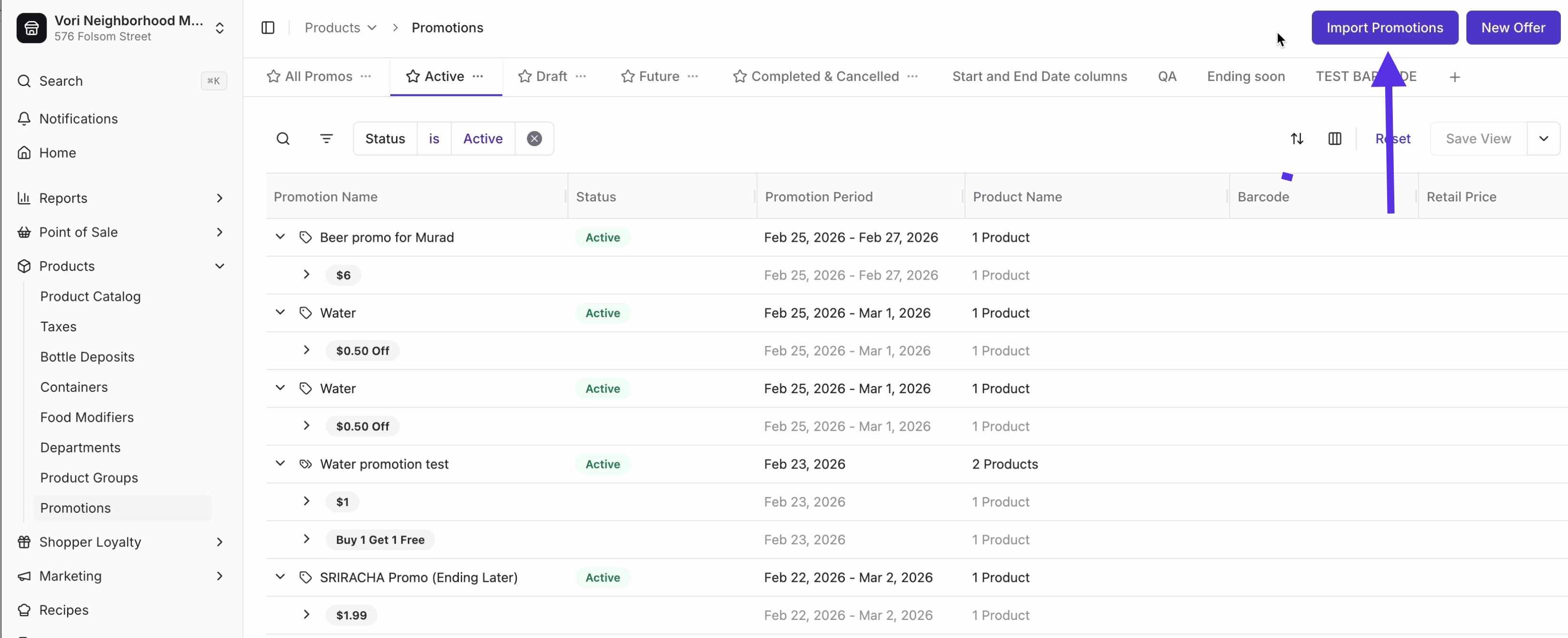
1. In **New Back Office**, go to **Products** and select **[Promotions](https://app.vori.com/retail/promotions)** in the left-hand navigation.
2. Click **Import File** (top-right).
***
### How to import a vendor SIL file (UNFI, AWG, URM)
If you're importing a weekly promotional SIL file from UNFI, AWG, or URM, you can skip the formatting step entirely.
1. Download the promotional SIL file from your vendor portal the same way you do today.
2. In **New Back Office**, go to **Products > [Promotions](https://app.vori.com/retail/promotions)** and click **Import File**.
3. Drag and drop the SIL file (or select it from your computer). Vori detects the SIL format automatically.
4. **Select Stores** where the promotions should apply.
5. **Review Linked Data:** Check the **Valid Rows** and **Invalid Rows** tabs, then click **Next** and **Commit**.
#### Troubleshooting SIL imports
* **If the upload times out:** If the upload runs longer than 20 seconds, try the import again.
* **If you receive an error referencing `0.00`:**
1. Open the SIL file in a plain text editor, such as TextEdit on Mac or Notepad on Windows.
2. Search for `0.00`.
3. Find the semicolon (`;`) immediately before that `0.00` value.
4. Delete the text starting at that semicolon and continue deleting until the next semicolon that closes the same SIL section.
5. Save the file and re-import it into Vori.
6. If you are not sure which section to remove, stop editing the file and contact Vori Support for help.
***
### How to import your promotions
1. In **New Back Office**, go to **Products** and select **[Promotions](https://app.vori.com/retail/promotions)** in the left-hand navigation.
2. Click **Import File** (top-right).
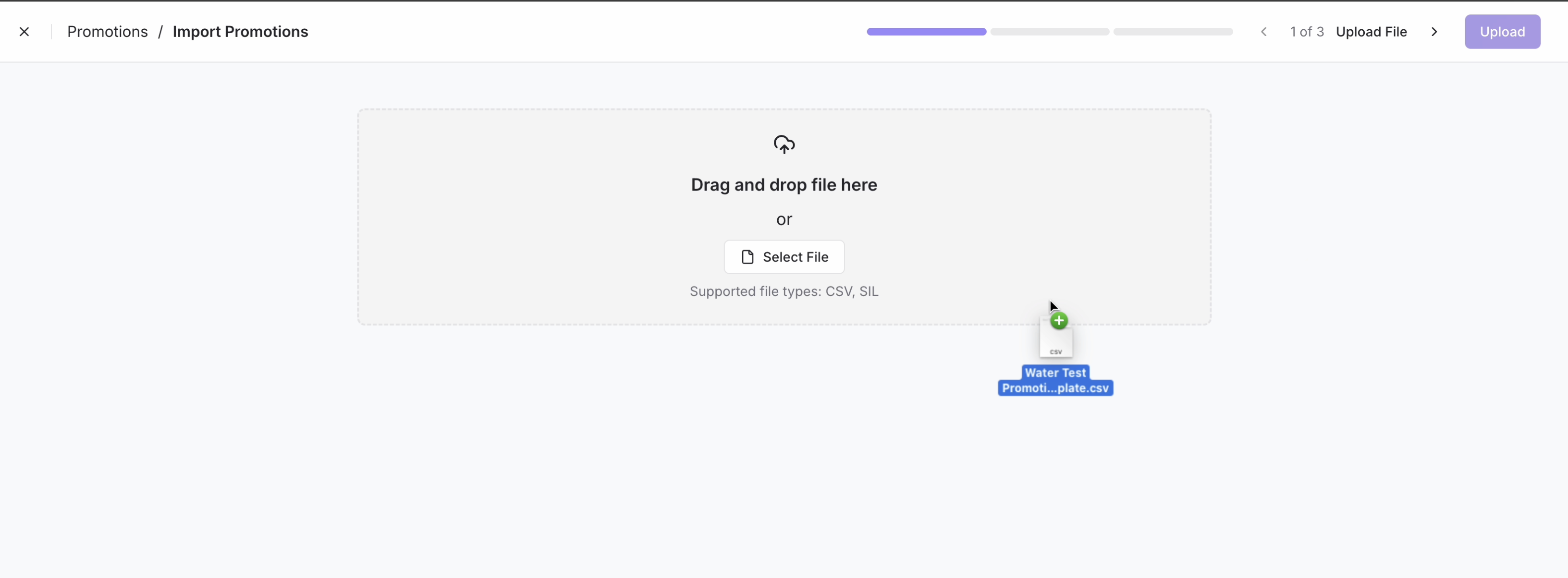
 3. Drag & drop your **CSV** or select it from your computer.
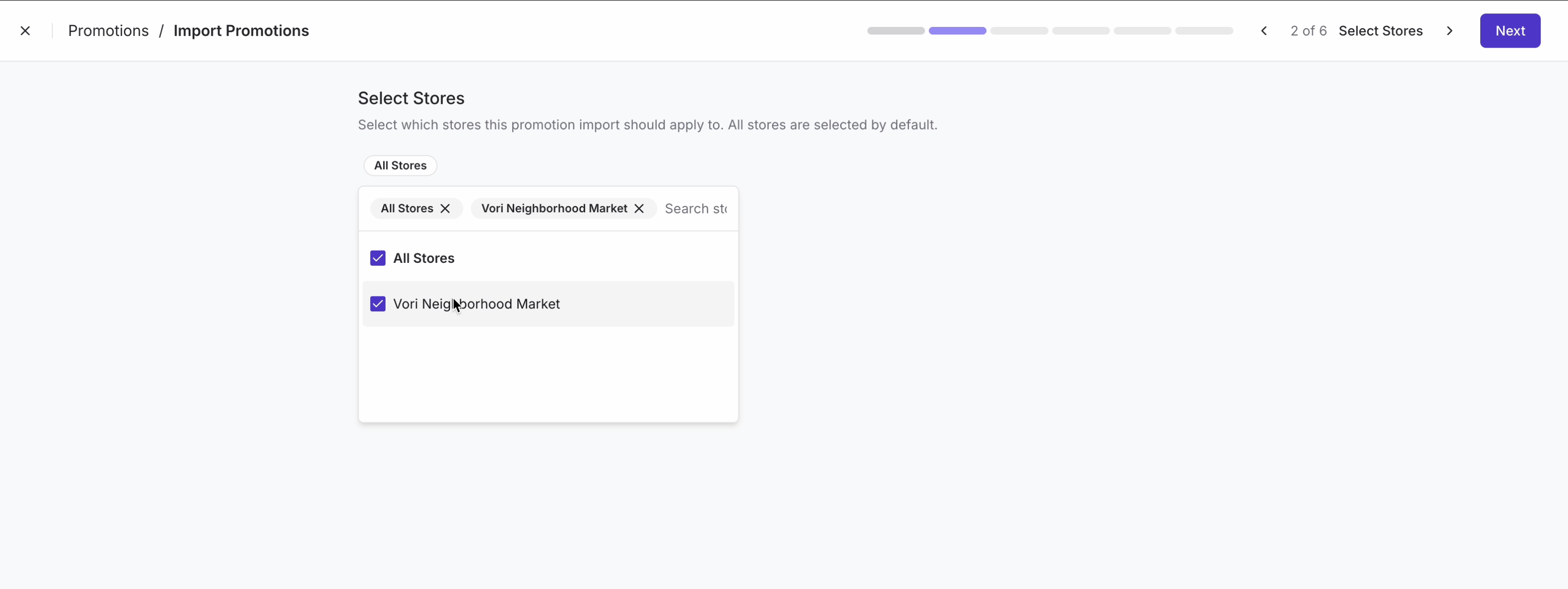
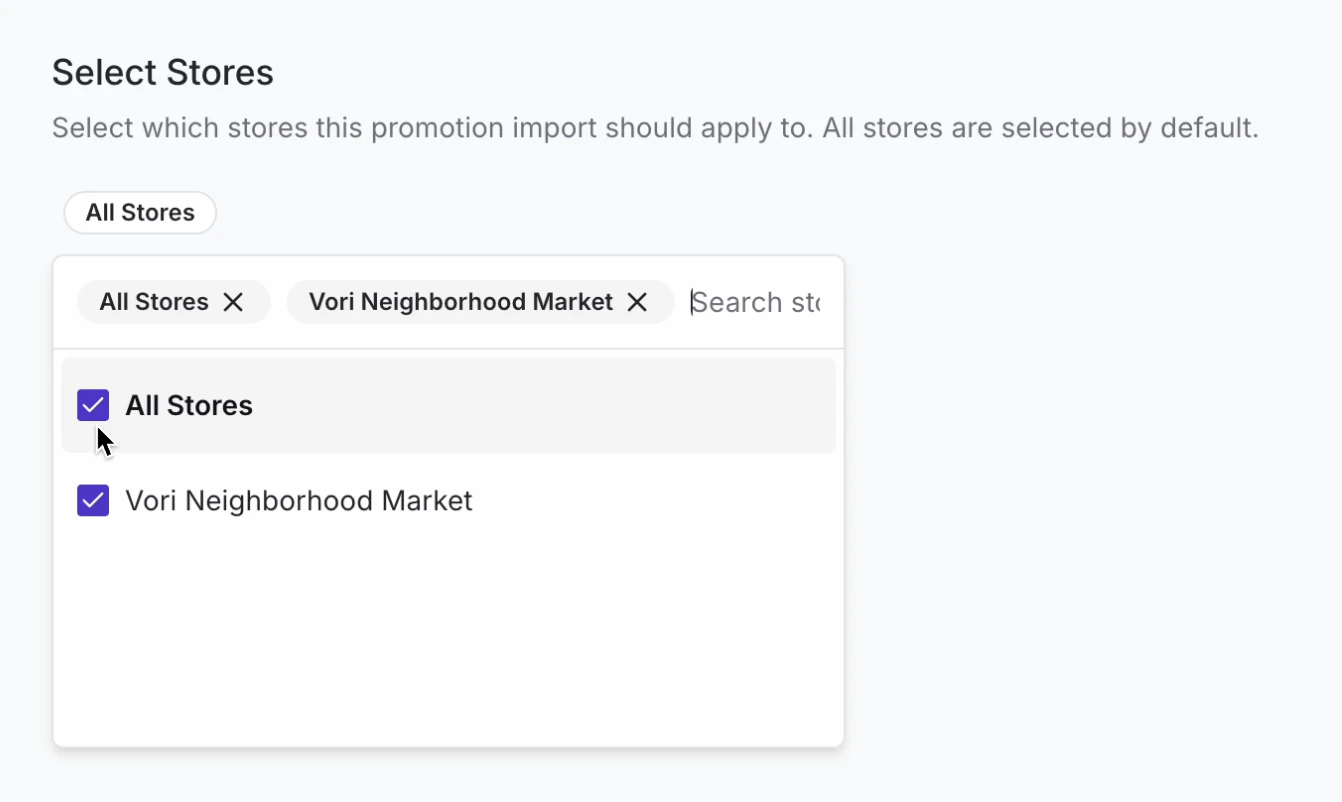
 4. **Select Stores:** Choose the stores where these promotions should apply (default: All Stores).
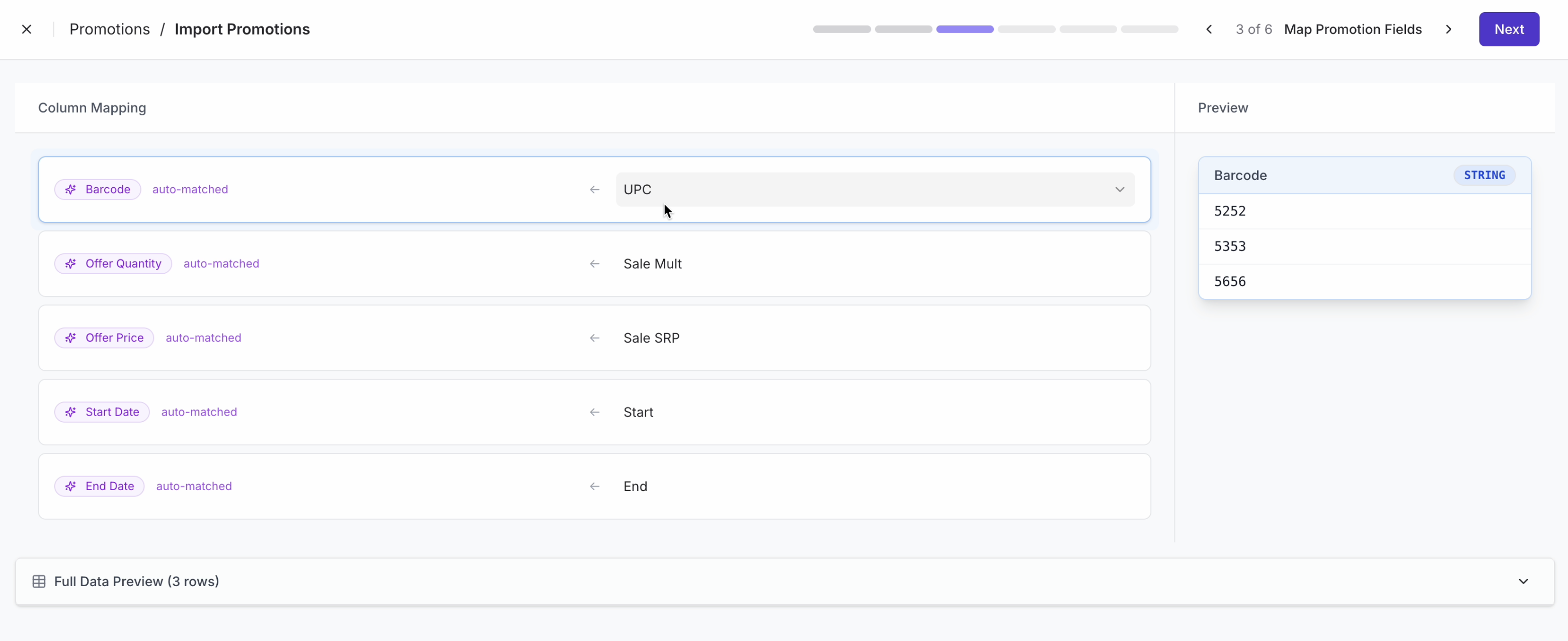
 5. **Map Promotion Fields:** Vori will match your file columns to system fields (e.g., UPC → Barcode). Review and click **Next**.
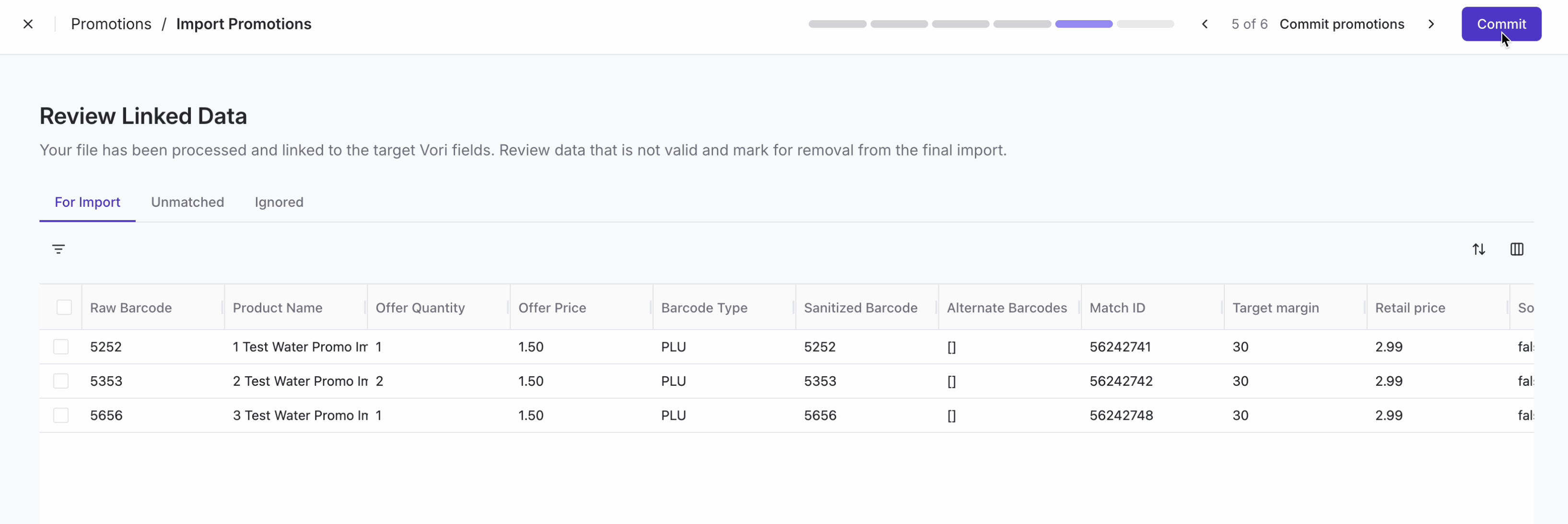
 6. **Review Linked Data:** Check the **Valid Rows** and **Invalid Rows** tabs to ensure everything links correctly. Select **Next**, then click **Commit** once the file has been processed.
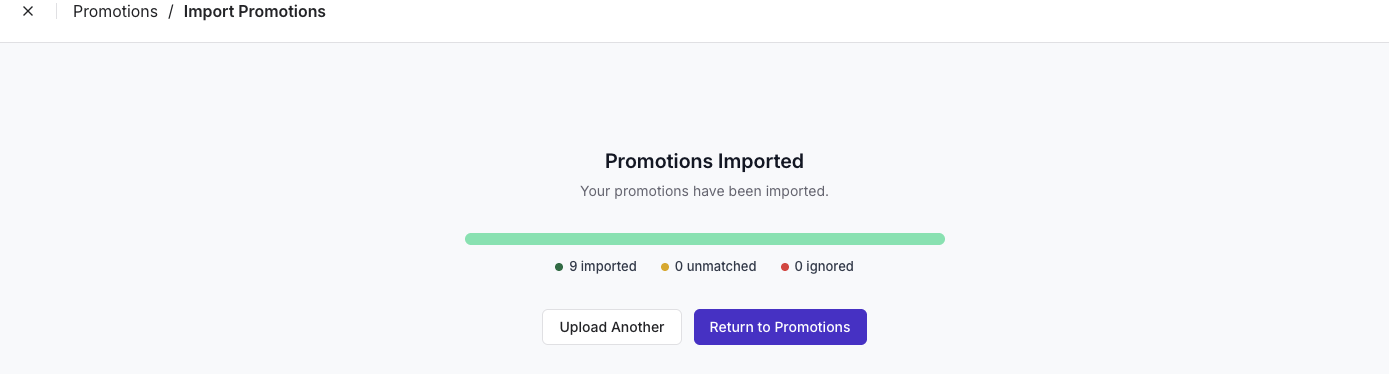
 7. A confirmation page will appear.\\
 ***
### Troubleshooting & FAQs
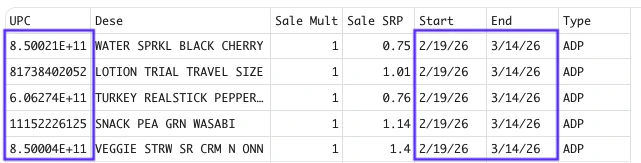
* **Why did my file fail to upload?** Check for blank rows, spreadsheet formulas, "0", or non-hyphenated date values in the **UPC,** **Sale SRP,** or **Start & End** columns, as these will cause the upload to fail.
***
### Troubleshooting & FAQs
* **Why did my file fail to upload?** Check for blank rows, spreadsheet formulas, "0", or non-hyphenated date values in the **UPC,** **Sale SRP,** or **Start & End** columns, as these will cause the upload to fail.
 * **Do I need to publish for each location?** If the UPC is in the product file for every location, selecting All Stores in step 2 of the Import Promotions process will automatically apply the promotion across your entire chain.
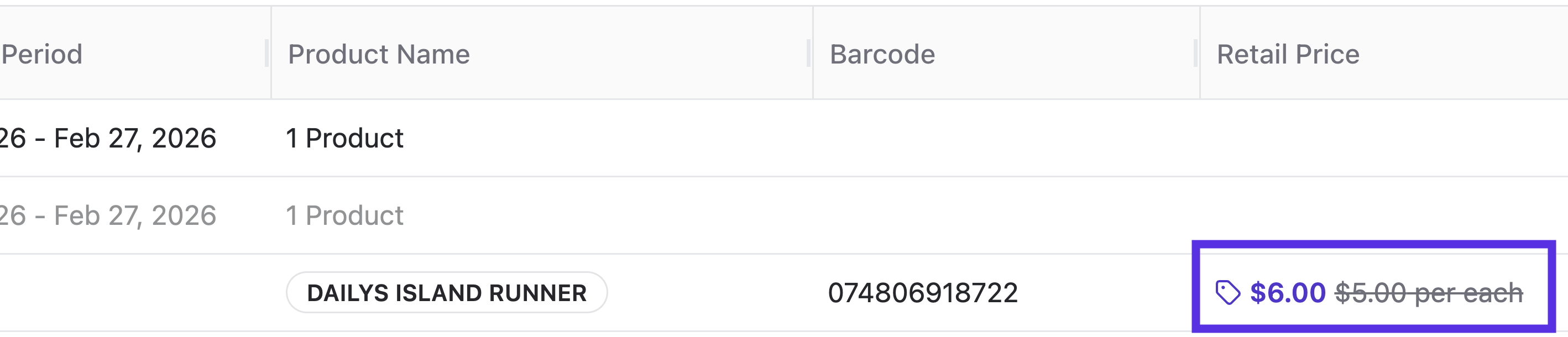
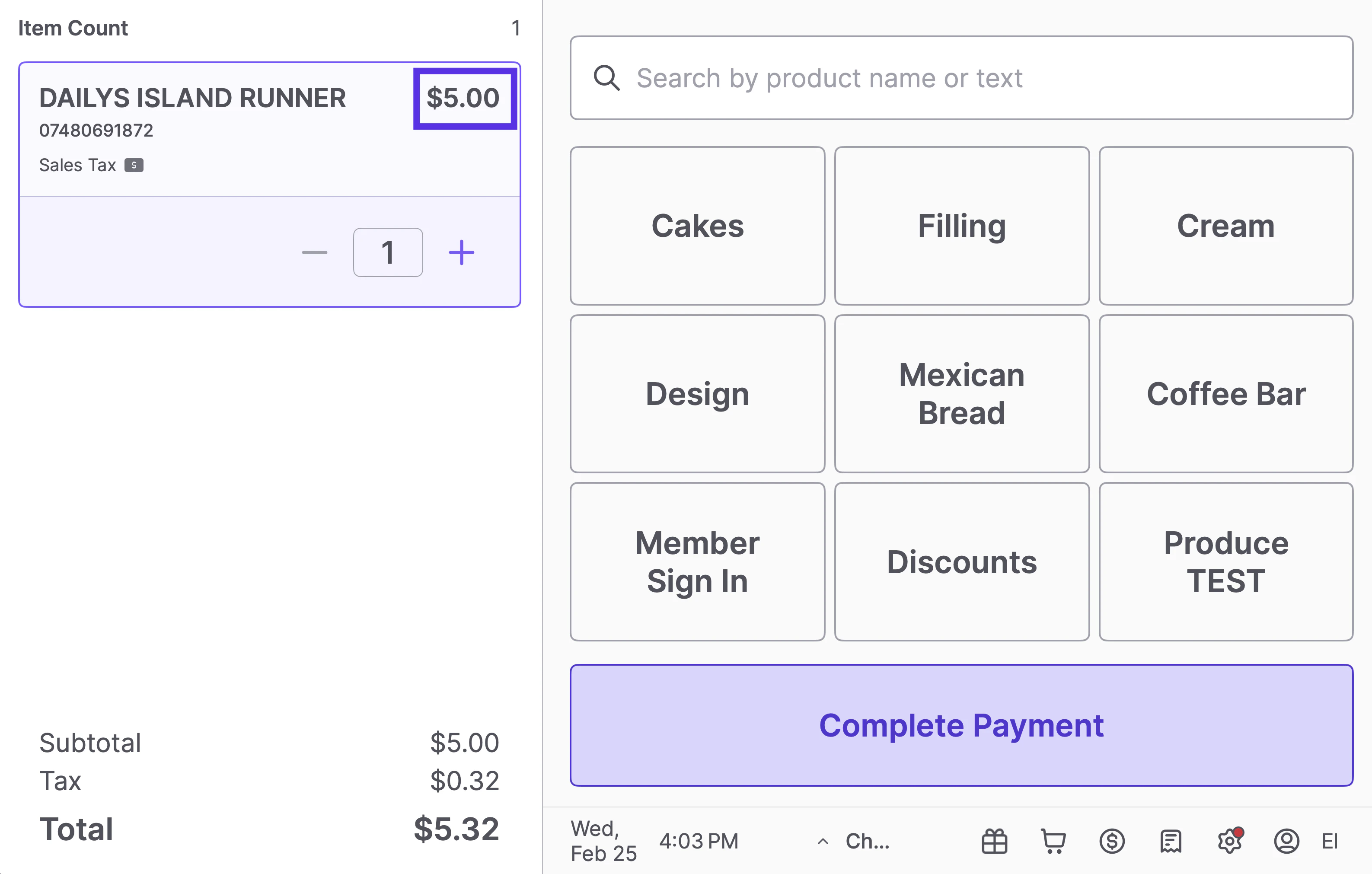
 * **What if the promo price is higher than the retail price?** Vori allows you to import these to save you time. However, to protect your shoppers, the POS is designed to ignore promotional pricing that is higher than the standard retail price.