> ## Documentation Index
> Fetch the complete documentation index at: https://help.vori.com/llms.txt
> Use this file to discover all available pages before exploring further.
# Creating a Promotion (Time, Frequency, & Schedule)
> Learn how to manage the timing and scheduling of your deals.
✏️ **Note:** This article describes features and is launching with select stores (in beta testing). For instructions on accessing New Back Office, view our guide: [Access New Back Office.](/vori-setup-and-troubleshooting/access-the-new-vori-back-office)
By setting up a promotion "container," you can control exactly when your offers start, end, or repeat.
### How to Start: Creating a New Offer & Promotion
In Vori Promotions tool, you often create a promotion (the container) at the same time as your first offer (the deal logic).
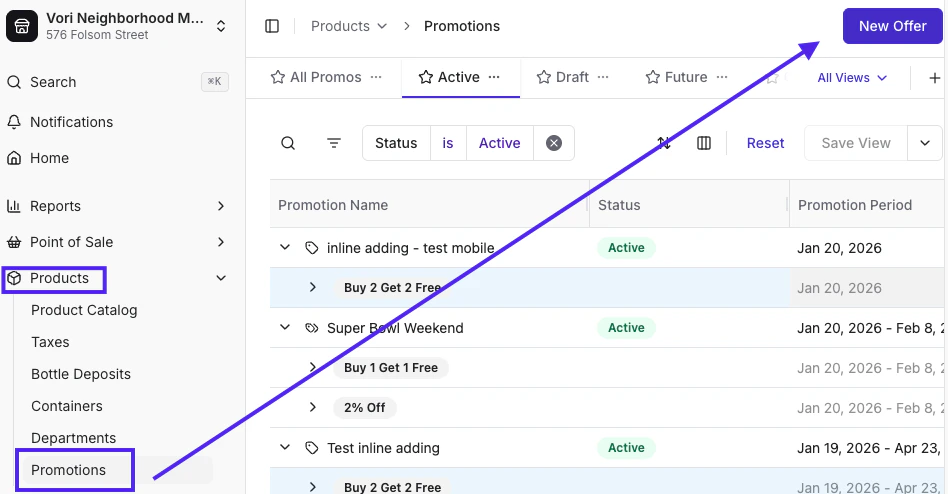
1. Navigate to **Products** in the left navigation bar and select **[Promotions](https://app.vori.com/retail/promotions)**.
2. Click the **New Offer** button in the top right corner.
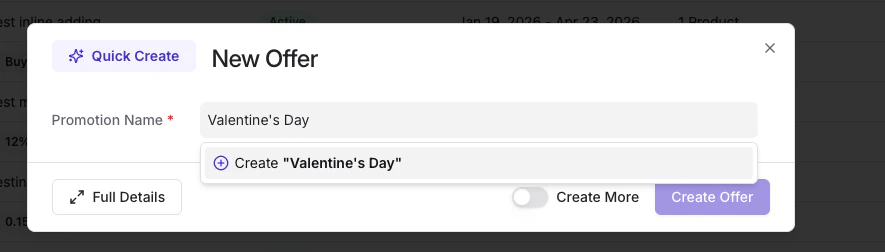
 3. In the **Promotion Name** field, either select an existing promotion or type a new name to create a brand-new container (e.g., "Valentine's Day").
4. Once a new name is entered, click **Create "\[Name]"** to reveal the timing and frequency controls.
3. In the **Promotion Name** field, either select an existing promotion or type a new name to create a brand-new container (e.g., "Valentine's Day").
4. Once a new name is entered, click **Create "\[Name]"** to reveal the timing and frequency controls.
 ***
### Standard Dates & Frequency Settings
The top section of the creation form defines when the promotion is available to shoppers.
***
### Standard Dates & Frequency Settings
The top section of the creation form defines when the promotion is available to shoppers.
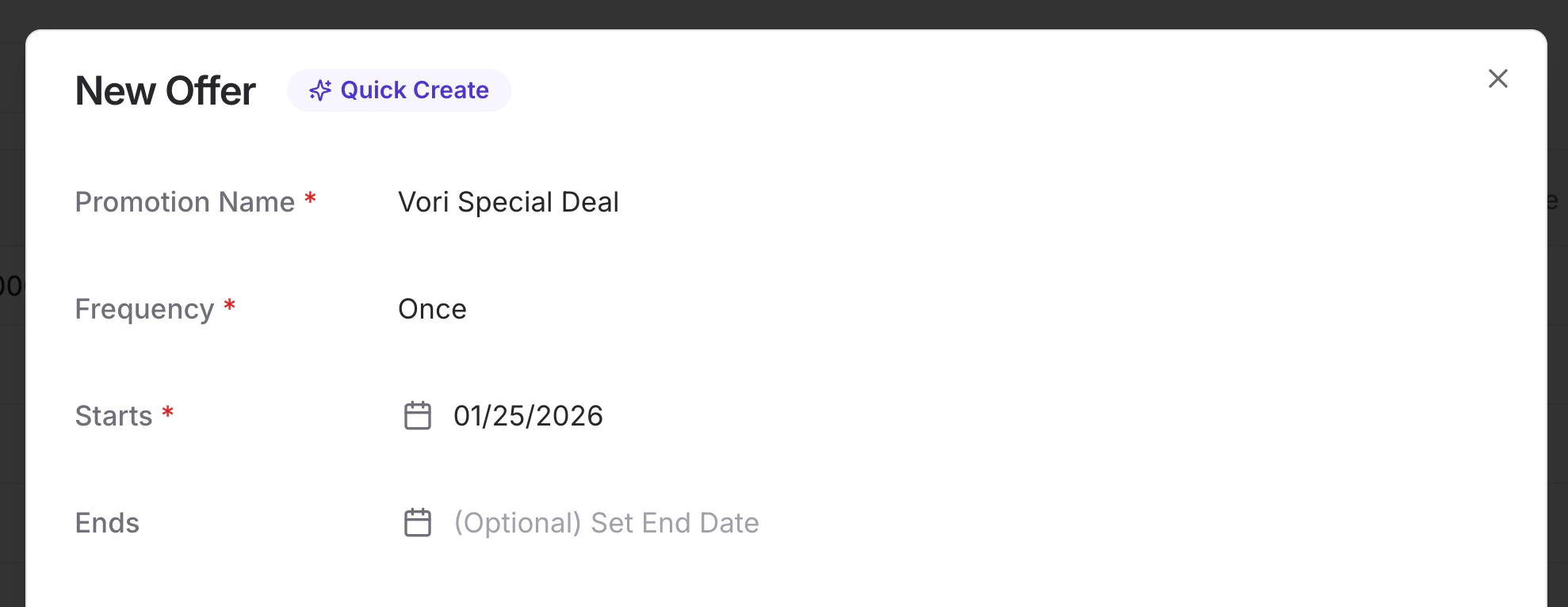 * **Start date:** Select the day the deal begins. By default, it starts at 12:00 AM on that day.
* **End date (optional):** By default, the promotion runs through the end of that day (11:59 PM). Leave the end date blank to create an evergreen promotion that runs indefinitely.
* **Frequency:** Choose how often the deal repeats.
* **Once:** A standard promotion that runs continuously from start to finish.
* **Daily, Weekly, or Monthly:** Enables recurring logic for specific days or times.
**💡 Tip:** If you want a promotion active through all of March 24, set the end date to March 24. It will expire at 11:59 PM that night.
#### Defining Start and End Times
By default, promotions start at 12:00 AM on the selected start date and end at 11:59 PM on the selected end date.
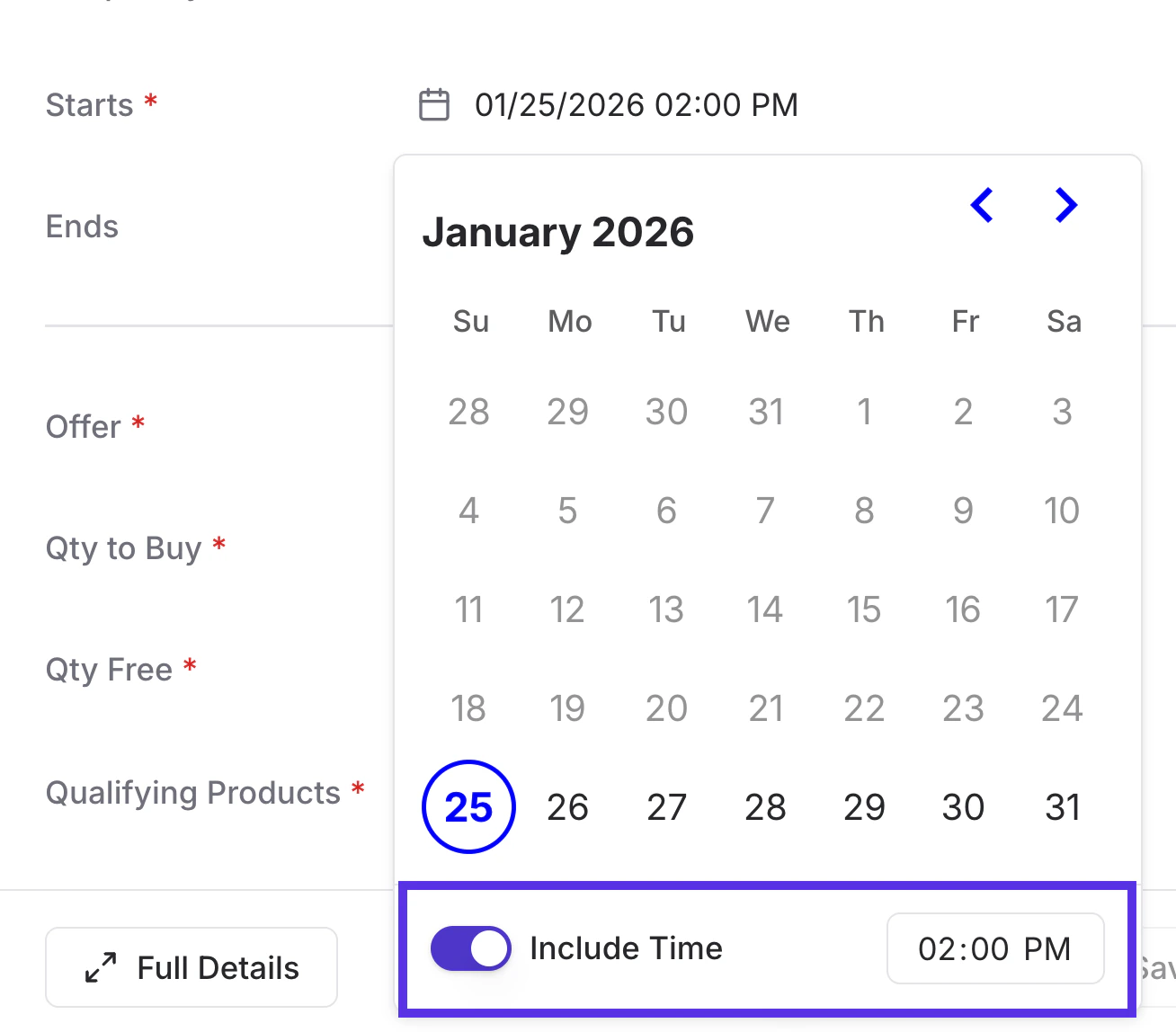
If you want a deal to trigger at a specific hour:
1. Click into the **Starts** or **Ends** date field.
2. Toggle on the **Include Time** box at the bottom of the calendar picker.
3. Select the desired hour and minute.
* **Start date:** Select the day the deal begins. By default, it starts at 12:00 AM on that day.
* **End date (optional):** By default, the promotion runs through the end of that day (11:59 PM). Leave the end date blank to create an evergreen promotion that runs indefinitely.
* **Frequency:** Choose how often the deal repeats.
* **Once:** A standard promotion that runs continuously from start to finish.
* **Daily, Weekly, or Monthly:** Enables recurring logic for specific days or times.
**💡 Tip:** If you want a promotion active through all of March 24, set the end date to March 24. It will expire at 11:59 PM that night.
#### Defining Start and End Times
By default, promotions start at 12:00 AM on the selected start date and end at 11:59 PM on the selected end date.
If you want a deal to trigger at a specific hour:
1. Click into the **Starts** or **Ends** date field.
2. Toggle on the **Include Time** box at the bottom of the calendar picker.
3. Select the desired hour and minute.
 ***
### Recurring Schedules
Recurring frequencies allow you to automate time-sensitive deals without manual intervention.
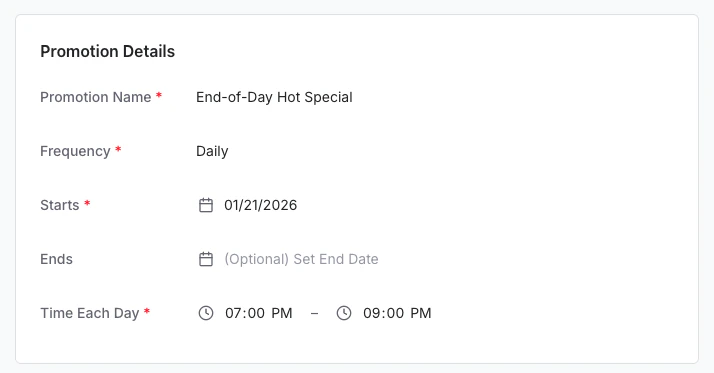
#### Setting a Daily Schedule (e.g., 7PM – 9 PM)
Ideal for "End of Day" or daily "Happy Hour" events. Set the frequency to **Daily** and enter the active window in the **Time Each Day** fields. The deal will automatically activate and deactivate during those hours every day within your date range.
1. Set **Frequency** to **Daily**.
2. Enter the **Start** date.
3. Enter the active window in the **Time Each Day** fields (e.g., Start: 07:00 PM, End: 09:00 PM).
4. The promotion will now automatically activate and deactivate during those hours every day within your date range.
***
### Recurring Schedules
Recurring frequencies allow you to automate time-sensitive deals without manual intervention.
#### Setting a Daily Schedule (e.g., 7PM – 9 PM)
Ideal for "End of Day" or daily "Happy Hour" events. Set the frequency to **Daily** and enter the active window in the **Time Each Day** fields. The deal will automatically activate and deactivate during those hours every day within your date range.
1. Set **Frequency** to **Daily**.
2. Enter the **Start** date.
3. Enter the active window in the **Time Each Day** fields (e.g., Start: 07:00 PM, End: 09:00 PM).
4. The promotion will now automatically activate and deactivate during those hours every day within your date range.
 #### Setting a Weekly Schedule (e.g., Thursdays Only)
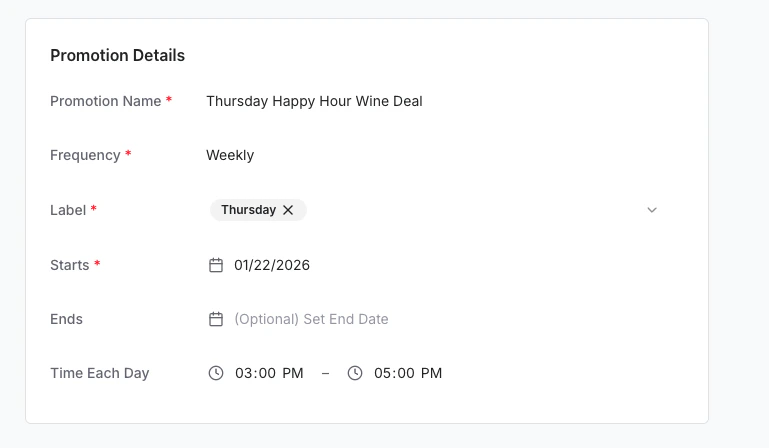
Perfect for "Double Point Tuesdays", "Fresh Friday", or weekly Happy Hour specials. Set the frequency to **Weekly** and select the specific days from the **Label** dropdown.
1. Set **Frequency** to **Weekly**.
2. In the **Label** field, select the specific days of the week the deal should apply (e.g., "Friday").
3. Enter the **Start** date.
4. Entering a **Time Each Day** is optional. If no time is selected, the promotion will run the full day.
#### Setting a Weekly Schedule (e.g., Thursdays Only)
Perfect for "Double Point Tuesdays", "Fresh Friday", or weekly Happy Hour specials. Set the frequency to **Weekly** and select the specific days from the **Label** dropdown.
1. Set **Frequency** to **Weekly**.
2. In the **Label** field, select the specific days of the week the deal should apply (e.g., "Friday").
3. Enter the **Start** date.
4. Entering a **Time Each Day** is optional. If no time is selected, the promotion will run the full day.
 #### Setting a Monthly Schedule (e.g., End of Month Only)
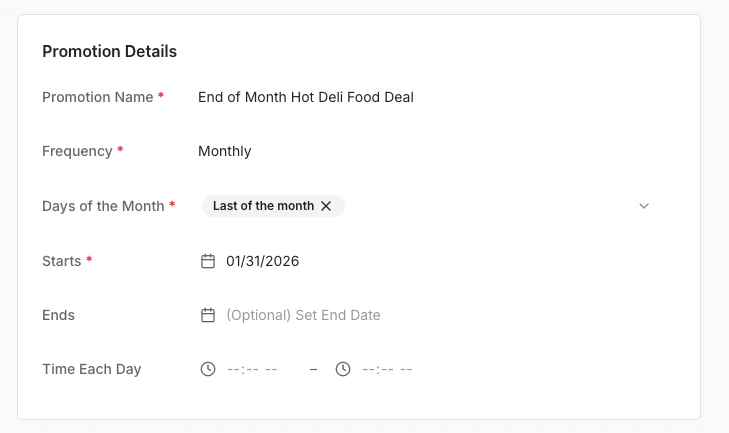
Use this for end-of-month inventory clearance. Set the frequency to **Monthly** and choose specific dates, such as the **First of the month** or **Last of the month**.
1. Set **Frequency** to **Monthly**.
2. Click into the **Days of the Month** field to choose your active dates:
* **First/Last of the month:** Automatically triggers on the start or end of every month.
* **Specific Dates:** Select numbered days (e.g., "Day 15") for mid-month specials.
3. Entering a **Time Each Day** is optional. If no time is selected, the promotion will run the full day.
#### Setting a Monthly Schedule (e.g., End of Month Only)
Use this for end-of-month inventory clearance. Set the frequency to **Monthly** and choose specific dates, such as the **First of the month** or **Last of the month**.
1. Set **Frequency** to **Monthly**.
2. Click into the **Days of the Month** field to choose your active dates:
* **First/Last of the month:** Automatically triggers on the start or end of every month.
* **Specific Dates:** Select numbered days (e.g., "Day 15") for mid-month specials.
3. Entering a **Time Each Day** is optional. If no time is selected, the promotion will run the full day.
 **✏️ Note**: While you can select specific days of the month (like the 8th day), the Days of the Month picker does not currently support more complex calendar logic, such as "the third Thursday of every month".
***
### Important Notes for Success
* **Default timing:** Start dates default to 12:00 AM (beginning of day). End dates default to 11:59 PM (end of day). This applies to newly created promotions — existing promotions are not affected.
* **Scheduling Priority:** If you set a recurring frequency (like Daily), Vori will prioritize the **Frequency** and **Time Each Day** settings to determine when the deal is active at the register.
* **Updating Active Promos:** You can edit an active promotion at any time to extend its duration or change its recurring schedule
***
**➡️ Next Step:** Now that your schedule is set, learn how to **[Define Your Offer Types](/promotions/defining-offer-types)** to choose between BOGO, Mix Match, and more.
**✏️ Note**: While you can select specific days of the month (like the 8th day), the Days of the Month picker does not currently support more complex calendar logic, such as "the third Thursday of every month".
***
### Important Notes for Success
* **Default timing:** Start dates default to 12:00 AM (beginning of day). End dates default to 11:59 PM (end of day). This applies to newly created promotions — existing promotions are not affected.
* **Scheduling Priority:** If you set a recurring frequency (like Daily), Vori will prioritize the **Frequency** and **Time Each Day** settings to determine when the deal is active at the register.
* **Updating Active Promos:** You can edit an active promotion at any time to extend its duration or change its recurring schedule
***
**➡️ Next Step:** Now that your schedule is set, learn how to **[Define Your Offer Types](/promotions/defining-offer-types)** to choose between BOGO, Mix Match, and more.