> ## Documentation Index
> Fetch the complete documentation index at: https://help.vori.com/llms.txt
> Use this file to discover all available pages before exploring further.
# Create and Manage Promotions in VoriOS
> Learn how to quickly create, edit, and manage sales events from your mobile device to keep your shelves moving and margins protected
Promotions should move product, protect margin, and bring shoppers back — not slow your team down. With Vori, you can create, update, and manage promotions right from your phone, whether you're walking the floor or reviewing performance after hours. When costs shift or inventory builds up, speed matters. This is how you stay ahead.
### Before You Start
Make sure:
* The **VoriOS app** is installed on your mobile device.
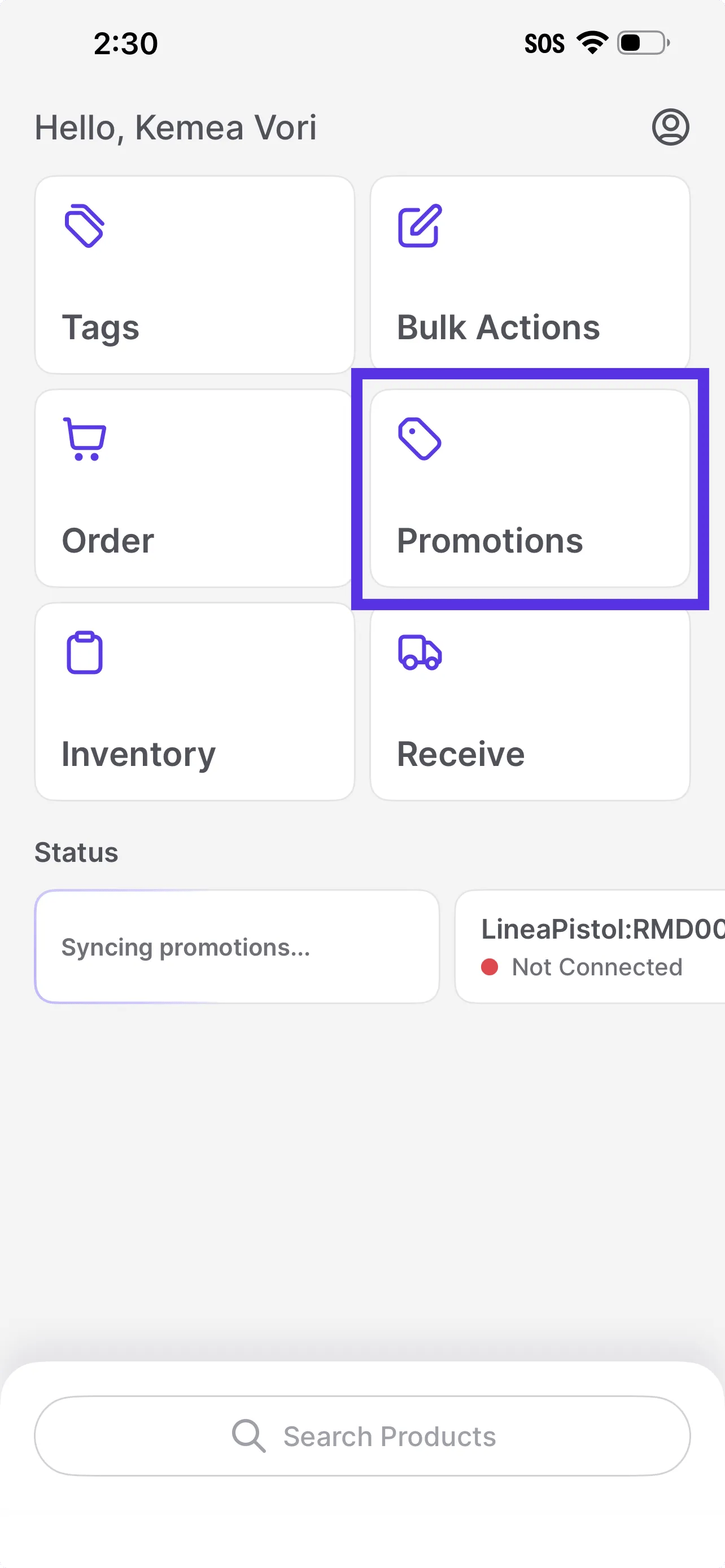
* You’re logged in and can see the **Promotions** module from the Homepage.
 ***
### Create a New Promotion
You can start a promotion in two ways:
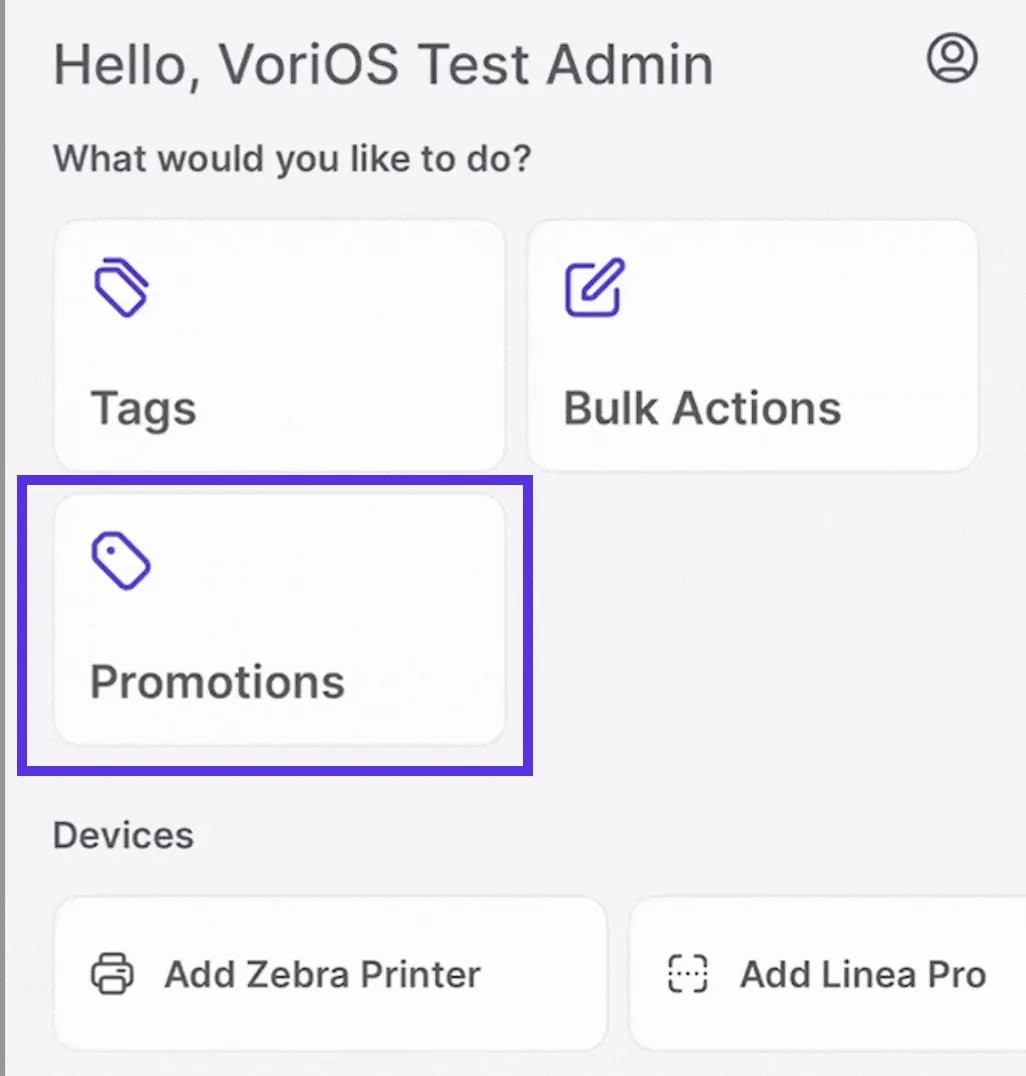
* From the \*\*Promotions module
***
### Create a New Promotion
You can start a promotion in two ways:
* From the \*\*Promotions module
 \*\*
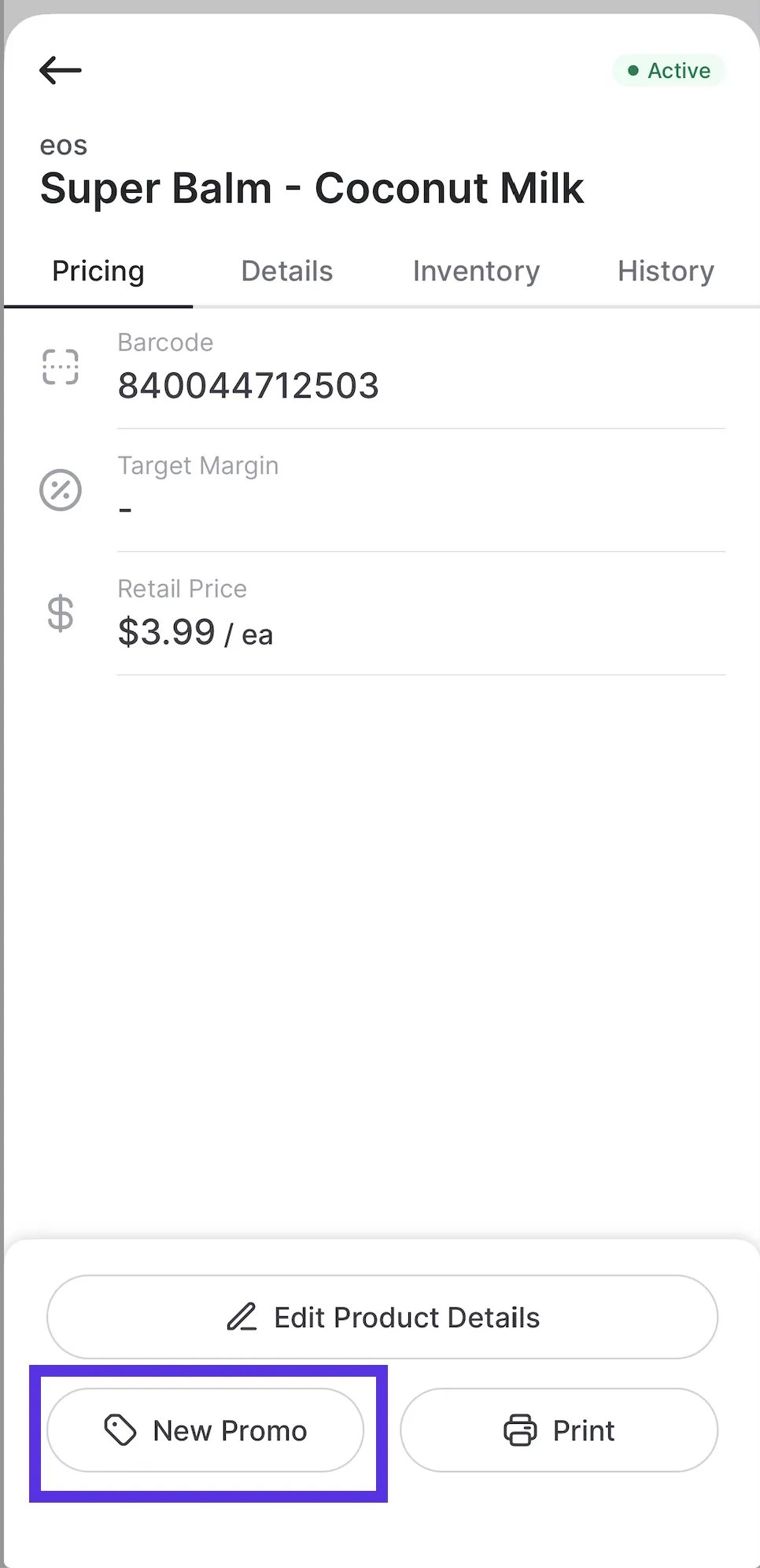
* Directly from the **Products page** while you're on the floor
\*\*
* Directly from the **Products page** while you're on the floor
 Choose the path that matches how you work.
#### Option 1: From the Promotions Module
1. Select the **Promotions** module from the main menu.
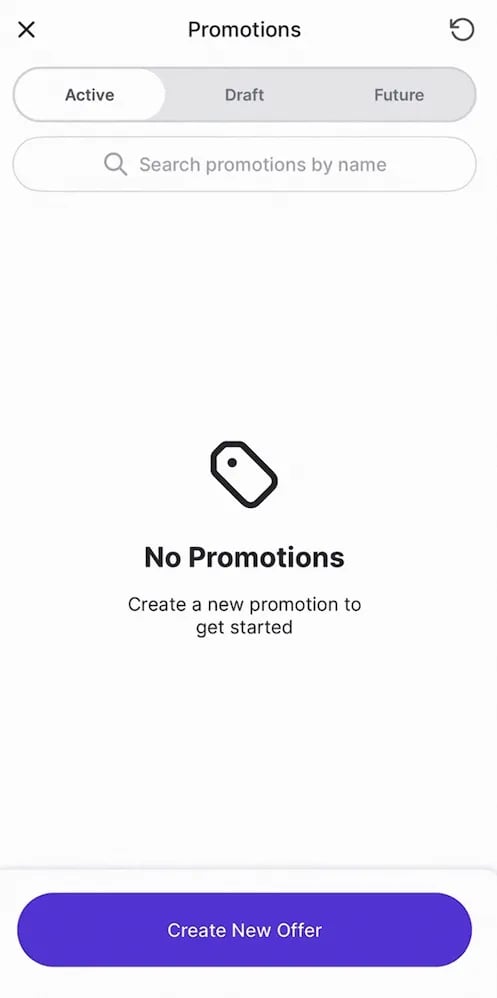
2. Tap **Create New Offer** at the bottom of the screen.
Choose the path that matches how you work.
#### Option 1: From the Promotions Module
1. Select the **Promotions** module from the main menu.
2. Tap **Create New Offer** at the bottom of the screen.
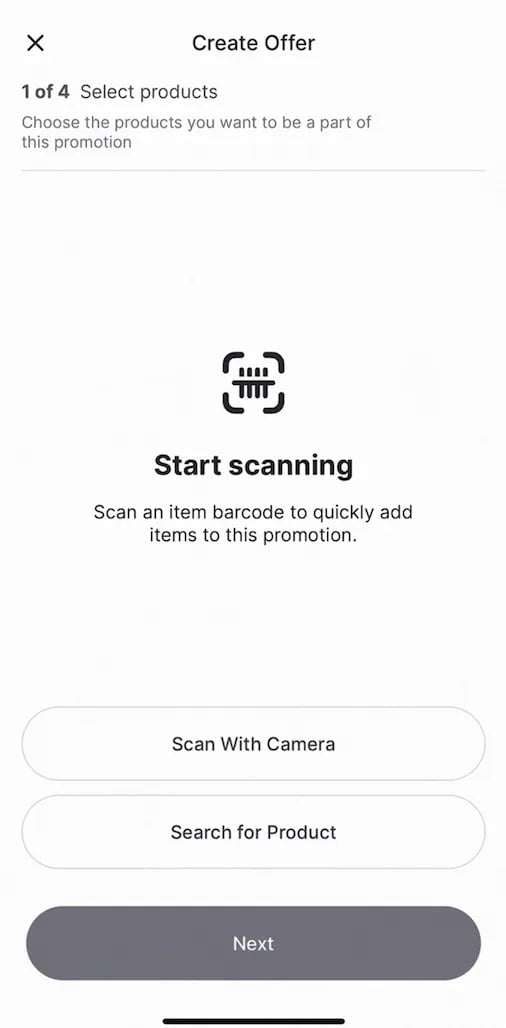
 3. Add items to your promotion:
1. **Scan With Camera or Linea Pro:** Walk the aisle and scan barcodes continuously to add items fast.
2. **Search for Product:** Manually search and tap the + next to each item. When you see the check mark, the item is locked in.
3. Add items to your promotion:
1. **Scan With Camera or Linea Pro:** Walk the aisle and scan barcodes continuously to add items fast.
2. **Search for Product:** Manually search and tap the + next to each item. When you see the check mark, the item is locked in.
 4. Tap **Next** to set your deal details:
1. Deal Type
4. Tap **Next** to set your deal details:
1. Deal Type
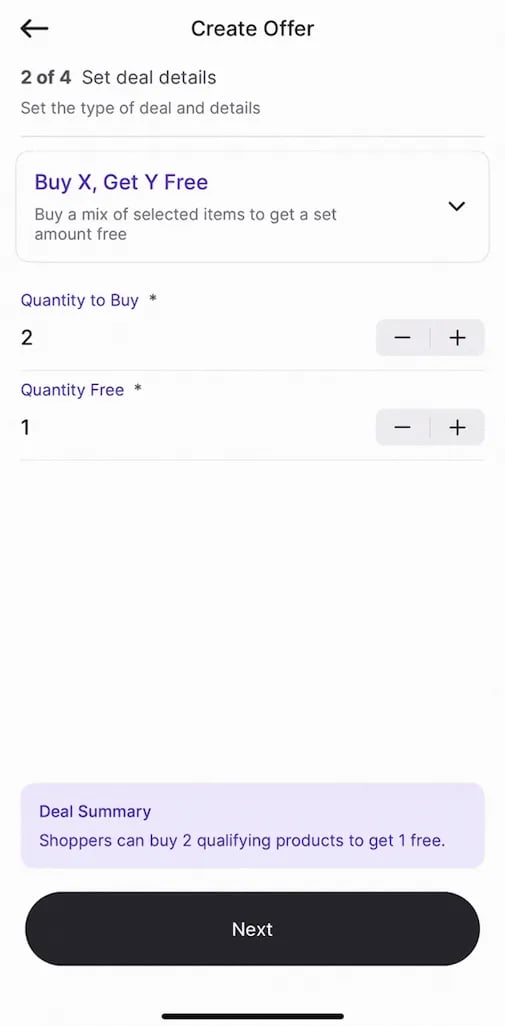
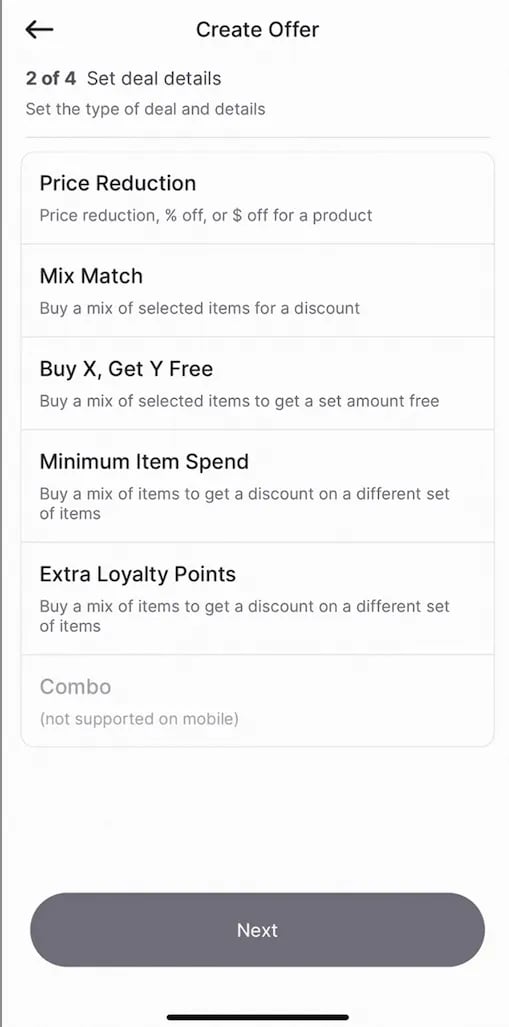 2. Conditions
3. Discount structure
2. Conditions
3. Discount structure
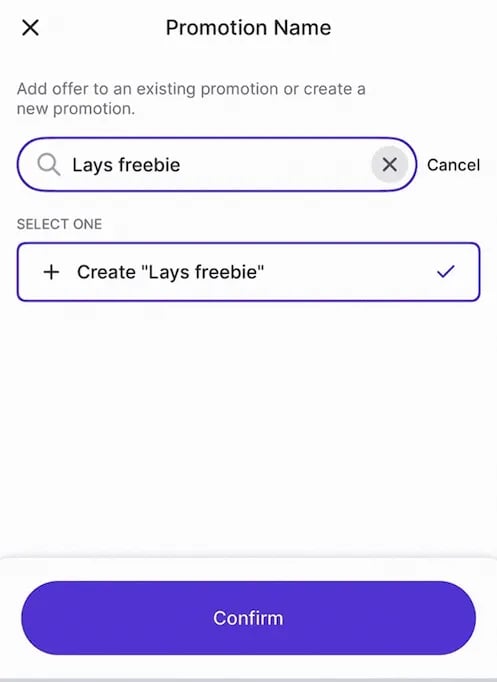
 5. Tap **Next** again to assign the offer to a promotion.
1. Select an existing promotion, or
2. Or enter a new name and select **Confirm**.
5. Tap **Next** again to assign the offer to a promotion.
1. Select an existing promotion, or
2. Or enter a new name and select **Confirm**.
 6. Set the duration, frequency, date, and time of the promotion.
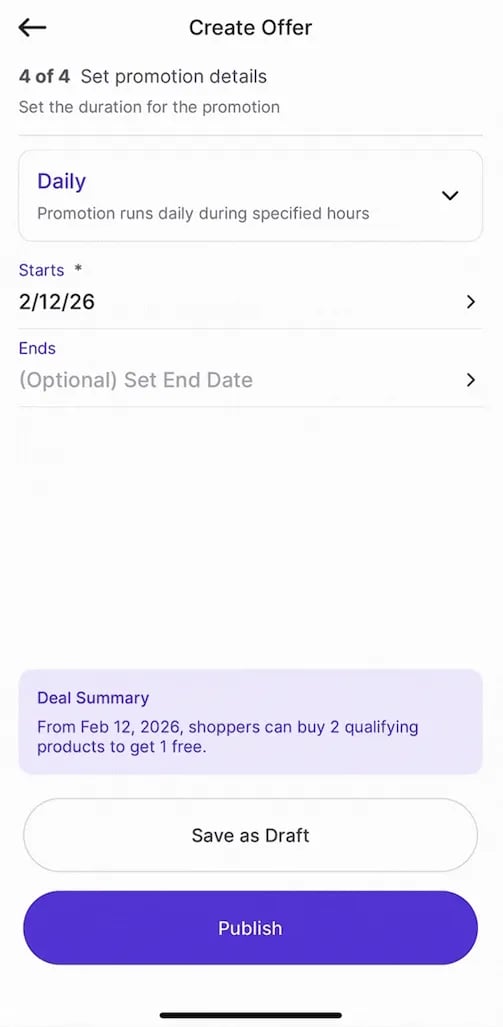 7. Choose:
1. **Save as Draft** (if you’re still refining) or
2. **Publish** to go live immediately.
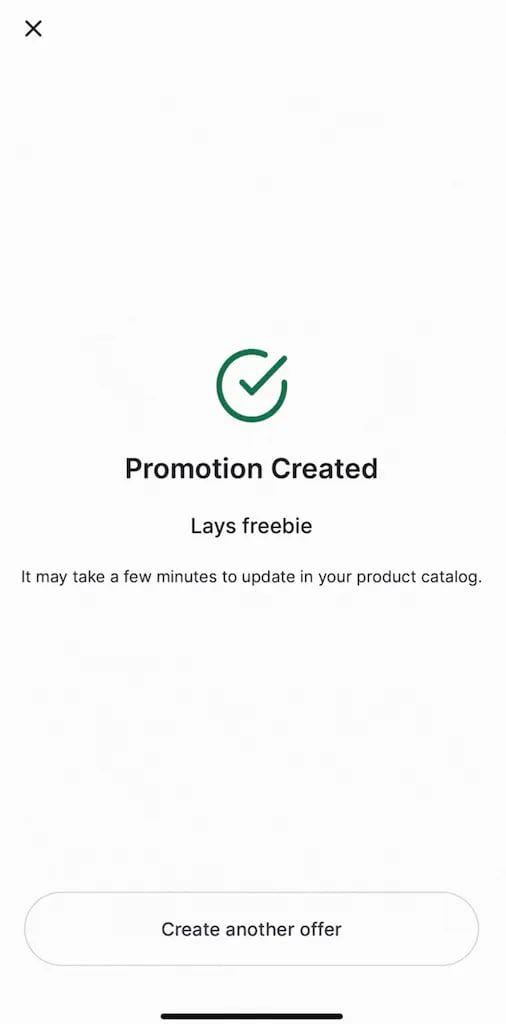
8. You’ll see a **Promotion Created** confirmation, and your promotion is officially working for you. The promotion will also be housed under **Active, Draft**, or **Future**, depending on its details.
7. Choose:
1. **Save as Draft** (if you’re still refining) or
2. **Publish** to go live immediately.
8. You’ll see a **Promotion Created** confirmation, and your promotion is officially working for you. The promotion will also be housed under **Active, Draft**, or **Future**, depending on its details.
 #### Full Walkthrough
#### Option 2: From the Products Page
If you’re already on the floor adjusting pricing or reviewing items:
1. Use the **Search bar** or **Scan** to find the product.
2. Tap **New Promo** at the bottom of the screen.
3. Follow the same steps above to:
1. Add items
2. Set deal details
3. Publish or save as a draft
***
### Managing Variable-Weight Item Promotions
Variable-weight items support specific promotion types depending on your store setup:
* **Standard Promotions:** Use the standard **Promotions** module to run a **percentage-off promotion.** Other promotion types are not supported for these items.
* **Manual Price Updates:** If you are not running a percentage-off promotion, you must update the price either manually or through **Cost Changes**.
***
### Edit a Promotion
Accurate promotions protect shopper trust and your margins.
#### From the Promotions Module
1. Open **Promotions**.
2. Tap the promotion you want to update.
3. Edit Promotion
1. Select **Edit Promotions** to update the promotion period, frequency, date, and time.
2. Select the **item on promotion** to edit the offer type.
4. Make your changes.
5. Tap **Save** or **Update Offer**.
6. A confirmation banner will appear at the bottom of your screen.
#### From the Products Page *(Updating the Offer Only)*
1. Scan or search for the product already on promotion. (Look for the **purple tag** next to the retail price.)
2. Tap the product.
3. Tap the active promotion.
4. Select **View Promo**.
5. Make your changes to the offer.
6. Tap **Update Offer**.
***
### Duplicate Promotion
Running recurring sales? Don’t start from scratch.
1. Open **Promotions**.
2. Select the promotion you want to copy.
3. Tap the three dots (top right).
4. Select **Duplicate Promotion Details**.
5. Review and adjust as needed.
6. Tap **Save**.
7. The new promotion will save as a **Draft**, ready when you are to publish.
***
### Cancel a Promotion
If you need to end a sale early, you can do so in a few taps.
1. Open the **Promotions** module and select the active promotion.
2. Tap the three dots at the top right and select **Cancel Promotion**.
3. When the confirmation pop-up appears, tap **Cancel Promotion** to finalize.
## Related topics
- [Print Promotion Tags on VoriOS](/promotions/print-promotion-tags-on-vori-os.md)
- [Create Order Guides in VoriOS](/inventory-and-ordering/ordering/create-order-guides-in-vorios.md)
- [How to create a product on the VoriOS app](/product-and-product-catalog-management/product-creation-and-set-up/how-to-create-a-product-on-the-vori-os-app.md)
#### Full Walkthrough
#### Option 2: From the Products Page
If you’re already on the floor adjusting pricing or reviewing items:
1. Use the **Search bar** or **Scan** to find the product.
2. Tap **New Promo** at the bottom of the screen.
3. Follow the same steps above to:
1. Add items
2. Set deal details
3. Publish or save as a draft
***
### Managing Variable-Weight Item Promotions
Variable-weight items support specific promotion types depending on your store setup:
* **Standard Promotions:** Use the standard **Promotions** module to run a **percentage-off promotion.** Other promotion types are not supported for these items.
* **Manual Price Updates:** If you are not running a percentage-off promotion, you must update the price either manually or through **Cost Changes**.
***
### Edit a Promotion
Accurate promotions protect shopper trust and your margins.
#### From the Promotions Module
1. Open **Promotions**.
2. Tap the promotion you want to update.
3. Edit Promotion
1. Select **Edit Promotions** to update the promotion period, frequency, date, and time.
2. Select the **item on promotion** to edit the offer type.
4. Make your changes.
5. Tap **Save** or **Update Offer**.
6. A confirmation banner will appear at the bottom of your screen.
#### From the Products Page *(Updating the Offer Only)*
1. Scan or search for the product already on promotion. (Look for the **purple tag** next to the retail price.)
2. Tap the product.
3. Tap the active promotion.
4. Select **View Promo**.
5. Make your changes to the offer.
6. Tap **Update Offer**.
***
### Duplicate Promotion
Running recurring sales? Don’t start from scratch.
1. Open **Promotions**.
2. Select the promotion you want to copy.
3. Tap the three dots (top right).
4. Select **Duplicate Promotion Details**.
5. Review and adjust as needed.
6. Tap **Save**.
7. The new promotion will save as a **Draft**, ready when you are to publish.
***
### Cancel a Promotion
If you need to end a sale early, you can do so in a few taps.
1. Open the **Promotions** module and select the active promotion.
2. Tap the three dots at the top right and select **Cancel Promotion**.
3. When the confirmation pop-up appears, tap **Cancel Promotion** to finalize.
## Related topics
- [Print Promotion Tags on VoriOS](/promotions/print-promotion-tags-on-vori-os.md)
- [Create Order Guides in VoriOS](/inventory-and-ordering/ordering/create-order-guides-in-vorios.md)
- [How to create a product on the VoriOS app](/product-and-product-catalog-management/product-creation-and-set-up/how-to-create-a-product-on-the-vori-os-app.md)