> ## Documentation Index
> Fetch the complete documentation index at: https://help.vori.com/llms.txt
> Use this file to discover all available pages before exploring further.
# Edit Product Details in the VoriOS App
> Quickly find, update, and view sales for products from your handheld device
### Update Product Pricing or Details
You can edit store product details directly from the **VoriOS app.**
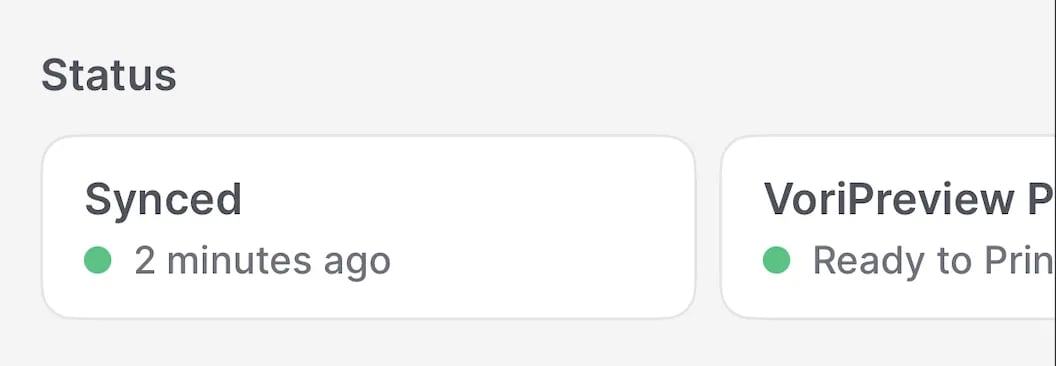
1. Tap the card that shows your current sync status (e.g., "**Synced 2 minutes ago**") from the home screen to ensure the app is up to date with your Back Office data.
 2. Search for the product using one of the following:
1. Scan the barcode.
2. Enter the PLU.
3. Use the Search bar to look up the item by name.
3. Tap the product from the results.
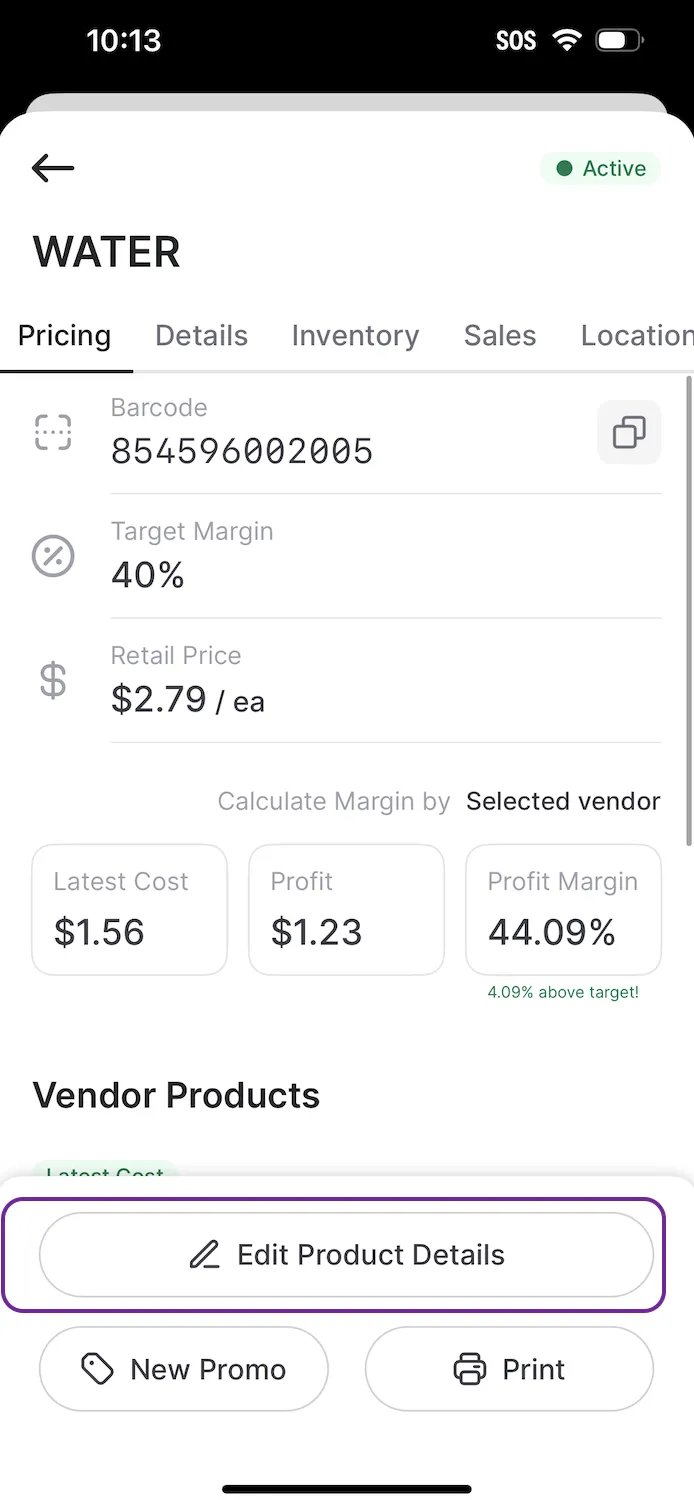
4. Select **Edit Product Details**.
5. Update the desired field(s).
6. Tap **Save** to confirm your changes.
2. Search for the product using one of the following:
1. Scan the barcode.
2. Enter the PLU.
3. Use the Search bar to look up the item by name.
3. Tap the product from the results.
4. Select **Edit Product Details**.
5. Update the desired field(s).
6. Tap **Save** to confirm your changes.
 ***
### View Sales
1. Scan or search for the product.
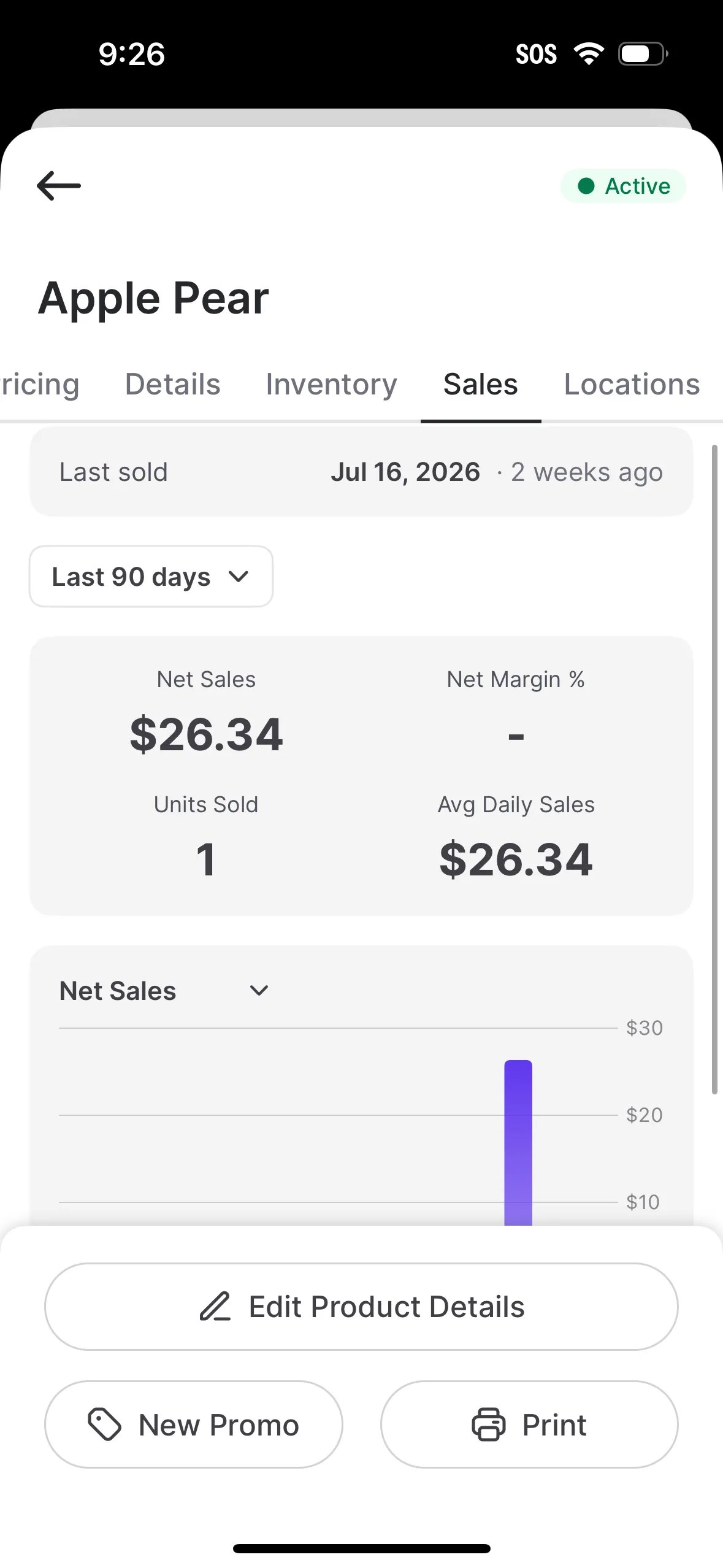
2. Open the **Sales** tab to see the quantity sold over the last 7, 30, or 90 days.
***
### View Sales
1. Scan or search for the product.
2. Open the **Sales** tab to see the quantity sold over the last 7, 30, or 90 days.
 ***
### Locations
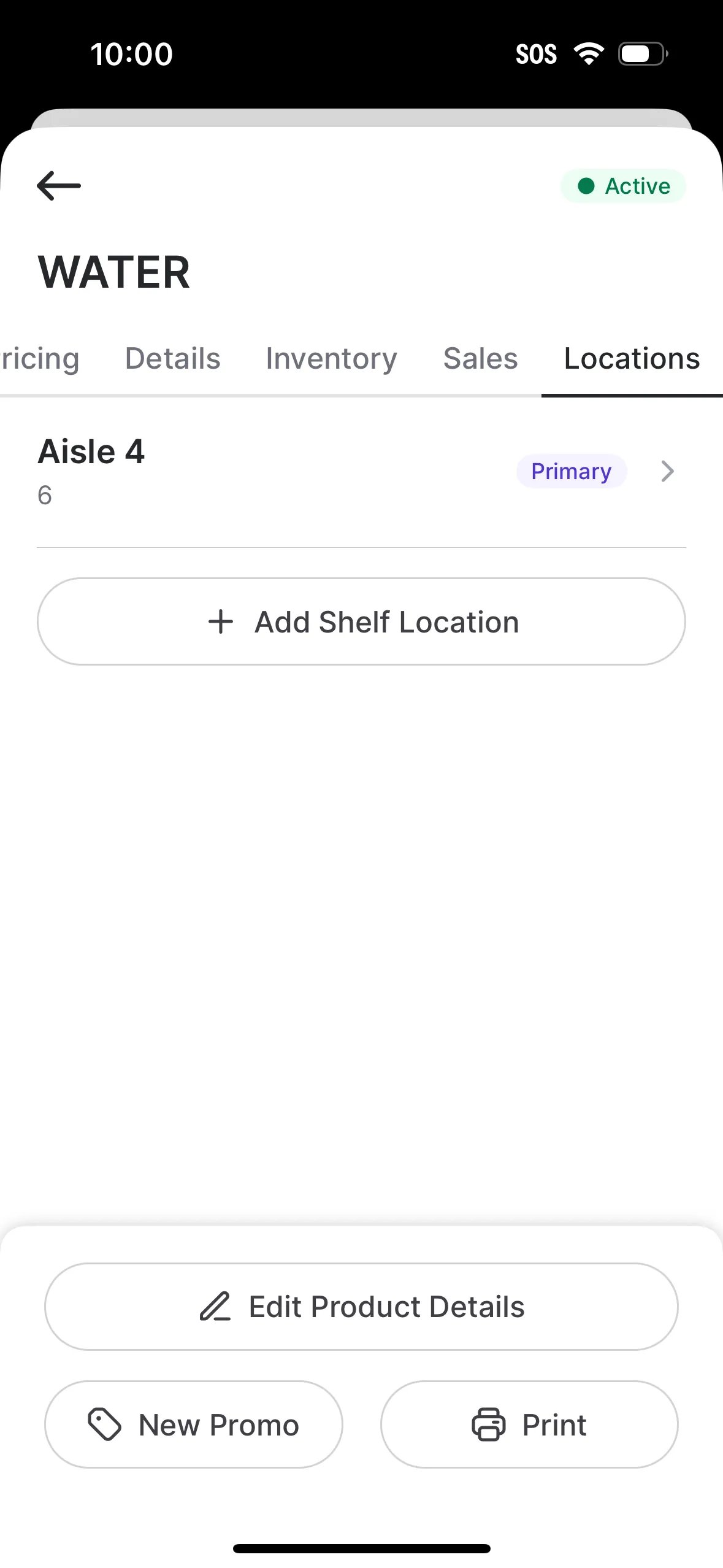
Add one or more shelf locations to a product so your team can find items quickly on the floor. Set the **Aisle**, **Section**, and **Shelf**.
***
### Locations
Add one or more shelf locations to a product so your team can find items quickly on the floor. Set the **Aisle**, **Section**, and **Shelf**.
 ## Related topics
- [How to create a product on the VoriOS app](/product-and-product-catalog-management/product-creation-and-set-up/how-to-create-a-product-on-the-vori-os-app.md)
- [Wide Large 3" x 1.5" Label Tags](/hardware-and-peripherals/tag-printer/wide-large-3-x-1-5-label-tags.md)
- [Bulk Update Products](/product-and-product-catalog-management/product-catalog-and-bulk-management/bulk-update-products.md)
## Related topics
- [How to create a product on the VoriOS app](/product-and-product-catalog-management/product-creation-and-set-up/how-to-create-a-product-on-the-vori-os-app.md)
- [Wide Large 3" x 1.5" Label Tags](/hardware-and-peripherals/tag-printer/wide-large-3-x-1-5-label-tags.md)
- [Bulk Update Products](/product-and-product-catalog-management/product-catalog-and-bulk-management/bulk-update-products.md)