> ## Documentation Index
> Fetch the complete documentation index at: https://help.vori.com/llms.txt
> Use this file to discover all available pages before exploring further.
# Activating & Deactivating Products
> This article explains how to activate or deactivate items from the product catalog using both the Vori Dash Back Office and the Vori operating system handheld.
Your product catalog is only useful if it reflects what's actually available in your store. Activating and deactivating products keeps your POS accurate — so cashiers aren't ringing up items that shouldn't be sold, and your catalog stays clean. You can manage status from New Back Office or directly from the handheld.
### In New Back Office
#### Activate or Deactivate a Single Product
1. Go to **Products > [Product Catalog](https://app.vori.com/retail/products)**.
2. Find the product you want to update and select **Open** to bring up the product detail page.
3. On the **Product Information** tab, select the **Status** field.
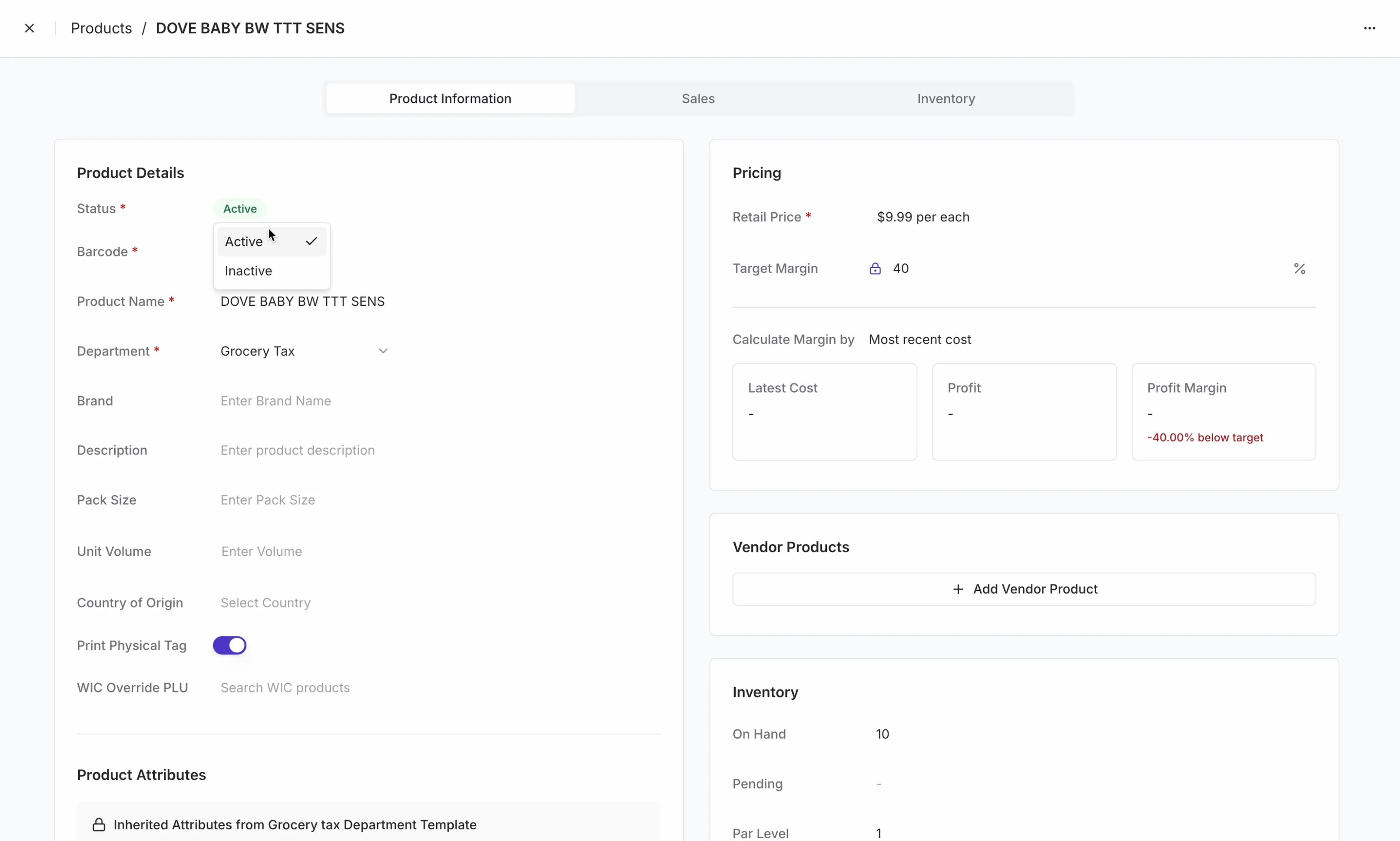 4. Choose **Active** or **Inactive** from the dropdown.
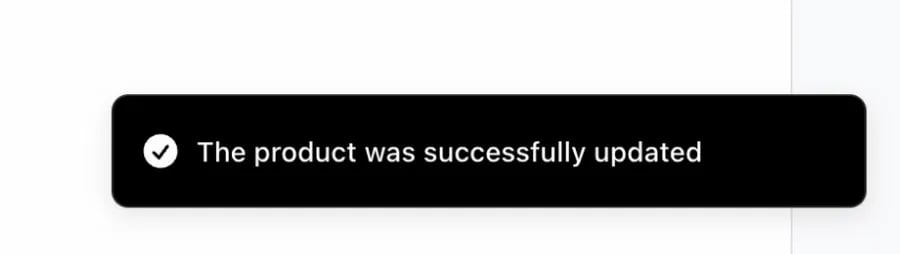
The page will confirm with a "The product was successfully updated" notification.
4. Choose **Active** or **Inactive** from the dropdown.
The page will confirm with a "The product was successfully updated" notification.
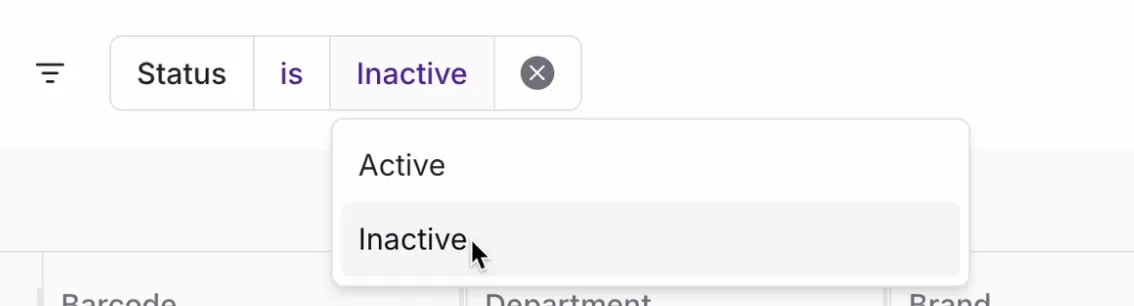
 💡 Tip: To quickly find inactive products, select the filter icon near the search bar, type "status," and select **Status** from the dropdown. Set the value to **Inactive** to filter your catalog view.
 #### Activate or Deactivate Products in Bulk
1. Go to **Products > [Product Catalog](https://app.vori.com/retail/products)**.
2. Select products using the checkboxes to the left of each row. To select everything visible, check the box in the column header.
3. In the action bar at the bottom of the screen, select **More**.
4. In the **Change Status** modal, find the **Status** field.
#### Screenshot 2026-04-01 at 3.58.38 PM
5. Choose **Active** or **Inactive**.
#### Activate or Deactivate Products in Bulk
1. Go to **Products > [Product Catalog](https://app.vori.com/retail/products)**.
2. Select products using the checkboxes to the left of each row. To select everything visible, check the box in the column header.
3. In the action bar at the bottom of the screen, select **More**.
4. In the **Change Status** modal, find the **Status** field.
#### Screenshot 2026-04-01 at 3.58.38 PM
5. Choose **Active** or **Inactive**.
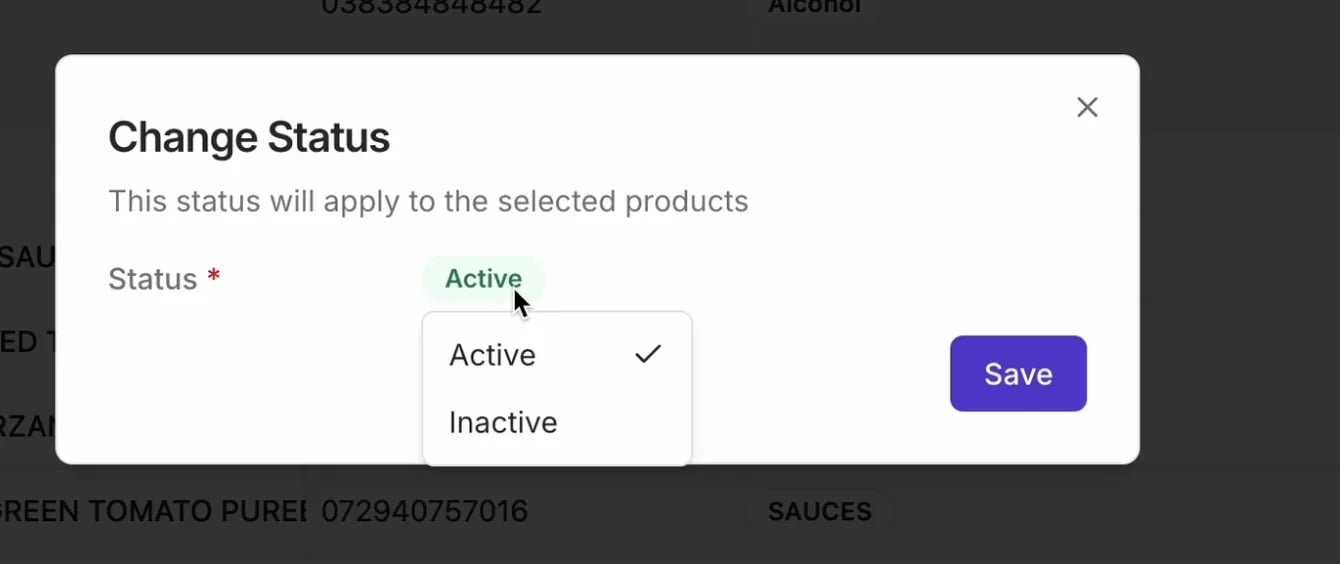 6. Select **Save**.
7. In the confirmation dialog, select **Continue**.
6. Select **Save**.
7. In the confirmation dialog, select **Continue**.
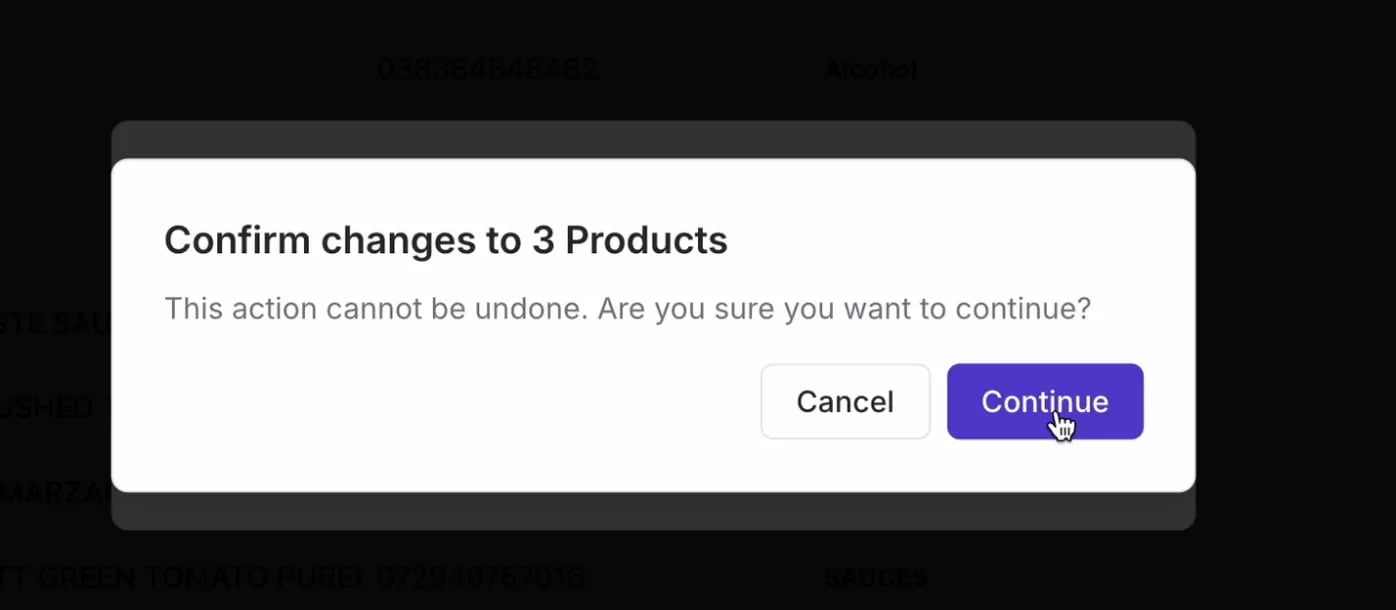 **⚠️ Caution:** Bulk status changes can't be undone. Review your selection before confirming.
***
### On Vori operating system
#### Activate a Product
1. Log in to the Vori operating system app.
2. Search for the product by name or barcode, or scan it directly.
3. Select **Edit Product Details**.
4. Tap the **···** menu and select **Activate Product**.
**⚠️ Caution:** Bulk status changes can't be undone. Review your selection before confirming.
***
### On Vori operating system
#### Activate a Product
1. Log in to the Vori operating system app.
2. Search for the product by name or barcode, or scan it directly.
3. Select **Edit Product Details**.
4. Tap the **···** menu and select **Activate Product**.
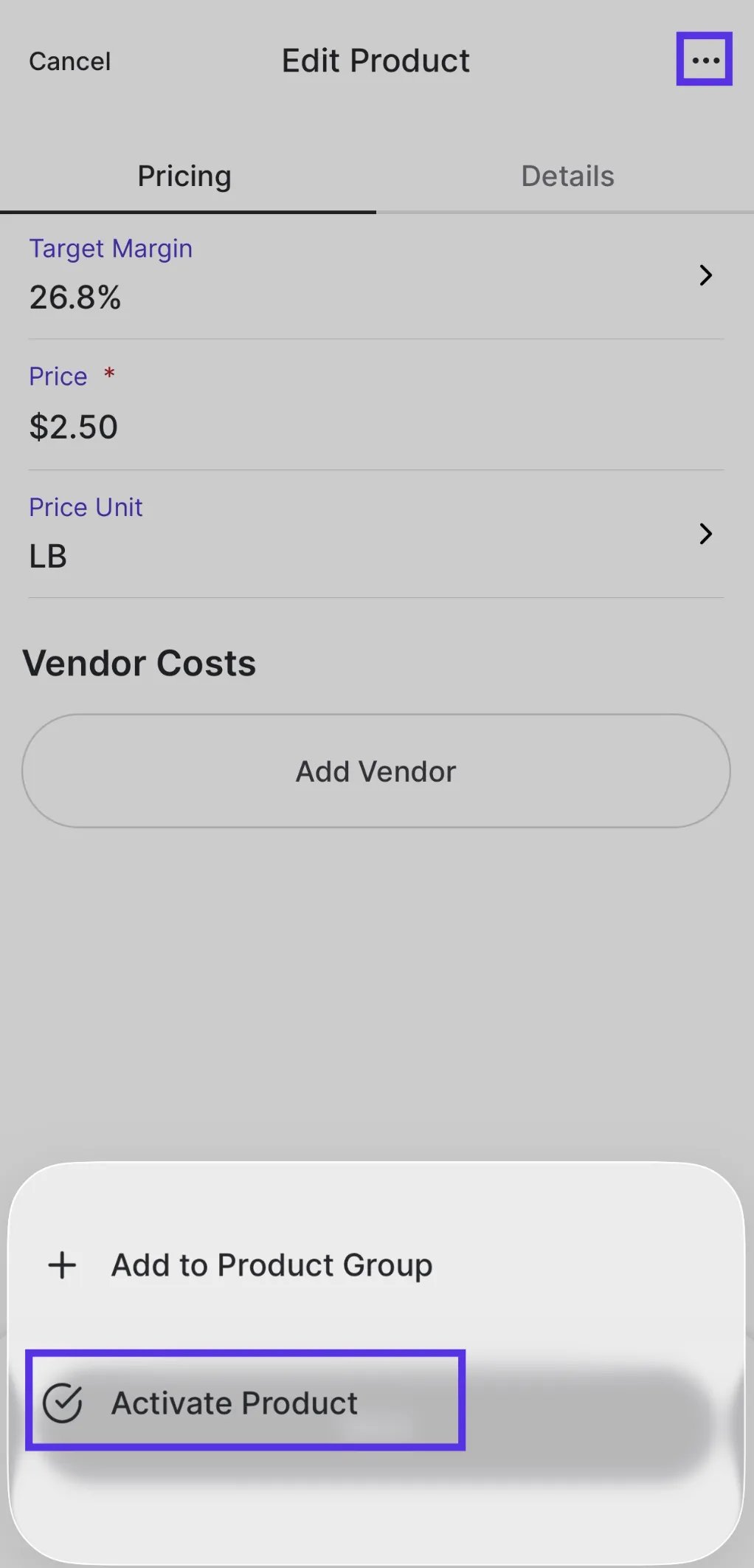 5. On the confirmation screen, tap **Activate Product** to confirm — or **Return to Editing** to go back without changes.
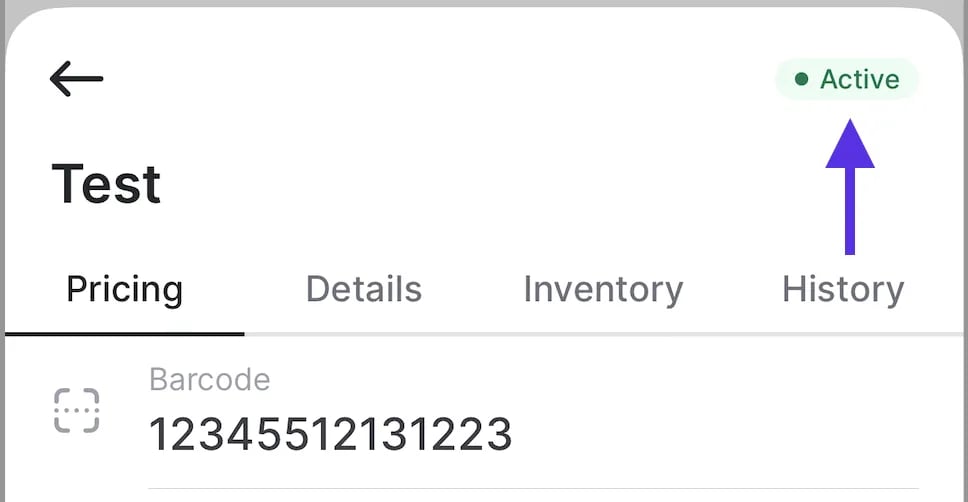
The product will now show a green **Active** status.
5. On the confirmation screen, tap **Activate Product** to confirm — or **Return to Editing** to go back without changes.
The product will now show a green **Active** status.
 #### Deactivate a Product
1. Log in to the Vori operating system app.
2. Search for the product by name or barcode, or scan it directly.
3. Select **Edit Product Details**.
4. Tap the **···** menu and select **Deactivate Product**.
#### Deactivate a Product
1. Log in to the Vori operating system app.
2. Search for the product by name or barcode, or scan it directly.
3. Select **Edit Product Details**.
4. Tap the **···** menu and select **Deactivate Product**.
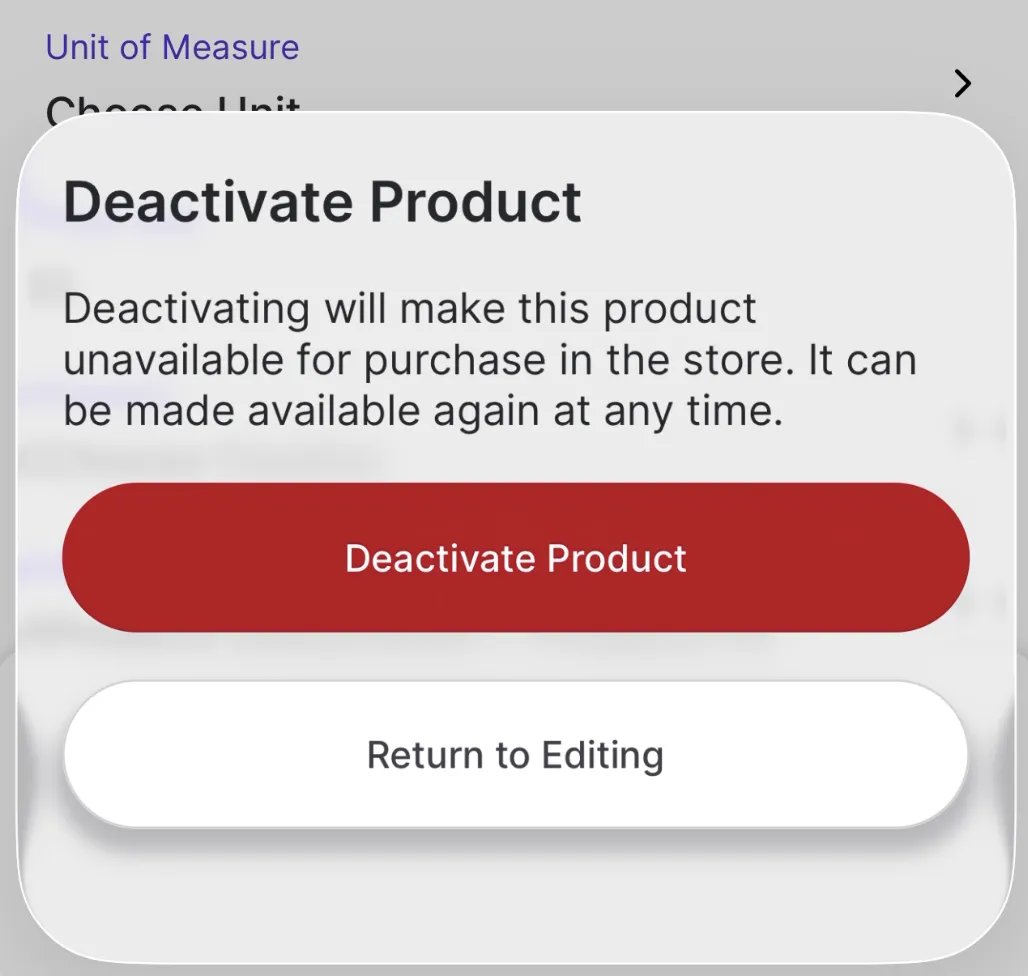
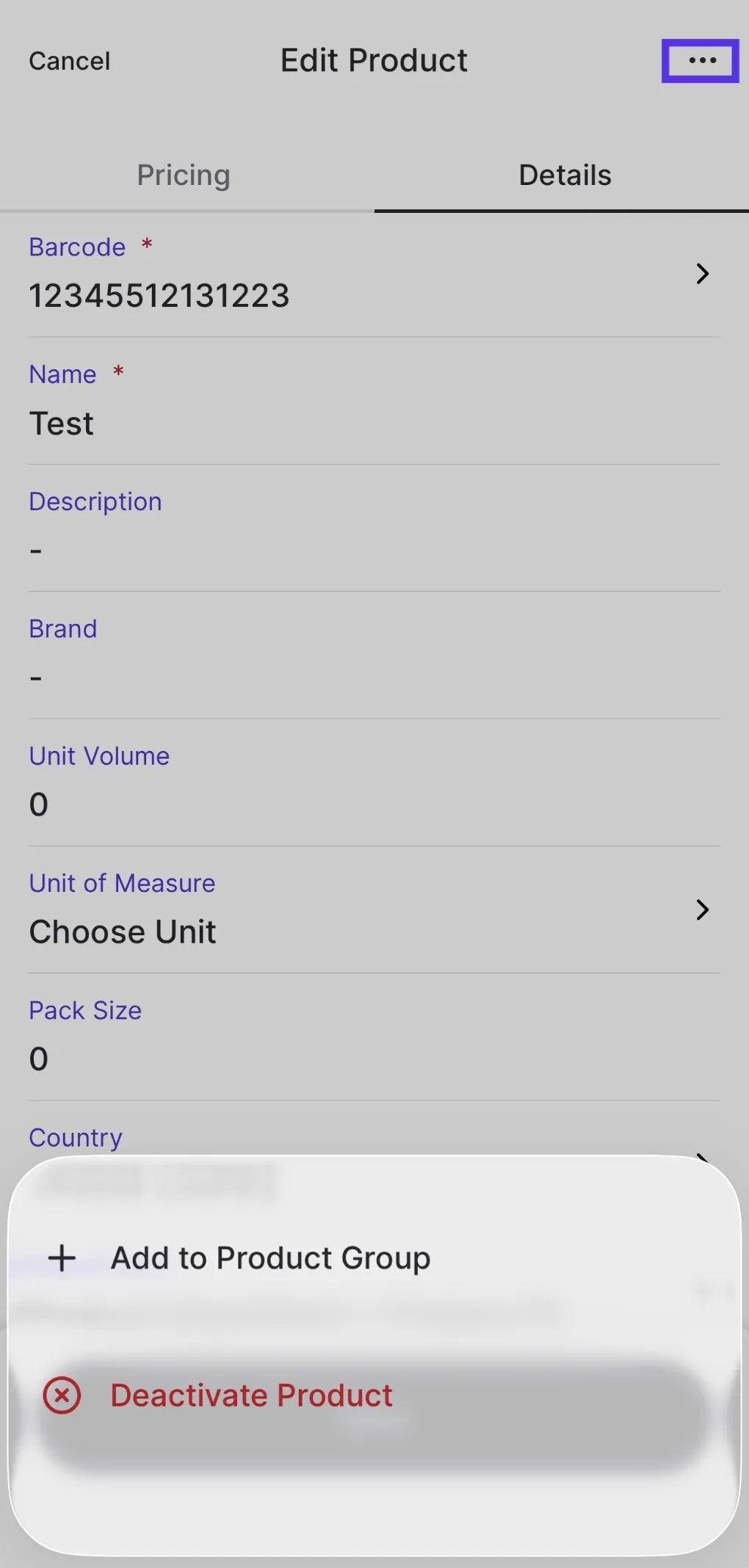 5. On the confirmation screen, tap **Deactivate Product** to confirm — or **Return to Editing** to go back without changes.
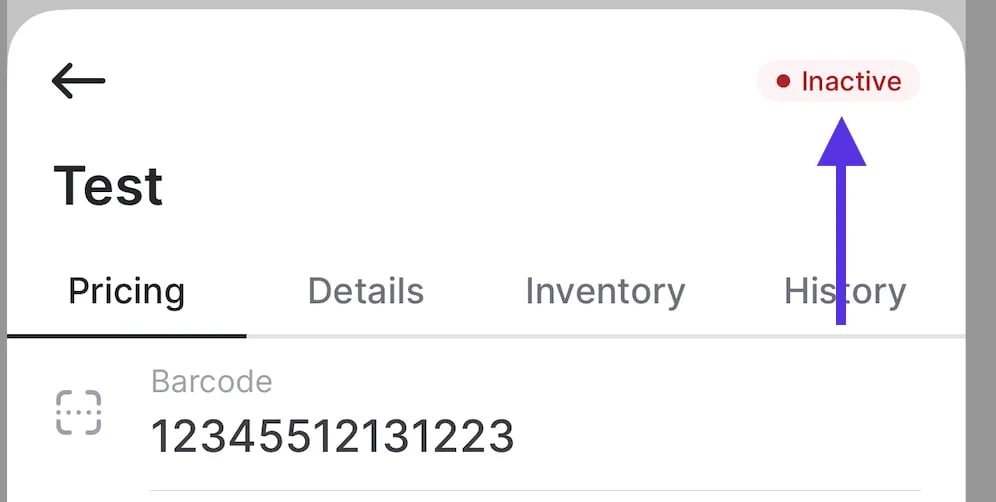
 The product will now show a red **Inactive** status.
 **✏️ Note:** Deactivating a product removes it from the POS immediately. You can reactivate it at any time.
## Related topics
- [Frequently Asked Questions](/faqs.md)
- [Set Up and Manage Product Rules](/product-and-product-catalog-management/product-catalog-and-bulk-management/product-rules.md)
- [Connect to Vori MCP (mcp.vori.com)](/mcp/introduction.md)
**✏️ Note:** Deactivating a product removes it from the POS immediately. You can reactivate it at any time.
## Related topics
- [Frequently Asked Questions](/faqs.md)
- [Set Up and Manage Product Rules](/product-and-product-catalog-management/product-catalog-and-bulk-management/product-rules.md)
- [Connect to Vori MCP (mcp.vori.com)](/mcp/introduction.md)