> ## Documentation Index
> Fetch the complete documentation index at: https://help.vori.com/llms.txt
> Use this file to discover all available pages before exploring further.
# Manage Single Units and Multipacks with One Barcode
> Manage your product catalog and pricing when singles and packs share a UPC
Some stores sell both single units and multi-packs under the exact same barcode (e.g., a single soda can that is also sold as a plastic-wrapped 6-pack).
You can configure these items using one of two options, depending on how you want your cashiers to handle them at the register.
### Option 1: Prompt for Quantity
*Best for: High-speed checkout where cashiers can quickly count the pack size.*
In this method, the POS stops and asks the cashier to confirm how many units are being sold (e.g., entering "6" for a 6-pack).
#### Set Up in Vori Back Office
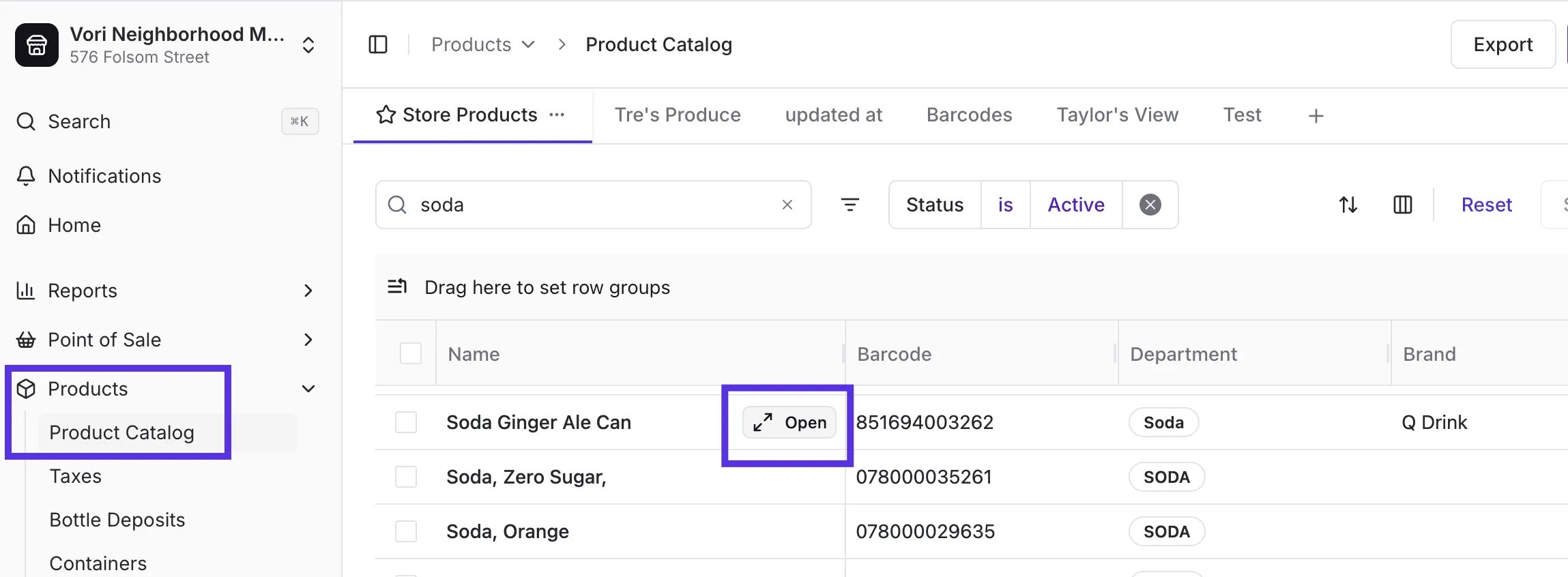
1. Select **Products** > **Product Catalog** from the left menu and locate the item.
2. Locate the product and open it by hovering over the product name.
 3. Enter the price for a **single unit**.
* *(e.g., Enter \$2.29/per can).*
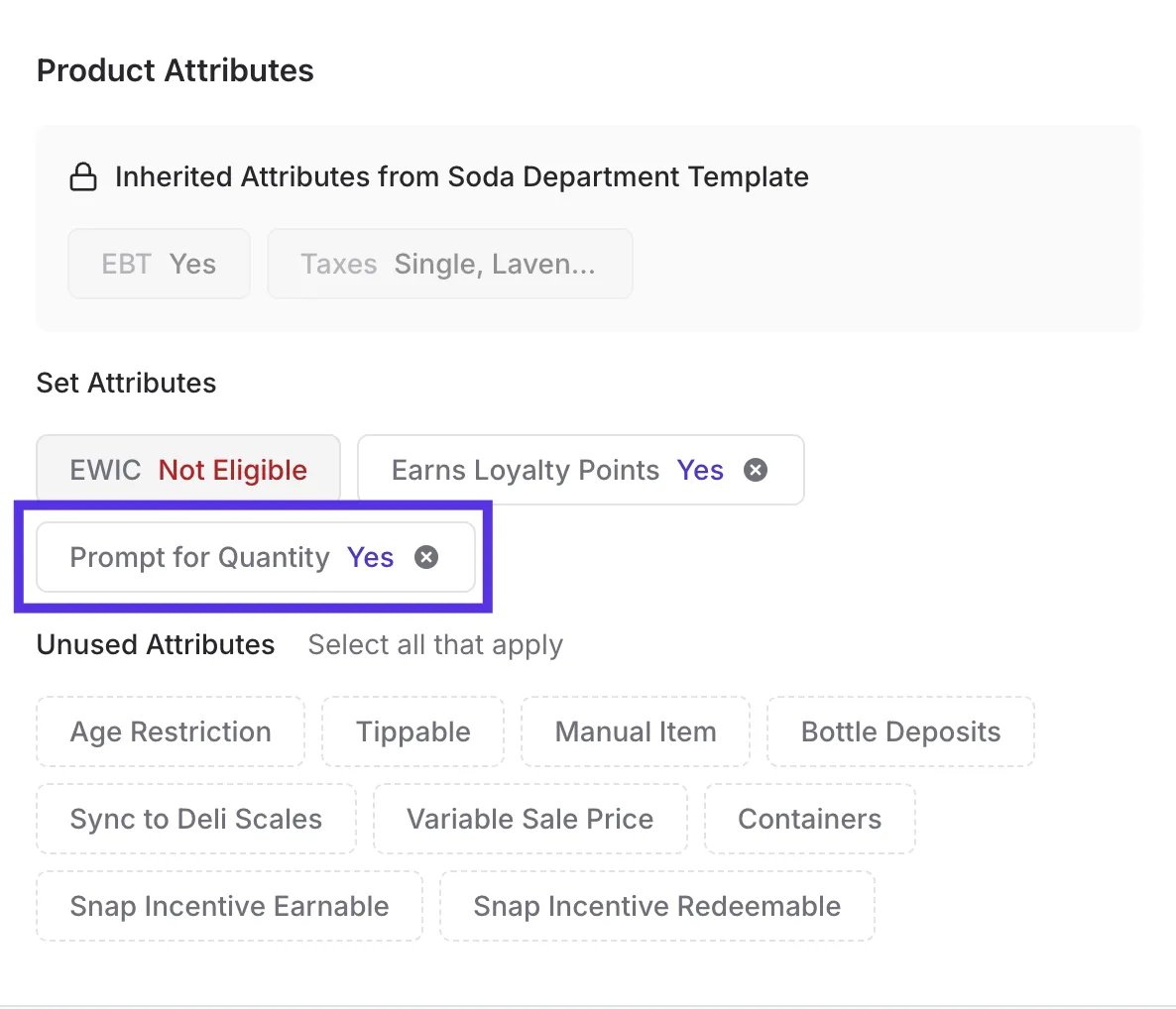
4. In the **Product Attributes** section, enable any applicable bottle deposit attributes and **Prompt for Quantity**.
3. Enter the price for a **single unit**.
* *(e.g., Enter \$2.29/per can).*
4. In the **Product Attributes** section, enable any applicable bottle deposit attributes and **Prompt for Quantity**.
 5. Tap **Create Product.**
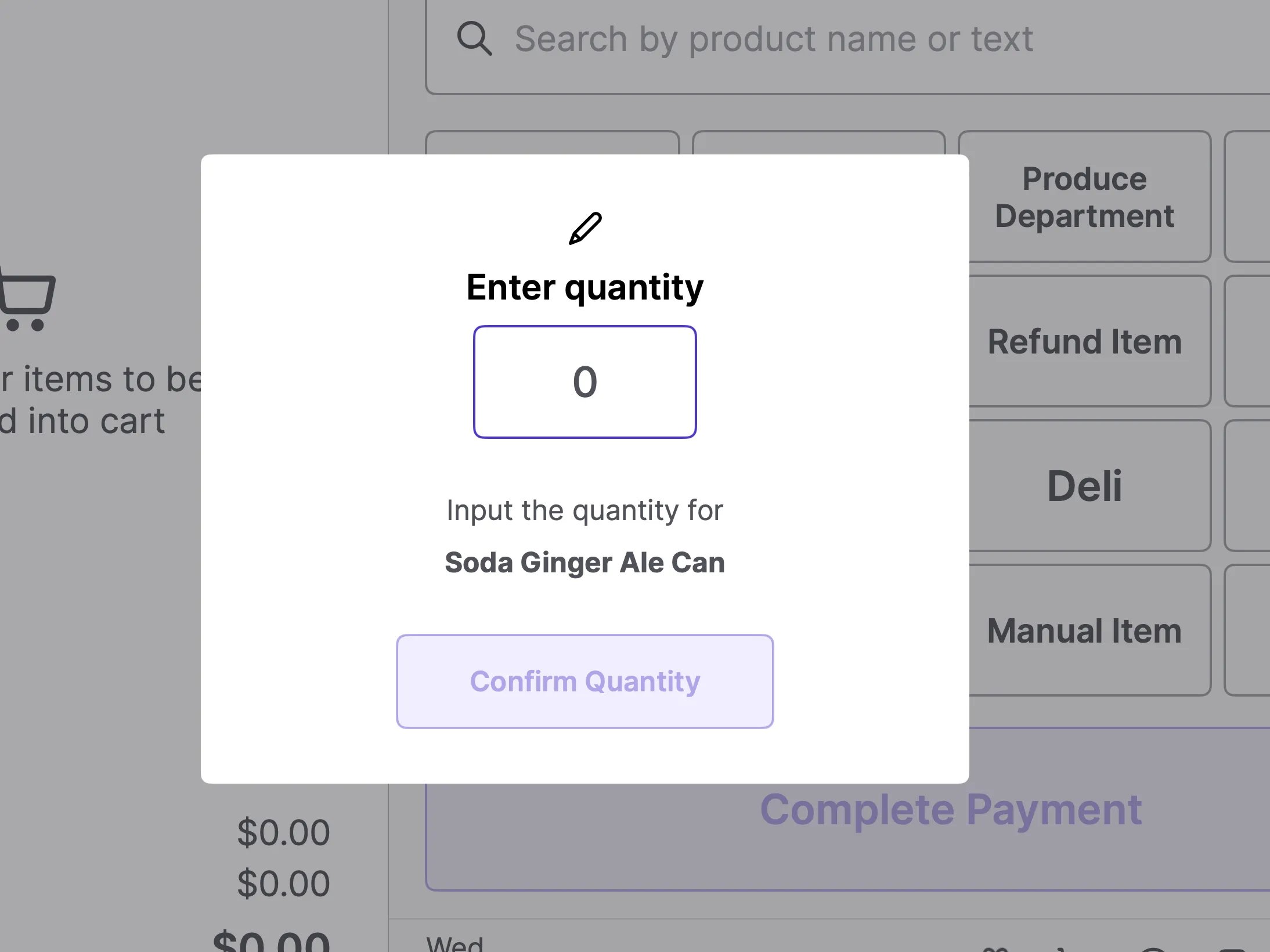
6. When this item is scanned at the POS, the system will prompt the cashier to enter the quantity sold (e.g., they will enter "6" for a full 6-pack).
5. Tap **Create Product.**
6. When this item is scanned at the POS, the system will prompt the cashier to enter the quantity sold (e.g., they will enter "6" for a full 6-pack).
 #### Add a bulk discount for the 6-pack
If your store offers a lower price when a shopper buys six cans at once — compared to six individual purchases — you can pair Prompt for Quantity with a Mix Match promotion. When the cashier scans the barcode and enters 6, the promotion fires automatically and brings the total down to the 6-pack price. No second barcode, no manual override needed.
**Step 1 — Confirm the product is set up with Prompt for Quantity** per the steps above.
**Step 2 — Create a Mix Match promotion**
1. In the Back Office, go to **Promotions** and create a new promotion.
2. Set the **Offer Type** to **Mix Match**.
3. Set the **Quantity** to **6**.
4. Under **Conditions**, select **Strict Interval** — this ensures the discount only applies at exact multiples of 6. A cashier entering 3 gets single-can pricing, not a partial discount.
5. Choose your **Discount Method** based on how your store prices the 6-pack:
| Discount method | When to use | Example |
| ------------------------------------- | --------------------------------------------------- | ------------------ |
| **Promotional Total** *(recommended)* | You have a fixed 6-pack price | 6 for \$8.99 |
| **Fixed \$ Off** | You want to knock a set dollar amount off the total | Buy 6, save \$1.50 |
| **Percentage Off** | You want a consistent margin-based discount | Buy 6, get 10% off |
Promotional Total is usually the simplest — enter the 6-pack price and Vori calculates the per-unit discount automatically.
6. Add the product to the qualifying product list.
7. Leave **End Date** blank so the promotion stays active ongoing.
8. Save and activate the promotion.
**💡 Tip:** Confirm the promotion is active before testing at the register. A draft promotion will not apply at the Point of Sale.
***
### Option 2: Separate PLU
*Best for: Accurate inventory tracking of singles vs. packs.*
In this method, you use the main barcode for the multi-pack and a manual code (PLU) for the single unit.
#### How to Configure in the Back Office
1. **Main Product:** Set up the scanned barcode as the multi-pack (e.g., the 6-pack price).
#### Add a bulk discount for the 6-pack
If your store offers a lower price when a shopper buys six cans at once — compared to six individual purchases — you can pair Prompt for Quantity with a Mix Match promotion. When the cashier scans the barcode and enters 6, the promotion fires automatically and brings the total down to the 6-pack price. No second barcode, no manual override needed.
**Step 1 — Confirm the product is set up with Prompt for Quantity** per the steps above.
**Step 2 — Create a Mix Match promotion**
1. In the Back Office, go to **Promotions** and create a new promotion.
2. Set the **Offer Type** to **Mix Match**.
3. Set the **Quantity** to **6**.
4. Under **Conditions**, select **Strict Interval** — this ensures the discount only applies at exact multiples of 6. A cashier entering 3 gets single-can pricing, not a partial discount.
5. Choose your **Discount Method** based on how your store prices the 6-pack:
| Discount method | When to use | Example |
| ------------------------------------- | --------------------------------------------------- | ------------------ |
| **Promotional Total** *(recommended)* | You have a fixed 6-pack price | 6 for \$8.99 |
| **Fixed \$ Off** | You want to knock a set dollar amount off the total | Buy 6, save \$1.50 |
| **Percentage Off** | You want a consistent margin-based discount | Buy 6, get 10% off |
Promotional Total is usually the simplest — enter the 6-pack price and Vori calculates the per-unit discount automatically.
6. Add the product to the qualifying product list.
7. Leave **End Date** blank so the promotion stays active ongoing.
8. Save and activate the promotion.
**💡 Tip:** Confirm the promotion is active before testing at the register. A draft promotion will not apply at the Point of Sale.
***
### Option 2: Separate PLU
*Best for: Accurate inventory tracking of singles vs. packs.*
In this method, you use the main barcode for the multi-pack and a manual code (PLU) for the single unit.
#### How to Configure in the Back Office
1. **Main Product:** Set up the scanned barcode as the multi-pack (e.g., the 6-pack price).
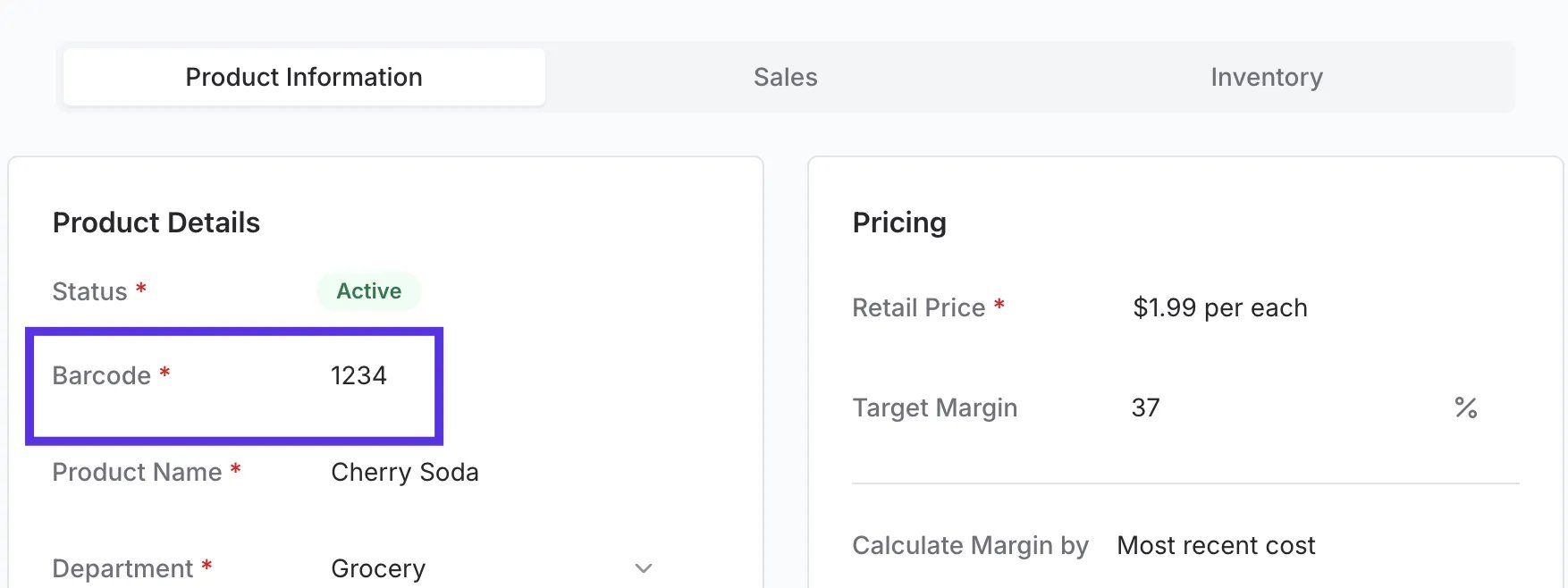 2. **Second Product:** Create a separate product for the single unit.
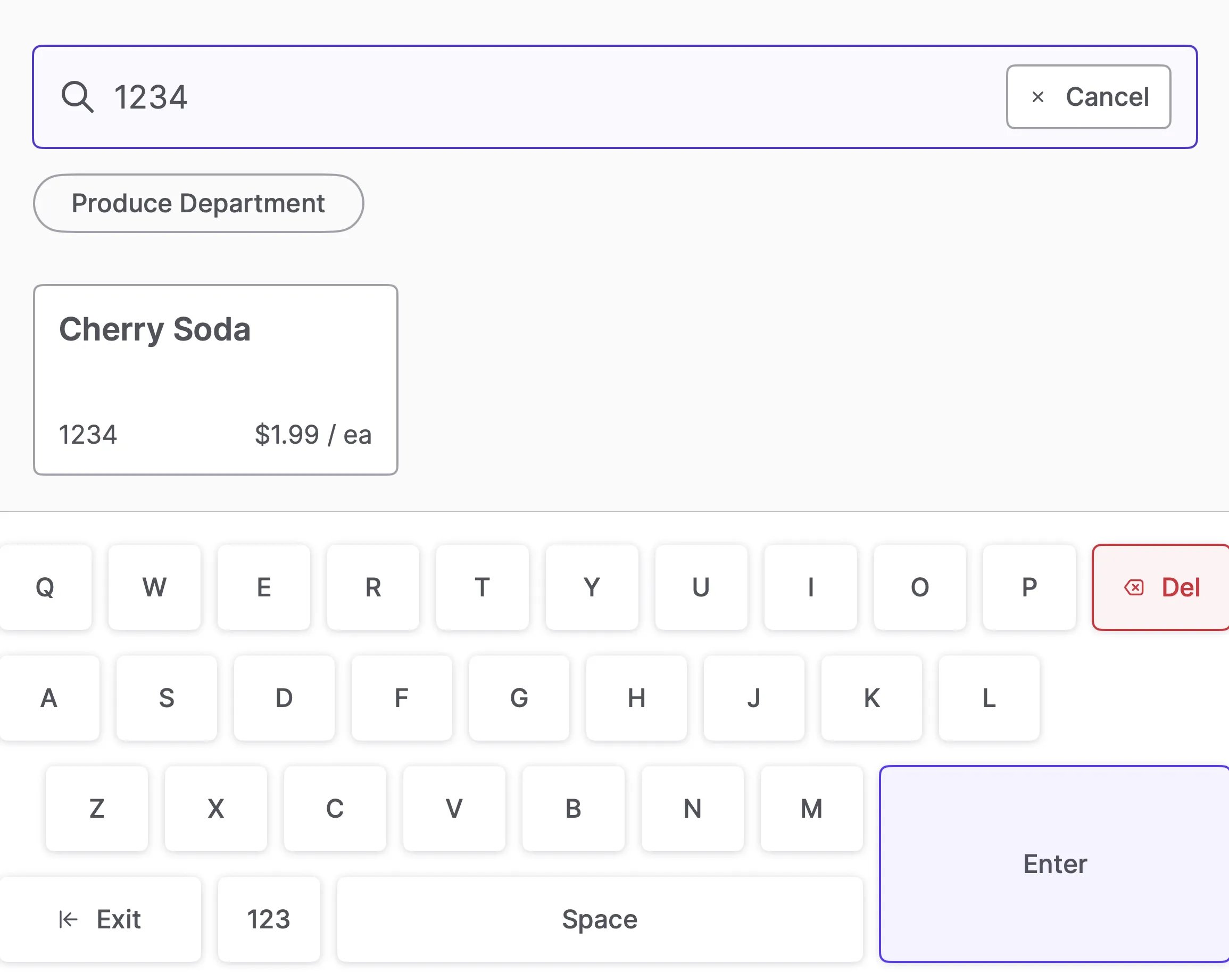
1. **Assign PLU:** Give the single unit a short PLU (e.g, 1234) instead of a barcode.
3. **At Register:** The cashier scans the pack for the full price or types 1234 to sell the single unit.
2. **Second Product:** Create a separate product for the single unit.
1. **Assign PLU:** Give the single unit a short PLU (e.g, 1234) instead of a barcode.
3. **At Register:** The cashier scans the pack for the full price or types 1234 to sell the single unit.
 ***
### Troubleshooting
**Quantity prompt not appearing at the register?** Go to Vori Back Office and confirm the **Prompt for Quantity** toggle is active for that specific product.
**Price calculation issues for multi-packs?** Verify that your pricing is set **per unit** and that bottle deposits are configured correctly.
## Related topics
- [Edit a Product in Back Office](/product-and-product-catalog-management/product-editing-and-activation/edit-a-product-in-back-office.md)
- [Create and Manage Product Groups](/product-and-product-catalog-management/product-creation-and-set-up/create-and-manage-product-groups.md)
- [Set Up and Manage Product Rules](/product-and-product-catalog-management/product-catalog-and-bulk-management/product-rules.md)
***
### Troubleshooting
**Quantity prompt not appearing at the register?** Go to Vori Back Office and confirm the **Prompt for Quantity** toggle is active for that specific product.
**Price calculation issues for multi-packs?** Verify that your pricing is set **per unit** and that bottle deposits are configured correctly.
## Related topics
- [Edit a Product in Back Office](/product-and-product-catalog-management/product-editing-and-activation/edit-a-product-in-back-office.md)
- [Create and Manage Product Groups](/product-and-product-catalog-management/product-creation-and-set-up/create-and-manage-product-groups.md)
- [Set Up and Manage Product Rules](/product-and-product-catalog-management/product-catalog-and-bulk-management/product-rules.md)