> ## Documentation Index
> Fetch the complete documentation index at: https://help.vori.com/llms.txt
> Use this file to discover all available pages before exploring further.
# Link Vendor Products to Store Items
> Connect supplier product details to your items for accurate ordering and precise margins
In Vori, a **Vendor Product** creates a bridge between the item on your shelf (the Store Product) and the item in your supplier's catalog. Establishing this link allows you to automate purchase orders and track rising costs.
### Why Link Vendor Products?
A single item on your shelf—like "Lemon Iced Tea Mix"—might be purchased from multiple sources. You might buy it primarily from *Vendor A*, but occasionally pick it up from *Vendor B* when stock is low.
By adding a **Vendor Product** for each supplier, you tell the system:
1. **Who** you buy it from.
2. **The Code** the vendor uses to identify it.
3. **The Wholesale Cost** and **Case Size**.
This data powers your "Latest Cost" calculations and ensures that when you scan an item to order, Vori knows exactly which vendor code to put on the Purchase Order.
***
### Add a New Vendor Link
You can manually add a vendor connection to any product in your catalog in just a few clicks.
1. Navigate to the **[Product Catalog](https://app.vori.com/retail/products)** page and select **Open** next to the product name you wish to update.
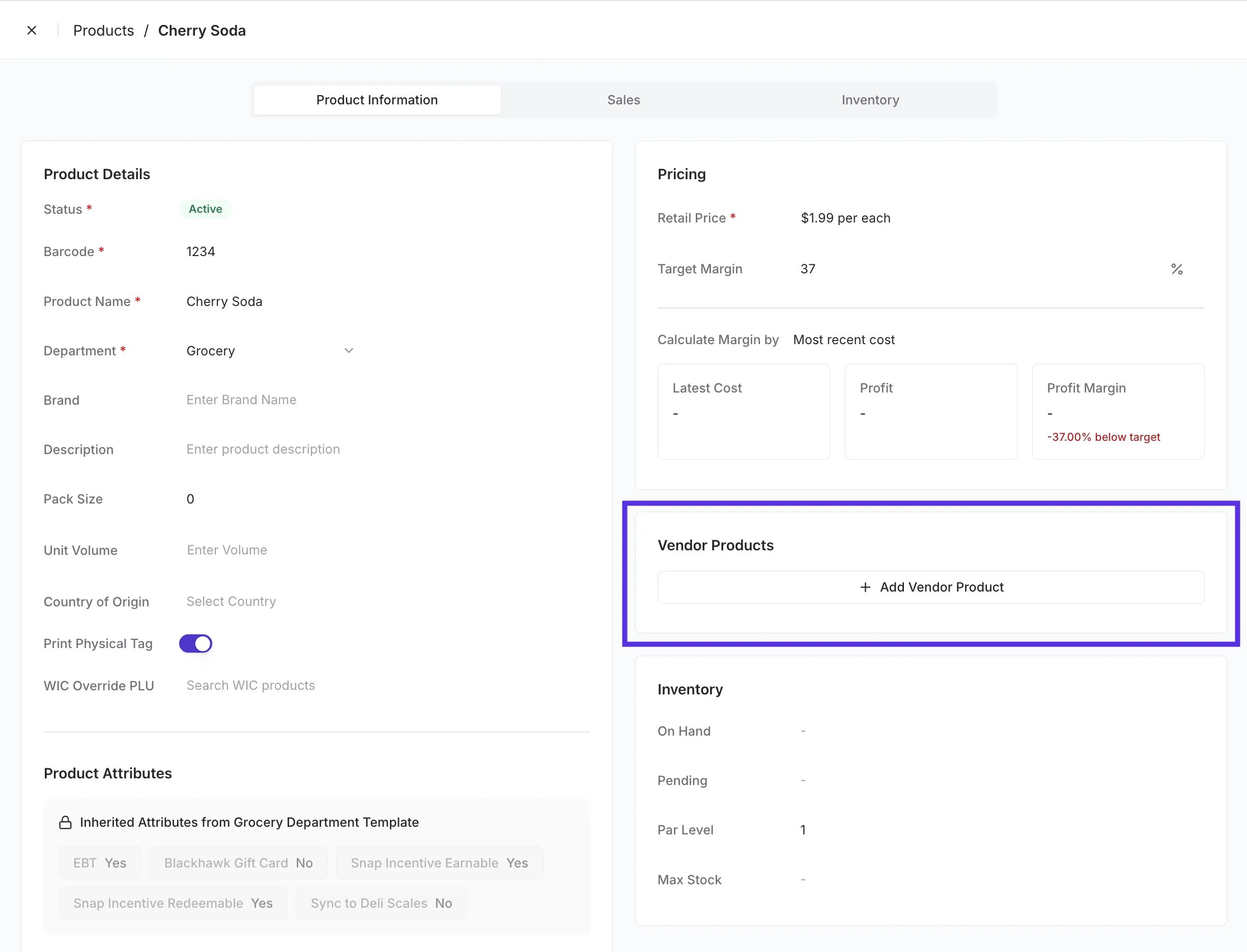
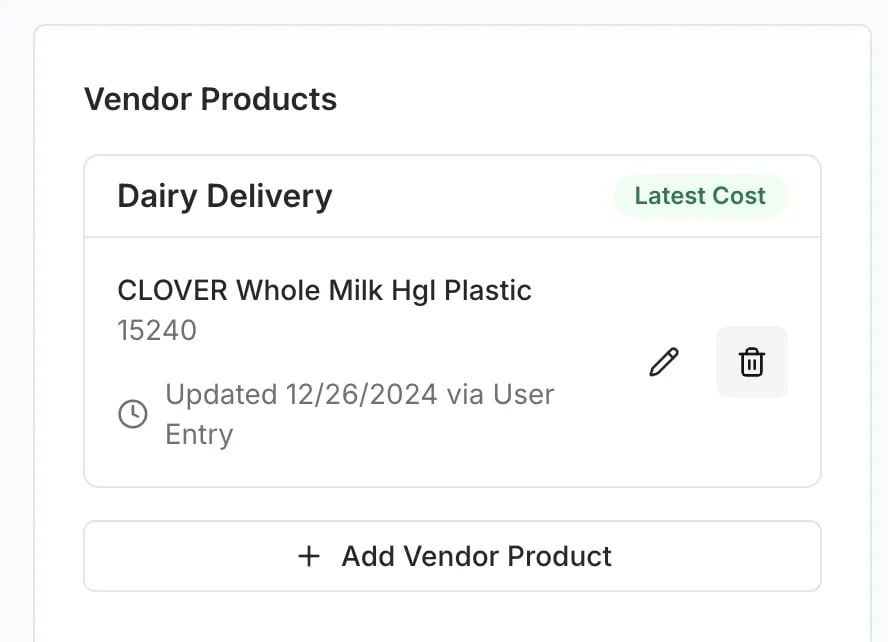
2. From the Product Details page, scroll to the **Vendor Products** section on the right side of the screen.
3. Click **+ Add Vendor Product**.
 4. **Select the Vendor** from the dropdown menu.
5. Enter the key details:
* **Barcode:** UPC number.
* **Description:** Name of the product.
* **Vendor Item Code:** *(Optional but recommended)* The code the supplier uses on their invoice.
* **Wholesale Cost:** The price you pay. Ensure you select the correct unit (per case vs. per each vs per lb).
* **Case Size:** How many units are in the case.
6. Review the **Unit Cost** (automatically calculated, if applicable).
4. **Select the Vendor** from the dropdown menu.
5. Enter the key details:
* **Barcode:** UPC number.
* **Description:** Name of the product.
* **Vendor Item Code:** *(Optional but recommended)* The code the supplier uses on their invoice.
* **Wholesale Cost:** The price you pay. Ensure you select the correct unit (per case vs. per each vs per lb).
* **Case Size:** How many units are in the case.
6. Review the **Unit Cost** (automatically calculated, if applicable).
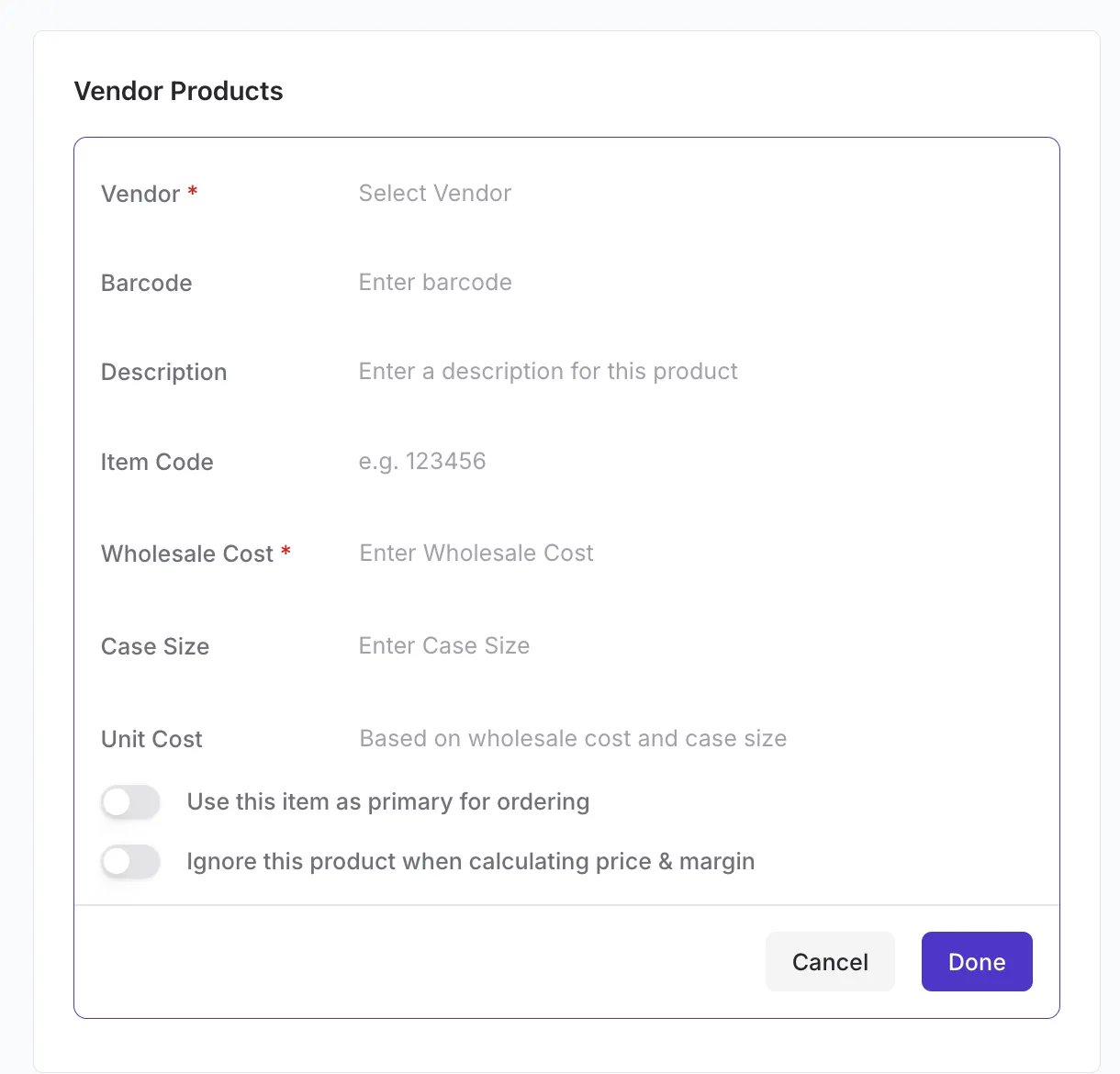 7. Click **Done**.
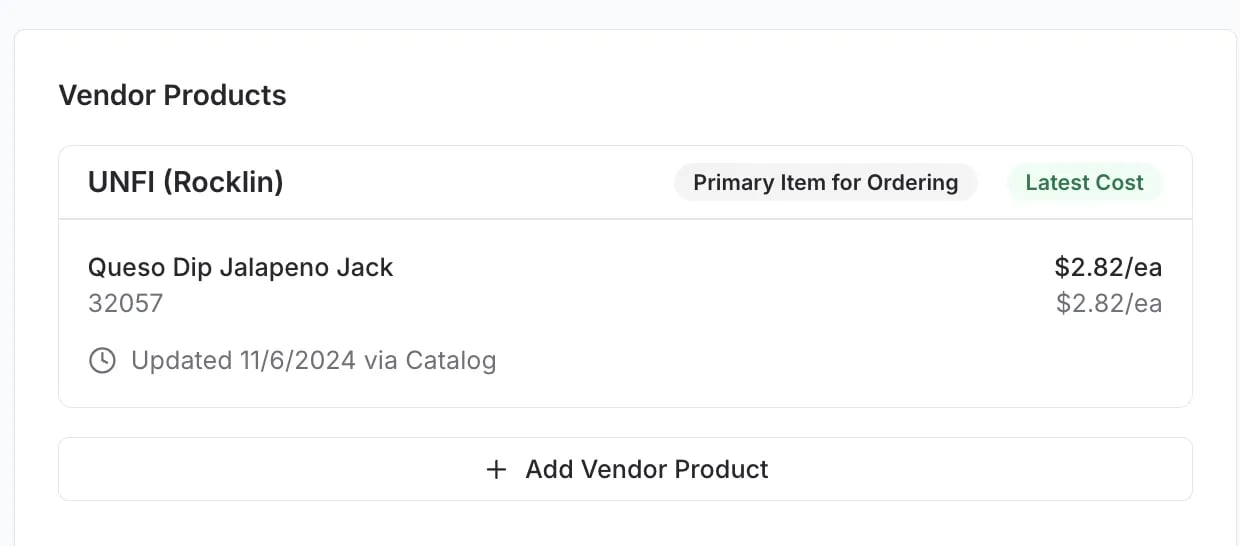
8. The new vendor will now appear in the list. If this is the most recently updated cost, it may automatically become the "Active Cost" for margin calculations.
7. Click **Done**.
8. The new vendor will now appear in the list. If this is the most recently updated cost, it may automatically become the "Active Cost" for margin calculations.
 ***
### Edit or Remove a Connection
Prices change, and suppliers rotate. You can easily keep your links up to date.
**To Edit from the Product Detail Page:**
1. Hover over the Vendor Product data.
2. Click the **Edit** (pencil) icon.
***
### Edit or Remove a Connection
Prices change, and suppliers rotate. You can easily keep your links up to date.
**To Edit from the Product Detail Page:**
1. Hover over the Vendor Product data.
2. Click the **Edit** (pencil) icon.
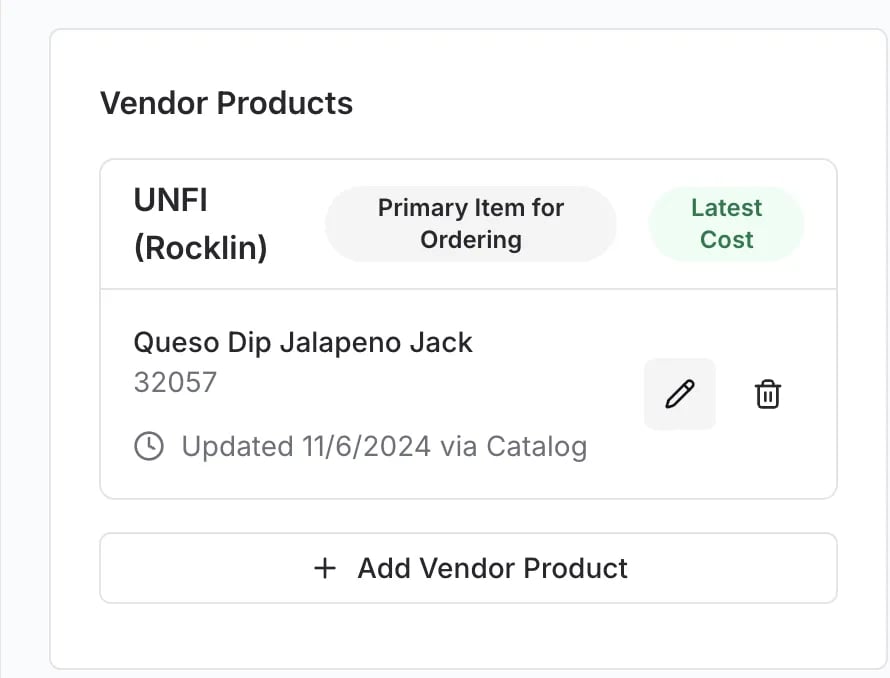 3. Update vendor product details, including barcode, description, cost, case size, item code, and related information.
4. Click **Done** to save.
**To Remove a Vendor Product Connection:**
1. Click the **Edit** (pencil) icon.
2. Click the **Trash Can** icon in the bottom corner of the pop-up.
3. Update vendor product details, including barcode, description, cost, case size, item code, and related information.
4. Click **Done** to save.
**To Remove a Vendor Product Connection:**
1. Click the **Edit** (pencil) icon.
2. Click the **Trash Can** icon in the bottom corner of the pop-up.
 3. Confirm the deletion.
 vv
***
### Troubleshooting
**I can't find the vendor in the dropdown list.** The vendor must be set up in your main Vendor Directory before you can link products to them. If the vendor is missing, navigate to your **[Vendors](https://app.vori.com/retail/vendors)** page to add their profile first.
**I entered the cost, but the margin looks wrong.** Double-check your **Case Size**. A common error is entering a "Case Cost" (e.g., $24.00) but leaving the Case Size as "1". This tells the system the item costs $24.00 *per unit* rather than $2.00 per unit ($24.00 / 12).
## Related topics
- [Search & Manage the Vendor Products Catalog](/vendors-and-vendor-products/vendor-products/search-and-manage-the-vendor-products-catalog.md)
- [How to Format & Upload Vendor Products](/vendors-and-vendor-products/vendor-products/how-to-format-and-upload-vendor-products.md)
- [Manage Invoices, New Items, and Cost Changes](/invoicing-cost-changes-and-smart-pricing/cost-changes-and-smart-pricing/manage-invoices-new-items-and-cost-changes.md)
vv
***
### Troubleshooting
**I can't find the vendor in the dropdown list.** The vendor must be set up in your main Vendor Directory before you can link products to them. If the vendor is missing, navigate to your **[Vendors](https://app.vori.com/retail/vendors)** page to add their profile first.
**I entered the cost, but the margin looks wrong.** Double-check your **Case Size**. A common error is entering a "Case Cost" (e.g., $24.00) but leaving the Case Size as "1". This tells the system the item costs $24.00 *per unit* rather than $2.00 per unit ($24.00 / 12).
## Related topics
- [Search & Manage the Vendor Products Catalog](/vendors-and-vendor-products/vendor-products/search-and-manage-the-vendor-products-catalog.md)
- [How to Format & Upload Vendor Products](/vendors-and-vendor-products/vendor-products/how-to-format-and-upload-vendor-products.md)
- [Manage Invoices, New Items, and Cost Changes](/invoicing-cost-changes-and-smart-pricing/cost-changes-and-smart-pricing/manage-invoices-new-items-and-cost-changes.md)