> ## Documentation Index
> Fetch the complete documentation index at: https://help.vori.com/llms.txt
> Use this file to discover all available pages before exploring further.
# How to create a product in Back Office
> Add a new product to your catalog in the Back Office using Quick Create, then fill in barcodes, pricing, and more.
Adding an item to your catalog starts in the [Product Catalog](https://app.vori.com/retail/products). The quickest way in is **Quick Create**, which gets a product on your list in a few clicks. From there you can add advanced details whenever you need them.
***
### Create a product with Quick Create
The **New Product** button sits in the top-right corner of the Product Catalog. It opens a short Quick Create form with just the essentials.
1. Open the **Product Catalog** from the left-hand menu.
2. Click **New Product** in the top-right corner.
3. Enter the **product name**, **brand**, and **department**.
4. Add a **barcode**. Scan the item's Universal Product Code (UPC), type in your own in-store barcode, or generate a free Price Look-Up (PLU) code (see below).
5. Enter your **pricing details**.
6. Click **Create** to save the product to your catalog.
✏️ **Note:** Fields marked with a red asterisk (`*`) are required: **Barcode**, **Product Name**, **Department**, and **Retail Price**. You cannot save a product until each one is filled in.
***
### Create several products in a row
Adding a batch of similar items, like a series of yogurt flavors? Toggle on **Create More** before you save. Vori keeps your entry, then immediately opens a fresh form so you can add the next item with the same brand and department. It's the quickest way to build out a full line of products without reopening the form each time.
***
### Generate a free PLU
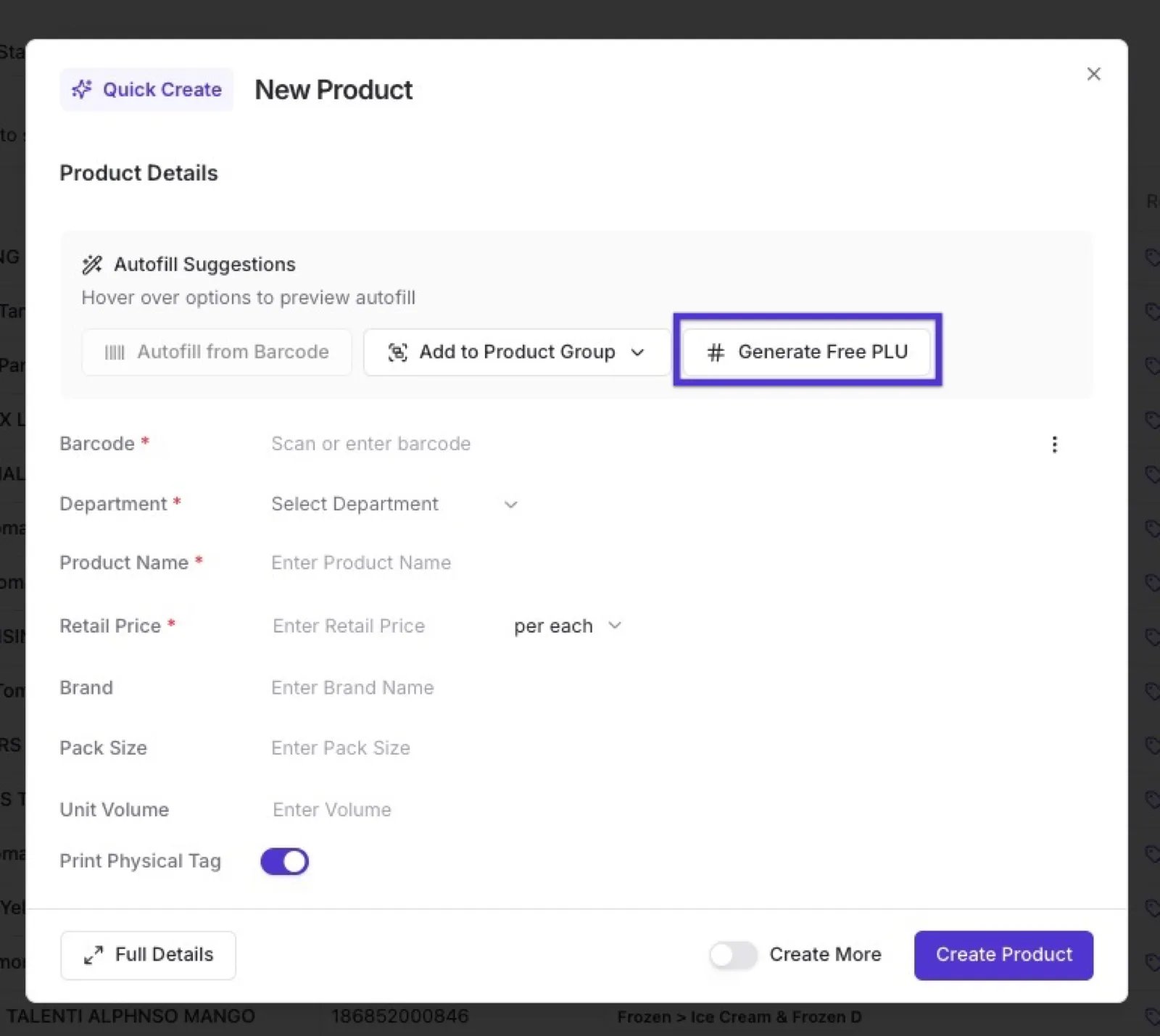
Every product in Vori needs a barcode. If an item does not have one, enter your own in-store barcode or click **Generate Free PLU** in the Quick Create form. Vori checks your current list of PLU codes and assigns an open one to the product.
 ***
### Add the product to a product group
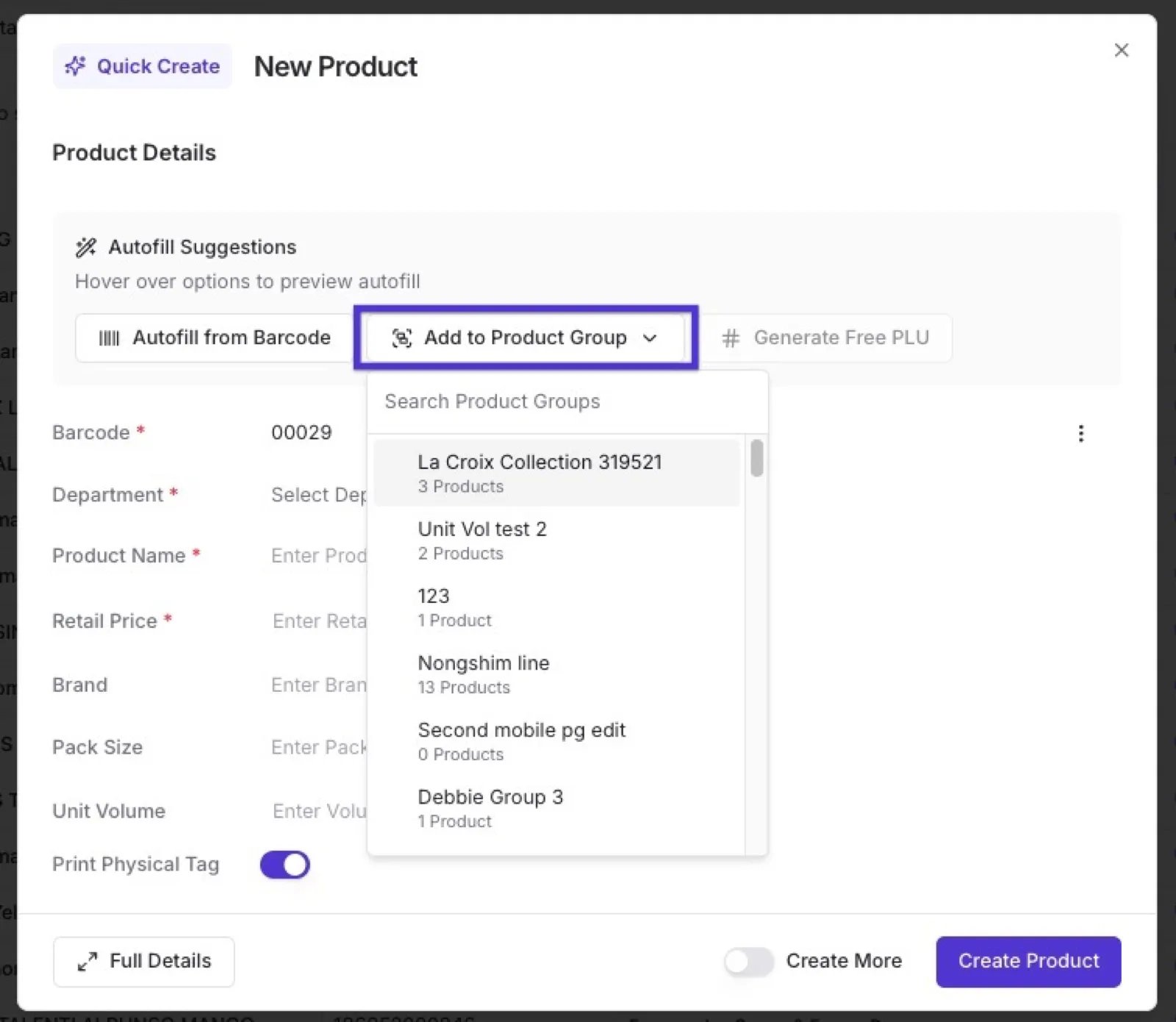
As you create a product, use **Add to Product Group** to drop it straight into an existing group. Click the option, search for the group, and select it.
For example, when you bring in a new Chobani flavor, create the product and add it to your "Chobani Single" group. To learn more, see [Create and manage product groups](/product-and-product-catalog-management/product-creation-and-set-up/create-and-manage-product-groups).
***
### Add the product to a product group
As you create a product, use **Add to Product Group** to drop it straight into an existing group. Click the option, search for the group, and select it.
For example, when you bring in a new Chobani flavor, create the product and add it to your "Chobani Single" group. To learn more, see [Create and manage product groups](/product-and-product-catalog-management/product-creation-and-set-up/create-and-manage-product-groups).
 ***
### Add more details with Full Details
Quick Create covers the essentials. When you need advanced details, such as pack size, attributes, vendor info, or inventory, click **Full Details** in the bottom-left corner of the form to open the full Product Detail Page.
Switching to Full Details keeps everything you have already entered, so you can start in Quick Create and move over at any point without losing your work.
On the Product Detail Page you can add attributes, restrict discounts, write a product description or internal notes, link vendor products, and update inventory. For a full tour, see [Product Catalog & Product Details](/product-and-product-catalog-management/product-creation-and-set-up/product-catalog-product-details).
## Related topics
- [Create Loyalty Rewards in Vori Back Office](/customer-marketing/loyalty-and-rewards/create-loyalty-rewards-in-vori-back-office.md)
- [Create Quick Actions in Back Office](/point-of-sale-pos/pos-customization-and-setup/create-quick-actions-in-back-office.md)
- [Downloadable Produce PLU Cheat Sheet](/product-and-product-catalog-management/product-creation-and-set-up/downloadable-produce-plu-cheat-sheet.md)
***
### Add more details with Full Details
Quick Create covers the essentials. When you need advanced details, such as pack size, attributes, vendor info, or inventory, click **Full Details** in the bottom-left corner of the form to open the full Product Detail Page.
Switching to Full Details keeps everything you have already entered, so you can start in Quick Create and move over at any point without losing your work.
On the Product Detail Page you can add attributes, restrict discounts, write a product description or internal notes, link vendor products, and update inventory. For a full tour, see [Product Catalog & Product Details](/product-and-product-catalog-management/product-creation-and-set-up/product-catalog-product-details).
## Related topics
- [Create Loyalty Rewards in Vori Back Office](/customer-marketing/loyalty-and-rewards/create-loyalty-rewards-in-vori-back-office.md)
- [Create Quick Actions in Back Office](/point-of-sale-pos/pos-customization-and-setup/create-quick-actions-in-back-office.md)
- [Downloadable Produce PLU Cheat Sheet](/product-and-product-catalog-management/product-creation-and-set-up/downloadable-produce-plu-cheat-sheet.md)