> ## Documentation Index
> Fetch the complete documentation index at: https://help.vori.com/llms.txt
> Use this file to discover all available pages before exploring further.
# Bulk Upload Products – Add New Items or Update Existing Ones
> Add new products or update existing ones in bulk using the product uploader template and the Vori Back Office.
The product uploader adds or updates products in bulk from a single CSV file. Vori decides what to do with each row based on its barcode — a barcode that's new to your catalog creates a product, and a barcode that's already there gets its values overwritten with whatever's in your file.
For the full field list, including optional vendor, pricing, and compliance columns, see [Build Your Product List (APL) From Scratch](/product-and-product-catalog-management/product-creation-and-set-up/build-your-product-list-apl-from-scratch-for-new-stores#additional-fields).
### Fill Out the Template
**[Open the Store Product Uploader Template](https://docs.google.com/spreadsheets/d/1npmSoHY5yTRyzXatA1GTq2Whgi3xikpdbFy6yoZ3HL0/edit?gid=1556935337#gid=1556935337)** and make your own copy before editing — don't work directly in the master file.
Add a new row for every product you're introducing, and edit the row for any product you want to update. At minimum, each row needs:
| **Field** | **What it's for** |
| ---------------- | ---------------------------------------------------------------------------------------------------------- |
| **Product Name** | Displays on the POS and prints on receipts. |
| **Department** | Groups the product for reporting and shared settings. |
| **Retail Price** | Enter as a plain decimal, like `2.49` — a `$` symbol will cause the row to fail on import. |
| **Barcode** | What Vori uses to match your row to an existing product. Enter it as text so leading zeros aren't dropped. |
✏️ **Note:** Departments are case-sensitive, and the uploader can't create new ones. Set up the department in the Back Office first, and make sure your file matches its name **exactly**.
When your rows are ready, export the sheet as a CSV.
***
### Upload the CSV
In the Vori Back Office, go to **Products** > **Product Catalog**, click **Upload**, and drop in your CSV file.
 Vori tries to map your columns automatically — confirm **Barcode**, **Product Name**, **Department**, and **Retail Price** are matched correctly, and set any irrelevant column to **Skip this column**. If you're updating existing products, [export your product catalog](/product-and-product-catalog-management/product-catalog-and-bulk-management/how-to-export-the-product-catalog#how-to-export-the-entire-product-catalog) first and include each product's **Vori ID** to make sure updates land on the right row.
🚨 **Warning:** Rows with a barcode that already exists in your catalog will overwrite that product's data, including its retail price. Review carefully before uploading against a live catalog.
Once you click **Next**, Vori sorts every row into a tab so you can see exactly what's about to happen:
* **Create** — new products
* **Update** — existing products about to be overwritten
* **Invalid** — rows with errors that won't import
* **Excluded** — rows you've chosen to skip
Vori tries to map your columns automatically — confirm **Barcode**, **Product Name**, **Department**, and **Retail Price** are matched correctly, and set any irrelevant column to **Skip this column**. If you're updating existing products, [export your product catalog](/product-and-product-catalog-management/product-catalog-and-bulk-management/how-to-export-the-product-catalog#how-to-export-the-entire-product-catalog) first and include each product's **Vori ID** to make sure updates land on the right row.
🚨 **Warning:** Rows with a barcode that already exists in your catalog will overwrite that product's data, including its retail price. Review carefully before uploading against a live catalog.
Once you click **Next**, Vori sorts every row into a tab so you can see exactly what's about to happen:
* **Create** — new products
* **Update** — existing products about to be overwritten
* **Invalid** — rows with errors that won't import
* **Excluded** — rows you've chosen to skip
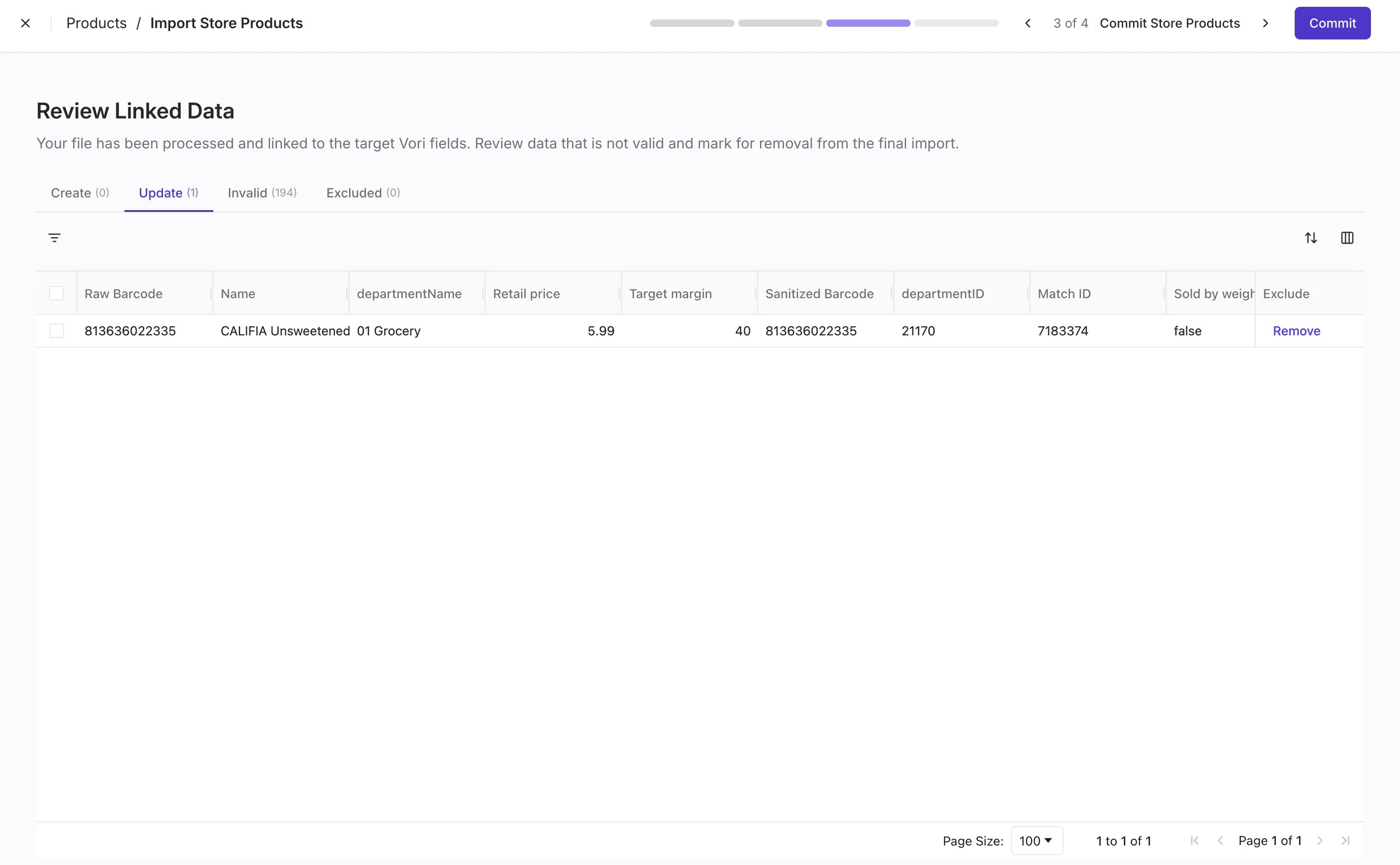 Open the **Update** tab and check every row — this is your last chance to catch something before it overwrites live data. Use **Exclude** on any row you'd rather skip, then click **Commit**. Your changes appear in the Product Catalog right away.
💡 **Tip:** Only want to add new products without touching existing ones? Filter your CSV down to barcodes that aren't in your catalog yet before you upload.
## Related topics
- [Bulk Upload Vendors](/vendors-and-vendor-products/vendor-management/bulk-upload-vendors.md)
- [Manually Manage and Bulk Upload Inventory](/inventory-and-ordering/inventory/manually-manage-and-bulk-upload-inventory.md)
- [Build Your Product List (APL) From Scratch – For New Stores](/product-and-product-catalog-management/product-creation-and-set-up/build-your-product-list-apl-from-scratch-for-new-stores.md)
Open the **Update** tab and check every row — this is your last chance to catch something before it overwrites live data. Use **Exclude** on any row you'd rather skip, then click **Commit**. Your changes appear in the Product Catalog right away.
💡 **Tip:** Only want to add new products without touching existing ones? Filter your CSV down to barcodes that aren't in your catalog yet before you upload.
## Related topics
- [Bulk Upload Vendors](/vendors-and-vendor-products/vendor-management/bulk-upload-vendors.md)
- [Manually Manage and Bulk Upload Inventory](/inventory-and-ordering/inventory/manually-manage-and-bulk-upload-inventory.md)
- [Build Your Product List (APL) From Scratch – For New Stores](/product-and-product-catalog-management/product-creation-and-set-up/build-your-product-list-apl-from-scratch-for-new-stores.md)