> ## Documentation Index
> Fetch the complete documentation index at: https://help.vori.com/llms.txt
> Use this file to discover all available pages before exploring further.
# How to export the product catalog
> This article explains how to export a product list as a ZIP file for use in external systems or for data analysis
### Introduction
Exporting the product catalog can be helpful for tasks like syncing with external inventory systems, running in-depth product analyses, or backing up item data. This process allows for downloading a ZIP file containing the selected product information from the Product Catalog section of the Vori Back Office.
***
### How to export the entire product catalog
1. Navigate to the **[Product Catalog](https://app.vori.com/retail/products)** page in Back Office.
2. Select `Export` on the top right corner of the product table.
3. On the confirmation popup, select `Export`.
1. Depending on product file size and internet speed, this process may take up to a minute to complete.
4. The export will then be downloaded as a ZIP file.
**✏️ Note –** ZIP files are a compact file format used to bundle and compress larger files. To access the contents, open them using built-in tools (like Finder on Mac or File Explorer on Windows) or unzip software such as WinZip or 7-Zip.
***
### How to export a filtered set of products
1. Navigate to the **[Product Catalog](https://app.vori.com/retail/products)** page in Back Office.
2. Use filters to narrow down the product list as needed.
3. Tap **Select Products to Take an Action.** It may take approximately 15 seconds for all products to load. To verify all products are selected, compare the number of selected products to the total shown next to Export.
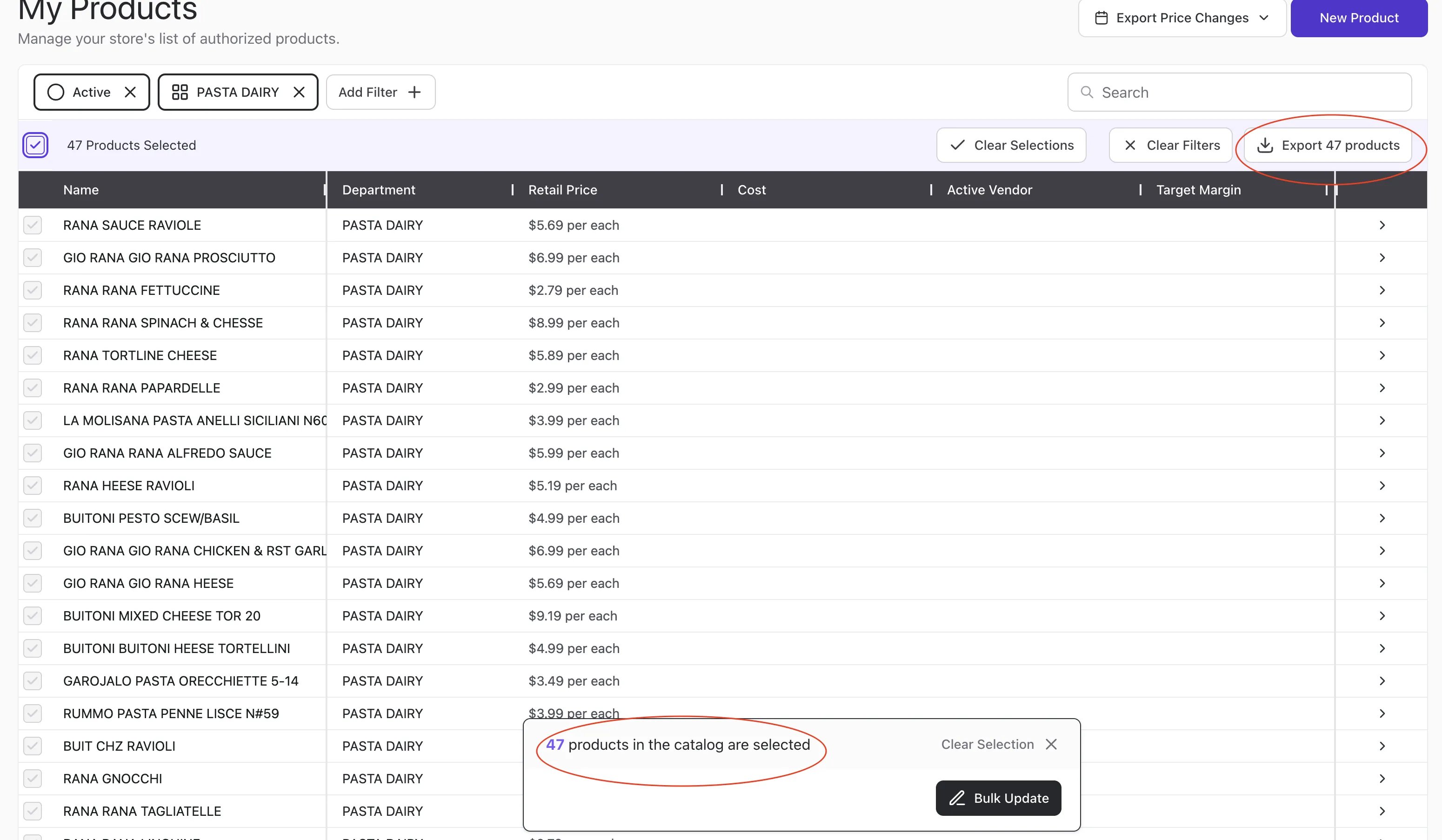
 Click **`Export # products`**, then Export.
4. The export will then be downloaded as a ZIP file.
**✏️ Note –** ZIP files are a compact file format used to bundle and compress larger files. To access the contents, open them using built-in tools (like Finder on Mac or File Explorer on Windows) or unzip software such as WinZip or 7-Zip.
## Related topics
- [Set Up and Manage Product Rules](/product-and-product-catalog-management/product-catalog-and-bulk-management/product-rules.md)
- [Product Catalog & Product Details](/product-and-product-catalog-management/product-creation-and-set-up/product-catalog-product-details.md)
- [How to schedule a report export](/reporting/tax-and-financial-reports/how-to-schedule-a-report-export.md)
Click **`Export # products`**, then Export.
4. The export will then be downloaded as a ZIP file.
**✏️ Note –** ZIP files are a compact file format used to bundle and compress larger files. To access the contents, open them using built-in tools (like Finder on Mac or File Explorer on Windows) or unzip software such as WinZip or 7-Zip.
## Related topics
- [Set Up and Manage Product Rules](/product-and-product-catalog-management/product-catalog-and-bulk-management/product-rules.md)
- [Product Catalog & Product Details](/product-and-product-catalog-management/product-creation-and-set-up/product-catalog-product-details.md)
- [How to schedule a report export](/reporting/tax-and-financial-reports/how-to-schedule-a-report-export.md)