> ## Documentation Index
> Fetch the complete documentation index at: https://help.vori.com/llms.txt
> Use this file to discover all available pages before exploring further.
# Bulk Update Products
> How to use bulk edit feature in My Products to adjust large dataset of items
Learn how to update product information for multiple items at once, whether you're using the Vori Back Office for large-scale changes or VoriOS for quick, on-the-floor edits.
### How to Bulk Update in the Back Office
Use the **Products** page in the Back Office for powerful, filter-based updates from your desktop.
1. Navigate to the **Products** page to begin. To apply filters, click the **Add Filters +** at the top left of the page.
1. Filters can be used to help apply bulk updates across product brands, departments, and more.
2. Select the products you wish to update. You can do this in one of two ways:
* **Manual selection:** Check the square on the far left of the product's row. At least two products must be selected for the **Bulk Update** prompt to appear.
* **Select all:** Check the square at the top left of the product table to select all products matching your filters. Only products matching all applied filters will be selectable for bulk updates.
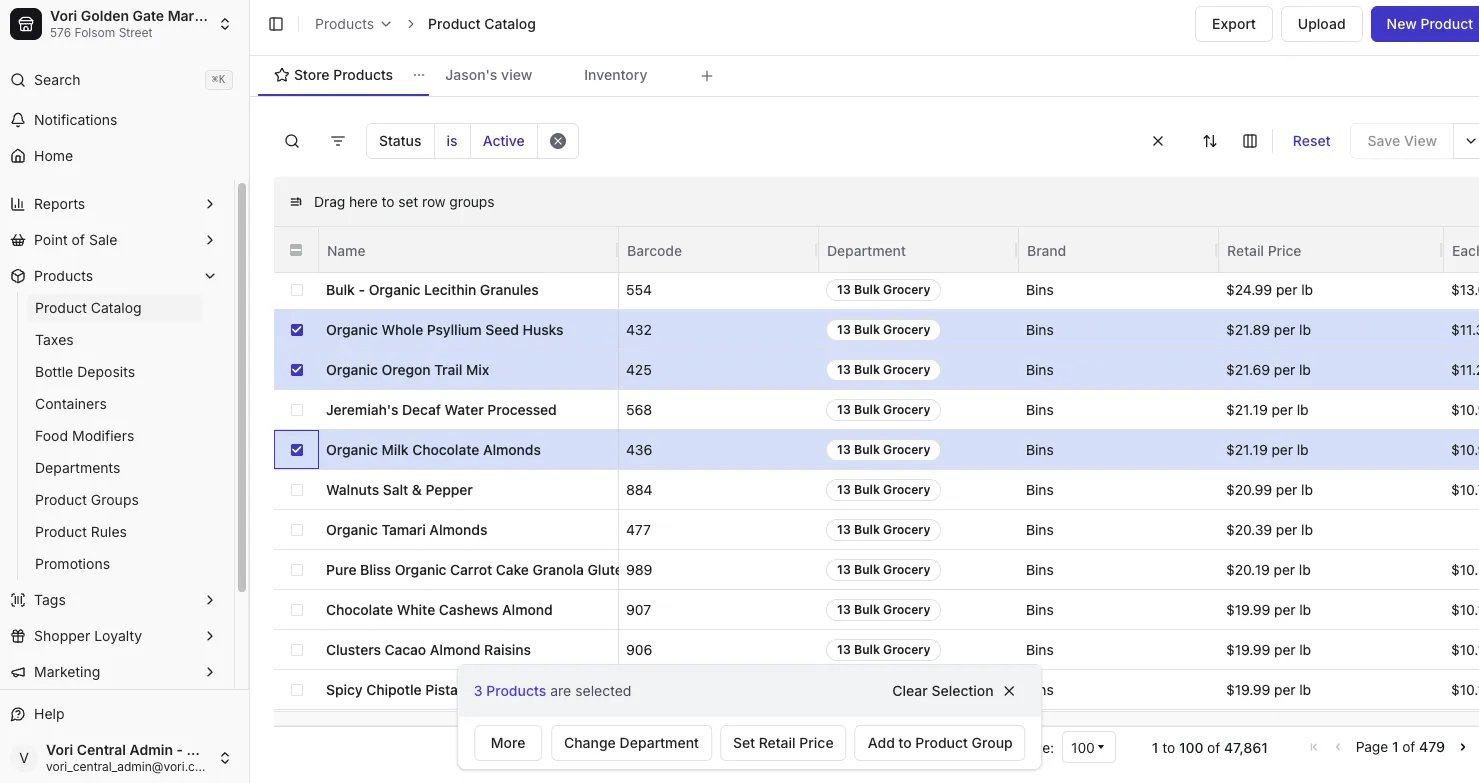 3. Once two or more products are selected, a prompt will appear at the bottom of the screen. The prompt shows the number of selected items.
4. Select the desired field, and then **Save**.
✏️ **Note:** For especially large updates, the submit button may say **"Updating"** for longer than expected. You can open a new tab to work on other tasks while the updates are in progress.
⚠️ **Caution:** Bulk updates do not have an undo feature. Be sure your search criteria are as refined as possible before proceeding with bulk updates.
***
### How to Bulk Edit on VoriOS
Use the **Bulk Actions** feature on **VoriOS** to make quick edits to a list of products that you gather by scanning or searching.
1. From the home screen, tap **Bulk Actions**.
2. Create your product list by scanning items with your device or by searching and tapping the **plus icon** next to each item.
3. Once two or more products are selected, a prompt will appear at the bottom of the screen. The prompt shows the number of selected items.
4. Select the desired field, and then **Save**.
✏️ **Note:** For especially large updates, the submit button may say **"Updating"** for longer than expected. You can open a new tab to work on other tasks while the updates are in progress.
⚠️ **Caution:** Bulk updates do not have an undo feature. Be sure your search criteria are as refined as possible before proceeding with bulk updates.
***
### How to Bulk Edit on VoriOS
Use the **Bulk Actions** feature on **VoriOS** to make quick edits to a list of products that you gather by scanning or searching.
1. From the home screen, tap **Bulk Actions**.
2. Create your product list by scanning items with your device or by searching and tapping the **plus icon** next to each item.
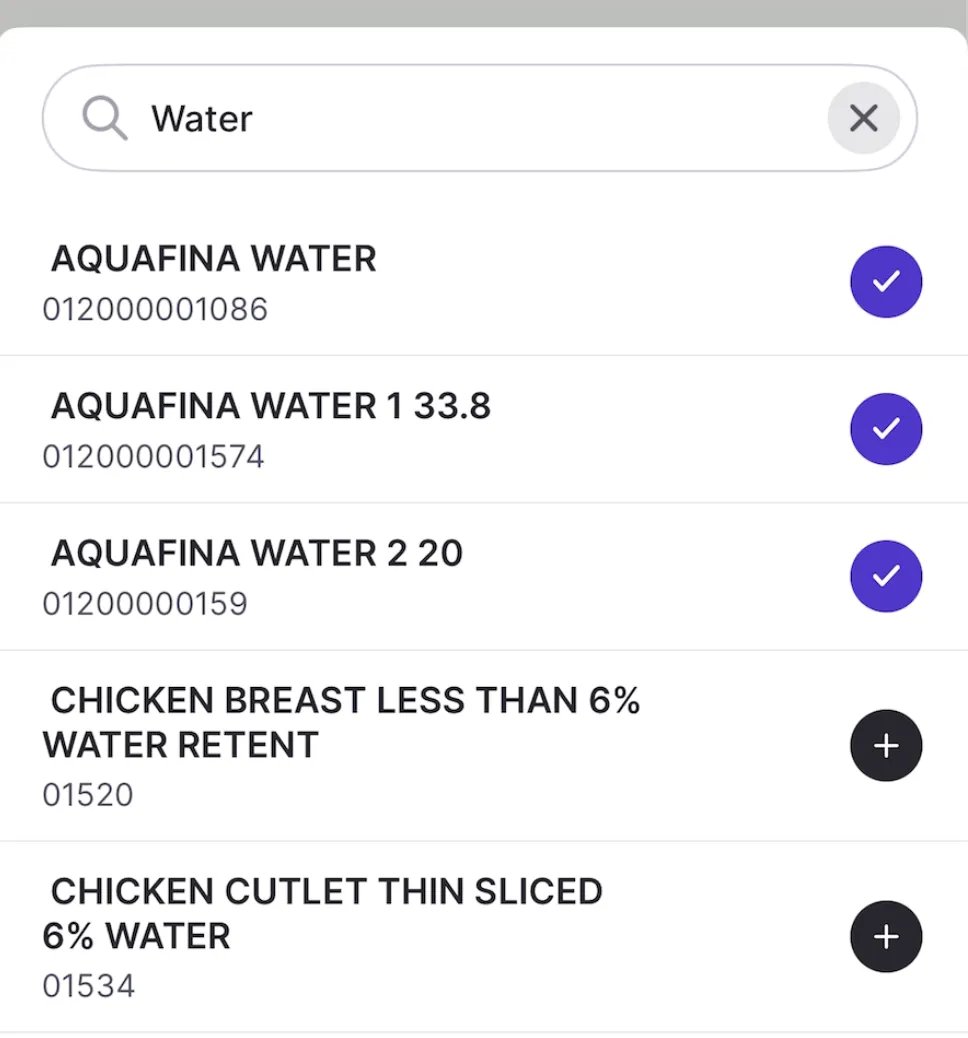 3. Once your list is ready, tap the **Edit All (#)** button at the bottom of the screen.
 4. On the Edit Products screen, tap on the product field you wish to change (e.g., Department, Price, Tax Rates).
5. Enter or select the new value.
1. In the example below, we are changing the **Department** for three water products to "WATER".
6. Tap **Save** to apply the change to every product in your list.
**⚠️ Caution:** The scanner will beep but **will not** show an error if an item isn't in our system. Please verify each scan on the screen.
➡️ **Next Step:** Need to print new shelf tags for the products you just updated? View the full guide: [Print Product Tags on VoriOS](/product-and-product-catalog-management/product-creation-and-set-up/print-product-tags-on-vori-os)
## Related topics
- [Print Product Tags on VoriOS](/product-and-product-catalog-management/product-creation-and-set-up/print-product-tags-on-vori-os.md)
- [Setting Up Quick Food Service Counters](/whats-new-in-vori/in-alpha-quick-food-service/setting-up-quick-food-service-counters.md)
- [Bulk Merge Duplicate Vendor Products](/vendors-and-vendor-products/vendor-products/bulk-merge-duplicate-vendor-products.md)
4. On the Edit Products screen, tap on the product field you wish to change (e.g., Department, Price, Tax Rates).
5. Enter or select the new value.
1. In the example below, we are changing the **Department** for three water products to "WATER".
6. Tap **Save** to apply the change to every product in your list.
**⚠️ Caution:** The scanner will beep but **will not** show an error if an item isn't in our system. Please verify each scan on the screen.
➡️ **Next Step:** Need to print new shelf tags for the products you just updated? View the full guide: [Print Product Tags on VoriOS](/product-and-product-catalog-management/product-creation-and-set-up/print-product-tags-on-vori-os)
## Related topics
- [Print Product Tags on VoriOS](/product-and-product-catalog-management/product-creation-and-set-up/print-product-tags-on-vori-os.md)
- [Setting Up Quick Food Service Counters](/whats-new-in-vori/in-alpha-quick-food-service/setting-up-quick-food-service-counters.md)
- [Bulk Merge Duplicate Vendor Products](/vendors-and-vendor-products/vendor-products/bulk-merge-duplicate-vendor-products.md)