> ## Documentation Index
> Fetch the complete documentation index at: https://help.vori.com/llms.txt
> Use this file to discover all available pages before exploring further.
# How to expand eWIC-eligible products using PLU mapping in the Back Office
> This article explains how to expand eWIC-eligible fresh produce by mapping store products to standard PLUs in the Back Office
### Introduction
Mapping store-packed or pre-packed fresh produce to standard PLUs (Price Look-Up codes) ensures more items qualify for eWIC. This helps provide more fresh, nutritious options to families using WIC benefits.
For example, a **clamshell container of pre-cut mango** may not be recognized by the state’s Approved Product List (APL), even though all fresh produce is eWIC-eligible. By mapping this product to the standard PLU for mango, it becomes available for eWIC transactions—supporting both product movement and healthy food access.
PLU mapping is especially helpful for:
* **Pre-packed produce** in clamshells or bags.
* **Store-packed produce** with custom barcodes not found in the APL.
***
### How to Map a PLU to a Fresh Product
**📹 Watch In Action**
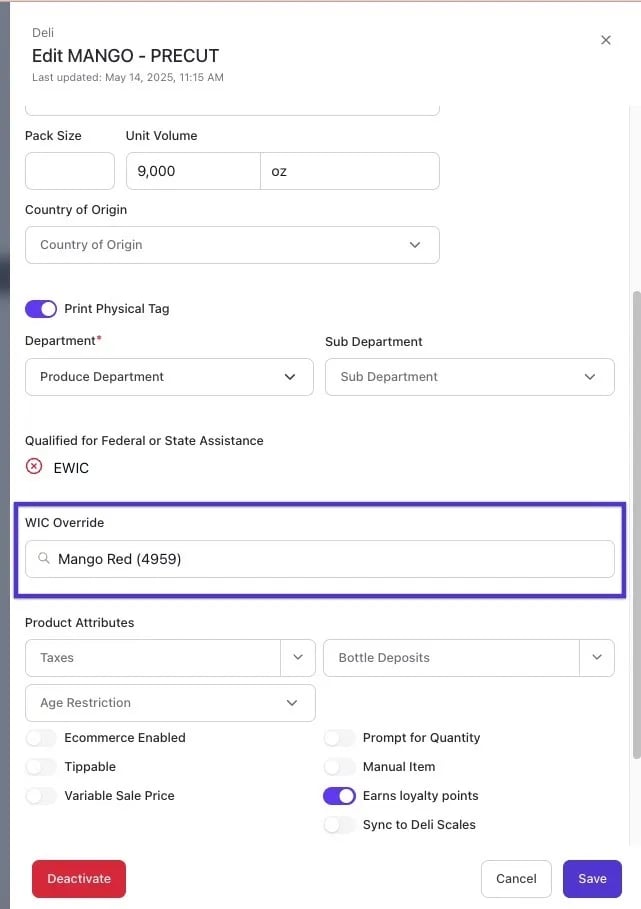
This example shows how to add an override for precut mango in the Back Office. Precut mango may use a store-specific barcode not in the APL. Mapping it to PLU `4959` (standard for mango) makes it eWIC-eligible.
#### Directions
To map a product in the Back Office to a standard PLU:
**Steps to map a product to a PLU:**
1. Navigate to `Product > Product Catalog` and locate the item.
2. Open **Product Details**.
3. Check the **eWIC** tag under *Qualified for Federal or State Assistance*:
✅ Green checkmark = eligible
❌ Red X = not currently eligible
4. If marked with a red X, scroll to the **WIC Override** section.
5. Enter the standard PLU in the **WIC Override PLU** field (e.g., `4959` for mango).
6. Click **Save**.
**✏️** **Note -** - After saving, there will still be a red ❌ next to eWIC in the product details page, but as long as the item's PLU is in the WIC override field, then the item will be eligible for eWIC.
 ***
### Tips for PLU Mapping
* Standard PLUs are universally recognized and often match bulk produce versions.
* PLUs can be confirmed through suppliers or standard PLU directories.
* PLU mapping is not required for eWIC launch but helps increase the number of fresh products available for WIC participants.
## Related topics
- [What to Expect After Your Store Is Approved for eWIC](/point-of-sale-pos/wic-women-infants-and-children/what-to-expect-after-your-store-is-approved-for-ewic.md)
- [Edit a Product in Back Office](/product-and-product-catalog-management/product-editing-and-activation/edit-a-product-in-back-office.md)
- [Create Loyalty Rewards in Vori Back Office](/customer-marketing/loyalty-and-rewards/create-loyalty-rewards-in-vori-back-office.md)
***
### Tips for PLU Mapping
* Standard PLUs are universally recognized and often match bulk produce versions.
* PLUs can be confirmed through suppliers or standard PLU directories.
* PLU mapping is not required for eWIC launch but helps increase the number of fresh products available for WIC participants.
## Related topics
- [What to Expect After Your Store Is Approved for eWIC](/point-of-sale-pos/wic-women-infants-and-children/what-to-expect-after-your-store-is-approved-for-ewic.md)
- [Edit a Product in Back Office](/product-and-product-catalog-management/product-editing-and-activation/edit-a-product-in-back-office.md)
- [Create Loyalty Rewards in Vori Back Office](/customer-marketing/loyalty-and-rewards/create-loyalty-rewards-in-vori-back-office.md)