> ## Documentation Index
> Fetch the complete documentation index at: https://help.vori.com/llms.txt
> Use this file to discover all available pages before exploring further.
# Sell, Redeem, and Top Up Gift Cards on the POS
> Learn how to sell, redeem, and add funds to both physical and digital gift cards at the register
### Sell a New Gift Card
To issue a new gift card at checkout:
1. Tap the **Gift Card** icon on the bottom bar.
2. Tap **Purchase**.
3. Enter the gift card amount, then tap **Confirm Amount**.
4. Choose the delivery method.
1. **Physical**: Select **Physical**, then scan the barcode on the card using the hand scanner.
2. **Digital**: Select **Digital**, then enter the recipient’s phone number.
5. \*\*Print Gift Card?
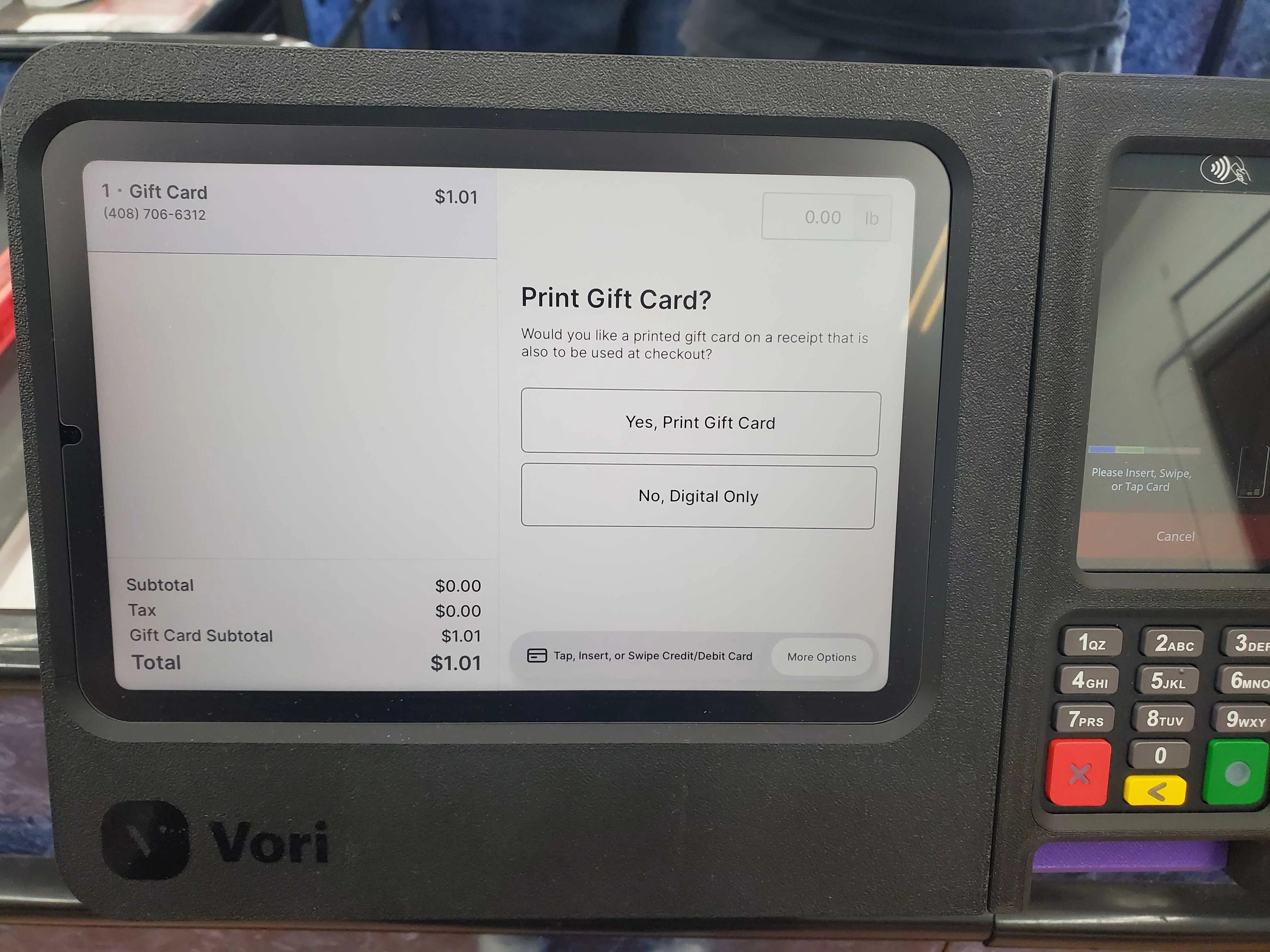 \*\*
1. **Yes, Print Gift Card:** A shopper can choose this to print a receipt with a scannable QR code for the gift card, in addition to sending the digital version to the recipient's phone.
\*\*
1. **Yes, Print Gift Card:** A shopper can choose this to print a receipt with a scannable QR code for the gift card, in addition to sending the digital version to the recipient's phone.
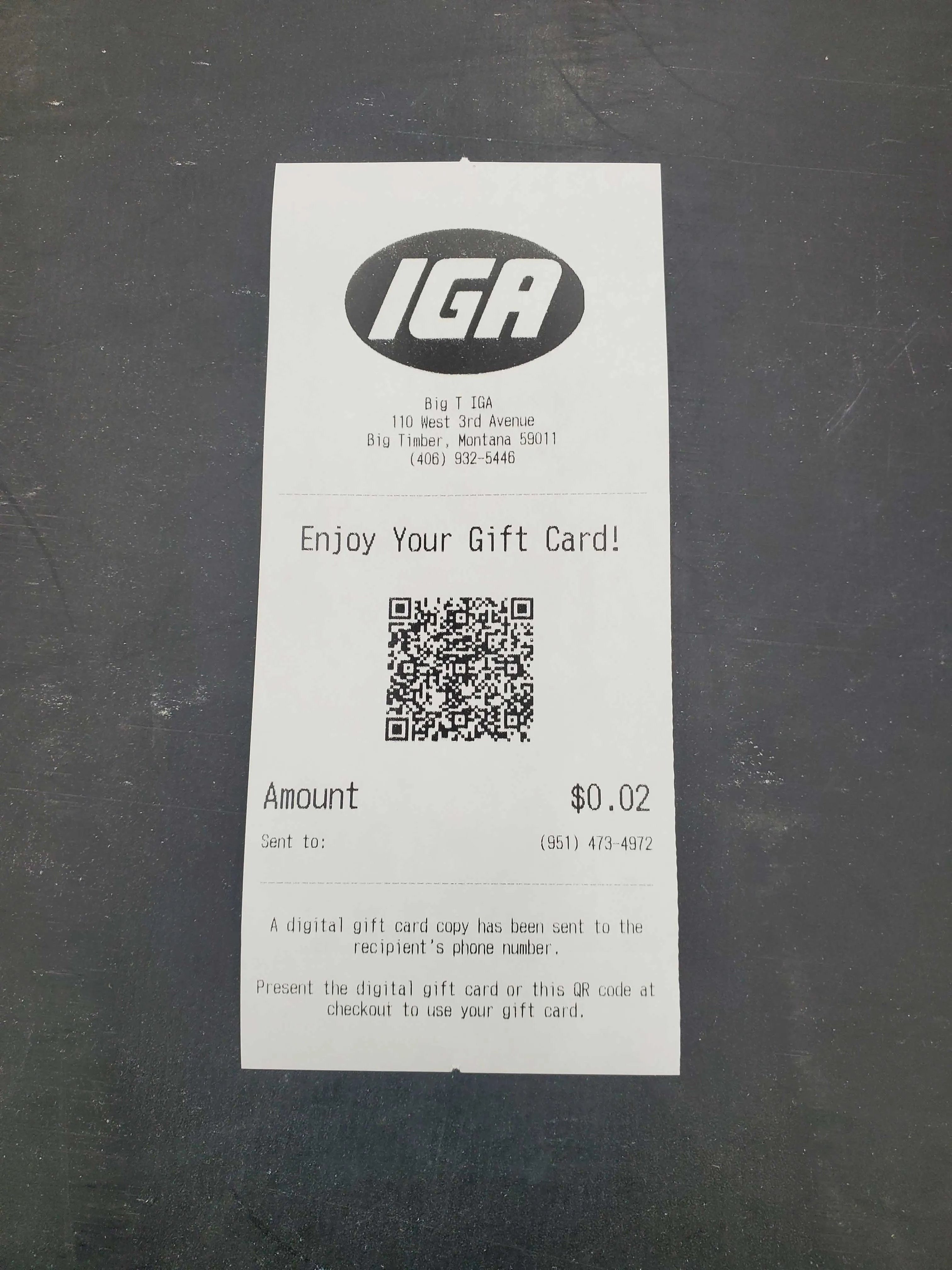 2. **No, Digital Only:** A shopper can choose this to send the gift card via text message only.
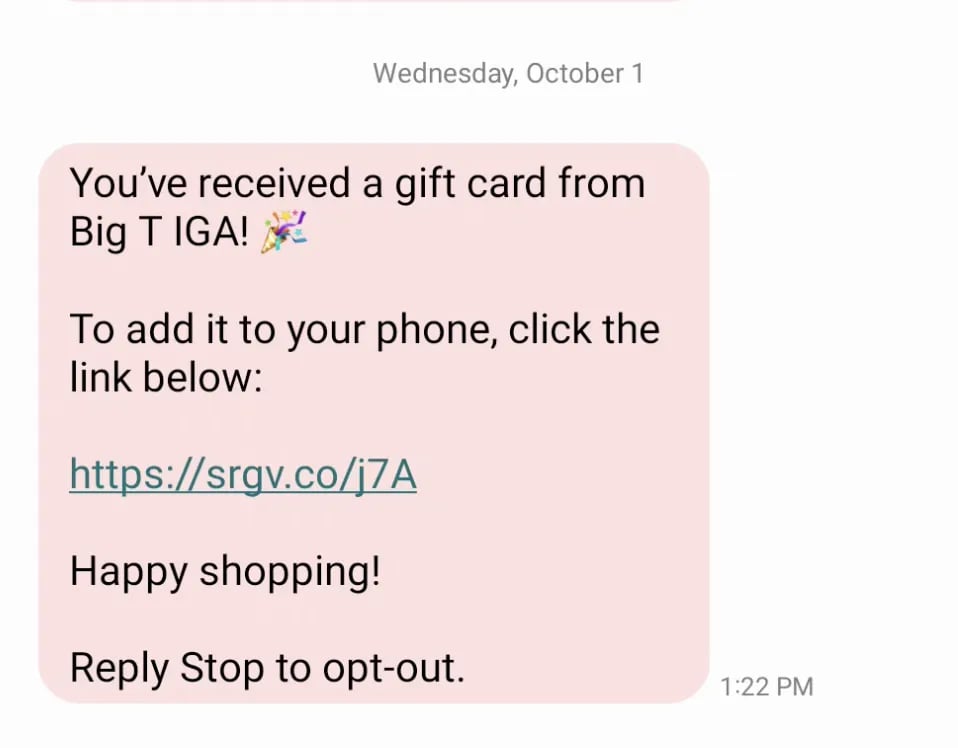
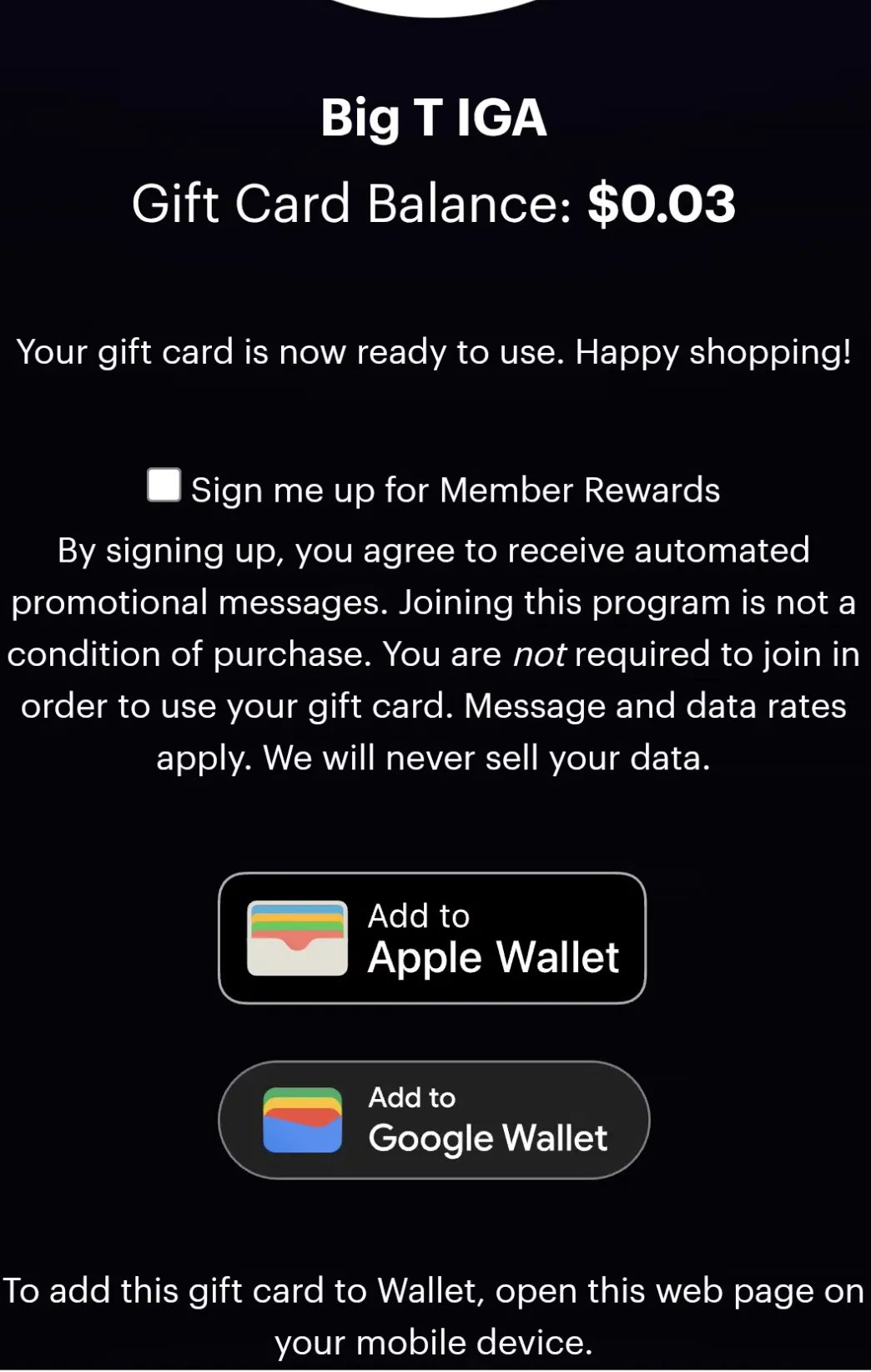
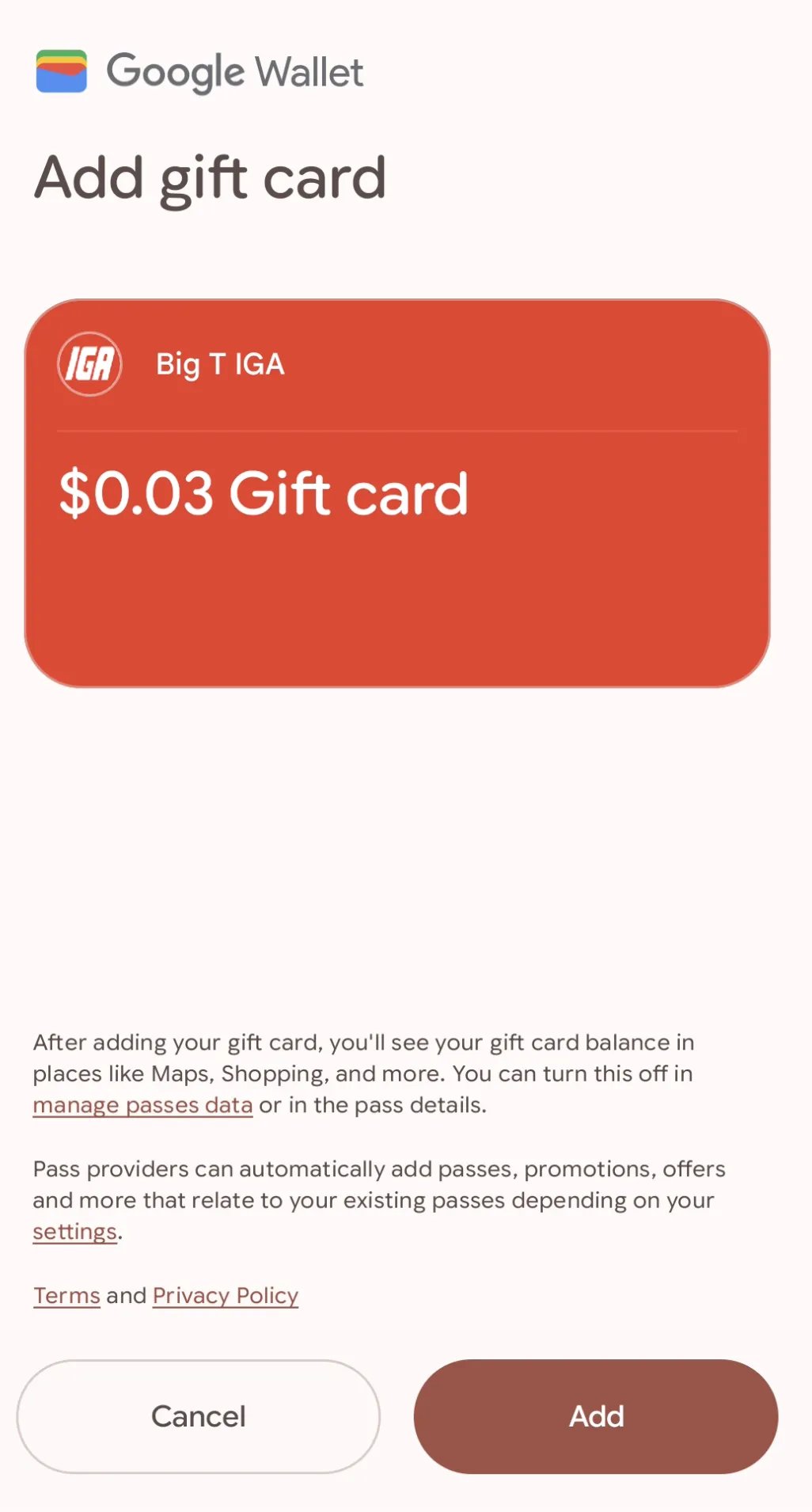
1. The text message (SMS) contains a link. When the recipient clicks the link, they are directed to a page where they can add the gift card to their digital wallet (Apple Wallet or Google Wallet) to access the scannable QR code. The SMS message does not include the QR code.
2. **No, Digital Only:** A shopper can choose this to send the gift card via text message only.
1. The text message (SMS) contains a link. When the recipient clicks the link, they are directed to a page where they can add the gift card to their digital wallet (Apple Wallet or Google Wallet) to access the scannable QR code. The SMS message does not include the QR code.
 6. Proceed with the transaction and payment.
**💡Tip:** The current gift card purchase limit is \$200 per transaction. If a customer wants to purchase a card with a higher value, complete a second transaction using the **Top-up** process.
***
### Redeem a Gift Card
To accept a gift card as payment at checkout:
1. When ready to collect payment, tap **Complete Payment**.
2. Select **Gift Card** as the payment type.
6. Proceed with the transaction and payment.
**💡Tip:** The current gift card purchase limit is \$200 per transaction. If a customer wants to purchase a card with a higher value, complete a second transaction using the **Top-up** process.
***
### Redeem a Gift Card
To accept a gift card as payment at checkout:
1. When ready to collect payment, tap **Complete Payment**.
2. Select **Gift Card** as the payment type.
 3. Do one of the following:
1. **Physical**: Scan the barcode using the hand scanner.
2. **Digital**: Scan the QR code presented by the customer on their mobile device.
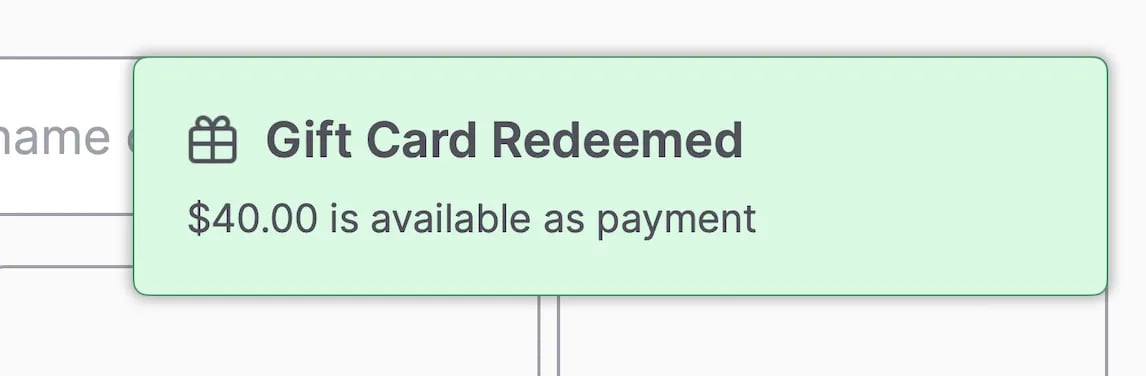
4. The gift card balance will appear in the top-right corner of the screen.
5. Confirm the payment amount and complete the transaction.
3. Do one of the following:
1. **Physical**: Scan the barcode using the hand scanner.
2. **Digital**: Scan the QR code presented by the customer on their mobile device.
4. The gift card balance will appear in the top-right corner of the screen.
5. Confirm the payment amount and complete the transaction.
 🚨 **Warning: Scanner Compatibility** Digital QR codes (on phones or receipts) can **only** be read by the **handheld scanner**. The built-in scanner scale will not be able to process these QR codes.
***
### Top Up an Existing Gift Card
To add funds to a previously issued gift card:
1. Tap the **Gift Card** icon on the bottom bar.
2. Tap **Purchase**.
3. Enter the top-up amount, then tap **Confirm Amount**.
4. Do one of the following:
1. **Physical**: Select **Physical**, then scan the existing card’s barcode using the hand scanner.
2. **Digital**: Select **Digital**, scan the existing gift card QR code presented by the customer on their mobile device using the hand scanner.
5. Complete the transaction and payment.
***
### Refund a Gift Card
Gift cards cannot be refunded through the standard refund workflow. If a customer requires a refund for a gift card purchase, you must complete the process manually:
1. **Perform a Payout:** Process a payout to return the funds to the customer.
2. **Reduce the Balance:** Manually reduce the balance on the existing gift card to remove the refunded funds. More information can be found in the [Manage Gift Cards](/point-of-sale-pos/vori-store-gift-cards/manage-gift-cards#modify-a-gift-card-balance) in the Back Office guide.
***
### Additional Notes
* Gift cards **never expire**.
* Purchasing gift cards **does not** earn loyalty points. Paying with a gift card however ***does*** earn loyalty points. As a general rule, the payment method itself does not affect points earning.
* You can sell multiple physical gift cards in a single transaction.
* The \$200 gift card maximum purchasing threshold cannot be changed at this time.
* Physical gift cards with unique, scannable barcodes are supported. Magnetic stripe gift cards are not supported on the POS.
* Physical gift cards’ barcodes cannot be manually entered and must be scanned.
* A phone number is required to create a digital gift card, and each phone number can only be associated with one gift card balance.
* To issue a refund as a gift card (store credit), choose **Gift Card** at checkout and enter the customer’s phone number. Learn more in the [*Process Inline Refunds on the POS*](/point-of-sale-pos/basic-cashier-functions/process-refunds-on-the-pos) article.
* A gift card's balance takes a few minutes to update after issuance. If a user attempts to redeem a gift card immediately after issuance, it may not be recognized.
## Related topics
- [Sell and Manage Blackhawk Gift Cards in Vori POS](/point-of-sale-pos/blackhawk-gift-cards-checks-lottery-and-payouts/sell-and-manage-blackhawk-gift-cards-in-vori-pos.md)
- [Using the POS as a Cashier](/point-of-sale-pos/basic-cashier-functions/using-the-pos-as-a-cashier.md)
- [Accept and Redeem Gift Certificates on the POS](/customer-marketing/gift-cards/accept-and-redeem-gift-certificates-on-the-pos.md)
🚨 **Warning: Scanner Compatibility** Digital QR codes (on phones or receipts) can **only** be read by the **handheld scanner**. The built-in scanner scale will not be able to process these QR codes.
***
### Top Up an Existing Gift Card
To add funds to a previously issued gift card:
1. Tap the **Gift Card** icon on the bottom bar.
2. Tap **Purchase**.
3. Enter the top-up amount, then tap **Confirm Amount**.
4. Do one of the following:
1. **Physical**: Select **Physical**, then scan the existing card’s barcode using the hand scanner.
2. **Digital**: Select **Digital**, scan the existing gift card QR code presented by the customer on their mobile device using the hand scanner.
5. Complete the transaction and payment.
***
### Refund a Gift Card
Gift cards cannot be refunded through the standard refund workflow. If a customer requires a refund for a gift card purchase, you must complete the process manually:
1. **Perform a Payout:** Process a payout to return the funds to the customer.
2. **Reduce the Balance:** Manually reduce the balance on the existing gift card to remove the refunded funds. More information can be found in the [Manage Gift Cards](/point-of-sale-pos/vori-store-gift-cards/manage-gift-cards#modify-a-gift-card-balance) in the Back Office guide.
***
### Additional Notes
* Gift cards **never expire**.
* Purchasing gift cards **does not** earn loyalty points. Paying with a gift card however ***does*** earn loyalty points. As a general rule, the payment method itself does not affect points earning.
* You can sell multiple physical gift cards in a single transaction.
* The \$200 gift card maximum purchasing threshold cannot be changed at this time.
* Physical gift cards with unique, scannable barcodes are supported. Magnetic stripe gift cards are not supported on the POS.
* Physical gift cards’ barcodes cannot be manually entered and must be scanned.
* A phone number is required to create a digital gift card, and each phone number can only be associated with one gift card balance.
* To issue a refund as a gift card (store credit), choose **Gift Card** at checkout and enter the customer’s phone number. Learn more in the [*Process Inline Refunds on the POS*](/point-of-sale-pos/basic-cashier-functions/process-refunds-on-the-pos) article.
* A gift card's balance takes a few minutes to update after issuance. If a user attempts to redeem a gift card immediately after issuance, it may not be recognized.
## Related topics
- [Sell and Manage Blackhawk Gift Cards in Vori POS](/point-of-sale-pos/blackhawk-gift-cards-checks-lottery-and-payouts/sell-and-manage-blackhawk-gift-cards-in-vori-pos.md)
- [Using the POS as a Cashier](/point-of-sale-pos/basic-cashier-functions/using-the-pos-as-a-cashier.md)
- [Accept and Redeem Gift Certificates on the POS](/customer-marketing/gift-cards/accept-and-redeem-gift-certificates-on-the-pos.md)