> ## Documentation Index
> Fetch the complete documentation index at: https://help.vori.com/llms.txt
> Use this file to discover all available pages before exploring further.
# How to order & customize physical gift cards
> This article explains how to order & add store-branded artwork to physical gift cards for the POS
### Ordering Link
Click [here](https://ecardsystems.com/product/vori-custom-gift-cards/) to access the ordering website for physical gift cards.
### How to Customize the Gift Card Artwork
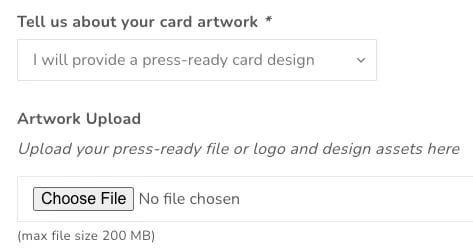
1. Within the ordering website, add/upload your artwork.
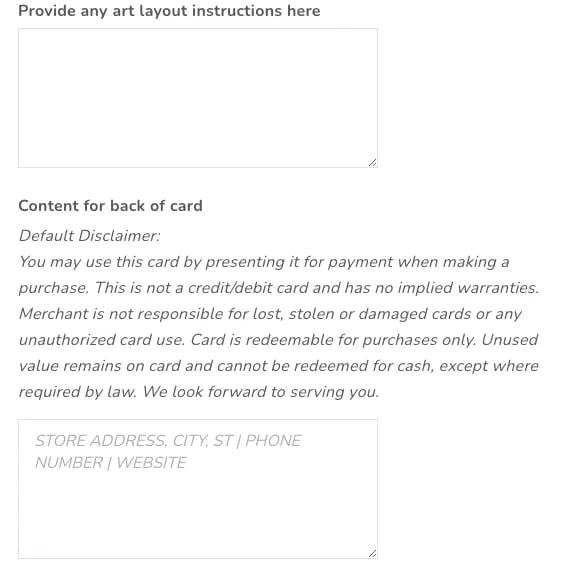
 2. Provide artwork layout instructions and content for the back of the card.
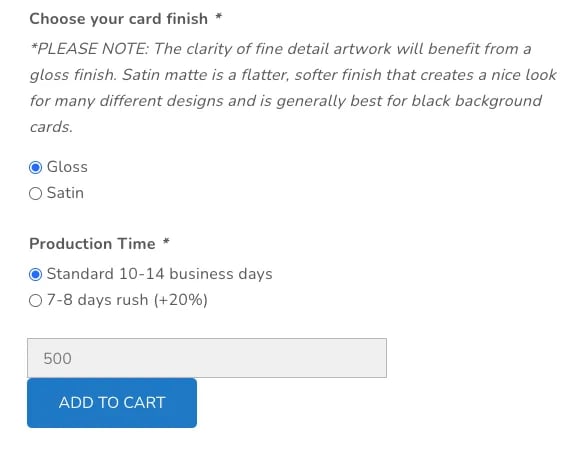
 3. Choose card finish, production time and card quantity (the price per card will update based on quantity), then click `ADD TO CART`.
 ## Related topics
- [Manage Gift Cards](/point-of-sale-pos/vori-store-gift-cards/manage-gift-cards.md)
- [How to Format & Import Existing Gift Card Data](/point-of-sale-pos/store-gift-cards/how-to-format-and-import-existing-gift-card-data.md)
- [Sell, Redeem, and Top Up Gift Cards on the POS](/point-of-sale-pos/vori-store-gift-cards/sell-redeem-and-top-up-gift-cards-on-the-pos.md)
## Related topics
- [Manage Gift Cards](/point-of-sale-pos/vori-store-gift-cards/manage-gift-cards.md)
- [How to Format & Import Existing Gift Card Data](/point-of-sale-pos/store-gift-cards/how-to-format-and-import-existing-gift-card-data.md)
- [Sell, Redeem, and Top Up Gift Cards on the POS](/point-of-sale-pos/vori-store-gift-cards/sell-redeem-and-top-up-gift-cards-on-the-pos.md)