> ## Documentation Index
> Fetch the complete documentation index at: https://help.vori.com/llms.txt
> Use this file to discover all available pages before exploring further.
# How to Format & Import Existing Gift Card Data
> Save time by importing existing gift card data directly into Vori's self-service import tool.
Gift Card imports allow you to quickly upload balances and account numbers so your shoppers can continue using their physical cards or magnetic stripes without interruption.
### Before You Begin
Before uploading, make sure your file meets these standards. This keeps your import smooth and error-free.
* **File Format:** Must be saved as a **.CSV.**
***
### Prepare Your Import File
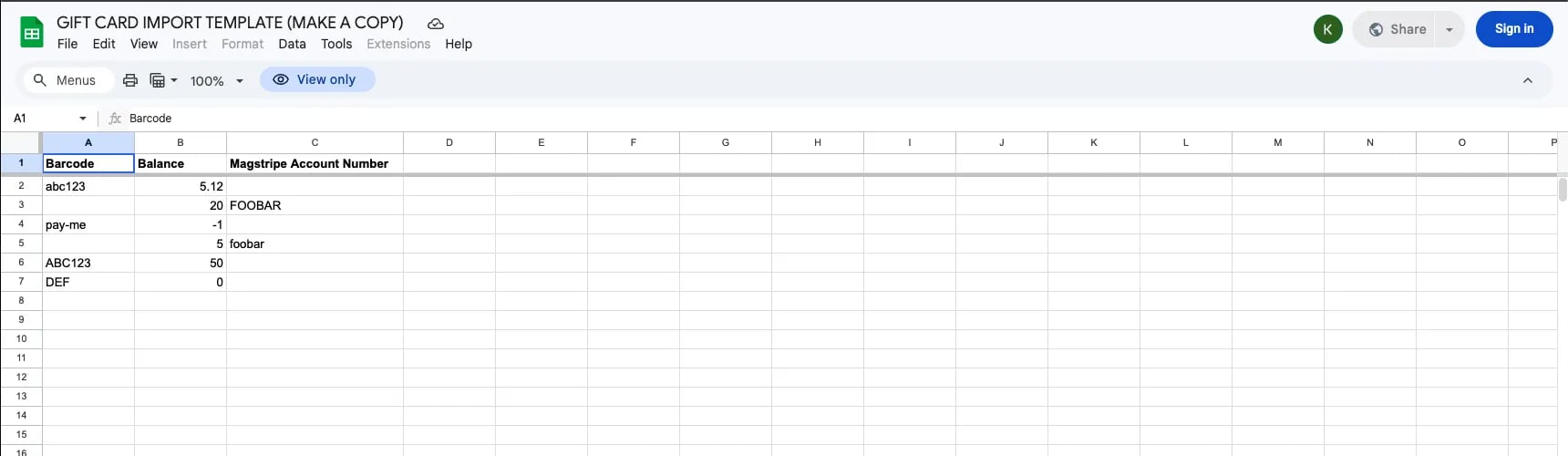
To ensure a successful upload, your spreadsheet should be saved as a **CSV** and include the following columns:
| **Column Name** | **Requirement** | **Description** |
| ---------------------------- | --------------- | -------------------------------------------------------------- |
| **Balance** | **Required** | The current monetary value remaining on the card. |
| **Barcode** | Optional | The printed barcode string used for physical scanning. |
| **Magstripe Account Number** | Optional | The account number associated with the card's magnetic stripe. |
**💡Tip:** Open the **[Gift Card Import Template](https://docs.google.com/spreadsheets/d/1tOPPQrLSvnOANcxePxHmeYSwE8Z4T12rWgHQUtxaNis/edit?usp=sharing)** in Google Sheets, select **File > Make a copy**, and enter your data there to ensure the headers stay perfect.
 ***
### Upload and Map Your Data
Once your file is ready, you can upload it directly into the Gift Cards section.
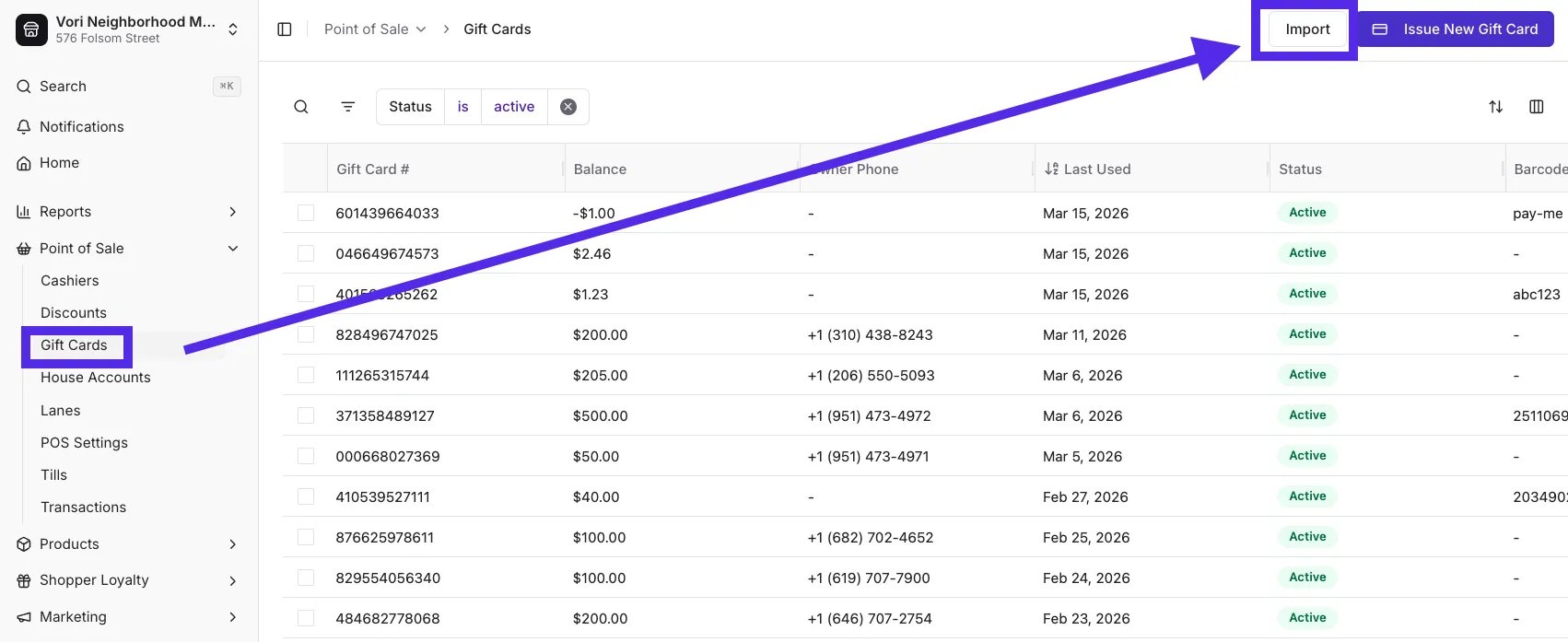
1. Navigate to the **[Gift Cards](https://app.vori.com/retail/loyalty/gift-cards)** section under Point of Sale in New Back Office.
2. Click **Import** in the top right corner.
***
### Upload and Map Your Data
Once your file is ready, you can upload it directly into the Gift Cards section.
1. Navigate to the **[Gift Cards](https://app.vori.com/retail/loyalty/gift-cards)** section under Point of Sale in New Back Office.
2. Click **Import** in the top right corner.
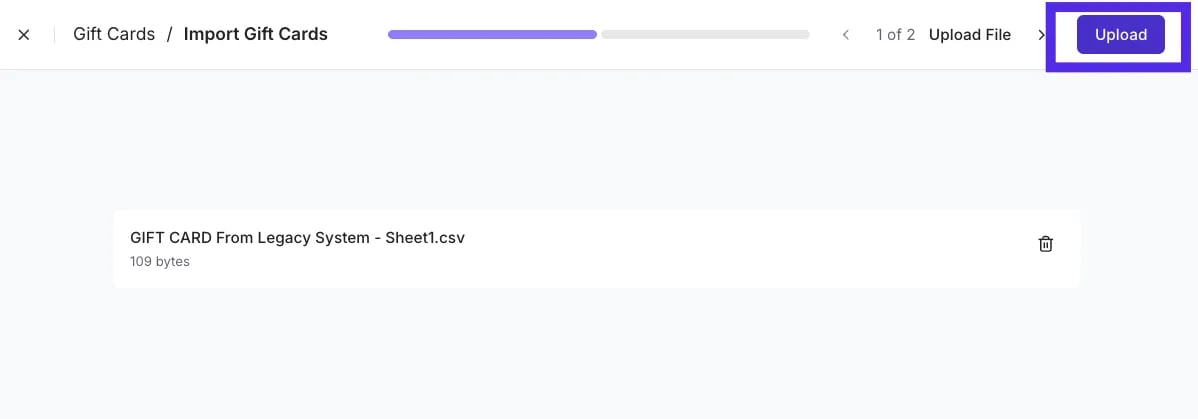
 3. Drag and drop your CSV file into the upload area, or click **Select File** to browse your computer, then click **Upload**.
 4. Vori will perform **auto-matching** to link your file headers to the system's fields.
5. Review the **Column Mapping** to ensure the **balance**, **barcode**, and **magnetic stripe account number** are correctly identified.
4. Vori will perform **auto-matching** to link your file headers to the system's fields.
5. Review the **Column Mapping** to ensure the **balance**, **barcode**, and **magnetic stripe account number** are correctly identified.
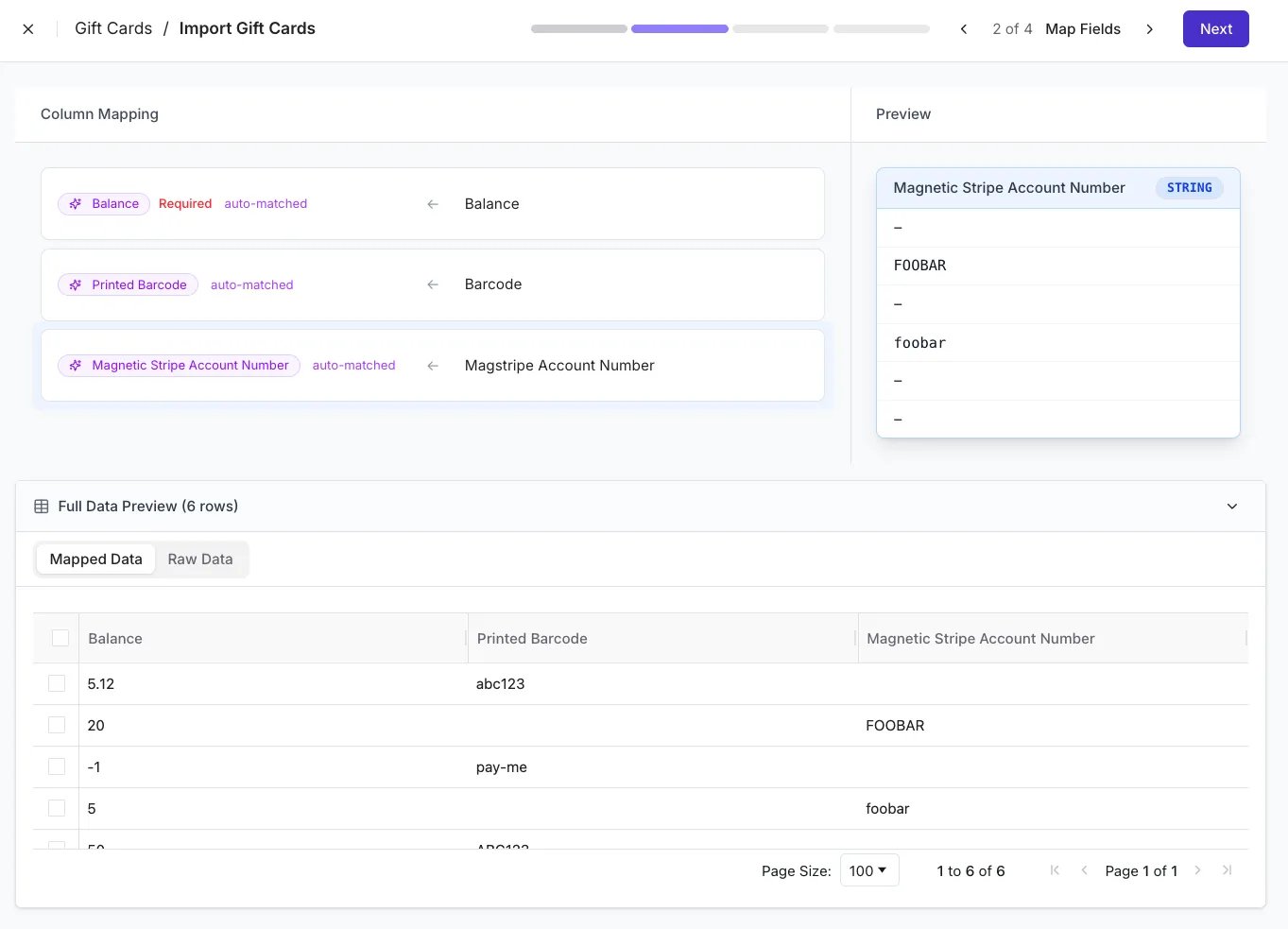 6. Click **Next** to proceed to the review screen.
***
### Review and Commit Changes
Before finalizing, Vori validates your data in a single frame to prevent duplicates and mistakes.
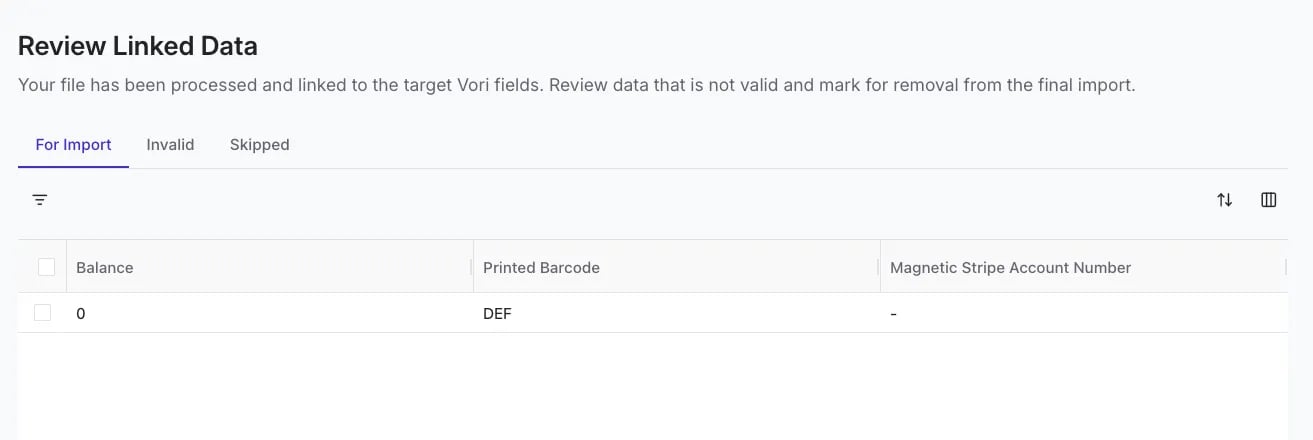
1. Review the **Review Linked Data** screen.
1. Check the **In Import** tab to see valid new cards ready for the system.
6. Click **Next** to proceed to the review screen.
***
### Review and Commit Changes
Before finalizing, Vori validates your data in a single frame to prevent duplicates and mistakes.
1. Review the **Review Linked Data** screen.
1. Check the **In Import** tab to see valid new cards ready for the system.
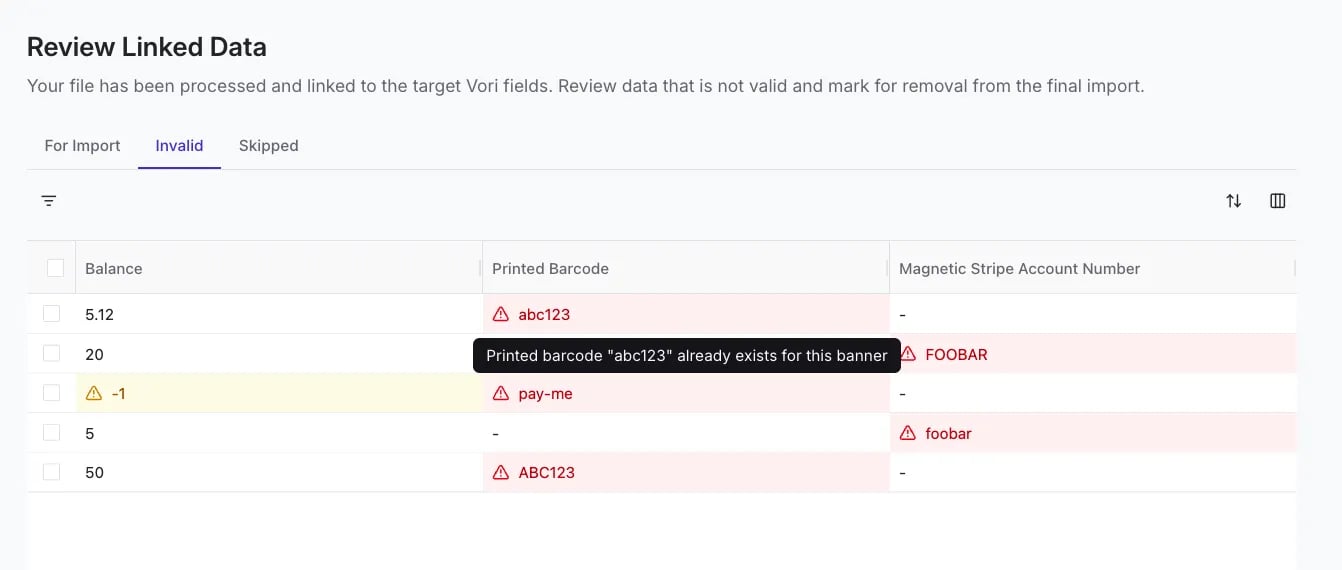
 2. Check the **Invalid** tab for cards that already exist in your system or have errors.
 2. Once satisfied, click **Commit** to finish the process.
**✏️ Note**: Successfully imported cards will appear in your Gift Card list with their updated balances and status.
***
### Troubleshooting
* **Duplicate Barcodes**: If a row is marked **Invalid**, it is often because that specific barcode or account number already exists in your store's database.
* **Missing Balances**: The **balance** field is required for every row. Ensure no cells in this column are blank before uploading.
## Related topics
- [How to Format & Import Shoppers & Loyalty Points](/customer-marketing/loyalty-and-rewards/how-to-format-and-import-shoppers-and-loyalty-points.md)
- [How to Format and Import Promotion Files](/promotions/how-to-format-and-import-promotion-files.md)
- [How to Format & Import House Accounts](/point-of-sale-pos/house-accounts-charge-accounts/how-to-format-and-import-house-accounts.md)
2. Once satisfied, click **Commit** to finish the process.
**✏️ Note**: Successfully imported cards will appear in your Gift Card list with their updated balances and status.
***
### Troubleshooting
* **Duplicate Barcodes**: If a row is marked **Invalid**, it is often because that specific barcode or account number already exists in your store's database.
* **Missing Balances**: The **balance** field is required for every row. Ensure no cells in this column are blank before uploading.
## Related topics
- [How to Format & Import Shoppers & Loyalty Points](/customer-marketing/loyalty-and-rewards/how-to-format-and-import-shoppers-and-loyalty-points.md)
- [How to Format and Import Promotion Files](/promotions/how-to-format-and-import-promotion-files.md)
- [How to Format & Import House Accounts](/point-of-sale-pos/house-accounts-charge-accounts/how-to-format-and-import-house-accounts.md)