> ## Documentation Index
> Fetch the complete documentation index at: https://help.vori.com/llms.txt
> Use this file to discover all available pages before exploring further.
# Automated Cash Rounding at the POS
> Learn how the POS automatically rounds cash transactions to the nearest $0.05, helping your checkout lines move faster when pennies are not in use
Vori now offers a fully automated cash rounding system. This feature saves time for your cashiers and shoppers by eliminating the need for pennies during cash transactions.
### How It Works
Vori has a fully automated cash rounding system. Unlike other POS systems that require manual adjustments, Vori detects when a transaction is being paid in cash and applies the rounding logic instantly.
* **Card vs. Cash**: Rounding **only** applies to cash payments. Transactions made via credit, debit, or other digital methods are processed to the exact penny.
* **Rounding Up:** If the total ends in $0.03, $0.04, $0.08, or $0.09, the system rounds up to the nearest \$0.05.
* **Rounding Down:** If the total ends in $0.01, $0.02, $0.06, or $0.07, the system rounds down to the nearest \$0.05.
* **Split Payments:** If a customer pays partially with a card and the remaining balance with cash, the rounding logic will only apply to the final cash portion.
**Example:**
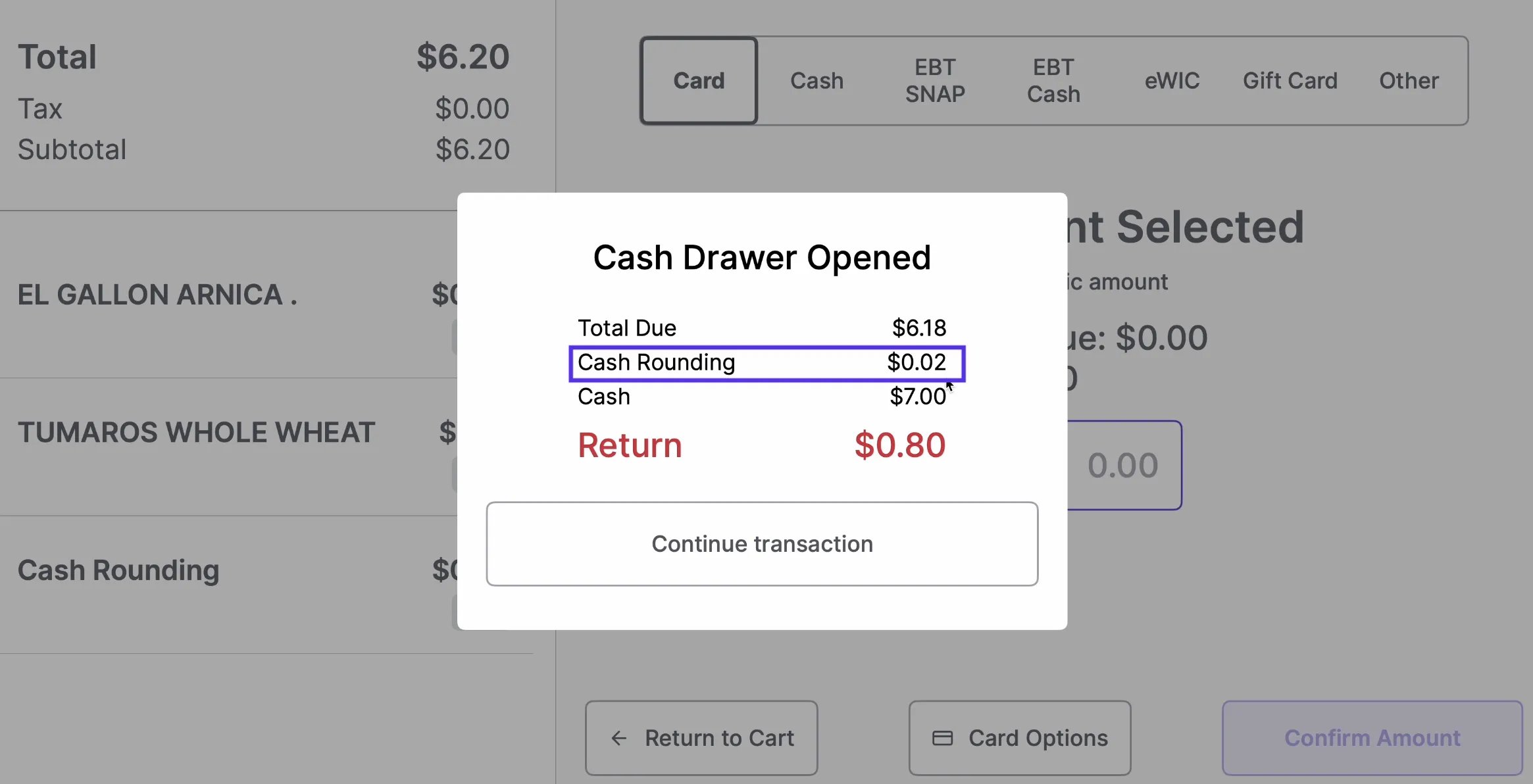
* A total of **$6.18** paid in cash will automatically add a **$0.02** "Cash Rounding" line item to reach **\$6.20**.
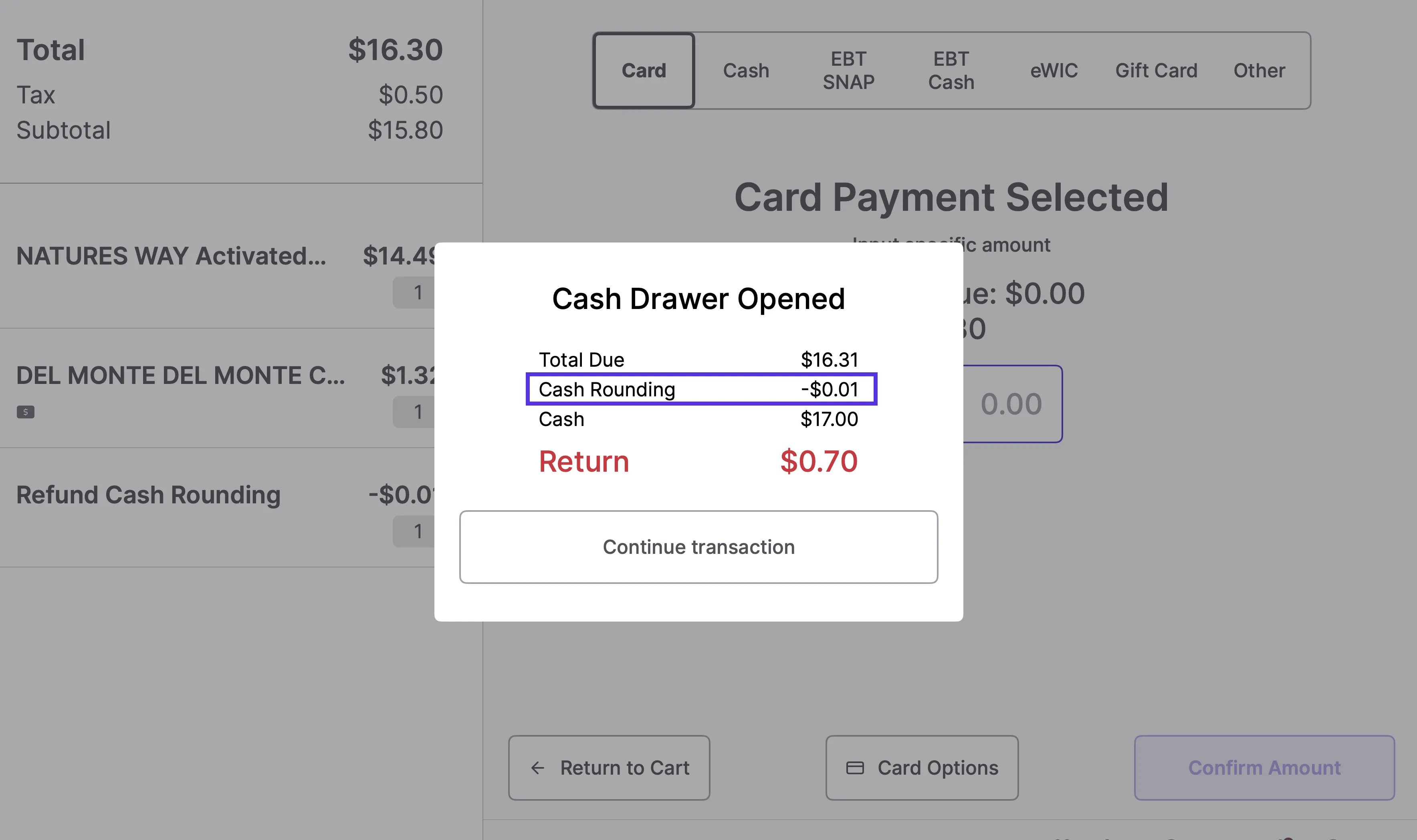
 * A total of **$16.31** paid in cash will automatically apply a **\-$0.01** "Cash Rounding" credit to reach **\$16.30**.
 ***
### What the Shopper Sees
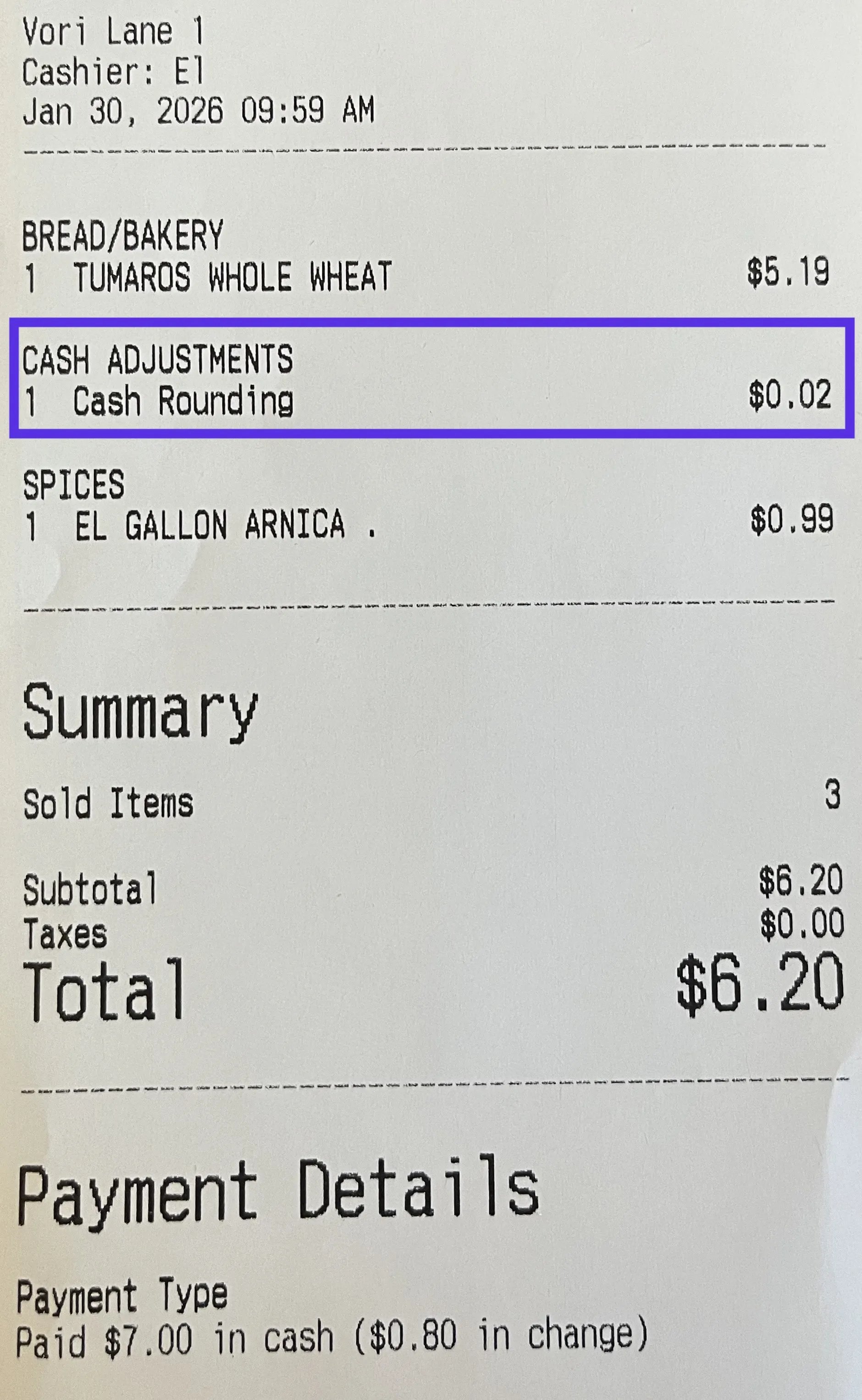
To maintain transparency, rounding appears as a clear line item on the printed receipt.
* **Line Item:** A product named **"Cash Rounding"** is added to the basket.
* **Department:** It is typically categorized under a department called **"Cash Adjustments."**
This ensures the shopper understands exactly why their total changed by a few cents.
***
### What the Shopper Sees
To maintain transparency, rounding appears as a clear line item on the printed receipt.
* **Line Item:** A product named **"Cash Rounding"** is added to the basket.
* **Department:** It is typically categorized under a department called **"Cash Adjustments."**
This ensures the shopper understands exactly why their total changed by a few cents.
 ***
### Setup & Configuration
Setting up cash rounding is a simple two-step process in the Back Office.
#### 1. Create the Cash Adjustment Department & Rounding Product
You must first create a specific department and a "placeholder" item in your product catalog to track these adjustments.
1. **Create the Department**: In your Back Office, create a new department named **Cash Adjustments**.
***
### Setup & Configuration
Setting up cash rounding is a simple two-step process in the Back Office.
#### 1. Create the Cash Adjustment Department & Rounding Product
You must first create a specific department and a "placeholder" item in your product catalog to track these adjustments.
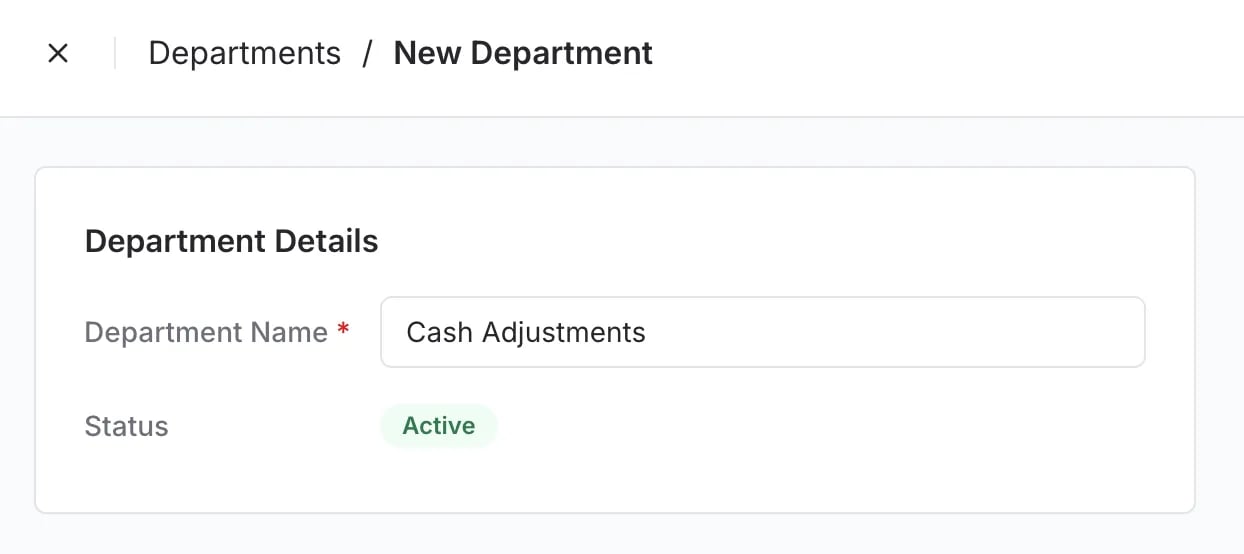
1. **Create the Department**: In your Back Office, create a new department named **Cash Adjustments**.
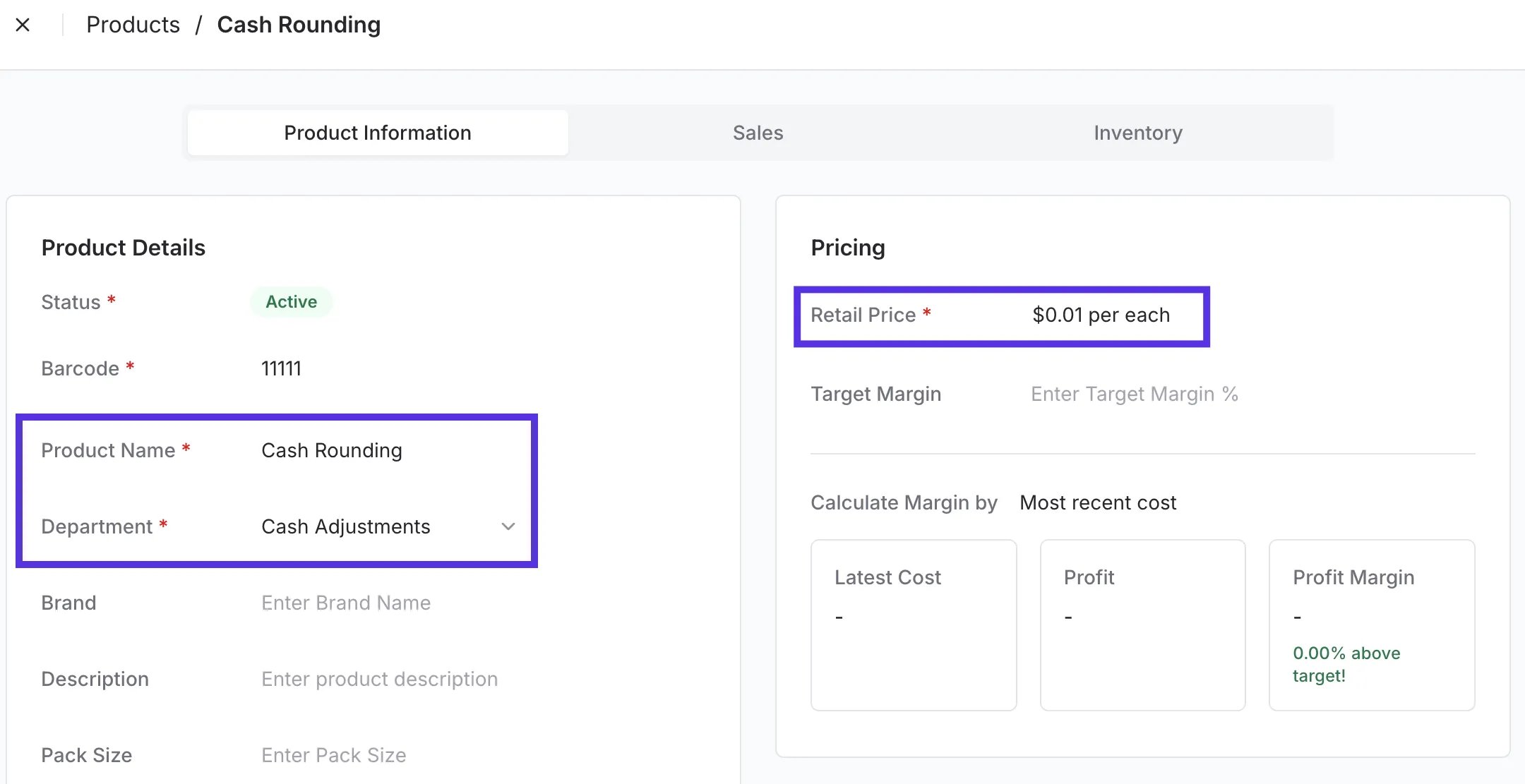
 2. **Create the Product**: Within the **Product Catalog**, create a new item named **Cash Rounding**.
1. **Assign Department**: Link the **Cash Rounding** product to the **Cash Adjustments** department.
2. **Barcode**: Assign a unique barcode that does not conflict with existing products.
3. **Price**: Set the retail price to **\$0.01**. (Note: The POS will automatically override this price during the transaction).
2. **Create the Product**: Within the **Product Catalog**, create a new item named **Cash Rounding**.
1. **Assign Department**: Link the **Cash Rounding** product to the **Cash Adjustments** department.
2. **Barcode**: Assign a unique barcode that does not conflict with existing products.
3. **Price**: Set the retail price to **\$0.01**. (Note: The POS will automatically override this price during the transaction).
 #### 2. Contact Vori to Enable
**After** the **department and product are added** to your catalog, **contact Vori Support.** We’ll map the item to your store’s backend settings and complete the setup so the rounding logic is fully activated at the register.
***
### Refunding Cash Rounding
When processing a refund on a transaction that included Cash Rounding, the **Cash Rounding** adjustment appears as its own selectable line item on the refund screen — separate from the purchased items.
The cashier controls whether it’s included in the refund:
* **To include the rounding adjustment**: Select all items including **Cash Rounding**. The refund total will reflect the full amount paid.
* **To exclude the rounding adjustment**: Leave **Cash Rounding** unchecked. Only the selected items will be refunded.
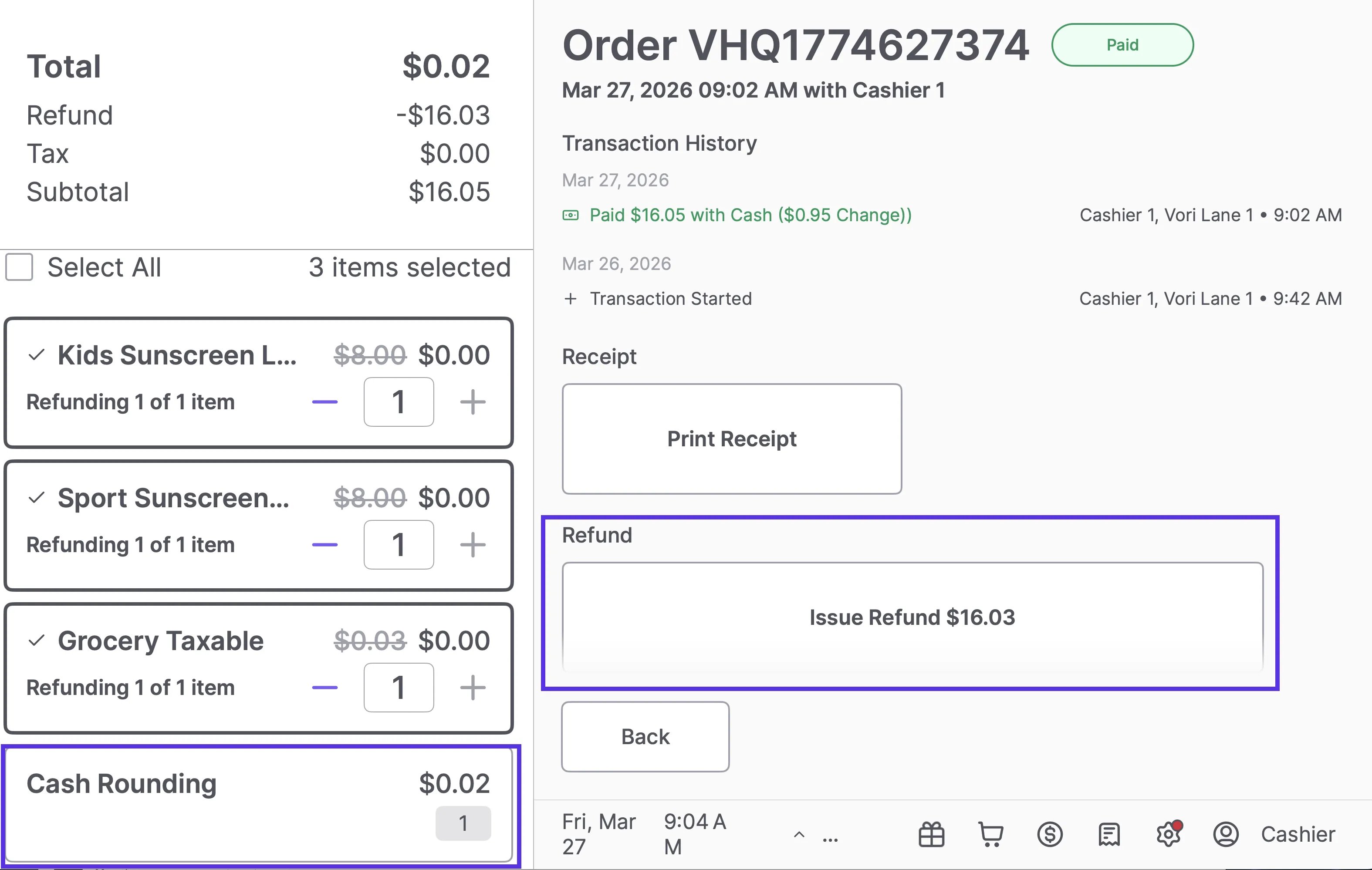
**Example:** A transaction totaling $16.05 with a $0.02 Cash Rounding adjustment:
* Refunding 3 items (Cash Rounding excluded) → **\$16.03** refund
#### 2. Contact Vori to Enable
**After** the **department and product are added** to your catalog, **contact Vori Support.** We’ll map the item to your store’s backend settings and complete the setup so the rounding logic is fully activated at the register.
***
### Refunding Cash Rounding
When processing a refund on a transaction that included Cash Rounding, the **Cash Rounding** adjustment appears as its own selectable line item on the refund screen — separate from the purchased items.
The cashier controls whether it’s included in the refund:
* **To include the rounding adjustment**: Select all items including **Cash Rounding**. The refund total will reflect the full amount paid.
* **To exclude the rounding adjustment**: Leave **Cash Rounding** unchecked. Only the selected items will be refunded.
**Example:** A transaction totaling $16.05 with a $0.02 Cash Rounding adjustment:
* Refunding 3 items (Cash Rounding excluded) → **\$16.03** refund
 * Refunding all 4 items (Cash Rounding included) → **\$16.05** refund
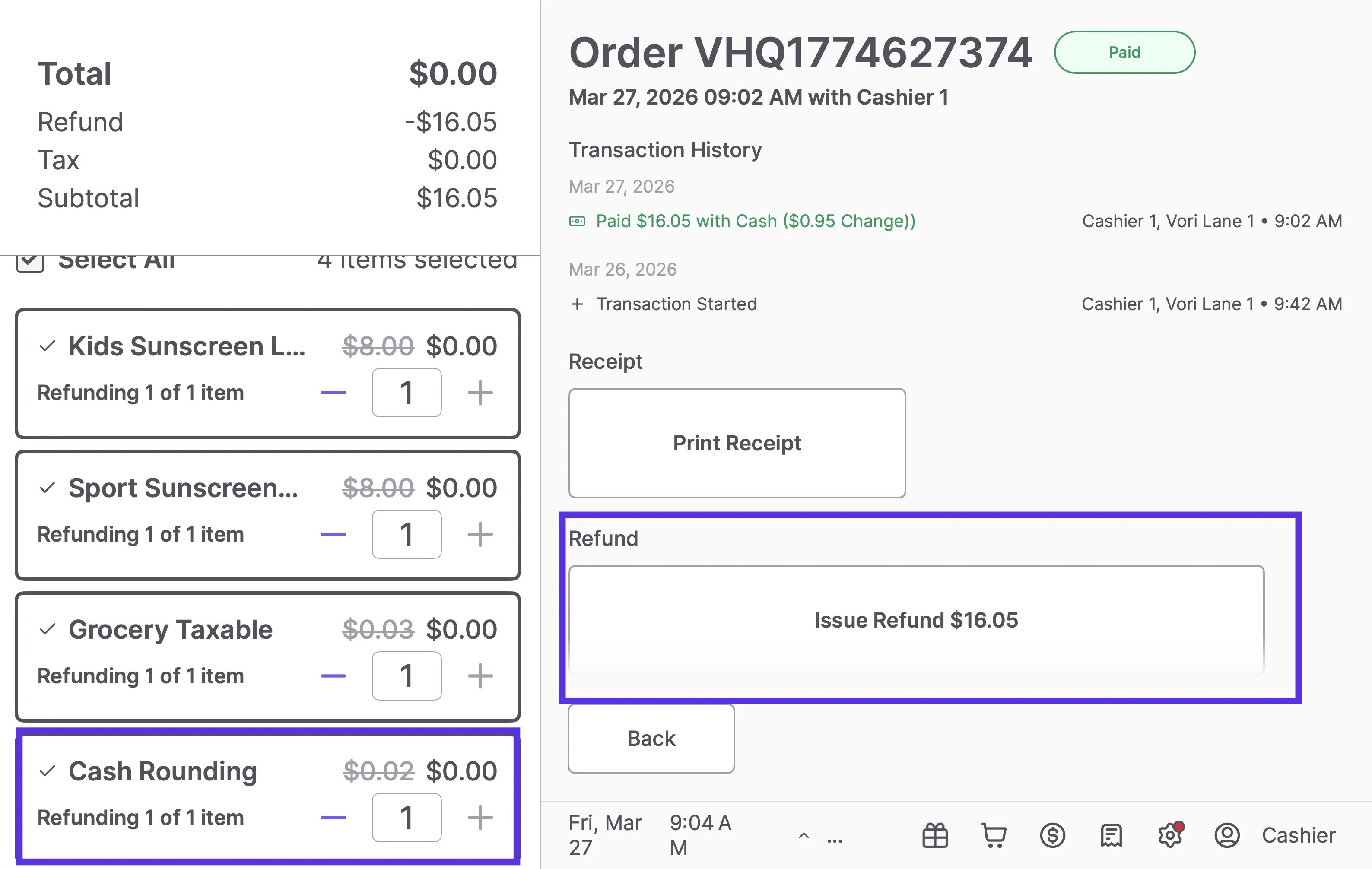 Once items are selected, tap **Issue Refund** to proceed to the **Select Refund Method** screen, where you can choose to return funds via Card, Cash, or Gift Card.
***
### Technical Details
* **Price Overrides:** Even if a staff member accidentally changes the price of the "Cash Rounding" item in the catalog, Vori’s logic will override it at the POS to ensure the rounding remains mathematically correct (similar to how the system handles WIC).
* **Reporting:** Because the rounding is tied to a specific product and department, you can easily track the total impact of rounding (net over/short) in your sales reports.
## Related topics
- [Automated Campaign Messages & Coupons](/customer-marketing/campaigns-and-coupons/automated-campaign-messages-and-coupons.md)
- [Build Effective Automated Campaign Messages](/customer-marketing/best-practices/build-effective-automated-campaign-messages.md)
- [A Better Vori Experience: From Back Office to the POS](/whats-new-in-vori/feature-releases/a-better-vori-experience-from-back-office-to-the-pos.md)
Once items are selected, tap **Issue Refund** to proceed to the **Select Refund Method** screen, where you can choose to return funds via Card, Cash, or Gift Card.
***
### Technical Details
* **Price Overrides:** Even if a staff member accidentally changes the price of the "Cash Rounding" item in the catalog, Vori’s logic will override it at the POS to ensure the rounding remains mathematically correct (similar to how the system handles WIC).
* **Reporting:** Because the rounding is tied to a specific product and department, you can easily track the total impact of rounding (net over/short) in your sales reports.
## Related topics
- [Automated Campaign Messages & Coupons](/customer-marketing/campaigns-and-coupons/automated-campaign-messages-and-coupons.md)
- [Build Effective Automated Campaign Messages](/customer-marketing/best-practices/build-effective-automated-campaign-messages.md)
- [A Better Vori Experience: From Back Office to the POS](/whats-new-in-vori/feature-releases/a-better-vori-experience-from-back-office-to-the-pos.md)