> ## Documentation Index
> Fetch the complete documentation index at: https://help.vori.com/llms.txt
> Use this file to discover all available pages before exploring further.
# Create and Manage House Accounts
> Learn how to create and manage House Accounts in the Back Office and use them for payments at the POS.
House Accounts give your most trusted customers the flexibility to pay on a schedule you define. Instead of settling up at checkout, they charge purchases to their account and pay later — simple, controlled, and easy to manage inside Vori.
### Where to Find House Accounts
To access House Accounts:
1. Log in to the **Vori Back Office.**
2. Go to **Point of Sale** in the left-hand menu, and select **House Accounts**.
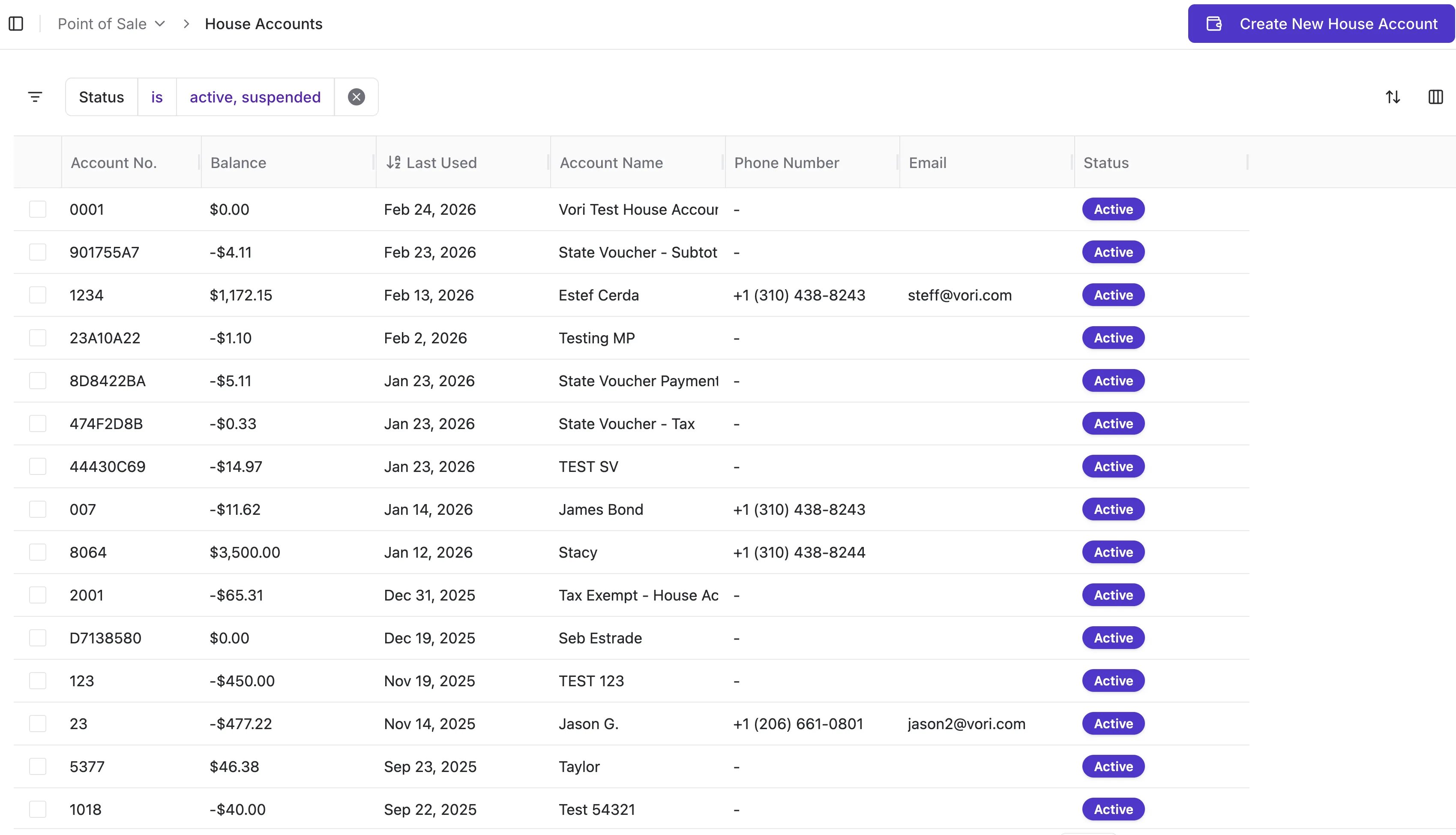
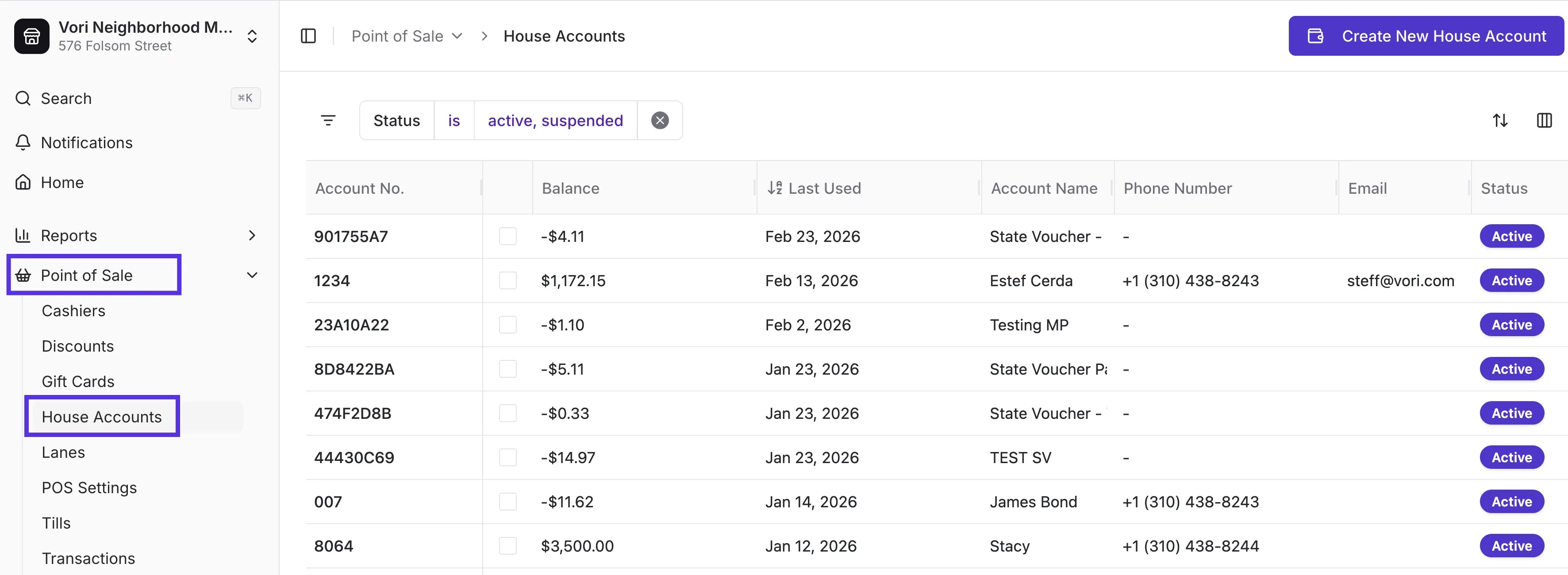 3. The House Account table includes House Account details:
1. **Account No.:** Unique ID number for the account.
2. **Balance**: Total accrued debit or credit. Balances typically run negative to reflect debt owed (e.g., -\$99.00).
3. **Last Used**: Date and time of the last transaction linked to the account.
4. **Account Status**: Controls visibility and usage at the POS.
3. The House Account table includes House Account details:
1. **Account No.:** Unique ID number for the account.
2. **Balance**: Total accrued debit or credit. Balances typically run negative to reflect debt owed (e.g., -\$99.00).
3. **Last Used**: Date and time of the last transaction linked to the account.
4. **Account Status**: Controls visibility and usage at the POS.
 ***
### Create a New House Account
1. From the **House Accounts** page, click **Create New House Account**.
2. Fill in all required fields marked with an asterisk (\*).
3. Click **Create House Account** to save.
**✏️ Note:** Information like phone number and email is optional and can be added later.
***
### Modify a House Account
Use **Modify Balance** when recording:
* Payments made outside the POS
* Offline charges
* Manual adjustments
To update:
1. Hover over the account and select **Open.**
2. Click **Modify Balance**.
3. Choose one of the following:
* **Add to Balance / Apply Payment** → Reduces debt (positive number)
* **Subtract from Balance** → Adds debt (negative number)
4. Enter a reason for the adjustment.
5. Click **Update Balance**.
**💡Tip:** House Account payments are collected outside the POS. Make it a habit to review balances in the Back Office to manage delinquent accounts and protect cash flow.
#### Manage Account Status
Control how and when accounts can be used.
| **Status** | **POS Access** | **Balance Changes** |
| --------------- | ----------------- | -------------------------- |
| **Active** | Can be used | Yes |
| **Suspended** | Cannot be used | Yes |
| **Deactivated** | Hidden by default | No (must reactivate first) |
#### To Suspend or Restore:
1. Open the account.
2. Click **Suspend Account** (or **Restore**).
3. Enter a reason.
#### To Deactivate:
1. Open the account.
2. Click **Edit** in House Account Details.
3. Select **Deactivate Account.**
4. Enter a reason.
***
### Add Name and Address to Receipts & Statements
Want House Account details printed on receipts and statements?
Use the **Account Number field** as a custom label.
1. Go to **Point of Sale → House Accounts.**
2. Open the account.
3. Click **Edit.**
4. Replace the Account Number with the **Account Name and Address.**
5. Click \*\*Save Changes.
\*\*
This prints on:
* The bottom of POS receipts.
* The header of House Account statements.
***
### Charge a House Account at the POS
At checkout:
1. On the Payment screen, tap **Other**
2. Select **House Account**
3. Search for or select the account
4. Confirm the amount
5. Tap \*\*Confirm Amount
\*\*
***
### House Account Statements & Reporting
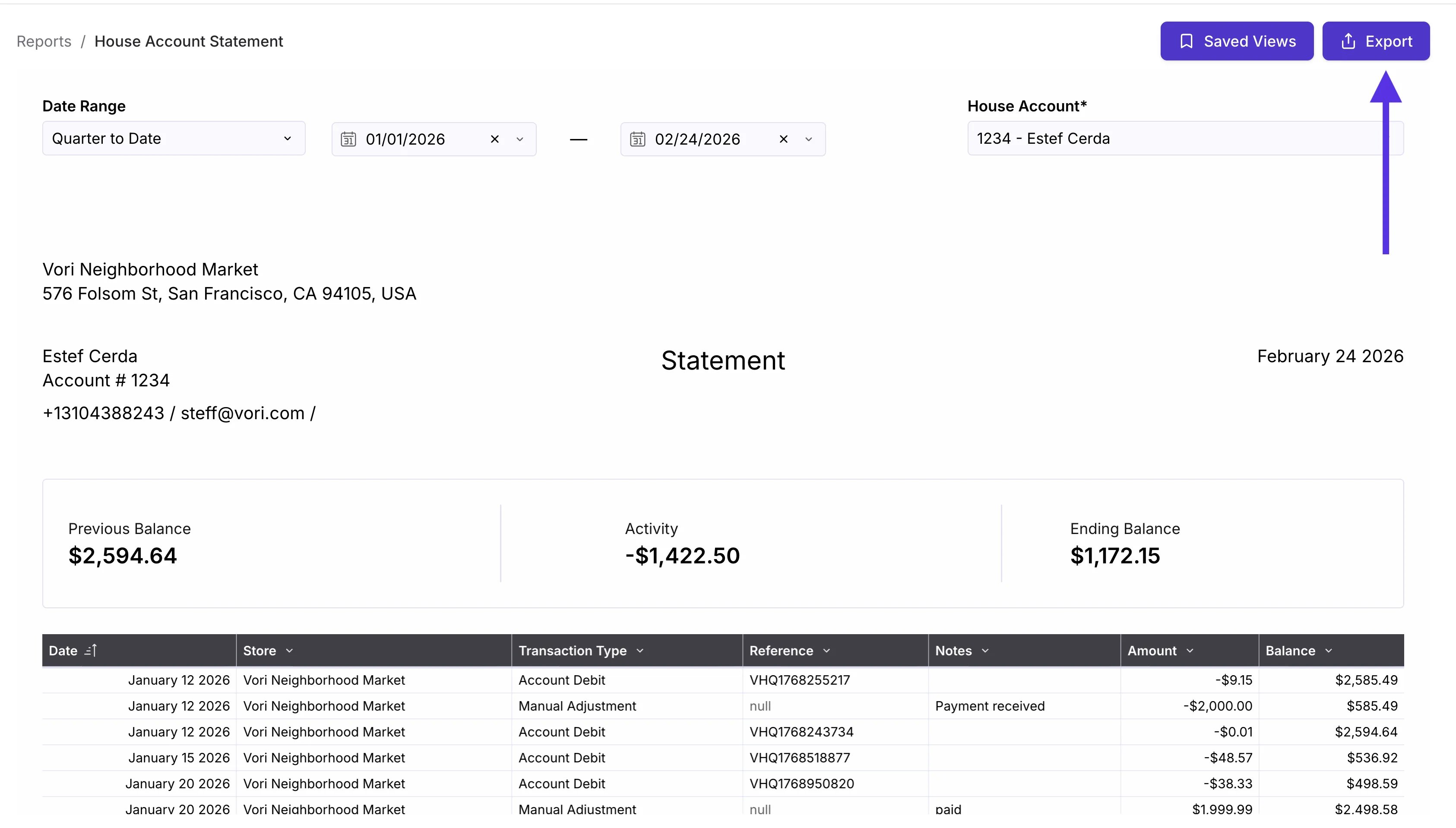
* **Statements**: Go to **Reports** > **Finances** and click **House Account Statement**.
***
### Create a New House Account
1. From the **House Accounts** page, click **Create New House Account**.
2. Fill in all required fields marked with an asterisk (\*).
3. Click **Create House Account** to save.
**✏️ Note:** Information like phone number and email is optional and can be added later.
***
### Modify a House Account
Use **Modify Balance** when recording:
* Payments made outside the POS
* Offline charges
* Manual adjustments
To update:
1. Hover over the account and select **Open.**
2. Click **Modify Balance**.
3. Choose one of the following:
* **Add to Balance / Apply Payment** → Reduces debt (positive number)
* **Subtract from Balance** → Adds debt (negative number)
4. Enter a reason for the adjustment.
5. Click **Update Balance**.
**💡Tip:** House Account payments are collected outside the POS. Make it a habit to review balances in the Back Office to manage delinquent accounts and protect cash flow.
#### Manage Account Status
Control how and when accounts can be used.
| **Status** | **POS Access** | **Balance Changes** |
| --------------- | ----------------- | -------------------------- |
| **Active** | Can be used | Yes |
| **Suspended** | Cannot be used | Yes |
| **Deactivated** | Hidden by default | No (must reactivate first) |
#### To Suspend or Restore:
1. Open the account.
2. Click **Suspend Account** (or **Restore**).
3. Enter a reason.
#### To Deactivate:
1. Open the account.
2. Click **Edit** in House Account Details.
3. Select **Deactivate Account.**
4. Enter a reason.
***
### Add Name and Address to Receipts & Statements
Want House Account details printed on receipts and statements?
Use the **Account Number field** as a custom label.
1. Go to **Point of Sale → House Accounts.**
2. Open the account.
3. Click **Edit.**
4. Replace the Account Number with the **Account Name and Address.**
5. Click \*\*Save Changes.
\*\*
This prints on:
* The bottom of POS receipts.
* The header of House Account statements.
***
### Charge a House Account at the POS
At checkout:
1. On the Payment screen, tap **Other**
2. Select **House Account**
3. Search for or select the account
4. Confirm the amount
5. Tap \*\*Confirm Amount
\*\*
***
### House Account Statements & Reporting
* **Statements**: Go to **Reports** > **Finances** and click **House Account Statement**.
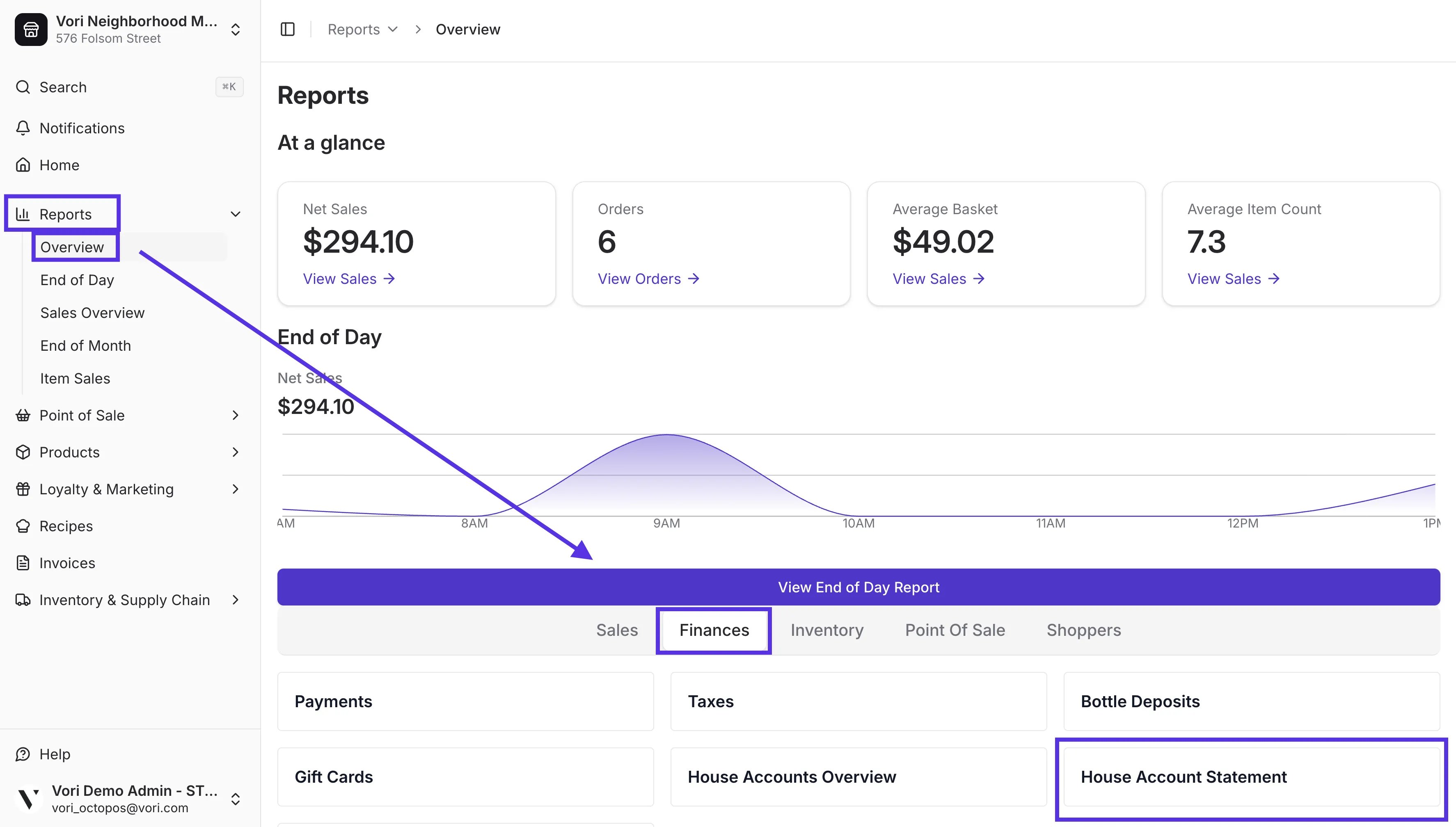 * You can filter by date and account, then **Export** a copy to print or email to your House Account shopper.
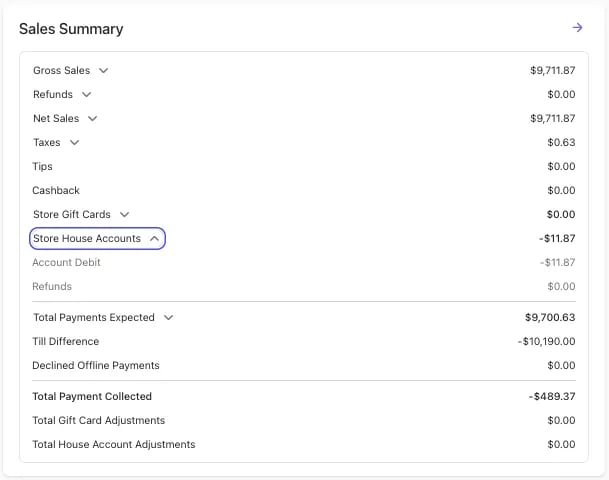
 * **End of Day**: Transactions appear in the **End of Day Report** and **Sales Overview Report** under \*\*Store House Accounts.
 \*\*
## Related topics
- [How to Format & Import House Accounts](/point-of-sale-pos/house-accounts-charge-accounts/how-to-format-and-import-house-accounts.md)
- [Frequently Asked Questions](/faqs.md)
- [Manage Vendors and Contacts](/vendors-and-vendor-products/vendor-management/manage-vendors-and-contacts.md)
\*\*
## Related topics
- [How to Format & Import House Accounts](/point-of-sale-pos/house-accounts-charge-accounts/how-to-format-and-import-house-accounts.md)
- [Frequently Asked Questions](/faqs.md)
- [Manage Vendors and Contacts](/vendors-and-vendor-products/vendor-management/manage-vendors-and-contacts.md)