> ## Documentation Index
> Fetch the complete documentation index at: https://help.vori.com/llms.txt
> Use this file to discover all available pages before exploring further.
# Troubleshooting Common EBT Errors
> Understand why EBT payments fail and how to troubleshoot the transaction.
### Why EBT Transactions Fail
A common issue occurs when a shopper swipes or inserts their **Electronic Benefit Transfer (EBT)** card before you (the cashier) select the correct EBT payment type on **the POS** screen. This premature action confuses the payment terminal and causes the transaction to fail.
Here is how the terminal reacts depending on the card type and how you can resolve the issue.
#### EBT Cash Errors
1. If a card with a Cash benefit is swiped too early, the terminal will try to run it as a standard **debit card**.
2. The transaction will be **canceled**.
3. You must re-select **"EBT Cash"** from the **Complete Payment** screen for the shopper to try the payment again.
#### EBT SNAP Errors
1. If a card for **Supplemental Nutrition Assistance Program (SNAP)** benefits is swiped or inserted too early, the terminal may get stuck.
2. The terminal might ask the shopper to do the opposite action (e.g., if they swiped, it may prompt: *“Insert Card”*).
3. This happens because the terminal doesn't know it’s a **SNAP** transaction yet.
#### Best Practice: Preventing Premature Swipes
To prevent these common **EBT** errors, your store should implement the following steps:
* **Wait for the Prompt.** Add a sign at the payment terminal instructing shoppers to **wait for the cashier's prompt** before swiping or inserting their card.
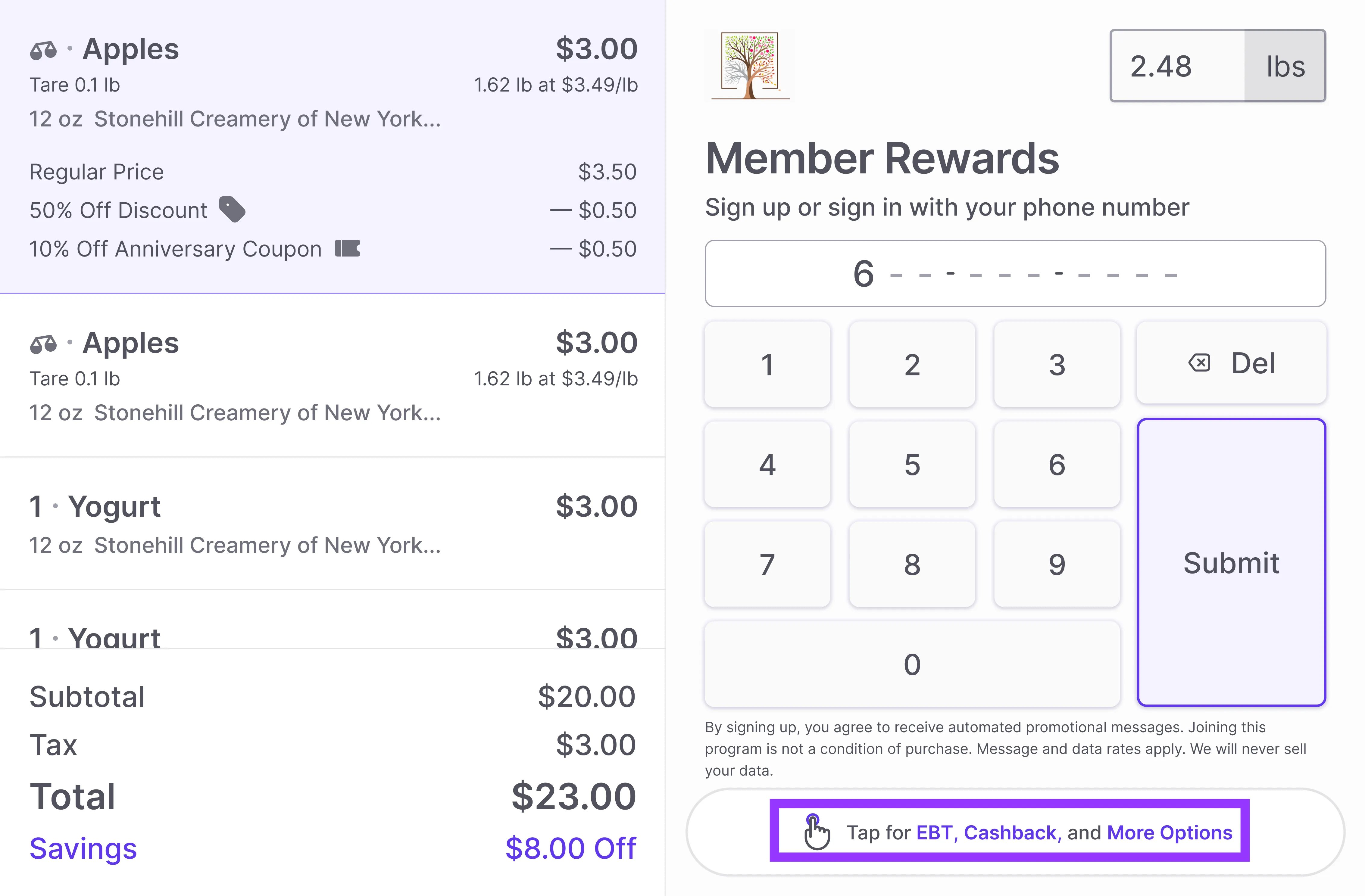
* **Use the Keypad Selection.** Encourage shoppers to first select their desired **EBT** option (**"EBT SNAP"** or **"EBT Cash"**) from the **More Options** menu on the shopper display. This automatically notifies your **POS** screen, ensuring the transaction works correctly the first time.
 ***
### EBT Balance Shown After Insufficient Funds
When a shopper attempts a purchase but the available balance on their **EBT** card is less than the total transaction amount, an **Insufficient Funds** error occurs.
The payment terminal system should clearly display the following information to the shopper upon this error:
1. A clear **Payment Error** message, such as: *"Insufficient Funds: 116 (Processor Error)."*
2. The exact remaining balance on the **EBT** card, labeled **Available Balance**.
***
### EBT Balance Shown After Insufficient Funds
When a shopper attempts a purchase but the available balance on their **EBT** card is less than the total transaction amount, an **Insufficient Funds** error occurs.
The payment terminal system should clearly display the following information to the shopper upon this error:
1. A clear **Payment Error** message, such as: *"Insufficient Funds: 116 (Processor Error)."*
2. The exact remaining balance on the **EBT** card, labeled **Available Balance**.
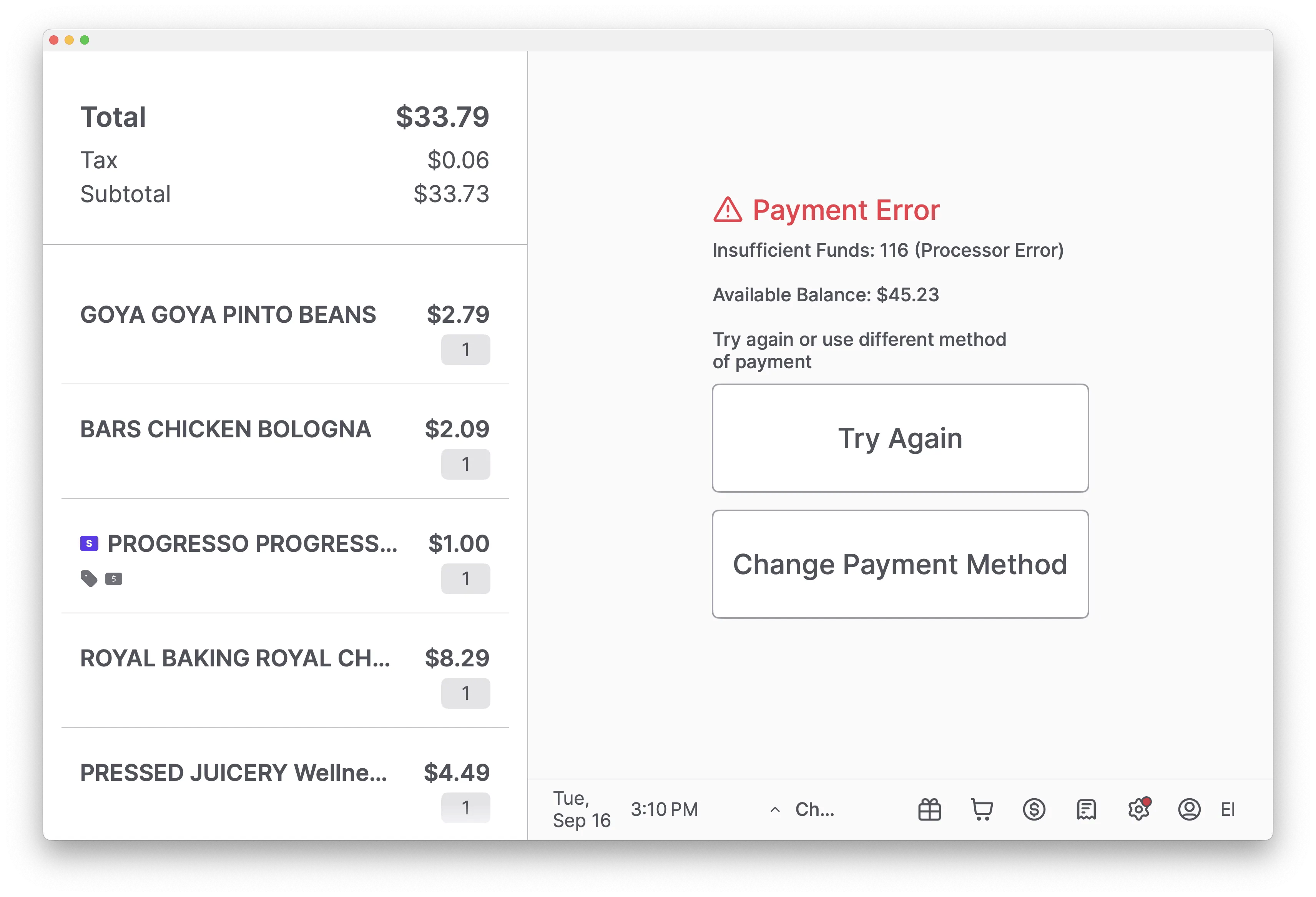 By immediately displaying the remaining balance (e.g., **Available Balance: \$45.23**), the shopper can quickly decide whether to **Try Again**, **Change Payment Method** to cover the difference, or remove some items to complete the purchase.
## Related topics
- [Processing EBT SNAP & EBT Cash Refunds](/point-of-sale-pos/ebt-electronic-benefit-transfer/processing-ebt-snap-and-ebt-cash-refunds.md)
- [Log Into the POS After a Restart](/point-of-sale-pos/basic-cashier-functions/log-into-the-pos-after-a-restart.md)
- [Payment Terminal Error Messages](/point-of-sale-pos/basic-cashier-functions/payment-terminal-error-messages.md)
By immediately displaying the remaining balance (e.g., **Available Balance: \$45.23**), the shopper can quickly decide whether to **Try Again**, **Change Payment Method** to cover the difference, or remove some items to complete the purchase.
## Related topics
- [Processing EBT SNAP & EBT Cash Refunds](/point-of-sale-pos/ebt-electronic-benefit-transfer/processing-ebt-snap-and-ebt-cash-refunds.md)
- [Log Into the POS After a Restart](/point-of-sale-pos/basic-cashier-functions/log-into-the-pos-after-a-restart.md)
- [Payment Terminal Error Messages](/point-of-sale-pos/basic-cashier-functions/payment-terminal-error-messages.md)